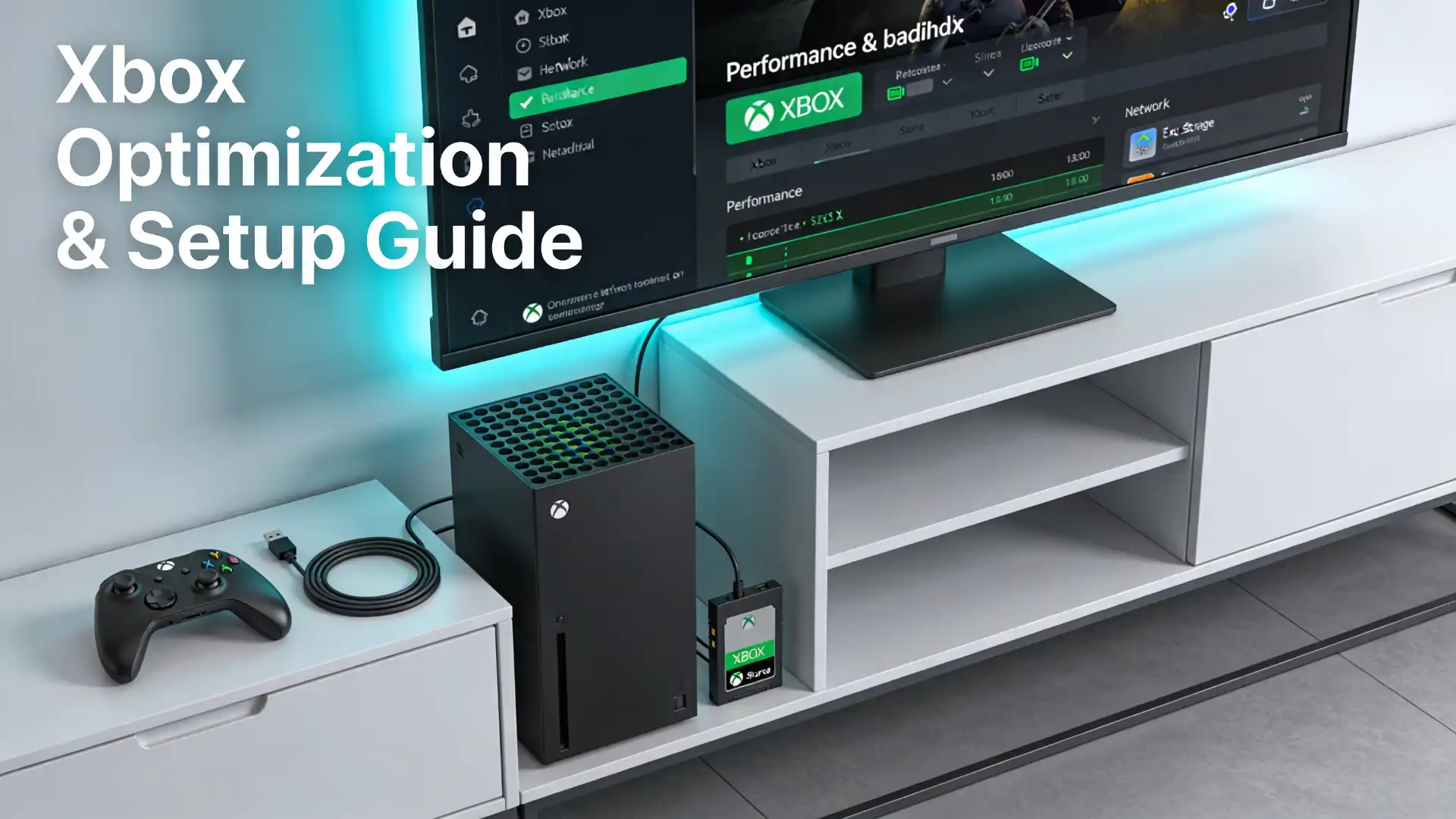
If your Xbox feels “fine” but not fast, the fix is usually a simple trio: correct TV output, stable network, and enough high-speed storage. This guide walks you through the exact order to optimize settings, avoid common mistakes, and troubleshoot the issues that most often ruin gameplay.

Quick take: the 15-minute tune-up
- Confirm your console is set up correctly (especially if you migrated from an older Xbox).
- Match Xbox video output to what your TV/monitor actually supports (don’t guess).
- Run a network speed/latency check before you blame the servers.
- Fix storage bottlenecks so installs, updates, and load times don’t drag.
Step 1: Start with a clean, correct setup
If your console is new (or you factory-reset it), follow Microsoft’s official Xbox Series X|S setup guide so you don’t miss sign-in, updates, and the basics that affect performance later.
Practitioner tip
Do your first system update before installing a huge library—otherwise you’ll stack “console update + game updates” and assume your internet is slow when it’s just backlog.
Step 2: Optimize TV & display (the biggest “feel” upgrade)
Most “lag” complaints are really mismatch: wrong refresh rate, wrong resolution, or extra processing on the TV. Use Xbox’s TV & display options guidance to align the console output with your screen.
Recommended workflow (don’t skip the order)
- Set your TV/monitor to its dedicated Game Mode (naming varies by brand).
- On Xbox, open Settings and review TV & display options before forcing 120Hz or HDR.
- Only enable advanced features (like higher refresh rates or variable refresh) after the base picture is stable.
Trade-offs (what people get wrong)
- 120Hz isn’t “always better” if it causes flicker, handshake issues, or disables features on your specific display.
- HDR can look washed out if your TV’s HDR is poorly calibrated; don’t assume it’s a free upgrade.
- If you change multiple settings at once, you won’t know which toggle caused the problem—change one thing, test, then continue.
How to verify (fast)
- Launch the game you actually play and test movement + camera panning for stutter.
- If the screen goes black or “no signal,” revert to a standard resolution/refresh rate and re-apply changes one at a time.
Step 3: Fix network issues that hurt multiplayer and downloads
Before you adjust DNS settings or buy new gear, run the console’s network diagnostics and follow Microsoft’s network connection speed troubleshooting steps (they’re the most reliable baseline checks).
What to prioritize (in plain English)
- Stability over peak speed: packet loss and inconsistent latency feel worse than a “lower” Mbps number.
- Wired Ethernet is usually the simplest win for competitive play (when feasible).
- If you’re on Wi‑Fi, reduce distance and interference first; only then consider router upgrades.
When not to tweak advanced settings
If your network test looks healthy, avoid random “gaming DNS” or port-forwarding tutorials—unnecessary changes often create new problems (especially in homes with multiple consoles).
Step 4: Get storage right (so installs, updates, and load times don’t grind)
If your internal drive is close to full, performance can feel worse because you’re constantly juggling installs and updates. For Xbox Series X|S owners who want expansion that’s designed for the console’s high-speed storage path, start with Microsoft’s Storage Expansion Card guidance.
Storage decision framework
- If you want “install and play” simplicity for Series X|S-optimized titles, prioritize the supported expansion approach.
- If you mainly archive games you don’t play daily, an external drive can still be useful for storage management (but test what your specific games allow).
- Keep at least some free space so updates don’t constantly fail or require emergency deletes.
Fast cleanup workflow
- Sort by largest games first.
- Uninstall what you haven’t launched in months.
- Move “sometimes” games to secondary storage so your main drive stays comfortable.
Step 5: Subscriptions & online play (modern names, no confusion)
If you’re following older advice that mentions Xbox Live Gold, note that Microsoft introduced Game Pass Core as its evolution; the announcement details the transition timing and intent in Xbox Wire’s Game Pass Core announcement.
For what Game Pass Core includes today (online console multiplayer, a curated catalogue, and member deals), confirm the current description on the official Xbox Game Pass Core page before you buy add-ons or assume a benefit is included.
Keep up with Xbox’s latest updates, Xbox 1 Month Game Pass, and announcements to learn about new content and capabilities.
Step 6: Capture clips and screenshots without filling your drive
Captures are one of the easiest “free upgrades” to your Xbox experience—until storage fills up or uploads fail. Use Microsoft’s guide to capturing game clips and screenshots to keep your workflow consistent across games.
Pro workflow (keeps it tidy)
- Decide whether you want “lots of short clips” or “fewer, higher-value moments,” then delete aggressively.
- After a session, review captures immediately—otherwise you’ll never clean them up.
- If uploads are unreliable, troubleshoot network first (don’t assume the capture feature is broken).
Step 7: Make the dashboard work for you (speed through organization)
- Pin your most-used games/apps so you launch in seconds, not scrolls.
- Create a simple mental layout: “daily,” “weekend,” and “party games.”
- Turn off clutter: fewer tiles you don’t use means faster decisions.
Accessories that actually improve the experience (and what to avoid)
- Headset first if you play online: clear comms and positional audio often matter more than graphics tweaks.
- Second controller only if you truly do local co-op; otherwise it’s dead money.
- Extra storage only after you’ve cleaned up and confirmed your real capacity needs.
Decision tree: what should you fix first?
If gameplay feels choppy: → Check TV/monitor mode (Game Mode) and Xbox TV & display output first.
If multiplayer feels “laggy”:
→ Run network speed/latency tests, then fix stability (packet loss, Wi‑Fi interference, wired if possible).

If downloads/updates keep failing:
→ Check free storage, then re-test network stability, then retry the update/install.

If captures won’t upload:
→ Confirm network health first, then review capture settings and storage usage.
Troubleshooting (common failures + fixes)
Black screen or “No signal” after changing display settings
- Revert to a standard resolution/refresh rate and re-apply changes one at a time.
- Confirm you’re using the TV input that supports your desired features (some TVs limit features to specific ports).
Slow downloads but “speed test looks fine”
- Pause/resume the download once to force a fresh connection.
- Stop bandwidth-heavy activity on your network (other downloads/streams) and re-test.
Storage is always full
- Uninstall first; moving everything to secondary storage without a plan just delays the problem.
- Keep a buffer of free space so updates don’t require emergency deletes.
Key takeaways
- Match Xbox output to your display’s real capabilities—guessing creates stutter and handshake issues.
- Stability (low packet loss, consistent latency) beats raw Mbps for multiplayer.
- Storage strategy is part of performance: full drives and constant shuffling waste time.
FAQ
Do I need 120Hz to get smooth gameplay?
No—many games feel great at 60Hz; 120Hz is only worth it if your TV/monitor supports it well and your games benefit.
Why does HDR look worse than SDR on my TV?
HDR often needs calibration and the TV’s Game Mode settings can change HDR behavior; test with one game you know well and adjust gradually.
Is wired Ethernet always better than Wi‑Fi?
Usually, yes for consistency—but good Wi‑Fi can be fine; the deciding factor is stability (packet loss/latency), not just signal bars.
What should I delete first when I’m out of space?
Start with the largest games you haven’t launched recently, then remove old captures—both free space quickly.
I can’t play online—what subscription do I need?
Subscription rules vary by game type and your plan; verify your current entitlement on the official Game Pass Core pages before troubleshooting deeper.
Why do my captures fail to upload?
Most of the time it’s either unstable connectivity or insufficient storage; fix those first, then retry uploads.
Should I change DNS to “speed up” Xbox?
Only if you have a specific problem you can measure (like slow lookups) and you’re prepared to revert; random DNS changes often don’t help.
What’s the single best upgrade for an Xbox setup?
For most players: correct TV output + stable network + enough storage to avoid constant juggling. Do those before buying accessories.

💬 Comments