CocoDoc PDF Converter is a solid, budget-friendly pick for everyday PDF conversion and editing. It handles quick jobs well, but its free plan is limited and it has no offline mode, so it won’t fit every workflow.
Quick Take
Quick Take
CocoDoc converts PDFs to Word, Excel, PowerPoint, or JPG files, and back again. It also lets you edit, sign, and merge PDFs from one browser tab, without installing anything. For this review, I tested the free conversion tools myself, checked CocoDoc’s current pricing directly against its own site, and compared reviewer feedback with two direct competitors.
- Best for: freelancers, students, and small teams who convert or edit PDFs a few times a week and don’t want to pay Adobe Acrobat prices.
- Not for: teams that need offline access, heavy daily conversion volume on a free plan, or a strong dedicated mobile app.
- Starting price: free, with paid plans from $9 a month per user.
How I Evaluated CocoDoc
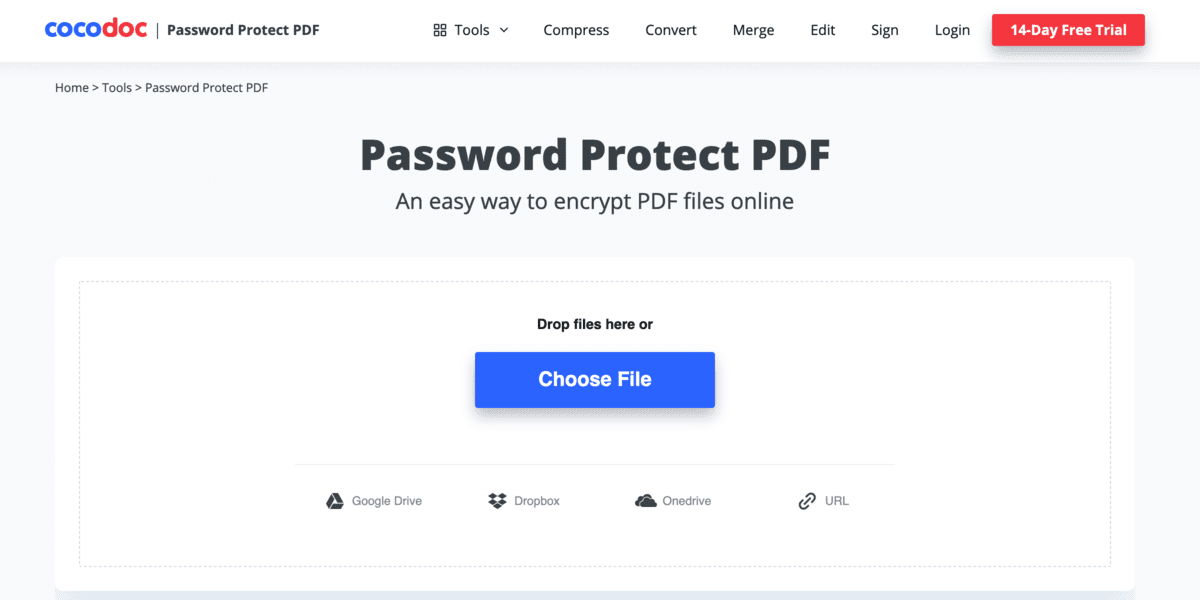
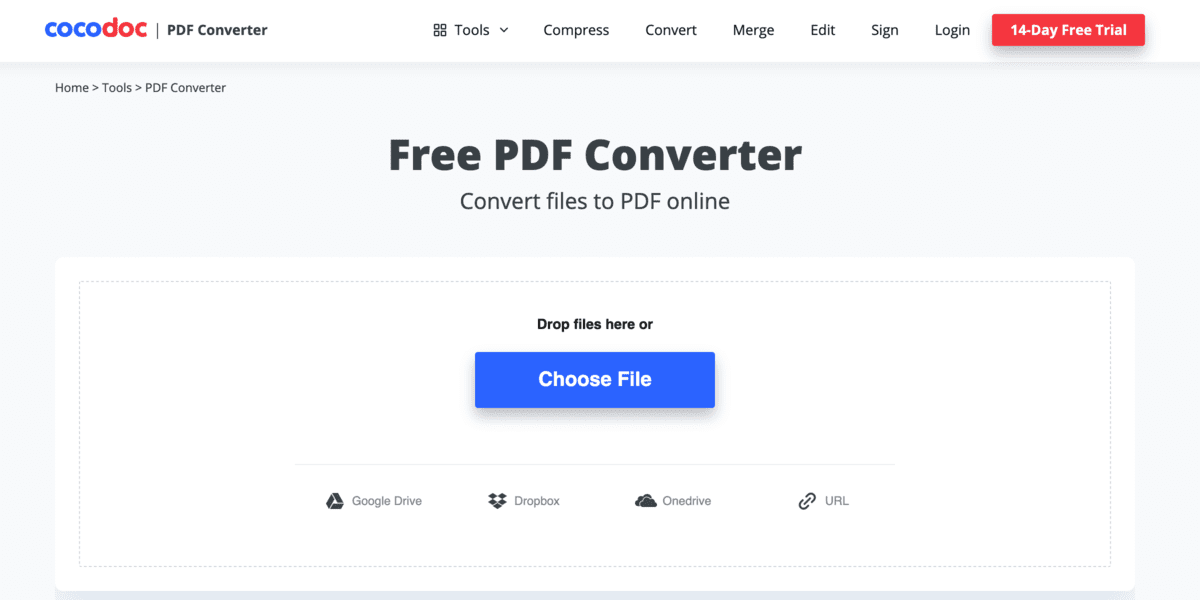
I used CocoDoc’s free JPG to PDF tool and its main PDF Converter tool to convert real files, including a multi-page scanned document, a text-heavy Word file, and a small batch of phone photos. I checked upload limits, output quality, and how the interface handled multiple files at once. I then compared CocoDoc’s own pricing page against independent review sites, since third-party pricing pages sometimes lag behind what a vendor actually charges. Where I couldn’t test something directly, like conversion speed under heavy load or exact server-side file retention, I say so instead of guessing.
Key Features That Actually Matter
CocoDoc’s core platform handles PDF editing, conversion, and e-signing in one place, so you’re not juggling separate apps for each task.
The dedicated PDF Converter tool converts these file types to and from PDF:
- Word (.doc, .docx)
- Excel (.xls, .xlsx)
- PowerPoint (.ppt, .pptx)
- Images (JPG, PNG, GIF, BMP, TIFF)
- OpenOffice and EPUB files
Each file is capped at 10MB. CocoDoc says uploads are deleted automatically, though it doesn’t state an exact deletion window on its site.
If you only need to turn photos or scanned pages into a PDF, the JPG to PDF converter is a faster, more focused option. It accepts JPG, PNG, GIF, SVG, TIFF, and BMP files, lets you merge several images into one PDF, and needs no account. Uploaded files are deleted about an hour after conversion.
CocoDoc also includes OCR, short for optical character recognition. This turns scanned text inside an image into text you can copy and search. It helps to understand how OCR actually works before you rely on it for anything important, since accuracy drops on messy scans or unusual fonts. In practice, this matters most for a specific use case: scanning a paper receipt or contract on your phone, then needing to pull a name, date, or dollar amount out of it without retyping the whole page.
Beyond conversion, CocoDoc covers e-signatures, PDF merging and splitting, page numbering, and watermarking. Paid plans add highlighting, text erasing and rewriting, and comment threads, which matter if you’re passing a document back and forth for review instead of just converting it once and moving on. It encrypts files with 256-bit SSL, the same encryption standard banks use for online transactions.
The e-signature tool is worth calling out on its own, since it’s the feature most likely to replace a separate subscription. You can request a signature, track who has and hasn’t signed, and store the signed copy in the same account where the original PDF lives. The free plan doesn’t include e-signing at all. It appears starting on CocoDoc’s Premium tier, capped at 100 signed documents, and becomes unlimited on the Business tier.
Performance: Speed, File Limits, and Accuracy
CocoDoc converted a handful of test files quickly during my check, and output quality held up well for standard documents and photos. I can’t give you an exact seconds-per-page figure, because no independent benchmark for CocoDoc exists yet, and CocoDoc doesn’t publish one either. Reviewers describe it as fast for typical office files, with processing slowing down on very large PDFs.
Accuracy also depends heavily on what kind of PDF you start with. A native PDF, meaning one created directly from a Word or Excel file rather than scanned, converts cleanly almost every time because the underlying text is already digital. A scanned PDF, like a photographed contract, relies on OCR instead, and that’s where formatting can drift: tables lose their alignment, columns merge, and stylized fonts sometimes get misread. If your source document is scanned rather than digitally created, expect to proofread the output before you send it anywhere important.
The bigger limit for most people, though, is file size and daily volume, not raw speed. The PDF Converter tool caps each file at 10MB, which is small enough that a scanned book chapter or a photo-heavy report can hit the ceiling fast. The free plan allows only 2 PDF edits and 2 conversions per day, which is tight if you’re handling more than one or two documents, and there’s no way to buy extra one-off conversions without upgrading the whole plan.
If you regularly work with scanned books, large reports, or bulk photo batches, expect to hit that ceiling fast. At that point you’ll need a paid plan or a free alternative PDF editor for overflow work.
What CocoDoc Does Well
Reviewers on Capterra give CocoDoc a 4.8 out of 5 rating across 39 reviews, and the praise is consistent. The interface is simple enough that you don’t need a tutorial to convert or edit a file. E-signing is built in, so you don’t need a separate tool for basic signature requests.
Pricing is noticeably lower than Adobe Acrobat’s, which matters if you only need PDF tools occasionally rather than every day. Security holds up too: 256-bit SSL encryption protects files in transit, and CocoDoc’s higher tiers add handling aligned with HIPAA rules for sensitive documents.
A typical use case shows why this combination works: scanning three receipts into a phone, merging them into one PDF, and sending it for a manager’s signature, all inside a single session and without switching apps. That kind of task is where CocoDoc’s all-in-one design earns its price tag, especially compared to buying separate conversion, merging, and e-signature subscriptions. CocoDoc also offers live support around the clock, through email, chat, phone, and a searchable knowledge base, which is more than most budget PDF tools provide at this price point.
Where CocoDoc Falls Short
CocoDoc is entirely web-based, so a slow or dropped internet connection stops you cold mid-task. There’s no offline desktop mode to fall back on.
Mobile is the weakest part of the experience. CocoDoc’s Chrome extension holds only a 3.3 out of 5 rating from 13 ratings, and its iOS app reportedly hangs occasionally, according to reviewer feedback.
The free plan’s daily caps push regular users toward a paid tier faster than some competitors with looser free limits. A few Capterra user reviews also mention that large files take longer than expected to process, and that some editing options, like changing fonts, feel restricted compared to a desktop PDF editor.
There’s also no version history or track-changes feature, so if you edit a PDF and want the original back, you need to have kept your own copy before uploading. CocoDoc trades that kind of control for speed: it’s faster to get started than installing a desktop app, but you have less of a safety net if you make a change you regret.
Third-party integrations are thin outside a few major names. One reviewer specifically ran into trouble connecting anything beyond Grammarly for in-document grammar checking, needing to copy text out to another program instead. If your workflow depends on plugging a PDF tool into a wider stack of apps, check that CocoDoc actually supports the specific ones you use before you commit to a paid plan.
CocoDoc Pricing
CocoDoc’s pricing is straightforward, though it can change over time, so treat these numbers as a snapshot rather than a guarantee. I pulled these figures directly from CocoDoc’s pricing page on September 2, 2026.
| Plan | Price | Storage | Key limits or extras |
|---|---|---|---|
| Free | $0 | 50MB | 2 PDF edits and 2 conversions per day |
| Basic | $9/month per user | 10GB | Unlimited edits and conversions |
| Premium | $12/month per user | 100GB | Up to 100 e-signature documents |
| Business | $25/month per user | 500GB | Unlimited e-signatures, 5-user team, Zapier and Salesforce integration |
| Enterprise | Custom | 1TB | Unlimited team size, custom contract |
All paid plans bill annually, with the monthly-equivalent price shown above. If you only convert a few files a month, the free plan may be enough. If you’re editing or converting daily, the $9 Basic plan removes the daily caps and is the tier most solo users actually need. It’s worth weighing when a free tool is enough versus paying based on how often you’ll actually use it.
The storage jump between tiers matters more than it looks at first glance. Free’s 50MB is enough for a handful of short PDFs, not an archive of scanned paperwork. Basic’s 10GB only matters if you plan to keep converted files stored in CocoDoc rather than downloading them and deleting the originals right away, which is how most occasional users actually work.
Alternatives to CocoDoc
CocoDoc isn’t the only option, and it isn’t always the best fit. Here’s how it stacks up against two direct competitors, plus two lighter tools worth knowing about.
Smallpdf
Smallpdf offers a similar toolset, including conversion, compression, and e-signing, spread across more than 40 tools. A direct comparison on G2 puts Smallpdf’s Pro plan at around $12 a month, a bit more than CocoDoc’s Basic tier, with a more limited free version. CocoDoc actually scores higher on ease of use and support in that same comparison. Smallpdf is worth choosing if you want a bigger library of PDF tools in one subscription and don’t mind paying slightly more for it.
iLovePDF
iLovePDF’s Premium plan runs $5 to $9 a month depending on whether you pay annually or monthly, putting it in the same price range as CocoDoc. It adds desktop and mobile apps on top of its web tools, plus AI credits for tasks like summarizing documents. Its per-file size limit on Premium goes up to 4GB, well past CocoDoc’s 10MB cap, which matters if you regularly convert large scanned files or design-heavy PDFs. iLovePDF is the better pick if you specifically need a downloadable desktop or mobile app, or you routinely hit CocoDoc’s file size ceiling, since both are areas where CocoDoc is weakest. If e-signatures are your main need rather than conversion, it’s also worth checking how dedicated e-signature tools compare before picking a full PDF suite for that alone.
For simple, one-off conversions with no account at all, a lightweight tool like JPGtoPDF.live gets the job done without any sign-up. It’s worth keeping around for a quick, single conversion rather than opening a full account just once.
If your PDF work usually starts with your phone camera rather than a desktop file, a dedicated scanner app like Microsoft Lens handles that step better than any web-based converter, CocoDoc included. Pairing a scanner app with a mobile scanning workflow covers what CocoDoc can’t do on a phone.
Who Should (and Shouldn’t) Use CocoDoc
Whether CocoDoc fits depends on how you work, not just what it costs. That lines up with who actually uses it: Capterra data shows roughly 74% of CocoDoc’s reviewers come from small businesses, not large enterprises, which matches its strengths and its limits.
Choose CocoDoc if:
- You convert or edit PDFs a few times a week, not constantly.
- You want e-signatures and conversion in one subscription instead of two.
- Budget matters more to you than having a downloadable desktop app.
Look elsewhere if:
- You need to work without an internet connection.
- You process dozens of files a day and need a generous free tier.
- Mobile editing is your main use case.
Verdict
CocoDoc PDF Converter earns its strong reviewer rating for a reason: it’s simple, affordable, and covers the PDF tasks most people actually need. It won’t replace a desktop editor for offline or mobile-heavy work, and the free plan’s daily caps will frustrate anyone converting files often. For occasional to moderate PDF work on a budget, it’s a reasonable choice. For daily, device-flexible, or offline use, look at iLovePDF or Smallpdf instead.
FAQ
Is CocoDoc PDF Converter actually free?
Yes, CocoDoc has a permanent free plan, not just a trial, though some older reviews describe it as a 14-day trial only. The free tier caps you at 2 edits and 2 conversions a day. Paying removes that limit.
Is it safe to upload sensitive documents to CocoDoc?
CocoDoc encrypts files with 256-bit SSL, and its Premium plan adds handling aligned with HIPAA rules for healthcare data. Still, no online tool is completely risk-free. Avoid uploading anything you can’t afford to have exposed, and check your organization’s own data policy first if you handle client or patient records.
How does CocoDoc compare to Adobe Acrobat?
CocoDoc is far cheaper and simpler to learn, but Adobe Acrobat has more advanced editing tools and better offline support. If you only need basic conversion, signing, and light editing, CocoDoc covers it for a fraction of Acrobat’s price. If you need advanced PDF work, like redesigning complex forms, Acrobat is still the more capable tool.
Can CocoDoc convert a photo of a document into an editable PDF?
Yes, using its OCR feature, which reads text out of an image. Accuracy is solid for a clear, well-lit photo of typed text, but it drops on handwriting or blurry scans. Test it on one file before you rely on it for anything that needs to be perfectly accurate.
What happens to my files after I upload them to CocoDoc?
CocoDoc says uploaded files are deleted automatically, but the exact timing depends on which tool you use. Its JPG to PDF tool clears files roughly an hour after conversion, while the main platform doesn’t publish an exact retention window for stored or edited documents. If you need certainty about how long a specific file stays on their servers, that’s a question to put directly to their support team before uploading anything sensitive.

💬 Comments