Outlook (with POP3 account) uses PST file to store mailbox data, including email messages, calendar items, contacts, and tasks. This file is also used to archive older emails. However, these files are susceptible to corruption. If PST file gets corrupted, you may experience the following issues:
- Outlook cannot open the PST
- Outlook freezes when accessing certain folders
- Some emails or folders are missing
- Outlook crashes when accessing the PST
In this guide, we will explain the common causes of PST file corruption and see how to repair it.
Why does an Outlook PST File Become Corrupted?
A PST file can become corrupted due to various factors, including unexpected system shutdowns, improper Outlook closure, hardware or storage device failures, bad sectors on the disk, network interruptions during PST access, malware or virus attacks, and issues caused by oversized PST files. In some cases, software conflicts, Outlook crashes, or issues while synchronizing and updating mailbox data may also damage the file structure, making emails and other stored data inaccessible.
How to Repair a Corrupt PST File?
If your PST file is corrupted, first check whether you have a recent and healthy backup copy of the file. You can recover your mailbox data from the backup.
However, if no backup is available, you can use a PST repair utility to repair a corrupted PST file.
Below, we have mentioned some tools – free and paid – to repair the file. You can select the appropriate one, according to your requirements.
Free PST Repair Tools
Inbox Repair Tool or ScanPST.exe
Microsoft provides a built-in utility called the Inbox Repair Tool or ScanPST.exe to repair corrupted PST files. This tool scans the file for structural issues and attempts to repair them. Follow the steps below to use this utility:
- Close Microsoft Outlook.
- Locate SCANPST.EXE in your Microsoft Office installation directory.

Note: The exact location depends on your Office/Outlook installation. The default location is C:\Program Files (x86)\Microsoft Office\root\OfficeXX.
- Double-click to launch the utility.
- Click Browse and select the corrupted PST file.

- Click Start to scan the file for errors.
- If errors are detected, select the backup option and click Repair.
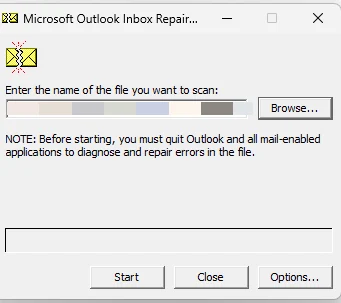
Once the repair process is complete, open Outlook and check whether you can access your mailbox data.
Note: ScanPST may create folders such as Recovered Personal Folders or Lost and Found. Items that cannot be restored to their original folder structure will appear in Lost and Found folder. You can review and recover them manually.
Advantages of ScanPST:
- Free utility provided by Microsoft.
- Can repair PST file structure errors.
- Comes with Outlook installation. So, no separate software installation is required.
Limitations of ScanPST:
- It is primarily a structural repair utility.
- It does not guarantee recovery of every corrupted item.
- Some folders/items may be moved to Recovered Personal Folders or Lost and Found.
- Some items may remain missing.
- Permanently deleted or severely corrupted items may not be repaired.
- Multiple repair passes may be necessary.
Online PST Repair Service
If you prefer not to install software on your computer, you can use an online PST repair service to fix a corrupted PST file. Several online services are available, including Online PST Repair by Stellar or Recovery toolbox Online PST repair These services allow you to upload a damaged PST file, analyze the corruption, preview the recoverable mailbox data, and download the repaired file.
For example, online PST repair service by Stellar allows you to repair a corrupted PST file of up to 500 MB for free in just a few clicks. Just upload your PST file, scan and repair it, preview the recovered mailbox folders, and download the repaired file. It maintains the original folder structure and hierarchy after repair. It does not require Microsoft Outlook or any other software installation.
Advantages of Online PST Repair Service:
- No software installation is required.
- No MS Outlook dependency.
- Preview of the recovered mailbox folders before downloading the repaired file.
- Maintains complete data integrity after repair.
Limitations of Online PST Repair Service:
- Repairs only one PST file of up to 500 MB for free.
- To repair larger files (up to 5 GB) requires a premium plan.
- Requires a stable internet connection.
Paid PST Repair Tools
Stellar Repair for Outlook
Stellar Repair for Outlook is a professional PST repair tool designed to repair PST files without any file size limitations and with any level of corruption. It can recover all your mailbox data, including emails, attachments, contacts, calendars, tasks, and notes, while preserving the original folder structure. It can also recover deleted mailbox items from the PST file. You can preview the recovered data before saving it. The tool allows you to save recovered mailbox data in multiple formats, including PST, EML, MSG, RTF, HTML, and PDF.
Pros
- Repairs corrupted and inaccessible PST files of any size.
- Previews recovered mailbox items before saving them.
- Recovers emails, attachments, contacts, calendars, tasks, and other mailbox items.
- Offers filter options to select specific items for recovery.
- Supports password-protected PST files
- Supports all versions of Outlook.
Cons
- Free trial version of the tool only previews the recoverable data
- Available only for Windows operating systems.
Note: While Stellar Repair for Outlook is built specifically for Windows desktop email files, Stellar also develops mobile utilities—if you need to retrieve lost contacts, messages, or files from a phone, see our Stellar Data Recovery for Android review.
Recovery Toolbox for Outlook
Recovery Toolbox for Outlook is another tool you can use to repair damaged or corrupted PST files and recover the mailbox data. It allows you to preview the recovered items before saving them to a new PST file. The tool can save the recovered data to a new PST file or export individual items into formats, such as EML and MSG.
Pros
- Repairs damaged or corrupted Outlook PST files.
- Recovers emails, contacts, calendars, tasks, notes, etc.
- Supports recovery from oversized PST files.
- Provides a preview of recoverable mailbox items.
- Saves recovered data to a new healthy PST file.
- Supports various versions of Microsoft Outlook.
Cons
- Free version only allows to preview the data.
- The desktop version is available only for Windows operating systems.
- Requires Microsoft Outlook to be installed on the system to save the recovered data as a PST file.
Remo Repair Outlook PST
Remo Repair Outlook PST is another paid tool to repair corrupted or damaged Outlook PST files. It can help to recover mailbox items such as emails, contacts, notes, and calendar entries. It also supports password-protected PST files. The tool offers two scan options – Normal Scan and Smart Scan – to handle different levels of PST corruption. You can preview the repaired mailbox data before saving it.
Pros
- Repairs corrupted or damaged Outlook PST files.
- Supports password-protected PST files.
- Offers Normal Scan and Smart Scan options.
- Allows users to preview email details before purchasing the full version.
- Supports both 32-bit and 64-bit Outlook.
Cons
- Scan and repair process can be slow for large PST files.
- Recovery results may vary with severely corrupted PST files.
- Does not allow you to select and fix multiple PST files simultaneously.
A Quick Comparison Table of Outlook PST Repair Tools
Refer the table below to compare the features of the PST repair tools and select the right tool as per your needs:
| Feature | ScanPST.exe | Stellar Online PST Repair | Stellar Repair for Outlook | Recovery Toolbox for Outlook | Remo Repair Outlook PST |
| Type | Free Microsoft utility | Online repair service | Desktop repair software | Desktop repair software | Desktop repair software |
| Installation required | Included with Outlook installation | No | Yes | Yes | Yes |
| Internet required | No | Yes | No | No | No |
| Free option | Yes | Yes, up to 500 MB | Free trial to scan and preview | Free preview; saving requires a paid version | Free Demo available |
| Large PST support | May struggle with severe corruption; results vary | Up to 5 GB with the premium plan | No file-size limit | Supports large PST files | Supports large PST files |
| Preview recovered data | No dedicated mailbox preview | Yes | Yes | Yes | Yes |
| Selective recovery | No dedicated selection option | No | Yes | Yes | No |
| Export/save options | Repairs the original PST and creates a backup during repair | Download repaired PST | PST and other multiple formats | PST and formats such as EML and MSG | Repaired PST |
Conclusion
A corrupt Outlook PST file does not necessarily mean your emails and other mailbox items are lost. As explained above, there are various tools – both free and paid – available to repair the PST file. You can compare the available options based on their recovery features, preview capabilities, and supported file sizes to choose the tool that best meets your needs.
Frequently Asked Questions
What should I do if ScanPST cannot repair my PST?
First, keep a backup of the original PST file. If ScanPST cannot repair the file, consider using a dedicated PST repair tool.
Can I repair a PST without Outlook?
Yes. You can repair a PST file without having Microsoft Outlook installed by using a dedicated PST repair tool. These tools work independently of Outlook and are designed to scan corrupted PST files, recover the mailbox data, and save it to a new PST file.
Is there a size limit for Outlook PST files?
Yes. Outlook PST files have a default size limit of 50 GB for Outlook 2010 to 2019, and 20 GB for Outlook 2003 and 2007. Older ANSI PST files have a 2 GB file limit.
What is the difference between ScanPST and an Online PST Repair Service?
ScanPST (Inbox Repair Tool) is Microsoft’s built-in utility that comes with Outlook. It scans PST files for structural inconsistencies and attempts to fix minor corruption issues. It is free to use but has limited repair capabilities and may not recover all mailbox data from severely corrupted PST files.
An Online PST Repair Service is a cloud-based solution that uploads the PST file to a remote server for analysis and repair. Such services often use advanced recovery algorithms and can handle more complex corruption scenarios than ScanPST. However, they typically require an internet connection and may involve a subscription or service fee.
I don’t have a backup of my corrupt PST file. What should I do?
If you do not have a backup, avoid making multiple repair attempts on the original PST file, as this could worsen the corruption. First, create a copy of the PST file and keep the original file untouched.
You can then:
- Run ScanPST.exe to check for and repair minor corruption issues.
- If ScanPST fails or recovers only partial data, use a professional PST repair solution that can recover mailbox items from severely corrupted PST files.
- Save the recovered data to a new PST file and verify the recovered mailbox items before deleting the original file.
Where is ScanPST.exe located?
The location of ScanPST.exe varies depending on the Outlook version and installation type. Common locations include:
C:\Program Files\Microsoft Office\root\Office16\SCANPST.EXEC:\Program Files (x86)\Microsoft Office\root\Office16\SCANPST.EXEC:\Program Files\Microsoft Office\Office16\SCANPST.EXEC:\Program Files (x86)\Microsoft Office\Office16\SCANPST.EXE
If you cannot find it, search Windows for SCANPST.EXE or browse to your Microsoft Office installation folder.
Where can I download ScanPST.exe?
ScanPST.exe is not available as a separate download. Microsoft installs the Inbox Repair Tool automatically when Outlook is installed.

💬 Comments