The best free PDF merger depends mainly on where you want your files processed and what limits you can accept. PDF24 is a strong general browser option, PDFsam Basic is better suited to offline and open-source workflows, and PDFgear stands out for processing files locally inside the browser.
Not every tool labeled “free” uses the same model. Some are permanently free, some restrict daily tasks or exports, and others use a limited free tier alongside paid upgrades. The comparison below focuses on tools that currently let you complete at least one PDF merge without paying.
Quick Comparison of the 12 Free PDF Mergers
The biggest difference is not the Merge button itself. Compare where processing happens, how restrictive the free model is, and whether the tool gives you enough control over individual pages, bookmarks, forms, or large batches.
| Tool | Best for | Processing | Free model | Important limit or constraint |
|---|---|---|---|---|
| PDF24 | General online merging | Remote server | Free service | No published usage or time restriction on the merge page |
| PDFsam Basic | Offline and open-source use | Local desktop | Free open-source software | Requires installation |
| PDFgear | Browser-local processing | Local browser | Free service | Very large jobs depend on your device resources |
| Adobe Acrobat Online | Familiar browser workflow | Adobe servers | Free online merger | Some page-management functions require sign-in |
| iLovePDF | Clearly documented free limits | Remote server | Limited free tier | 25 files and 100 MB per merge task on Basic |
| Smallpdf | Mixing PDFs with Office files and images | Remote server | Limited free tier | Merge is subject to a daily download limit |
| Sejda PDF | Advanced merge controls | Remote server | Limited free service | 50 pages or 50 MB, with 3 tasks per hour |
| PDF Candy | Large multi-file batches | Remote server | Free with hourly restrictions | Up to 100 PDFs per session and 200 MB per uploaded file |
| PDF2Go | Simple cloud-based merging | Remote server | Free core service | Premium tiers expand resource and batch limits |
| AvePDF | Cloud-storage and URL imports | Remote server | Free online service | 128 MB maximum file size on the merge page |
| DocFly | Occasional merge-and-edit work | Remote server | Limited free tier | 3 export credits per month |
| Apple Preview | Mac users who need no extra software | Local desktop | Included with macOS | Mac only |
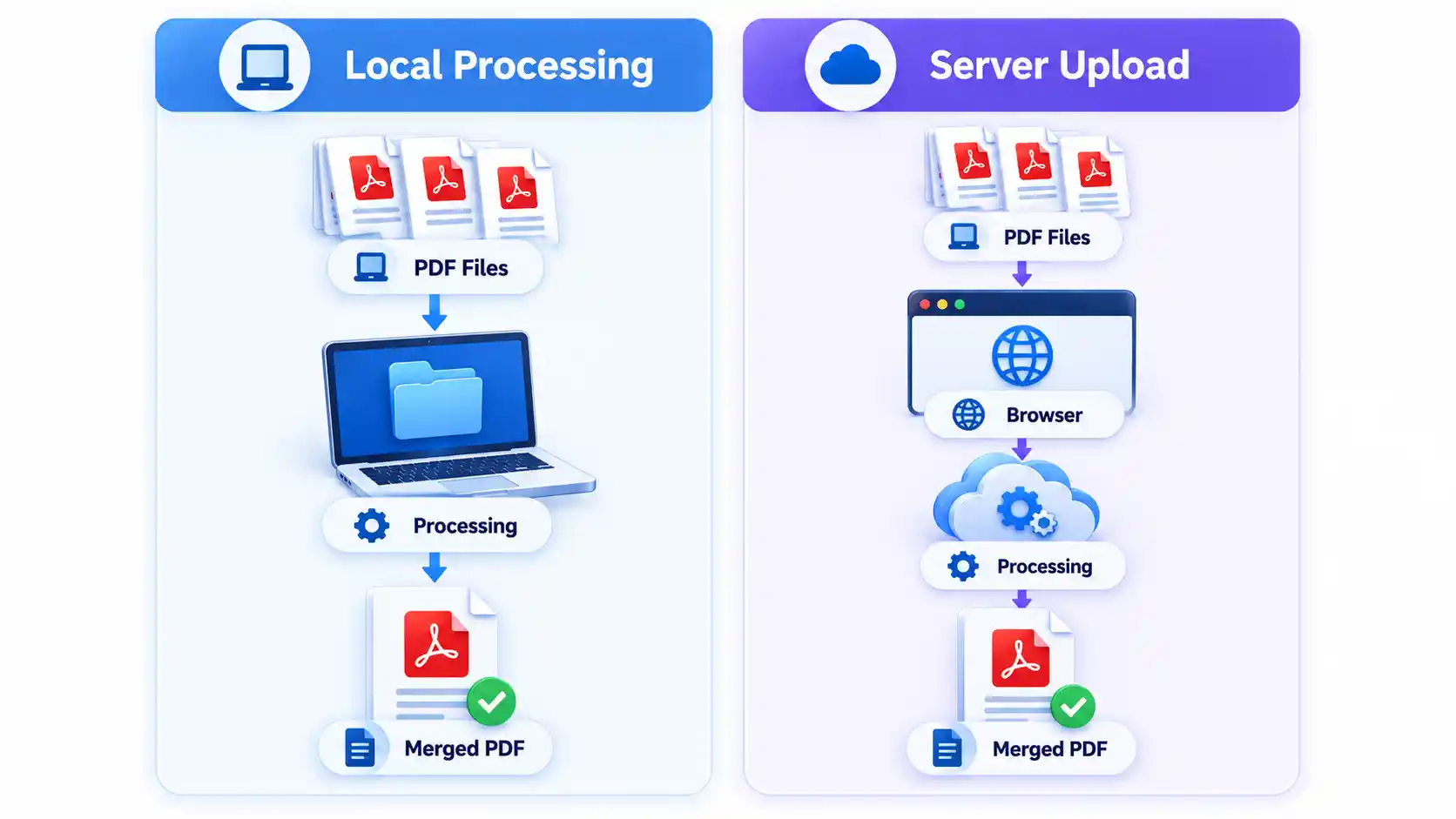
A local desktop tool keeps processing on your computer. A browser-local tool also works on your device, but through code running inside the web browser. A conventional online merger uploads the files to a provider’s server for processing. That distinction matters most when the documents contain information you would rather not upload.
How These Free PDF Merger Tools Were Selected
A tool qualified for this list only if a user can currently complete a PDF merge without paying. A 7-day or 30-day software trial does not count as a permanently free merger even if the trial is fully functional.
The ranking considers the free-use model, processing location, published limits, file-ordering controls, operating-system support, page-level options, and whether each product offers a useful advantage over similar tools. No controlled speed, output-quality, privacy, or reliability benchmark was performed for this article, so terms such as “fastest” or “most secure” are intentionally avoided.
Privacy claims such as server deletion periods are also treated as vendor statements. They describe the provider’s published policy rather than an independent audit of what happens inside its infrastructure.
Top 12 Free PDF Merger Tools
1. PDF24 — Best Free Online PDF Merger for Most People
PDF24 is one of the least restrictive browser-based options for routine merging. Its official merge tool states that the service is free, requires no registration, and has no time restrictions or forced premium version.
You can rearrange source files, switch to a page-oriented mode, create bookmarks, and insert blank pages before generating the merged document. Processing takes place on PDF24’s servers rather than on your computer. The provider states that its servers are in Germany and that uploaded files are deleted automatically after one hour.
That makes PDF24 practical for ordinary documents such as invoices, class notes, or application attachments. For confidential legal, financial, personnel, or identity documents, a local-processing tool may still be the more conservative choice.

2. PDFsam Basic — Best Free Offline and Open-Source Merger
PDFsam Basic is the clearest choice when you want PDFs to remain on your computer. The open-source PDF application runs on Windows, macOS, and Linux, adds no watermark, and publishes no file-size limit for its Basic edition.
Its merge module goes beyond simple file concatenation. You can select page ranges, control how existing bookmarks are handled, create a table of contents, and decide what happens to AcroForms. An AcroForm is the interactive form structure used for fields such as text boxes, checkboxes, and drop-down controls inside many fillable PDFs.
PDFsam can also rename conflicting form fields when documents use the same internal field names. That is useful when several application forms need to become one PDF without their interactive fields interfering with one another.
When document confidentiality makes uploading inappropriate, the decision becomes less about convenience and more about choosing a local PDF workflow.
3. PDFgear — Best Browser-Local PDF Merger
PDFgear occupies a useful middle ground between a desktop application and a normal upload-based web service. Its online PDF merger states that file data remains inside the browser and is not uploaded over the internet.
The current page also advertises no signup, no watermark, and no stated restriction on the number of files combined. Because processing happens on the user’s device, however, the practical ceiling for a very large job can depend on available memory, browser behavior, and processor performance even when the service itself publishes no numerical file limit.
This approach is useful when you cannot install software but would prefer not to send the PDF itself to a remote processing service.
4. Adobe Acrobat Online — Best Familiar Browser Workflow
Adobe provides a free web-based merger that requires no desktop software and does not add a watermark. According to Adobe’s current Acrobat merge page, a merged document can contain up to 1,500 pages, with up to 100 source files and a maximum of 500 pages per source file.
You can reorder whole files before merging. More detailed page organization, such as adding, deleting, moving, or rotating individual pages after the merge, may require signing in.
The documents are processed on Adobe servers. Adobe states that uploaded files are deleted unless you sign in to save them.
5. iLovePDF — Best for Clearly Documented Free Limits
iLovePDF is useful when you want to know the free threshold before starting the job. Its current Basic plan lists Merge PDF as a free feature while limiting the operation to 25 files and 100 MB per task.
The merge interface lets you drag files into the order in which they should appear in the final PDF. A batch of 10 or 12 ordinary scanned documents may fit easily, while a large archive containing dozens of high-resolution scans may hit either the file-count or total-size restriction.
This transparency is useful because a “free” label alone does not tell you whether a service will accept the batch waiting on your desktop.
6. Smallpdf — Best for Mixing PDFs With Office Files and Images
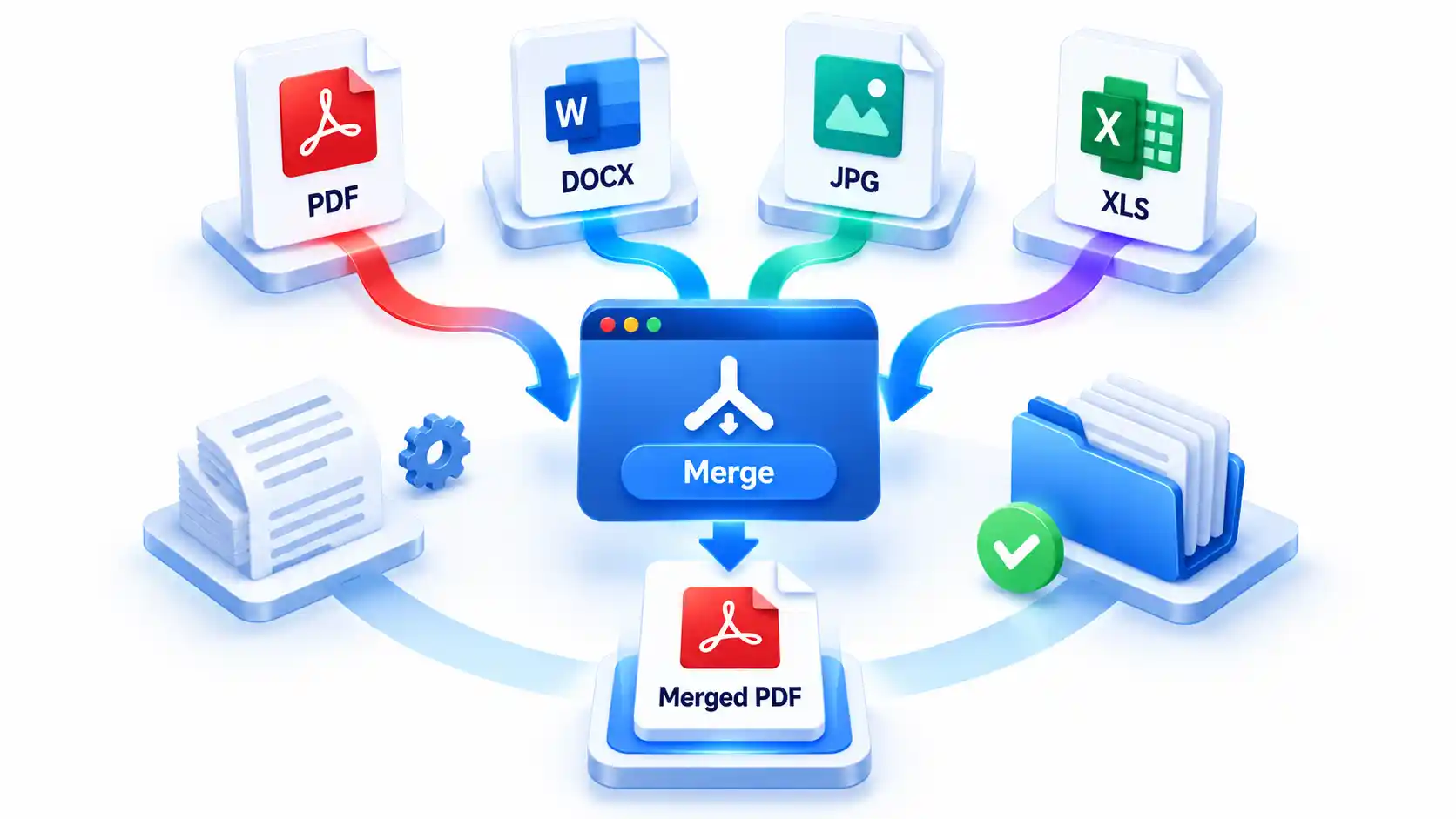
Smallpdf is more flexible than a PDF-only merger when your source material comes from several common office formats. Its merge workflow accepts formats including PDF, Word, Excel, PowerPoint, PNG, and JPG, so you can build a combined document from mixed source files without manually converting every item first.
You can also rearrange content and work with page previews. The important limitation is its free-use model. Smallpdf’s current pricing page marks Merge as subject to a daily download limit for free users, which makes it better suited to occasional jobs than repeated production work.
For example, a user preparing a single project packet might combine a PDF report, spreadsheet, presentation, and scanned cover image. Someone processing dozens of document packets every day should evaluate the free restriction before relying on it operationally.
7. Sejda PDF — Best Advanced Online Merge Controls
Sejda is one of the more technically configurable online mergers. Its merge interface can handle individual page selection, bookmarks, form fields, table-of-contents behavior, page-size normalization, and blank-page insertion for double-sided printing workflows.
Page-size normalization matters when a document mixes formats such as A4 and US Letter or combines portrait pages with unusual scan dimensions. Form controls matter when multiple fillable PDFs contain identically named fields.
The trade-off is a restrictive free allowance. Sejda currently limits its free service to documents of up to 50 pages or 50 MB and 3 tasks per hour. Those limits make the service more attractive for technically complicated small jobs than very large document sets.
8. PDF Candy — Best for Large File Counts in One Session
PDF Candy is notable for the number of source documents it permits in a single merge. Its current merger states that you can combine up to 100 PDFs in one session, with each uploaded file limited to 200 MB.
The service also accepts common image formats, provides file previews, and can automatically sort inputs by filename. Automatic sorting is useful for sequential documents named with predictable prefixes such as invoice-001, invoice-002, and invoice-003.
The service is free to use, but PDF Candy states that free usage is subject to a limit on the number of operations performed per hour. It should therefore be described as free with usage restrictions rather than unlimited.
9. PDF2Go — Best for Straightforward Cloud-Based Merging
PDF2Go provides a conventional browser workflow: upload documents, drag them into the required order, merge them, and save the resulting PDF. It also supports files from cloud storage and can work with images and other document types that are converted into the merged output.
Its current service describes core PDF conversion and editing tools as free, while premium plans expand capabilities such as batch processing, maximum file sizes, and resource availability. That makes the free merger suitable for casual jobs but less predictable for unusually large or repetitive workloads.
If your task is simply to combine several ordinary files without installing a desktop application, the workflow is uncomplicated. For production-scale processing, verify the current free thresholds before depending on it.
10. AvePDF — Best for URL and Cloud-Storage Imports
AvePDF can accept source files from a device, Google Drive, Dropbox, or a web address. Its current Merge PDF page lists a maximum file size of 128 MB and allows users to rearrange documents before producing the merged file.
The provider’s merge page states that documents are automatically deleted from its servers after 30 minutes and can also be removed manually after processing. AvePDF’s broader current privacy notices for some free tools contain additional language about retention and service improvement, so users handling sensitive material should review the privacy notice displayed on the exact AvePDF tool they are using before uploading.
The cloud and URL import options are the main reason to consider AvePDF over a simpler upload-only merger.
11. DocFly — Best for Very Occasional Merge-and-Edit Work
DocFly combines a browser PDF editor with a straightforward merge tool. You upload the source PDFs, drag them into order, merge them, and then export the finished document.
The key restriction is not the merge operation itself but the free account’s export allowance. DocFly’s current FAQ states that free users receive 3 credits each month and that downloading, emailing, printing, or saving a file to cloud storage counts as an export.
That model can work for a person who creates one document packet each month. It is considerably less suitable for someone who regularly combines and downloads many PDFs.
12. Apple Preview — Best Built-In PDF Merger for Mac
Mac users may not need another merger at all. Apple’s Preview instructions explain how to open multiple PDFs, display page thumbnails, drag selected pages between documents, insert an entire PDF, and reorder the resulting pages.
The work stays on the Mac and requires no additional account or web upload. The important failure point is source-file preservation. Apple warns that Preview can save document changes automatically, so you should duplicate PDFs first when you need untouched originals as well as the combined version.
Preview is therefore an efficient choice for Mac users doing ordinary page and document assembly, but it is not a cross-platform option and does not provide the same batch-oriented controls as dedicated PDF software.
Which Free PDF Merger Should You Choose?
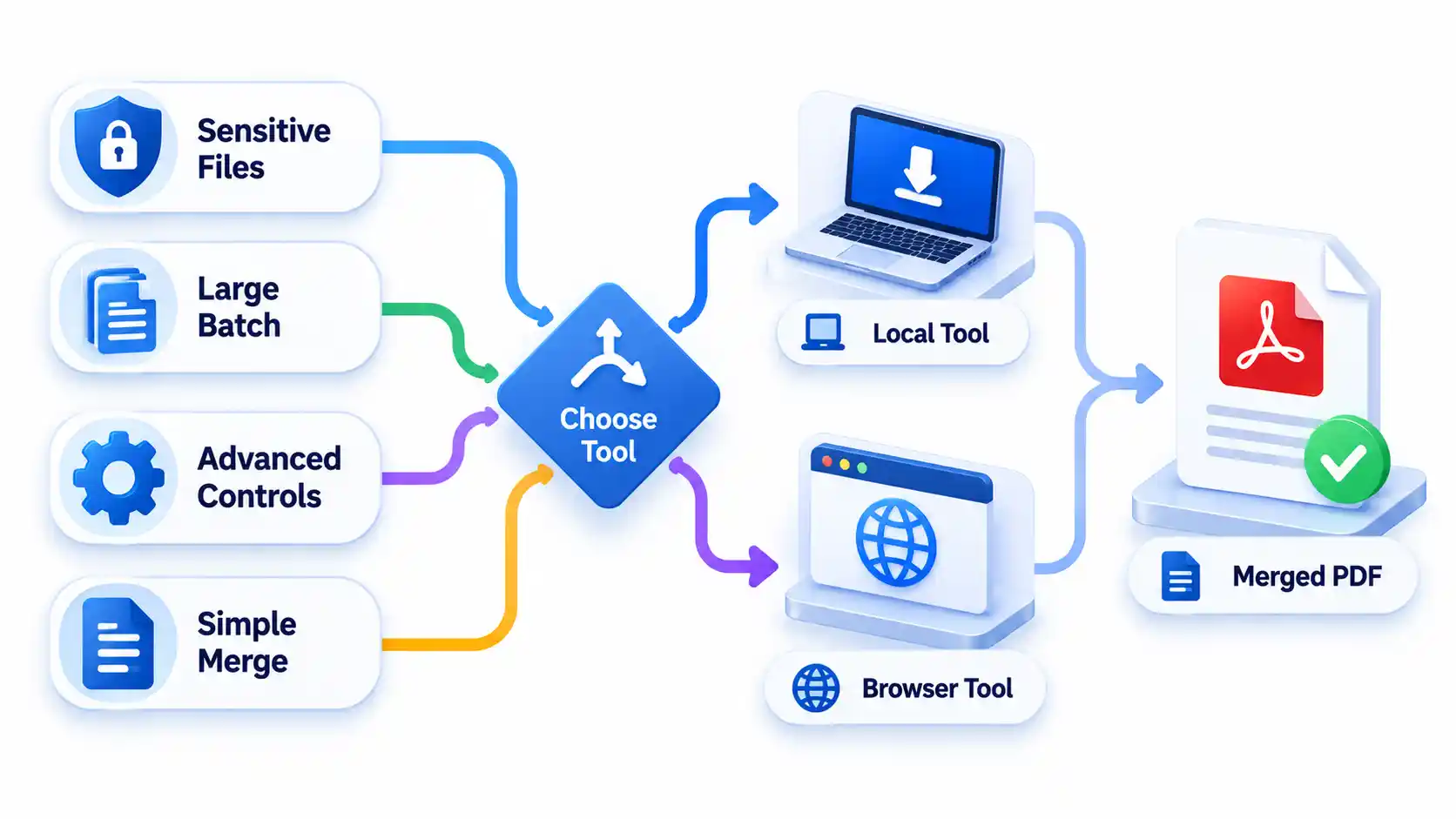
Start with the processing model, then narrow the choice by the size and complexity of the job.
- Choose PDF24 when you want a broadly accessible browser merger with few published free-use restrictions.
- Choose PDFsam Basic when files should remain offline or you need detailed handling for bookmarks, forms, page ranges, and tables of contents.
- Choose PDFgear when you want a browser interface but prefer the vendor’s local-browser processing model rather than a conventional file upload.
- Choose Sejda for smaller jobs that require normalization, form controls, bookmarks, or duplex-printing preparation.
- Choose Smallpdf when the source set includes common Office files or images rather than PDFs alone.
- Choose PDF Candy when the job contains many source PDFs and remains within its stated per-file and hourly-use restrictions.
- Choose Preview when you use a Mac and only need straightforward local merging.
The technically important distinction is that joining files is not always the same as combining document structures correctly. A set of simple scanned receipts usually needs only file ordering. A packet of fillable forms may require deliberate AcroForm handling so duplicate field names do not behave unexpectedly after the merge.
Readers who outgrow permanently free tools and want to evaluate a separate Windows desktop workflow can also consider the sponsored PDF Combine option; it is not included in the Top 12 because its desktop edition is offered as a time-limited trial rather than permanently free software.
What Can Go Wrong When You Merge PDFs?
Most problems appear after the merge rather than during it. Check the final PDF before deleting source files, especially when the inputs contain forms, signatures, mixed page sizes, scans, or encryption.
| Problem | Why it happens | Practical response |
|---|---|---|
| Pages appear in the wrong order | The source files were ordered correctly at file level but individual pages were not checked. | Preview thumbnails and page sequence before saving the final PDF. |
| Fillable fields interfere with each other | Two forms may contain fields with identical internal names. | Use a merger with explicit form-field controls or flatten forms when appropriate. |
| Pages have inconsistent dimensions | The inputs mix A4, US Letter, landscape pages, or unusual scan sizes. | Use page-size normalization when available, or accept the mixed dimensions if they are intentional. |
| A signed PDF no longer validates as expected | Merging changes the document structure and may count as a modification. | Keep the signed original and verify signature status in the merged output before relying on it. |
| A large browser merge fails | The service may have an upload cap, or local-browser processing may exhaust memory. | Split the job into smaller batches or move to a desktop tool. |
| A protected PDF is rejected | The source document may require a password or restrict modification. | Use the authorized password and a compatible workflow rather than trying to bypass the restriction. |
For encrypted documents, the correct workflow depends on whether you know the authorization password and what restrictions the file carries.
Key Takeaways
- A free PDF merger may be permanently free, part of a restricted free tier, included with an operating system, or offered alongside paid upgrades.
- Processing location matters. Desktop-local and browser-local tools keep document processing on the device, while conventional web mergers send files to a remote service.
- For complex documents, bookmark, AcroForm, table-of-contents, and page-size controls can matter more than a simple drag-and-drop interface.
- Check current file-count, file-size, page, task, and export restrictions before starting a large batch.
- Keep the source documents until you have checked the merged PDF for page order, forms, signatures, bookmarks, and missing content.
Frequently Asked Questions
Does merging PDFs reduce image quality?
Not necessarily. A merger that simply combines existing PDF page objects can preserve the original image data without intentionally recompressing it. However, some workflows may convert, rasterize, optimize, or compress content while generating the final PDF. If image quality is important, compare a few pages at high zoom and check the resulting file size before deleting the originals.
Can I merge PDFs without installing software?
Yes. Conventional online tools such as PDF24, Adobe Acrobat Online, and Sejda perform the merge through a browser, although they process uploaded files on remote servers. PDFgear uses a different model and states that its merger processes files locally inside the browser instead of uploading the PDF data.
Can I combine a scanned PDF with a searchable PDF?
Yes. The two documents can normally be merged even though their text behavior differs. The scanned pages remain image-based unless Optical Character Recognition, or OCR, has been applied to them. Merging alone does not make scanned text searchable.
Will PDF bookmarks survive after files are merged?
It depends on the tool and its settings. Basic mergers may simply combine pages, while applications such as PDFsam Basic and Sejda expose controls for retaining, discarding, restructuring, or generating bookmarks. Check the output navigation pane when bookmark preservation matters.
Why is my merged PDF much larger than expected?
The final file contains the resources carried by all source documents, which may include high-resolution scans, embedded fonts, images, forms, and duplicated assets. Converting images or Office documents during the merge can also change file size. Compression is a separate operation and should be applied only when the resulting quality remains acceptable.

💬 Comments