If your eyes ache, burn, or blur by mid-afternoon, the monitor is the easy suspect and usually the wrong place to start fixing.
Screen fatigue is a stack of small mismatches. Your lens power can be wrong for the working distance, your frame can sit so the optical centers miss your pupils, and your blink rate can collapse while you stare. Correct the eyewear and the frame fit, and most of the afternoon headache stops being a mystery.
Quick Take
Match lenses to your real screen distance, then match the frame to your face. Dedicated intermediate computer lenses are built for the 20–26 inch zone that everyday glasses and book readers ignore. Verify optical-center alignment in your seated posture, add anti-reflective coating for glare, and treat blue-light filters as optional rather than curative. Back it up with monitor placement and blink breaks.
The Real Mechanics of Screen Fatigue
Three separate systems fail at a desk, and they fail for different reasons. Conflating them is why so much screen-fatigue advice misses.
Accommodation. Your eye focuses by changing the shape of its internal lens, a muscle-driven process called accommodation. Looking far away is the relaxed state. Looking at anything close requires sustained muscular effort, and the closer the target, the harder the work. A monitor at 20 to 26 inches sits in an awkward middle zone: farther than a book, closer than the world your distance prescription was built for. Neither of your everyday pairs is optimized for it.
Tear-film drying. People normally blink about 15 times a minute. On screens, that drops to roughly 5 to 7, according to the American Academy of Ophthalmology. Blinking is how the eye spreads moisture across its surface, so fewer blinks means a drying tear film. The result is the burning, scratchy, blurry feeling the National Eye Institute describes as dry eye, and screen time is a recognized contributor.
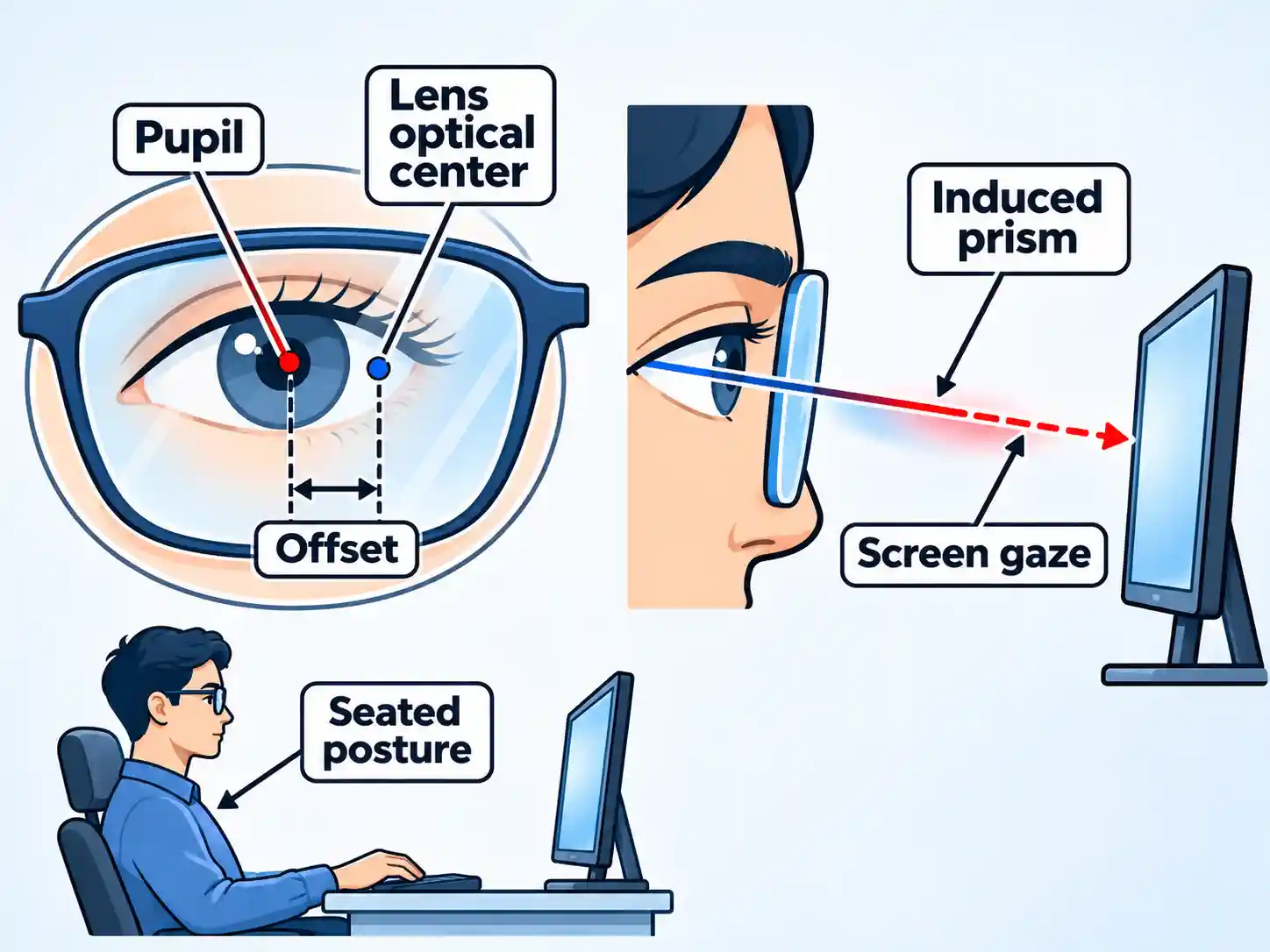
Optical misalignment. Every lens has an optical center, the point where light passes through without bending. When that center lines up with your pupil, the lens does its job cleanly. When a frame sits too high, too low, too wide, or too far from your face, the optical center drifts away from your pupil. Light then passes through an off-center part of the lens and bends at an angle, producing an unwanted prismatic effect. Your eye muscles spend the day compensating for a pull that shouldn’t be there. Optical guidance describes this as a source of strain, dizziness, and a “swimmy” feeling.
Monitor setup still matters. The Occupational Safety and Health Administration recommends placing the monitor at least 20 inches away, with a preferred range of 20 to 40 inches, and the top of the screen at or below eye level. A monitor that is too close or too far forces awkward posture and extra focusing effort. But a perfectly placed monitor cannot rescue a lens that is the wrong power for the distance.
Why Your Everyday Glasses Fail at the Desk
Most people own one pair of glasses and expect it to cover driving, reading, and a full workday of screens. That expectation is the problem.
| Lens type | Built for | What goes wrong at the desk |
|---|---|---|
| Single-vision distance | Far vision | Forces constant accommodation to hold focus at 20–26 inches; sustained effort leads to accommodative fatigue |
| Over-the-counter readers | Close reading near 16 inches | Too much magnification for a screen; fixed optical centers; no astigmatism correction |
| General-purpose progressives | Distance through near | Narrow intermediate channel pushes users into a chin-up head tilt and neck strain |
| Intermediate computer lenses | The screen zone | Designed for the working distance; the whole lens serves the monitor |
Distance glasses can be a trap for people under 40. Your eyes are young enough to force focus at screen distance, so you do it all day without noticing the effort until the headache arrives. Computer glasses focus specifically at intermediate distance, about 20 to 26 inches, which is exactly the zone your distance pair was not built for.
Readers are the trap for anyone over 40. Reading glasses are calibrated for a book at roughly 14 to 16 inches. A monitor sits farther away, so using readers for screen work forces you to lean in to find the focal point, and the extra magnification adds strain. Over-the-counter readers also do not correct astigmatism and use fixed optical centers, which is a real problem if your eyes don’t match the generic placement. The National Eye Institute lists headaches, blurry vision, and eye strain among astigmatism symptoms, and only an exam confirms it.
Progressives are the trap for everyone. The intermediate zone in a general-purpose progressive is a narrow band. To stay in it, you tilt your head back and lift your chin, which is a direct cause of neck and shoulder fatigue for bifocal and progressive wearers. The practical fix is telling: use single-vision lenses with a focal length designed for computer work.
Choosing Intermediate Lenses
Intermediate lenses are the core fix. They dedicate the lens to the screen zone so your focusing muscles can relax and your neck can stay upright. Three options cover most desk workers.
- Dedicated single-vision computer lenses. The whole lens is set to your screen distance. Best for people who spend most of the day on one monitor and want the widest clear field. This is the option that works best for bifocal wearers.
- Computer progressives. A multifocal with a wider intermediate zone than a general progressive. Useful if you shift between screen, keyboard, and printed documents without changing glasses.
- Adjusted readers. A practical bridge for people who already use readers and want a screen-specific pair. Optical guidance suggests reducing reading power by roughly 0.50 to 1.00 diopters for screen use, with the exact adjustment set by your working distance. Treat that as a starting heuristic, not a prescription.
The design logic favors intermediate lenses over book readers for desk work because the lens is matched to the task. That is a fit argument, not a claim of proven superiority in head-to-head trials. For most presbyopic desk workers, a lens built for 20 to 26 inches simply asks less of the eye than one built for 16.
Info
Prescription lens selection needs an eye exam. If you have astigmatism, over-the-counter readers will not correct it, and a custom prescription is the reliable path.
Frame Sizing and Optical Center
A correct prescription in a badly fitted frame still produces strain. The frame decides where the lens sits relative to your pupil, and that position decides whether you get clean optics or an unwanted prism.
Three measurements drive fit: lens width, bridge width, and temple length. Lens width and bridge together determine how the frame sits across your face and where the optical centers land. Temple length controls how far the lens sits from your eye. Get these wrong and the optical center drifts, especially when you look down at a screen rather than straight ahead.
Pupillary distance matters too. Your distance PD is measured looking far away. When you converge on a nearby screen, your pupils move inward, so the near PD is narrower. Optical guidance notes the near PD is typically a few millimeters less than the distance PD, and using a distance PD for computer glasses can induce prismatic effects. The practical fix is to have the optical center measured in your seated working posture, not standing at a dispensing counter.
How to check your frame fit before you order
Run these checks with your current glasses on, seated at your desk in your normal working posture.
- Measure your working distance.Hold a tape measure from the bridge of your nose to the surface of your monitor. Note the number in inches.This is the distance your lenses need to serve. If it falls outside 20 to 26 inches, adjust your monitor position before ordering lenses.
You should be able to read all on-screen text with your head and torso upright.
- Check where the lens sits on your pupil.Look straight ahead into a mirror. Your pupil should sit near the vertical center of the lens, slightly above it for a downward screen gaze.If your pupil sits near the top edge, the optical center is too high for desk work and will pull your gaze when you look down.
The lens should cover your full field of view when you look at the top of your screen without moving your head.
- Match frame measurements to your face.Compare the lens width, bridge width, and temple length printed inside your current frame to a sizing reference for your face shape.A frame that is too wide pushes the optical centers outward; one that is too narrow pulls them inward. Either way, your pupils end up off-center.
The frame should sit level, with temples resting without pinching and lenses not touching your cheeks or lashes.
- Confirm optical center in your seated posture.Ask your optician to measure optical center while you sit at desk height looking at a screen, not standing at the counter.Seated measurement accounts for the downward gaze angle that a standing measurement misses.
Your finished lenses should feel neutral when you look at the center of the screen, with no pull or swimmy sensation.
If you are ordering frames online, a sizing reference helps you translate your current frame’s numbers into a new pair. The eyeglass frame measurement guide walks through lens width, bridge, and temple length so you can match a new frame to your face and keep the optical centers where they belong.
Coatings: Anti-Reflective vs. Blue Light
Anti-reflective coating earns its place. It reduces reflections on the lens surface from overhead lights and screens, which cuts visual noise and makes the lens easier to see through. For a desk worker under fluorescent panels or a bright window, that is a real comfort gain. The evidence base for AR coating is general optical purpose rather than a specific strain-reduction trial, so treat it as a sensible addition rather than a cure.
Blue-light filters are where the marketing outruns the science. The American Academy of Ophthalmology does not recommend blue-light-blocking glasses, citing a lack of evidence that screen light damages the eyes. Several studies suggest they do not improve digital eye strain symptoms. The AAO is direct that strain comes from how people use screens, not from anything the screens emit.
That does not make blue light meaningless. There is some evidence it affects circadian rhythm, so avoiding screens for a couple of hours before bed and using night mode in the evening can help sleep. But if your goal is fewer afternoon headaches, a blue-light tint is the wrong purchase. A correctly specified intermediate lens is the right one.
Frame Ergonomics Under Headsets
If you wear headphones or a gaming headset for hours, frame choice becomes a comfort problem as much as an optical one. Thick acetate temples pressed against headset cushions create pressure points behind the ear and at the temple, and that pressure compounds the fatigue you are already fighting.
- Lightweight materials. Titanium and flexible memory plastics reduce clamping force and overall weight on the bridge and temples.
- Flat temple arms. Thin, flat temples slide under headset cushions with less interference than thick rounded arms.
- Adjustable nose pads. They let you raise or lower the lens to keep the optical center aligned without changing frames.
- Secure fit. A frame that slips forward during a session drags the optical center down with it, so a snug bridge matters more than style.
Screen and Lighting Adjustments
Eyewear does most of the work, but the desk environment sets the conditions. These habits are cheap and they compound.
How to set up your screen and lighting
Adjust these once, then leave them alone.
- Position the monitor at the right distance and height.Place the monitor directly in front of you at least 20 inches away, with the top of the screen at or below eye level.The center of the screen should sit 15 to 20 degrees below horizontal eye level, which keeps your neck neutral.
You should be able to read all text with your head upright and your back supported.
- Balance screen brightness against the room.Match your screen brightness to the ambient light around you, and raise contrast to make text easier to read.A screen that glows brighter than its surroundings forces your eyes to work harder.
Text should feel comfortable to read without squinting or leaning in.
- Use the 20-20-20 rule.Take regular breaks to look at something far away for a short while.This relaxes your focusing muscles and gives your tear film a chance to recover.
You should feel your eyes release rather than strain when you look back at the screen.
- Blink deliberately and keep the air comfortable.Make a conscious effort to blink fully, and use artificial tears when your eyes feel dry.A humidifier helps if your workspace is dry, and breaks from the screen give your eyes a reset.
Your eyes should feel moist rather than gritty by the end of a session.
Keeping your screen clean also helps. Dust and smudges reduce contrast and force your eyes to work harder to resolve text, so a quick wipe fits naturally into the same routine as keeping your screen clean.
Testing and Adjusting Your Setup
New lenses need a real trial, not a glance. Optical guidance suggests testing a new pair on actual work for a stretch of time before deciding, because comfort at a desk shows up over a session, not in a mirror.
Verify the result
- You can read the full screen without leaning in or tilting your head back.
- Your eyes feel neutral at the center of the screen, with no pull or swimmy sensation.
- Your neck stays upright through a full session without a chin-up posture.
- End-of-day burning and blur are reduced compared with your old pair.
If symptoms persist despite a correct prescription and fit, that is a signal to see an eye professional. Persistent red, blurry, or painful eyes warrant an exam, and the AAO recommends contacting an ophthalmologist if computer-related symptoms continue after you stop using the screen.
The Bottom Line
Start with the glasses on your nose. Then set the monitor at the right height and distance and build in blink breaks.
Do that in order and the monitor stops being the villain. Your eyewear was the mismatch all along, and it is the part you can actually fix.
Warning
This article is general information and does not replace individualized medical advice. If you have persistent eye pain, vision changes, or symptoms that do not improve with breaks and corrected eyewear, see an eye care professional.

💬 Comments