If every USB port on a Windows 10 laptop suddenly stops working, first determine whether USB fails only after Windows loads or also in BIOS/UEFI and recovery. That distinction helps narrow the problem toward Windows-side drivers and configuration or toward firmware, power, and hardware.
Do not begin by uninstalling every USB controller or changing several power settings at once. A few simple tests can identify the most useful troubleshooting path before you make disruptive changes.
First Find Out Whether the Problem Is Windows or Hardware
When one USB device fails, the device or cable may be the problem. When several ports fail together, test the parts they may share before assuming that each physical socket has developed a separate fault.
Start with a known-good, simple USB device such as a basic wired mouse or flash drive. Disconnect docks, hubs, adapters, game controllers, printers, and other nonessential USB equipment so they cannot complicate the test.
- Connect the known-good device directly to each physical USB port.
- Test the original USB device on another computer if possible.
- Note whether the device receives power. For example, check whether a wired mouse lights up.
- Restart the laptop and test whether a USB keyboard or mouse works before Windows finishes loading.
- If you can access BIOS/UEFI or Windows Recovery Environment, check whether USB input works there.
BIOS/UEFI is the computer’s firmware environment, which starts before Windows. If a USB keyboard or mouse works there but stops responding after Windows loads, that does not prove every hardware component is fault-free, but it shifts the investigation more strongly toward Windows drivers, configuration, or a recent system change.
A powered USB port is also not necessarily a fully working USB port. A device can receive electrical power while Windows still fails to detect or communicate with it. The detection process is commonly called USB enumeration: the computer identifies the connected device and establishes communication with it.
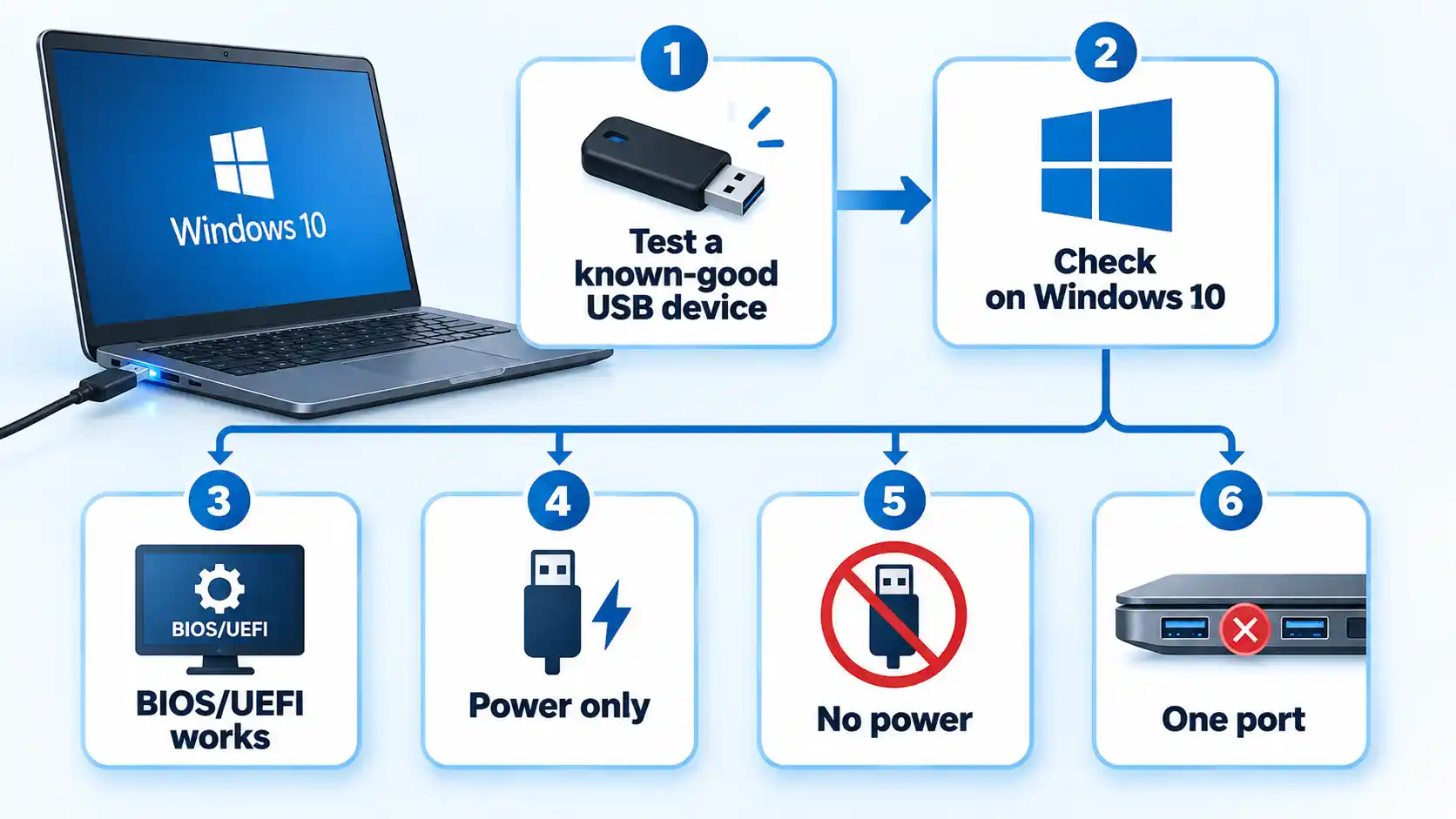
If only one socket fails while the others work normally, focus on that port, cable, or connected device. If every port fails, continue with the system-level checks below.
Fix Windows-Side USB Problems in the Least Disruptive Order
Use these steps in order. Stop when the ports begin working, then verify the result before changing additional settings.
- Restart Windows and disconnect nonessential USB devices. Save your work, disconnect hubs, docks, storage devices, printers, controllers, and other unnecessary USB accessories, then restart the laptop with only one known-good USB device connected. A restart can clear a temporary controller or driver state and make Windows enumerate connected hardware again.
- Inspect USB controllers in Device Manager. Right-click Start and open Device Manager. Expand Universal Serial Bus controllers. Depending on the laptop, you may see USB Root Hub, Generic USB Hub, host-controller, or manufacturer-specific entries. Look for warning icons or a device reporting an error rather than expecting every computer to show identical names.
- Reinstall a USB device or controller only when there is a reason to suspect it. If a relevant entry reports a driver or configuration problem, right-click it and choose Uninstall device. Restart Windows, or open Device Manager and select Action > Scan for hardware changes. Microsoft documents uninstalling a problematic device and scanning for hardware changes as a reinstall method in its Device Manager error-code guidance.
- Check the laptop manufacturer’s support page for applicable chipset, USB, and firmware packages. Use the exact laptop model rather than a generic third-party driver updater. Depending on the machine, relevant packages may be described as chipset, platform, USB, Thunderbolt, serial I/O, BIOS, or firmware updates. Follow the manufacturer’s compatibility and installation instructions rather than installing unrelated drivers merely because a USB peripheral is attached.
- Retest before changing power or firmware settings. Connect the same known-good USB device directly to each port. If Windows detects it normally again, skip the remaining configuration changes and move to the verification section.
Important: If both your keyboard and mouse depend on USB, do not uninstall every USB controller at once unless you have another usable input method or recovery route. Removing the controller currently handling those devices can temporarily leave you unable to operate Windows.
Keep system-wide USB faults separate from peripheral-specific driver problems. If other USB hardware works normally and only one game controller is affected, the problem may belong to that device rather than the laptop’s USB host controller. For example, a joystick may require its own USB Joystick Driver rather than system-wide USB changes. This is a sponsored link and is not evidence for the troubleshooting steps in this article.
If Windows reports USB Device Not Recognized for one peripheral while other USB hardware works normally, troubleshoot that device separately instead of treating the message as proof that every port has failed.
Check USB Power Management Only When the Symptoms Fit
Power-management settings become more relevant when USB works after a fresh restart but fails after sleep, resume, or a period of inactivity. They are less persuasive as the first explanation when the ports never work from startup.
Test the USB hub power-management setting
Open Device Manager, expand Universal Serial Bus controllers, and open the properties for the relevant USB Root Hub or similar hub entry if it exposes a Power Management tab. Some devices provide an Allow the computer to turn off this device to save power option.
If that option is present, you can clear it temporarily and retest the original symptom. If the change makes no difference, restore the previous setting rather than leaving several power-management options changed without evidence that they were involved.
Do not permanently disable USB selective suspend by default
USB selective suspend allows the Windows USB hub driver to suspend an individual idle port without necessarily suspending other ports on the same hub. Microsoft says the feature is enabled by default and strongly recommends not disabling selective suspend.
Disabling it therefore makes sense only as a targeted diagnostic test when the symptoms point toward sleep, idle, or resume behavior. If a temporary test does not change the problem, restore the original setting.
For example, a mouse that works normally after each restart but repeatedly disappears after the laptop wakes from sleep gives you a stronger reason to investigate suspend and resume behavior than a laptop whose USB ports never work at any stage.
Check BIOS or UEFI if Windows Fixes Do Not Help
If Windows-side troubleshooting makes no difference, check whether the laptop firmware has disabled a USB controller or external port. Microsoft notes that some Device Manager conditions involving firmware-disabled hardware must be resolved in BIOS and recommends using the computer manufacturer’s documentation for the required change in its Device Manager guidance.
Do not assume that every computer uses F2 or contains an Integrated Devices menu. Firmware-entry keys, menu names, and available USB controls vary by manufacturer and model.
- Restart the laptop.
- Use the manufacturer’s documented firmware-entry method, or use the Windows Recovery Environment UEFI Firmware Settings option if the device exposes it.
- Look for an explicit USB, external-port, or onboard-device setting.
- Confirm that the relevant USB controller or ports are enabled if such a control exists.
- Save only deliberate changes and leave unrelated settings alone.
Avoid changing xHCI, legacy USB, storage, boot, or security settings merely because their names appear related to USB. Their presence and behavior vary by hardware, so use the documentation for the exact laptop model before altering them.
The most useful observation at this stage is still whether USB works in BIOS but not in Windows. If it does, Windows-side drivers, configuration, and recent system changes deserve closer attention.
What to Do if Your USB Keyboard and Mouse Stop Working Too
Many USB troubleshooting instructions assume that you can still operate Device Manager. If both external USB keyboard and mouse stop working, use the laptop’s built-in keyboard or touchpad if those still function.
If normal Windows input is unavailable but you can reach recovery, Windows Recovery Environment provides tools including Startup Settings, System Restore, Uninstall Updates, Command Prompt, and UEFI Firmware Settings.
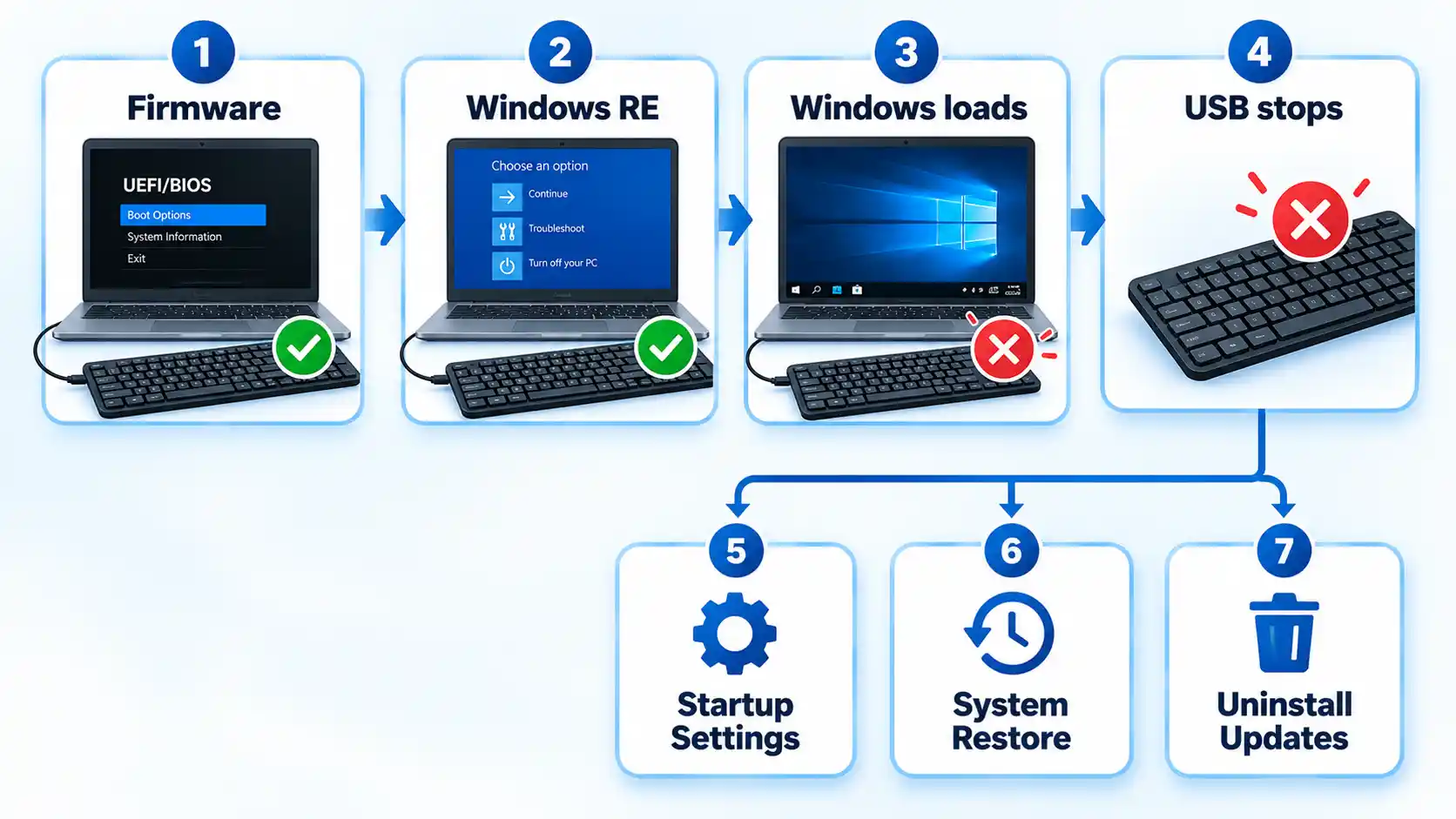
USB stopped working after a recent driver, application, or configuration change
If a suitable restore point exists, System Restore can return system files, registry settings, and installed programs to their earlier state without affecting personal files. Microsoft explains this behavior in its System Restore documentation. Review the affected programs before confirming the restore because software and driver changes made after the selected restore point can be reversed.
The USB problem began immediately after a Windows update
If the timing strongly points to a recent update, Windows Recovery Environment provides Troubleshoot > Advanced options > Uninstall Updates. Microsoft notes that some Windows updates cannot be uninstalled, so treat this as a targeted rollback rather than a guaranteed fix.
You need to test whether the problem changes in Safe Mode
Use Startup Settings in Windows Recovery Environment to start Safe Mode when available. Safe Mode starts Windows with a reduced set of drivers and services, so a change in USB behavior there can help narrow the problem. It does not by itself identify the exact conflicting driver or application.
Recovery warning: If the device is encrypted, Microsoft says some Windows Recovery Environment tools can require the BitLocker recovery key. Make sure you can obtain that key before relying on advanced recovery operations.
Startup Repair is not the default remedy merely because USB devices are unavailable. Microsoft describes Startup Repair as a recovery tool for diagnosing and repairing problems that prevent Windows from starting correctly.
When the Problem Is More Likely Hardware
Software troubleshooting becomes less persuasive when USB fails before Windows loads as well as inside Windows. Hardware inspection deserves more attention when several independent tests point in the same direction.
Consider model-specific hardware diagnostics or professional repair when:
- multiple known-good USB devices fail in every port;
- USB input fails in Windows, firmware, and recovery;
- ports no longer provide expected power;
- a connector is visibly bent, broken, loose, recessed, or contaminated;
- the failure followed liquid exposure, overheating, an electrical event, or physical impact;
- the laptop manufacturer’s hardware diagnostics report a USB or motherboard-related fault.
Dell’s current hardware troubleshooting instructions, although written for its current systems, recommend inspecting USB connectors for visible damage, using compressed air for dust or debris, and avoiding water or liquid cleaning products around USB ports. Its USB port troubleshooting documentation also directs users toward repair when physical port damage is present.
Do not insert metal objects into a USB connector or spray liquid cleaner directly into it. Several physical ports can depend on shared motherboard circuitry, so a multi-port failure does not necessarily mean that several sockets separately failed.
If a USB port has power but does not detect devices, diagnose that symptom separately from a completely unpowered port because power delivery and USB data communication are different parts of the connection.
Windows 10 Support Status Matters in 2026
Microsoft ended support for mainstream Windows 10 on October 14, 2025. Windows 10 computers continue to function, but Microsoft says ordinary free software updates, security fixes, and technical support are no longer provided after that date unless an applicable support program or edition changes the situation.
Microsoft’s Windows 10 end-of-support guidance points eligible users toward Windows 11 or the Windows 10 Extended Security Updates program. This does not mean end of support caused the USB failure; it simply changes what “install the latest Windows 10 updates” can mean on a 2026 system.
Some specialized Windows 10 servicing editions have different lifecycle dates. For example, Microsoft lists Windows 10 Enterprise LTSC 2019 as reaching end of support on January 9, 2029. If the laptop is managed by a business or runs an LTSC/LTSB edition, check that edition’s lifecycle rather than assuming the mainstream date applies unchanged.
Verify That the USB System Is Working Again
Once a fix appears to work, confirm that the USB subsystem remains stable before reconnecting everything. A device working once immediately after a restart is not enough if the original failure appeared only after sleep or after several peripherals were connected.
Verify the result
- Connect one known-good USB device and confirm that Windows detects it normally.
- Test the same device in each physical USB port.
- Restart the laptop once and confirm that the ports still work.
- If the original problem occurred after sleep, complete one sleep-and-resume cycle and test again.
- Reconnect hubs, docks, drives, printers, controllers, and other peripherals one at a time so you can identify a problematic device if the failure returns.
If the USB Ports Still Do Not Work
If USB works before Windows starts but consistently fails after Windows loads, keep the investigation focused on Windows drivers, configuration, recovery, or a recent system change. If multiple known-good devices also fail in firmware and recovery, firmware, power delivery, or hardware deserves greater attention.
Once the evidence points toward physical failure, repeatedly uninstalling drivers, changing registry values, or toggling unrelated firmware options is unlikely to clarify the diagnosis. Use the laptop manufacturer’s hardware diagnostics or arrange a repair assessment instead.

💬 Comments