To secure your webcam, limit camera access to apps and websites you actually use, keep your computer protected from malware, and use a physical shutter or safe cover when appropriate. Windows and macOS handle camera permissions differently, so the strongest setup combines the controls built into your operating system with sensible physical protection.
A webcam cover alone is not complete protection. It can stop the lens from seeing anything, but it does not prevent software from requesting camera access, and it does nothing to block microphone recording.
Why Webcam Security Matters
Windows 11 and macOS both give you controls for deciding which software can use the camera, so reviewing those permissions is one of the first defenses. The controls are not identical, however. Microsoft warns that some Windows desktop apps may not appear in the camera privacy list and may still access the camera or microphone through methods the privacy settings do not fully control.
Permissions still reduce unnecessary access. The UK National Cyber Security Centre notes that malware may target protected peripherals such as webcams and microphones. Limiting applications to the access they genuinely need reduces what compromised software may be able to reach.
Operating-system camera and microphone permissions help control which apps can use those sensors, while browser settings add another control for websites. Physical controls solve a different problem by blocking or disconnecting the camera itself.
Secure Your Webcam on Windows and Mac
Start with the permissions already built into your computer. The goal is not to disable the webcam permanently, but to leave access available only where you expect to use it.
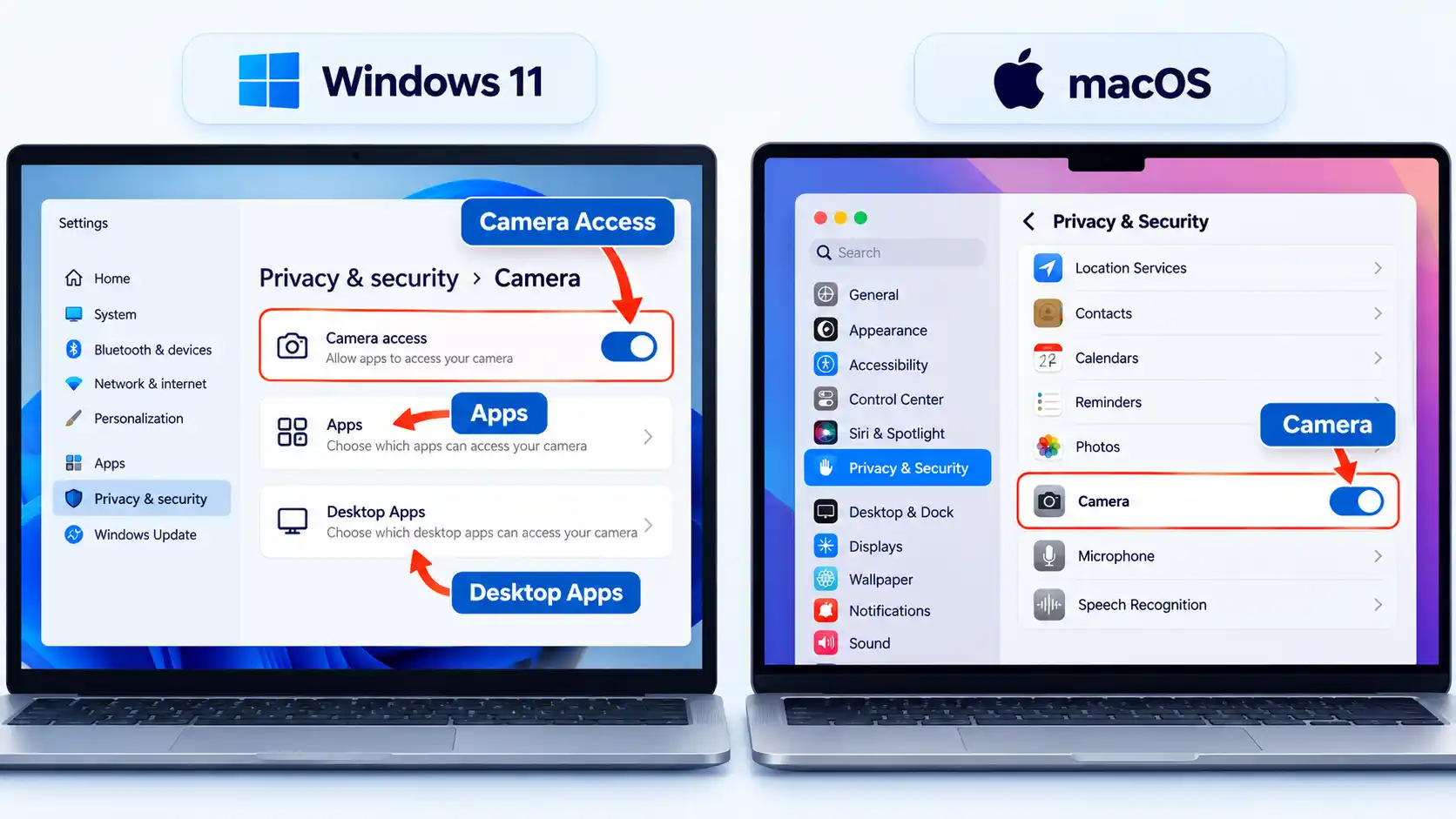
- Open the camera controls in Windows 11. Go to Start > Settings > Privacy & security > Camera. Microsoft lists this as the current Windows 11 camera-permission path. Keep Camera access enabled if you use the webcam, then review which apps are allowed to use it.
- Review Windows Store apps and desktop apps separately. Microsoft Store apps can have individual camera switches. Traditional desktop programs, including many browsers and video-meeting apps, use the broader Let desktop apps access your camera setting and cannot normally be switched individually from that list. Microsoft also warns that some desktop apps may not appear in the list and may still access the camera or microphone through methods these privacy controls do not fully govern. Treat the setting as one security control, not as a physical camera kill switch.
- Account for Windows Hello. If you use facial sign-in, the camera can still be used by Windows Hello even when ordinary app camera access is disabled. Microsoft identifies Windows Hello as an exception to the normal camera privacy controls. Do not treat camera activity during a normal Windows Hello sign-in as proof that another app has gained access.
- Review camera access on a Mac. Choose Apple menu > System Settings > Privacy & Security > Camera, then turn access off for apps that do not need the webcam. Apple’s current instructions let you review camera access for installed Mac apps from this screen.
- Check website permissions as well. An operating-system permission for your browser does not mean every website should automatically receive camera access. In Safari, open Safari > Settings > Websites > Camera and review site-level permissions. In Microsoft Edge, an individual website still needs camera or microphone permission even when the browser itself has access.
- Review microphone access separately. Covering the webcam lens does not stop audio capture. On a Mac, go to System Settings > Privacy & Security > Microphone and turn access on or off for each app as needed. Windows also provides separate microphone permissions under Privacy & security.
When you finish, apps and sites you intentionally use for calls or recording should still work, while unnecessary permissions should be disabled where the operating system exposes those controls. These instructions center Windows 11 because standard Windows 10 support ended on October 14, 2025.
Use Physical Camera Controls Safely
Software permissions control who can request the webcam. A physical shutter, switch, cover, or disconnected cable controls whether the camera can actually see anything.
If your laptop has a built-in privacy shutter or hardware camera switch, use it when you do not need video. For an external USB webcam, unplugging it when it is not in use creates an equally clear physical boundary.
A webcam cover and camera permissions protect against different problems: the cover blocks the lens, while permissions control software access. Using both can make sense, but the cover must be suitable for your hardware.
Do not assume a thick sliding cover is safe on a MacBook. Apple warns that closing a Mac laptop with a camera cover installed can damage the display because the gap between the screen and keyboard is very small. If a workplace requires a cover, Apple says it should be no thicker than about 0.1 mm, should not leave adhesive residue, and should be removed before closing the computer if it is thicker than 0.1 mm.
Apple also says its built-in Mac camera cannot activate without its green indicator light also turning on. The indicator therefore gives you useful information about the built-in camera, but it does not replace permission management or protection against malicious software.
Reduce Malware and Phishing Risk
Camera settings cannot protect you from every problem on a compromised computer. Malware is software designed to perform harmful or unwanted actions, and it can arrive through unsafe downloads, deceptive installers, or malicious links and attachments.
Be cautious when a message unexpectedly asks you to open an attachment, install software, or follow a login link. The US Federal Trade Commission warns that links and attachments in phishing messages can install malware. When possible, open a service through its known app or type its familiar address yourself rather than trusting an unexpected message.
Keep Windows, macOS, your browser, conferencing software, and security tools updated. Updates often repair known security problems. If you think you opened something malicious, the FTC recommends updating your security software, running a scan, and removing anything the scan identifies.
These habits help reduce malware risk while browsing, but they should support camera permissions rather than replace them. A computer with strong malware protection can still expose video unnecessarily if apps or websites have more camera access than they need.
Secure External Webcams and Network Access
Not every device called a webcam works the same way. A typical USB webcam is controlled by the computer it plugs into, so the computer’s permissions, software updates, and malware defenses are the main controls.
An internet-connected or IP camera is different. An IP camera can have its own account, software, network connection, and remote-access features. For those cameras, use strong unique passwords, keep camera software updated, and enable two-factor authentication when available. These controls apply to network-connected cameras rather than an ordinary built-in laptop webcam.
If your camera has its own login page, cloud account, mobile app, recorder, or direct network connection, treat it as a network device. You can secure IP cameras and CCTV recorders with additional controls for accounts, updates, remote access, and the local network.
What to Do If Your Webcam Activates Unexpectedly
An unexpected camera light or notification is a reason to investigate, but it is not proof that someone has hacked your webcam. Start with ordinary causes, then escalate if the activity remains unexplained.
- Close apps and browser tabs that normally use the camera. Quit video-meeting software, messaging apps, camera utilities, and browser tabs that recently asked for camera access. Wait to see whether the indicator turns off.
- Check whether the operating system explains the activity. Windows turns on a camera light when the hardware provides one; on devices without a camera light, Windows can show a camera on/off notification. On a Mac, the built-in camera uses a green activity indicator. Normal facial sign-in through Windows Hello can also activate the camera.
- Review camera and site permissions again. Return to the Windows or macOS camera settings and disable access you do not recognize or no longer need. Also inspect browser site permissions if the activity appeared while you were browsing.
- Revoke questionable access and test again. Close the affected app or site after removing permission, then watch for camera activity. If the activation stops after you revoke an app or site’s permission, that app or site becomes a likely explanation, but the result does not prove that anything malicious happened. If the activity returns, continue with the security checks below.
- Update security software and run a scan if the cause is still unclear. This becomes more important if the unexpected camera activity followed a suspicious download, attachment, installer, or link.
- Physically disconnect the camera if you still suspect compromise. Unplug an external webcam or close its hardware shutter while you continue investigating. If the computer shows other signs of compromise or the activity keeps returning without an identifiable cause, stop using the device for sensitive work until it can be checked by someone you trust.
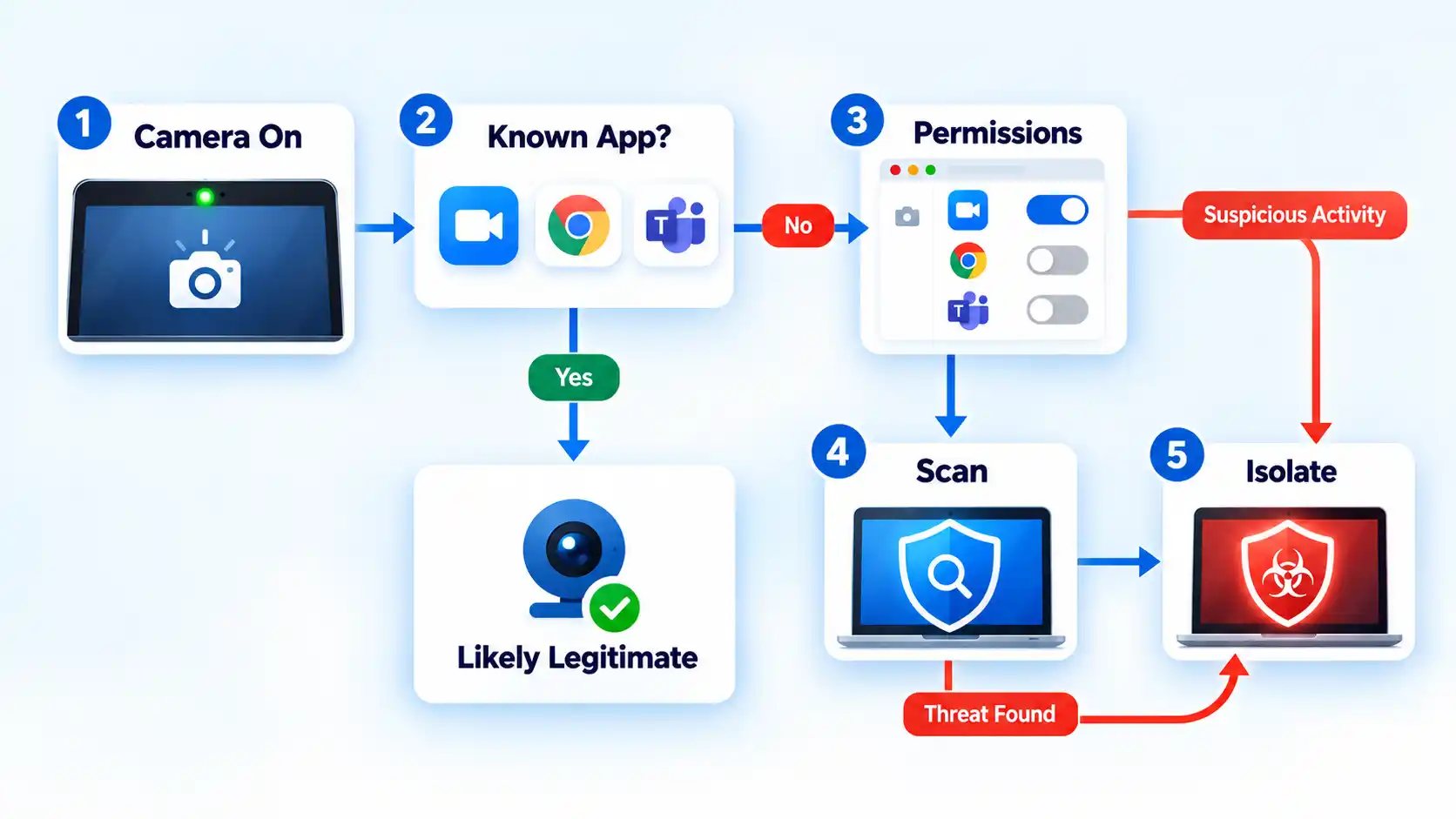
If you are trying to determine whether your webcam is being used without permission, start by ruling out legitimate apps and system features before treating the activity as a compromise.
The camera stays active after I close a video-call window
Check whether the application is still running in the background and close any browser tabs that were using video. Then review camera permissions for the app or browser. If the indicator remains active after those legitimate camera users are closed, continue through the permission and security checks above rather than assuming the light alone proves a compromise.
My Windows camera activates while I sign in
If you use Windows Hello facial recognition, camera activity during sign-in can be expected. Microsoft states that Windows Hello can use the camera even when ordinary app camera access is turned off. If the camera activates at unrelated times, continue with the permission and malware checks above.
The green camera light appears unexpectedly on my Mac
Quit apps that can use the camera and review System Settings > Privacy & Security > Camera. Apple says the built-in Mac camera is engineered so that it cannot activate without its green indicator also turning on. If you cannot identify the app responsible, remove unnecessary permissions and scan the Mac before using it for sensitive activity.
Webcam Security Checklist
Once the settings and physical controls are in place, use these observable checks to confirm that your webcam setup behaves the way you expect.
Verify the result
- Your macOS app permissions and individually listed Windows app permissions allow only the software you need, while the broader Windows desktop-app camera setting matches whether you use desktop browsers or video-call apps.
- Websites do not have permanent camera access unless you intentionally allowed it.
- Microphone permissions have been reviewed separately from camera permissions.
- Your normal video-call app can still use the camera when you intentionally open it.
- The camera indicator or notification stops after legitimate camera-using apps and sites are closed.
- A built-in shutter, hardware switch, safe cover, or disconnected external webcam blocks video when you want a physical privacy barrier.
- Your operating system, browser, conferencing apps, and security software are receiving updates.

This is a great article. I bought some cheap Trust stick-on webcam covers that are easy to slide on/off. It’s nice to see an article that focuses on webcam security because while it isn’t a common attack vector it doesn’t get much attention.