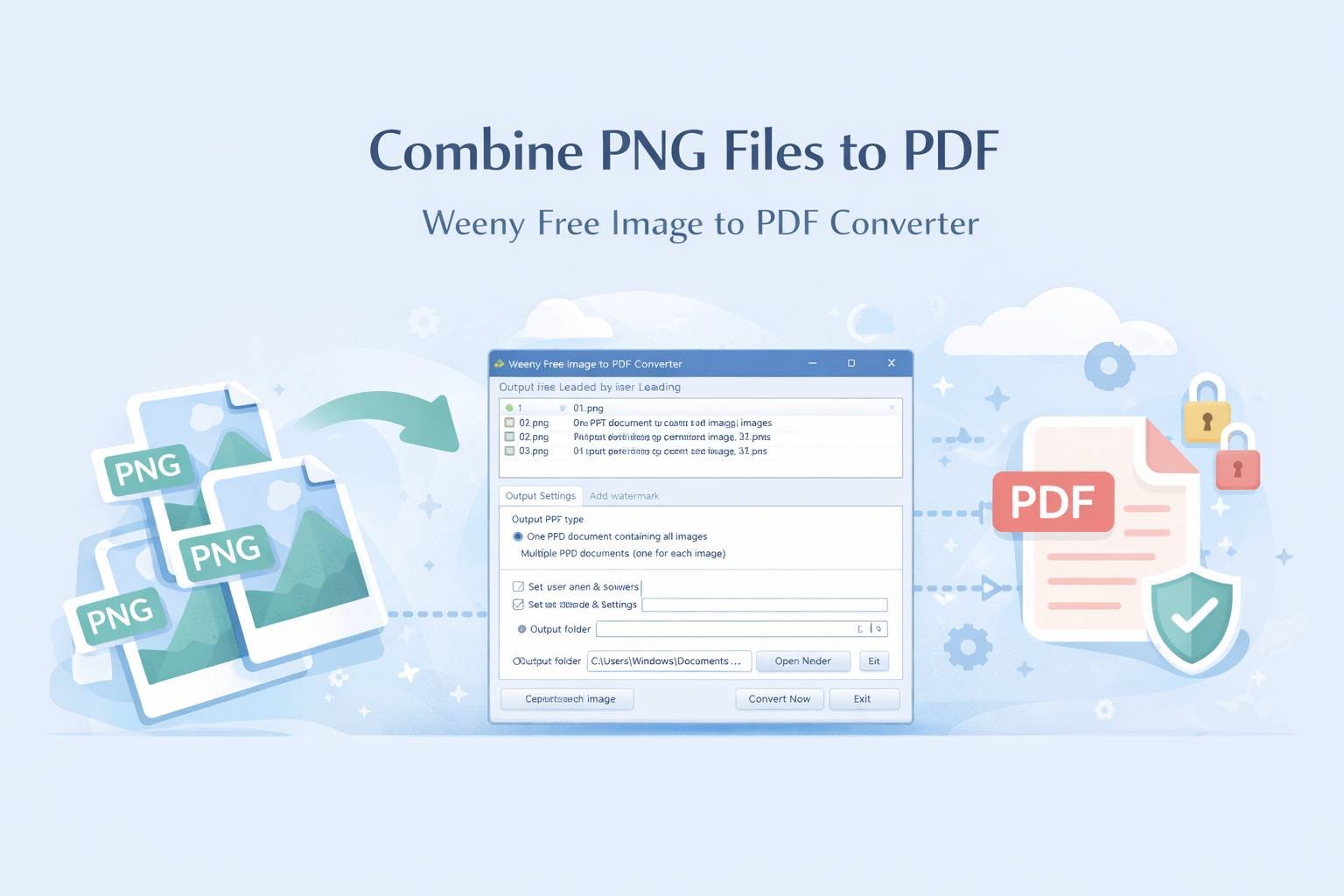
If you want a simple Windows tool to combine multiple PNG files into one PDF, Weeny Free Image to PDF Converter is still a workable option. Its official page says it can batch convert image files to PDF, merge multiple image files into one PDF, and add optional watermark, password, restriction, and metadata settings.
This guide focuses on the practical workflow: add your PNG files, set the output to one PDF, choose any optional PDF settings you need, and run the conversion. I will also show when this tool is the right fit, when it is not, and which alternative makes more sense if you want a browser-based or broader PDF workflow.
Quick Take
- Best for: Windows users who want a local desktop tool to merge PNG images into one PDF.
- What it does well: Batch image-to-PDF conversion, single-PDF output, watermarking, passwords, restrictions, and metadata.
- What to verify first: The official page confirms it is for Windows, but it does not publish a detailed Windows-version support matrix.
- Better no-install option: PDF24 if you prefer a browser workflow.
- Better all-in-one option: PDF Shaper if you need a larger Windows PDF toolkit.
Why Use Weeny for This Job?
The official Weeny product page lists the tool as freeware for Windows and says it can batch convert image files to PDF documents. It also confirms support for JPG, TIF, BMP, PNG, PCX, and GIF, which is enough for the typical “combine scanned screenshots or exported images into one PDF” workflow.
That matters because many older PNG-to-PDF articles overpromise advanced features they never verify. With Weeny, the safe, documented feature set is clear: merge multiple image files into a single PDF, set page size and metadata, add a watermark, and apply passwords or restrictions if needed.
Before You Start
- Put all PNG files you want to merge into one folder.
- Rename them in the order you want them to appear, such as 01, 02, 03, and so on.
- Decide whether you want a clean PDF only, or a protected PDF with a password and restrictions.
- If the images are very large, consider resizing or compressing them first to avoid an oversized PDF.
If you also work with mixed image formats, this same workflow can usually be reused for JPG, BMP, GIF, PCX, and TIF because those are the formats listed on the official Weeny page. If your files are not in one of those formats, convert them first or use a more flexible workflow such as our image-to-PDF guide for Windows.
How to Combine PNG to PDF with Weeny
- Download and install Weeny Free Image to PDF Converter from the official product page.
- Open the program and add the PNG files you want to merge.
- Check the file order before converting. If the app lets you move files up or down, use that. If not, close the app, rename the files more clearly, and re-add them in sequence.
- Open the settings area and choose the mode that creates one PDF from all selected images rather than separate PDFs.
- Set any optional output preferences you need, such as page size, document metadata, watermark, password, or restrictions.
- Choose the output location where the merged PDF should be saved.
- Start the conversion and wait for the PDF to be created.
- Open the finished PDF and confirm the page order, image quality, and security settings before sharing it.
What You Can Customize
According to the official page, Weeny lets you set PDF page size and metadata, and it can also add an image watermark or text watermark. It also says you can set passwords and document restrictions, which is useful if you want to limit printing, editing, or copying in the final PDF.
That makes Weeny more useful than a bare-bones “print images to PDF” workflow. For simple office tasks, the ability to merge, label, and lightly protect a PDF in one pass is usually enough.
When This Tool Is the Right Fit
- You want a local Windows tool instead of an online uploader.
- You need to combine several PNG files into one PDF quickly.
- You want light PDF controls such as watermarking, metadata, passwords, or restrictions.
- You do not need OCR, PDF editing, annotation tools, or advanced document layout options.
If you frequently need related workflows after conversion, such as splitting PDFs, merging existing PDFs, or editing metadata across many files, a broader toolset may save time. In that case, PDF Shaper’s official site is worth checking because it positions the app as an offline Windows PDF toolkit with convert, secure, merge, split, watermark, cleanup, metadata, and page-management features.
When Not to Use Weeny
Weeny is not the best choice if you want a browser-based workflow, cross-platform access, or a tool you can use instantly on a shared machine without installation. For that scenario, PDF24’s Images to PDF tool is the better fit because its official page says it works in the browser, supports common image formats like JPG, PNG, GIF, and TIFF, and requires no installation.
There is a trade-off, though: PDF24 also says the PDF generation happens in the cloud on its servers, even though it states files are deleted after a short period. That makes it convenient, but not always the first choice for sensitive internal images.
Troubleshooting
The PDF pages are in the wrong order
This usually happens because the source images were added in the wrong sequence. Rename the files numerically before importing them, then rebuild the PDF.
The output PDF is too large
Large PNG files often produce a large final PDF. Resize oversized images before conversion, or use a separate workflow such as a PDF compression guide after the file is created.
The PDF opens, but the security settings are not what you expected
Recreate the file and double-check the password and restriction settings before conversion. Always open the final PDF yourself before sending it to someone else.
You need to merge PDFs after creating them
That is a different task from merging images into a PDF. For that workflow, use a dedicated PDF merge tool or follow our Windows PDF merge tutorial.
Decision Guide
| Your Need | Best Choice | Why |
|---|---|---|
| Combine PNG files into one PDF locally on Windows | Weeny Free Image to PDF Converter | Simple desktop workflow with batch conversion and one-PDF output. |
| Do the job without installing software | PDF24 Images to PDF | Browser-based and no setup required. |
| Need a larger PDF toolkit after conversion | PDF Shaper | Broader set of offline PDF tools for Windows. |
Implementation Checklist
- Collect all PNG files in one folder.
- Rename files in the final page order.
- Add the files to Weeny.
- Choose the single-PDF output mode.
- Set optional page size, metadata, watermark, password, or restrictions.
- Run the conversion.
- Open the finished PDF and verify the result.
FAQ
Can Weeny merge multiple PNG files into one PDF?
Yes. The official product page says it can merge multiple image files into a single PDF file.
Does Weeny support only PNG?
No. The official page also lists JPG, TIF, BMP, PCX, and GIF.
Can I password-protect the output PDF?
Yes. The official page says the tool can add passwords and restrictions to output PDF documents.
Do I need Adobe Acrobat Reader installed first?
No. The official page says the software does not require Adobe Acrobat Reader installed.
Does Weeny install a PDF print driver?
No. The official page says it does not depend on a print driver and will not install one on your computer.
What if I do not want to install a desktop program?
Use PDF24’s online Images to PDF tool instead, especially if speed and convenience matter more than keeping the process fully local.
What if I need more than image-to-PDF conversion?
Use PDF Shaper if you also need merge, split, watermark, metadata, security, or page-management tools in one Windows app.
After creating your file, you may also want to add stronger PDF protection on Windows or compare other free PDF tools for Windows depending on how you plan to share the document.

💬 Comments