A Smart TV app is usually missing because it does not support your TV model or operating system, is unavailable in your region, has been removed from the platform, or the TV’s app store is not loading correctly. Check compatibility and regional availability before assuming that restarting or resetting the television will fix it.
The most useful first step is to identify exactly what “missing” means. An app that never appears in search is a different problem from an installed app that disappeared from the Home screen or an app store that will not open at all.
First, Identify What “Missing” Means
Smart TV app problems can look similar, but the symptom tells you which part of the system to investigate.
- The app does not appear in store search: compatibility, region, developer distribution, or platform availability are the first areas to check.
- The app appears but cannot be installed: the TV may not meet the app’s compatibility requirements, or the platform may be blocking installation because of account, storage, or other device-specific requirements.
- The app used to be available but is gone: the developer or platform may have removed it, renamed it, or stopped supporting that device category.
- The app is installed but missing from the Home screen: it may still appear in the TV’s complete installed-app list even if it is not pinned or shown prominently on Home.
- The entire app store will not open: network connectivity, account state, store-service access, or TV software is more relevant than one app’s compatibility.
That distinction matters because repeatedly restarting a television will not make an unsupported app compatible, while checking a compatibility page will not repair an app store that cannot connect to the internet.
Cause 1: The App Does Not Support Your TV Model or Operating System
An application can be available on one television from a brand and missing on another from the same brand. Smart TV platforms change across model years, operating-system versions, processors, and other hardware capabilities.
LG’s current support guidance tells users who cannot find a particular application to check whether the app is supported for their country and exact TV model. LG also notes that supported apps can vary by country, model, and webOS version.
App compatibility means that the developer has made the application available for that type of device and that the device meets the software and hardware requirements used for distribution.
Google Play works similarly. Google’s current guidance for an app that cannot be found says a missing app may be incompatible with the device and that individual app developers determine compatibility. Google Play can therefore make an app available for one device associated with your account while withholding it from another.
On Fire TV, Amazon documents the same principle from the developer side. Developers can choose which Fire OS devices their app supports, while device compatibility is also affected by the application’s binary and manifest requirements.
This is why a phone version of an app does not prove that a Smart TV version exists. Android phones, Android TV, Fire TV, Samsung Tizen, LG webOS, Roku, and other television platforms do not all use the same application builds or distribution requirements.
For example, a streaming provider might continue supporting its Android phone app while dropping an older television operating-system version. The TV panel can still work normally even though the provider no longer distributes an app for its built-in platform.
Cause 2: The App Is Not Available in Your Region
Smart TV app stores are regional catalogs rather than one universal list. Two otherwise similar televisions can show different applications when they are configured for different markets.
LG explains that its LG Services Country setting affects the apps and services available to the television. The company also notes that availability can vary according to the selected region and that overseas models can have region-specific hardware or software limitations.
Amazon makes a similar distinction for Fire TV. Its Fire TV guidance for use in another country says content availability varies by country and that some apps and games may not work after the Amazon account country changes.
The correct response is to verify that the television and platform account reflect the country where you are actually using the service. Changing a country setting does not guarantee that an unsupported app will become available, and it should not be treated as a way to bypass a provider’s licensing or regional restrictions.
A service can also offer its mobile application in a country without publishing an equivalent app for every television platform there. Mobile availability and Smart TV availability are separate questions.
Cause 3: The App Was Removed, Renamed, or Replaced
Sometimes there is nothing wrong with the television. The application itself is no longer distributed under the name you remember.
Google Play says an app that no longer appears may have been removed by its developer or removed from Google Play for violating platform rules. Its current missing-app guidance therefore recommends checking compatibility and contacting the developer when necessary instead of assuming that the device is faulty.
Streaming services can also change names, combine services, retire old applications, or move subscribers to replacement apps. When an app used to exist but no longer appears, check the provider’s current website and supported-device information for the present service name before troubleshooting the television.
An old screenshot or article showing that an app once existed in a store is not evidence that the provider still distributes it there today.
If a service appears to have changed identity, search for its current official name instead of downloading an old installer from an unfamiliar site. Old mobile Android packages are also not a general replacement for apps built for webOS, Tizen, Roku, Fire TV, or other television platforms.
Cause 4: The App Store or TV Is Not Connecting Properly
If one application is missing, compatibility or provider availability should be checked first. If the whole store fails to load or many normally available apps fail at once, the problem is more likely to involve the television, network, account, or store service.
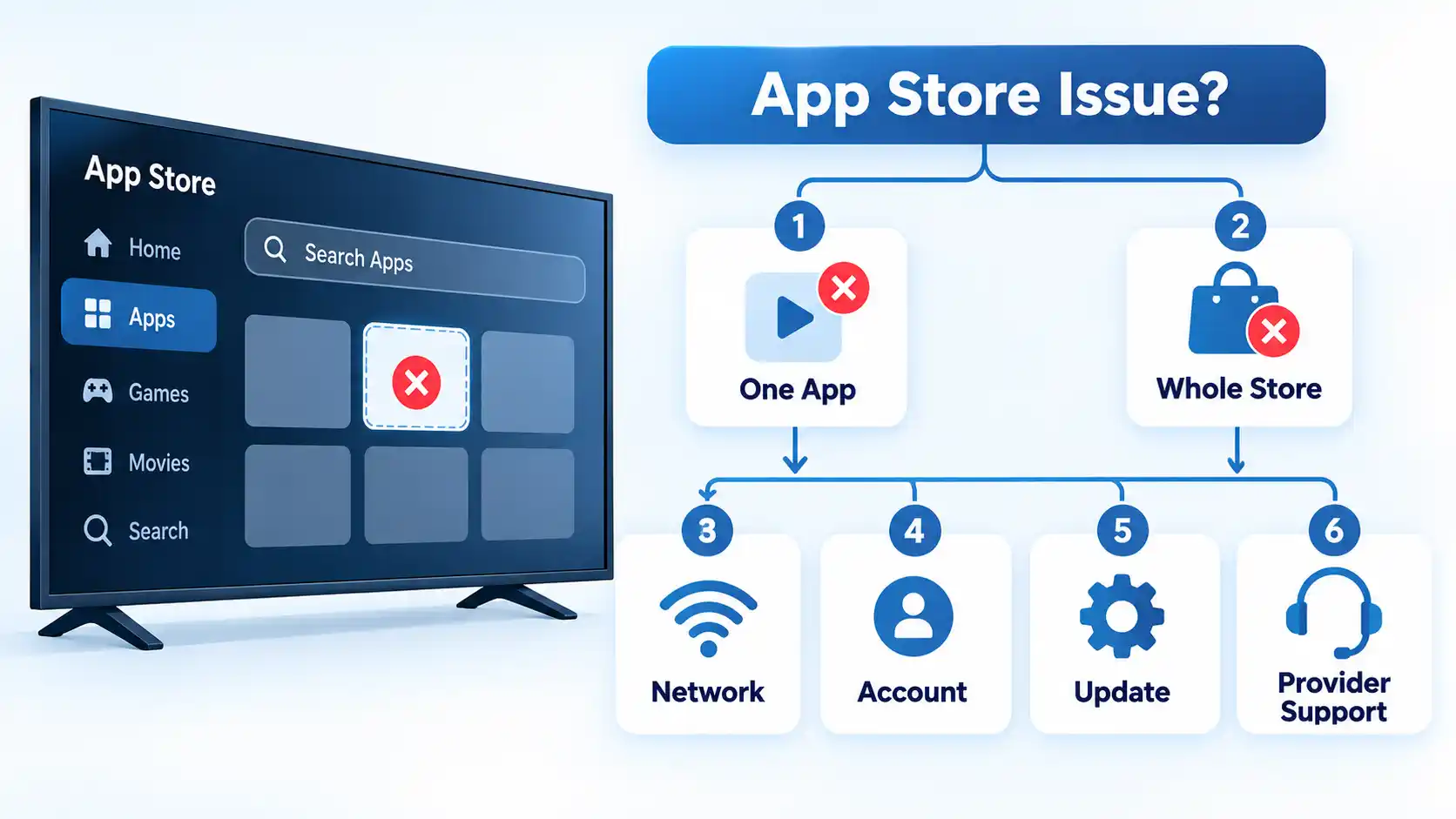
Only one app is missing
Check the application’s current device-support page, your exact TV model and operating-system version, and the app-store region first. LG says supported apps can vary by country and model, while Google Play and Amazon both document device-specific compatibility filtering. Restarting the television will not override those distribution rules.
The entire app store will not load
Confirm that the TV has working internet access, then restart the television and network equipment if necessary. Check whether the platform requires you to sign in or accept current service agreements. A whole-store failure points more strongly to connectivity, account, software, or store-service problems than to one app’s compatibility.
Several apps suddenly stop working
Check the television’s network connection and system software before reinstalling individual apps. LG’s current troubleshooting guidance says network instability is a common reason apps fail to load and recommends checking connectivity before moving to app-specific fixes.
Only one installed app crashes or will not open
Update or reinstall that app if the platform provides those options. LG says that when the problem affects only one app, it is likely app-specific and recommends contacting the app provider if updating or reinstalling does not resolve the problem.
The app appears but will not install
Check device compatibility, account sign-in, regional settings, and available storage before resetting the TV. LG’s current installation guidance specifically lists internet access, LG Account sign-in, LG Services Country, model or regional availability, and sufficient storage among factors that can prevent an app from installing.
On LG televisions, current troubleshooting guidance recommends checking the network first when apps fail to load, then updating or reinstalling an individual app when the problem affects only that application. LG also documents account, region, and storage checks when an app is visible but will not install.
Cause 5: The App Is Installed but Missing From the Home Screen
An app that is installed but not visible on the Home screen is different from an app that is unavailable in the store.
On Android TV, Google’s current app-management instructions let you find installed applications through Settings or the Play Store’s installed-app list. Google’s Home-screen guidance also distinguishes the complete Apps area from the smaller Favorites row, where apps can be added, removed, or reordered.
Before reinstalling anything, check the television’s full installed-app list. If the app is present there but absent from Home or Favorites, the problem is presentation or launcher placement rather than proof that the application was removed from the device.
The exact controls vary by television brand and operating-system version, so do not assume that Samsung, LG, Android TV, Fire TV, and Roku use the same recovery path.
How to Check Whether the App Officially Supports Your TV
Before changing major television settings, establish whether the application is supposed to be available on your hardware at all.
- Find the exact TV model. Use the model information in the television settings, rear label, or manufacturer’s device information rather than relying only on the brand name.
- Identify the TV operating system and software version. A service may support one webOS, Android TV, Fire OS, Tizen, or Roku OS generation but not another.
- Check the manufacturer’s app catalog or support page. LG, for example, lets users check supported apps using the country and television model.
- Check the app provider’s supported-device page. Confirm that the provider still lists your television platform and, where specified, the required model year or operating-system version.
- Check regional availability. Make sure the television or platform account reflects the country where you are actually using the service.
- Confirm the app’s current name. A service may have been renamed, merged, or replaced by another application.
- Only then troubleshoot the store. If the app should be supported but is still absent, move to connectivity, account, software-update, and store-service checks.
Manufacturer and app-provider documentation can occasionally lag one another. If the TV manufacturer still lists an app but the streaming provider says that platform is no longer supported, do not assume that reinstalling or resetting the TV will restore service. The app provider’s current device-support information matters because it controls whether the service continues maintaining that application.
What to Do If the App Really Is Not Supported
If the television’s built-in platform is unsupported, the screen itself may still be perfectly usable. You can move the streaming-software layer to another supported device instead of replacing the television solely because one native app is unavailable.
Possible alternatives include a current external streaming stick or box, an officially supported casting method, a compatible game console, or an HDMI-connected computer when the service supports browser playback.
If you are deciding whether external hardware is worthwhile, compare a Smart TV app, Chromecast, and streaming stick by app support, control method, portability, and upgrade path rather than assuming every external streamer works the same way.
Avoid downloading random Android application package (APK) files simply because the television’s normal store does not offer an application. A phone APK does not automatically work on a television, and LG webOS, Samsung Tizen, Roku, Fire TV, and Android TV do not all use the same application format or distribution system.
When Should You Reset the TV?
A factory reset should be a late-stage troubleshooting step, not the first response to a missing app.
Warning
A factory reset cannot make an unsupported or region-unavailable app become compatible. It can also erase installed apps and personal settings, so verify support, region, network access, account state, and normal update options first.
LG’s current factory-reset guidance warns that a full reset removes installed apps and personal settings. Its app-installation guidance similarly places reset after checks for account sign-in, network access, region, storage, and normal installation problems.
Consider a reset only when the application is officially compatible, the region is correct, the television can reach the network, the account and store are functioning, available storage is not blocking installation, software updates have been applied, and lower-impact troubleshooting has failed.
If the application is unsupported by design, resetting the television only returns you to the same compatibility limitation after setup.
Bottom Line
When a Smart TV app is missing, check in this order: whether the app supports your exact TV, whether it is available in your region, whether the provider removed or renamed it, and whether the app store itself is working normally.
If the app is genuinely unsupported, repeated resets and unofficial installers will not change the underlying compatibility rule. A supported external streaming device or casting route can be a more practical way to keep using an otherwise functional television.

💬 Comments