To reduce malware risk while browsing, keep your software updated, leave browser and device security features enabled, download only from sources you can verify, and treat unexpected links, attachments, and security warnings carefully. No single protection blocks every threat, so the safest practical approach is to use several layers together.
Malware means malicious software. A computer virus is one type of malware, but the wider category also includes spyware, Trojans, ransomware, and other software designed to harm a device, spy on activity, steal information, or perform unwanted actions. If you want the wider context, different types of cybersecurity threats include malware as well as phishing, credential attacks, ransomware, and other attack methods.
Quick Take
- Keep your operating system, browser, apps, and security software updated.
- Leave antivirus, firewall, and browser security protections enabled.
- Get software from publishers or other sources you can independently verify.
- Do not trust unexpected links, attachments, update prompts, or webpage virus alerts.
- If suspicious software has already run, stop sensitive activity and check the device before continuing.
How Malware Reaches You While You Are Online
Imagine visiting a normal-looking website and seeing a message that says your browser is outdated. The page offers an urgent update. You download the file, run it, and later discover that the supposed update did not come from the browser developer.
That example shows why malware prevention is not simply about avoiding obviously suspicious websites. Microsoft explains that malware can arrive through unexpected attachments, unofficial or bundled software, malicious downloads, compromised webpages, and weaknesses in outdated software. A legitimate website can also be hacked and used to expose visitors to malware. Microsoft’s malware infection guidance recommends keeping software, especially the browser, current and removing software and browser extensions you no longer use.
A vulnerability is a weakness in software that malicious code may be able to exploit. Updates fix many known weaknesses, while browser warnings, security software, careful download choices, and other protections address different parts of the same problem.
If your concern is whether unusual behavior means a device is already infected, malware warning signs are a separate question from preventing the initial infection.
1. Keep Your Operating System, Browser, and Apps Updated
Updates matter because they can fix security weaknesses before those weaknesses are used against you. The FBI recommends regularly updating computers, phones, and apps to protect against security weaknesses that attackers can exploit.
Turn on automatic updates where practical, especially for your operating system, web browser, and security software. Applications that open documents, messages, or downloaded files should also stay current.
There is an important difference between an update delivered through a program’s normal update system and a webpage that claims you need one. If an unfamiliar page says, “Your browser is outdated,” do not install the offered file simply because the message looks official. Close the prompt and check for updates through the browser’s own settings or the software publisher’s verified website.
2. Keep Real-Time Malware Protection Enabled
Real-time protection means security software checks files and programs as they are downloaded, opened, or run instead of relying only on a scan you start later.
Keep a reputable antimalware tool active and current. On Windows, Microsoft Defender Antivirus is built into Windows Security and can continuously scan for threats. Microsoft’s current guidance says that real-time protection scans files you open or download.
Antivirus is still only one layer. It does not make every website, attachment, browser extension, or installer trustworthy. Antivirus and browser security protect different parts of the browsing process, which is why both matter.
3. Leave Your Firewall Enabled
A firewall controls which network connections are allowed to enter or leave a device. A simple way to think about it is as a gatekeeper for network traffic rather than a tool that examines every webpage or downloaded file.
Microsoft says Windows Firewall filters network traffic and blocks unauthorized access. Turning it off can make a device more exposed to unwanted network connections.
Keep your device’s normal firewall enabled unless you have a specific reason to change it. If an application is being blocked, allowing only the application you trust is generally safer than switching the entire firewall off.
A firewall does not make a dangerous installer safe. It complements malware scanning, browser protections, and software updates rather than replacing them.
4. Keep Browser Safe-Browsing Protection Turned On
Modern browsers can warn you before you visit a site or download a file that has been associated with phishing, malware, deceptive software, or other dangerous activity.
Google says Chrome Safe Browsing warns about dangerous sites, downloads, and extensions, including threats involving malware, phishing, malicious advertising, and social engineering. Other modern browsers provide their own security and reputation checks.
Leave these protections enabled. If a browser stops a download or displays a full-page warning, do not automatically bypass it simply because you want to reach the site or file.
A warning is not absolute proof that a file is malicious. For example, an unfamiliar or uncommon file may receive additional scrutiny. The practical response is to verify the publisher and source independently rather than treating every warning as either infallible or safe to ignore.
5. Download Software Only From Sources You Can Verify
A professional-looking download page does not prove that the file behind it is safe. Attackers can imitate company branding, create convincing download buttons, or distribute modified installers through unrelated websites.
When possible, get software from the developer or publisher’s official website, an established operating-system app store, or another distribution channel you can independently verify. The FBI advises downloading files and apps only from trusted sources, while Microsoft recommends downloading software from the official vendor’s website.
Pay attention during installation as well. Some installers include potentially unwanted software, meaning programs you did not primarily intend to install that may add advertising, toolbars, or other unwanted behavior. Microsoft advises reading installation screens instead of clicking through them automatically.
The useful question is not merely, “Does this website look professional?” Ask, “Can I confirm that this is the real publisher or an authorized source?”
6. Do Not Override Download Warnings Just to Get the File
A common mistake is treating a security warning as an obstacle that must be removed. A site may tell you to disable antivirus, ignore a browser warning, or allow a blocked download before its file will work.
That should make you more cautious, not less. Google tells Chrome users to take download warnings seriously and notes that attackers may tell people to turn off or ignore warnings to avoid security detection.
If a browser or security tool blocks a file, first confirm what the file is, who published it, and why you expected to download it.
There is a difference between independently confirming that a legitimate file was incorrectly flagged and trusting the same website that is asking you to weaken your protection. If the only reason you believe the file is safe is that its download page says so, you have not independently verified it.
7. Treat Unexpected Links and Attachments as Untrusted
Suppose you receive an unexpected message that appears to be from a delivery company and says an invoice is attached. A convincing logo and familiar company name do not prove the sender is genuine.
The FBI advises caution with messages that pressure you to click links or open attachments. The FTC similarly recommends that when an unexpected message could be genuine, you should contact the organization through a phone number, email address, or website you already know is real rather than trusting the contact details inside the suspicious message.
This advice is not limited to email. Text messages, social media, workplace chat systems, and messaging apps can all be used to deliver suspicious links or files.
If you already clicked something questionable, the correct response depends on what happened next. What to do after clicking a suspicious link differs depending on whether you only opened a webpage, entered credentials, downloaded a file, or ran the downloaded program.
8. Ignore Webpage “Virus Detected” and Fake Update Pop-Ups
A webpage can display a box that looks like a Windows, browser, or antivirus message even when it is simply content created by the website. Messages such as “Your device has 5 viruses,” “Critical infection detected,” or “Call support now” should not be trusted merely because they look urgent.
If a webpage claims your device is infected and tells you to call a phone number, install a cleanup tool, or disable security protections, close the page and check your device through its legitimate security settings instead.
The FTC warns that tech-support scammers use fake computer warnings to frighten people into calling a number, paying for unnecessary services, sharing financial information, or giving someone remote access to the computer. The FTC also states that legitimate security pop-up warnings do not ask you to call a phone number.
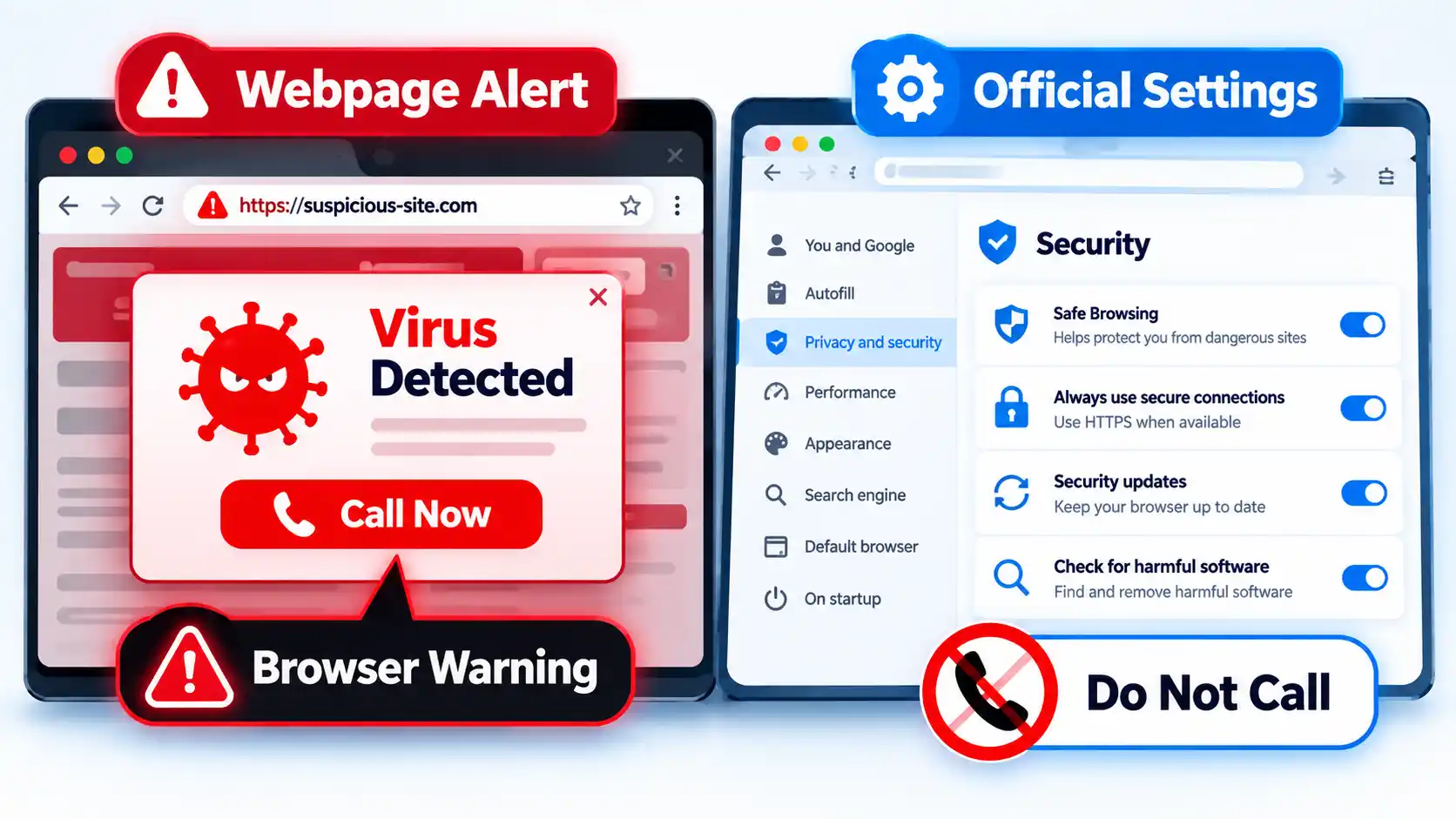
The same pressure tactics can appear on unfamiliar streaming and download sites. Pop-ups, fake play buttons, redirects, and fake app prompts can push a visitor toward a download or permission they did not originally intend to grant.
When you genuinely need to update software, open the program’s own settings, use its normal updater, or visit the publisher’s verified website yourself.
9. Keep Browser Extensions to the Ones You Actually Need
A browser extension is an add-on that changes or adds browser functions. Depending on what it does, an extension may ask for permission to access website data or other browser features.
Mozilla explains that Firefox extensions can request permission to access data or features, and users can review and manage those permissions. The exact permission system differs between browsers, but the practical question is the same: does the extension need the access it is requesting?
Before installing an extension, check who publishes it, what permissions it asks for, and whether you actually need it. Remove extensions you no longer use. Microsoft also recommends removing unused browser extensions and keeping the browser updated as part of reducing malware exposure.
10. Avoid Pirated Software, Cracks, and Key Generators
A crack, activator, modified installer, or software-key generator may ask you to run a program from a source you cannot reliably verify. Running unknown software gives that program an opportunity to make changes on your device.
Microsoft specifically warns that software key generators can install malware and recommends obtaining software from the official vendor instead. Microsoft also advises reading exactly what an installer is adding rather than clicking through installation screens automatically.
The security lesson is straightforward: if you cannot confidently identify who created a program and what you are allowing it to run, installing it creates avoidable risk.
11. Block Unwanted Pop-Ups and Be Careful With Site Permissions
Pop-ups are not automatically malware. Legitimate sites may use them for sign-ins, support windows, payment flows, or other normal tasks. The risk appears when a pop-up pressures you to install software, allow notifications, download a file, or grant another permission you did not intend to give.
Keep your browser’s normal pop-up protections enabled and be selective when websites ask for access to notifications, downloads, the camera, the microphone, location data, or other device features. Grant a permission only when it makes sense for the task you are deliberately performing.
Google’s Safe Browsing documentation explains that Chrome can warn about abusive websites and extensions, malicious ads, malware, phishing, and social-engineering threats. That makes browser protection useful, but it does not remove the need to judge unexpected permission requests yourself.
What to Do If You Think You Already Downloaded Malware
Prevention advice changes once you think suspicious software may already have reached your device. The next action depends on whether you only visited a page, downloaded a file, ran a program, or entered sensitive information.
I downloaded or ran a suspicious file
Stop using the device for sensitive tasks such as banking, shopping, or entering important passwords until you have checked it. Update your installed security software through its legitimate interface, then run an appropriate malware scan and follow the tool’s instructions for anything it detects. If the device belongs to an employer or school, contact its IT or security team rather than changing managed security settings yourself.
I entered a password or financial information after clicking a suspicious link
Treat this as both an account-security and device-security problem. If possible, use a device you trust to change an exposed password and contact the affected service through contact details you independently verify. If payment or banking information was exposed, contact the relevant bank or payment provider promptly rather than using a phone number supplied by the suspicious message.
Pop-ups, redirects, or unwanted extensions keep returning
Review recently installed apps and browser extensions, remove items you do not recognize or need, update the browser and operating system, and run a malware scan with your installed security software. Persistent unwanted behavior can have several causes, so use support from the device or software publisher, your organization’s IT team, or another provider you can independently verify if the problem continues.
Clicking a suspicious link does not automatically prove that malware was installed. You may have reached a phishing page without downloading anything, or downloaded a file without running it. Match your response to what actually happened instead of assuming that every suspicious click means the device is infected.
The Core Rule: Do Not Defeat Your Own Security Layers
Staying safer online does not require treating every unfamiliar website as malicious. The more useful rule is to keep your protections current and avoid overriding them without a verified reason.
Use software updates to close known weaknesses, browser protections to warn about suspicious sites and files, malware protection to inspect software, a firewall to control network connections, and careful judgment before installing anything. None of these protections is complete by itself.
A virtual private network (VPN) is also not a replacement for device security. A proxy or VPN changes how selected network traffic is routed or protected, but it does not make a malicious attachment, unsafe installer, or fake update trustworthy.

💬 Comments