Macube Cleaner can help you find, sort, review, and remove large or older files from a Mac, but it is not essential for basic storage cleanup because macOS already includes useful storage-management tools. Its main appeal is convenience: one interface combines large-file discovery with other cleanup functions, while the main trade-offs are cost, overlap with built-in features, and limited recent independent testing of Macube itself.
Quick Take
Macube is a reasonable option if you want one app for reviewing large and old files alongside junk cleanup, duplicate finding, app removal, and related maintenance tasks. If your goal is simply to identify a few space-hungry files, try macOS Storage settings first because much of that basic job is already built in.
Is Macube Cleaner Worth Using for Large & Old Files?
For the narrow job of finding large and old files, Macube offers a legitimate convenience rather than a capability that macOS completely lacks. Its current Large & Old Files tool scans the Mac, organizes results by attributes such as size, date, and file type, and lets you review files before deleting them.
That can be useful when you have accumulated archives, videos, installers, disk images, or other bulky files across many folders and would rather review them from one list. It does not mean an older file is automatically disposable. Age and size are sorting signals, not proof that a file is safe to delete.
The case for paying for Macube becomes stronger only if you also value its surrounding utilities. If you need nothing beyond basic storage inspection, Apple’s own tools may already cover the important part of the job.
What Macube Cleaner Can Do
Macube’s current Cleaner feature set extends beyond large-file discovery. The vendor lists junk cleaning, duplicate-file detection, app uninstalling, similar-image finding, browser-data cleanup, extension management, and file shredding. Those pages establish which functions Macube offers; they do not establish that Macube performs them better than competing utilities.
For the task covered here, the dedicated Large & Old Files module is the relevant starting point. Macube documents it separately from broader junk-cleaning functions, with its own scan, review, and cleanup workflow.
Macube says its Large & Old Files results can be organized by file type, date, or size. For an uncertain item, its results workflow includes a magnifier control that opens the file’s containing folder so you can inspect it before deciding whether to remove it. That review step matters because documents, project archives, videos, virtual-machine images, and backups can all be large for legitimate reasons.
Do You Need Macube to Free Up Space?
Before installing another utility, check what macOS already shows you. On macOS Ventura 13 or later, Apple directs you to System Settings > General > Storage, where you can see storage categories and open management options for areas such as Applications, Documents, Messages, and other content. Apple also recommends moving or deleting large files, clearing Downloads, uninstalling unused apps, and emptying the Bin when you need more room.
macOS can also handle some disposable storage automatically. When space is needed, Apple says the system can clear certain caches and logs that are safe to recreate, while its storage recommendations can move eligible content to iCloud or remove locally stored media that can be downloaded again. The practical result is that a third-party cleaner is not a prerequisite for routine Mac storage management. The current built-in storage tools are the sensible first stop for a simple cleanup.
macOS Storage vs Macube vs CleanMyMac
| Feature | macOS Storage | Macube Cleaner | CleanMyMac |
|---|---|---|---|
| Large-file discovery | Built-in storage tools help identify and manage space-consuming content | Dedicated Large & Old Files scan | Large & Old Files category within My Clutter |
| Review before removal | You decide which files or apps to remove or move | Vendor workflow requires reviewing scan results and selecting files | Large and old files are not automatically selected for removal |
| Additional cleanup tools | Built-in storage recommendations and manual management | Junk cleanup, duplicates, app removal, similar images, browser data, extensions, and shredding | Broader maintenance suite with cleanup, application-management, protection, and clutter tools |
| Price basis | Included with macOS | Paid utility with a vendor-advertised seven-day trial | Paid utility with subscription and purchase options that vary by plan |
| Evidence limitation | Platform behavior is documented directly by Apple | Current capabilities are primarily vendor-documented; the detailed independent Macube test used in this assessment is from 2022 | Current feature behavior is documented by MacPaw and covered in current comparative testing |
CleanMyMac illustrates why Macube’s general concept is not unique. Its current Large & Old Files workflow groups files by attributes including size and access date, lets the user inspect them, and deliberately leaves removal decisions to the user.
If storage pressure keeps returning even after sensible cleanup, the underlying issue may be capacity rather than clutter. Your MacBook storage capacity, use of external drives, and cloud-storage strategy can matter more over time than repeatedly deleting files.
A broader Mac storage cleanup without a third-party cleaner can also help separate tasks macOS already handles from jobs where a dedicated utility adds convenience.
How to Find and Remove Large & Old Files With Macube
Use Macube’s documented Large & Old Files workflow for this job. Before deleting anything, confirm that important work is backed up and check whether the file is stored in a cloud-synced location.
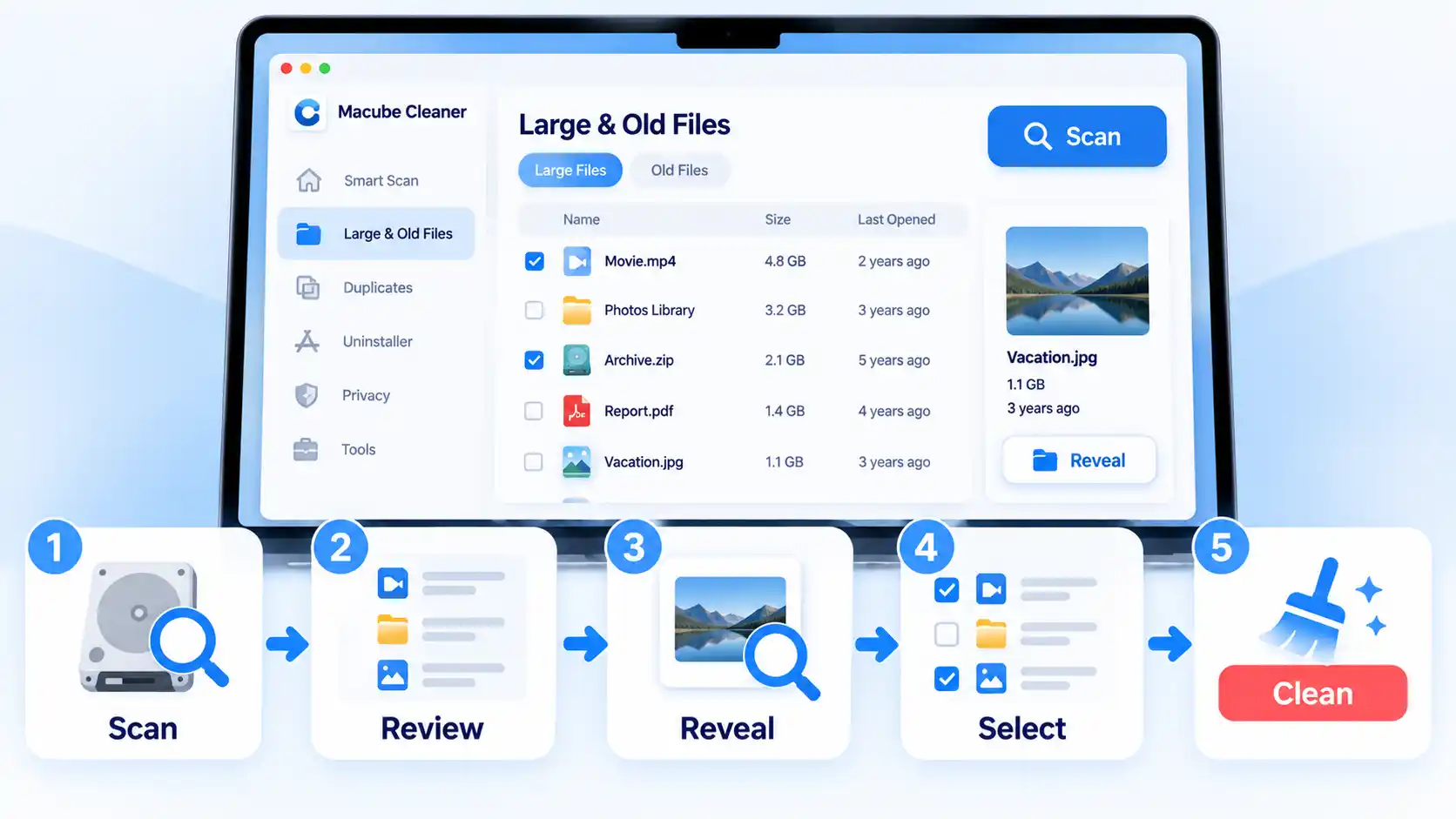
- Open Large & Old Files. Launch Macube Cleaner and choose Large & Old Files. This is the feature Macube documents for finding bulky files and files that have not been used recently.
- Run the scan. Choose Scan and wait while Macube searches the Mac for large and old files. Do not make deletion decisions until the results are available for review.
- Review the results. Examine file names, locations, dates, sizes, and categories rather than selecting everything at once. If you do not recognize an item, use the magnifier control to open its containing folder and inspect it before proceeding.
- Check cloud-synced files carefully. If a file is in iCloud Drive, or in Desktop or Documents with iCloud syncing enabled, confirm what you actually want to remove. Apple states that deleting a synced file on one device deletes it on the other devices signed in to the same Apple Account. If your goal is only to reclaim local storage, Remove Download can remove the local copy while leaving the file in iCloud.
- Select only files you no longer need. Choose the reviewed items you are confident can be deleted. Do not treat file age, large size, or a cleanup-app suggestion as a substitute for understanding what the file contains.
- Clean the selected files. Use Macube’s cleanup control on the files you selected. Avoid deleting additional categories merely to maximize a storage-savings number.
- Verify the result. Reopen System Settings > General > Storage and confirm that the available-storage figure updates as expected. Stop once you have recovered enough space for the task that prompted the cleanup rather than continuing to remove files unnecessarily.
Pricing, Trial, and Compatibility
Macube currently advertises a seven-day full-function trial that converts to $9 per month after the trial unless cancelled. Its separate one-month plan is displayed at $8.95 for one Mac, excluding sales tax, and the perpetual plan is displayed at $69.95 for two Macs with lifetime updates.
Macube also lists a one-year plan, but the current pricing page does not display an annual amount in its rendered page content. Check the live offer before choosing that plan rather than relying on an older annual price.
Macube currently states that Cleaner is available for macOS 10.11 or later. That is a vendor-provided compatibility claim. If you rely on a specific macOS release, especially a newly released version, confirm compatibility on the current download or support page before purchasing.
Limitations and Risks to Know Before You Clean
The biggest evidence limitation is recency. The most detailed independent hands-on Macube assessment located for this review was published in 2022. In that Macube test, the Large & Old Files tool found the reviewer’s deliberately placed large files, but the Duplicate Finder missed some deliberately created duplicates and also surfaced files in Library locations that the reviewer advised handling cautiously. Those observations are useful historical context, not proof of how the 2026 product behaves.
Feature availability also should not be stretched into performance or security claims. Macube’s current pages document cleanup and maintenance functions, but those pages do not establish that the app prevents crashes, meaningfully speeds up every Mac, or functions as a general malware-removal product. A 2026 hands-on Mac cleaner comparison recommends different products for different needs and notes that macOS already includes tools for basic upkeep.
Deletion is the more immediate risk. A large file may be a current video project, virtual-machine image, backup, installer, archive, or working dataset. An old file may still be important even if it has not been opened recently. Macube can organize candidates; you still make the deletion decision.
Cloud storage adds another consideration. Apple states that deleting a synced Desktop or Documents file can remove it across your devices using the same Apple Account. If the real goal is to free local disk space while retaining the cloud copy, verify the file’s sync status first. A fuller iCloud storage cleanup strategy should distinguish removing a local download from deleting the underlying cloud file.
Macube itself labels the product “100% Safe” and says it contains no virus or malware. Those are vendor security claims, not an independent security assessment, so they are not enough on their own to support a categorical security verdict.
Who Macube Cleaner Is Best Suited For
Macube makes the most sense for someone who wants a single interface for more than one cleanup task. The Large & Old Files module gives that user a focused review workflow, while the surrounding tools can reduce the need to jump between Finder, browser settings, application folders, and separate duplicate-finding utilities.
Pros
- Dedicated Large & Old Files workflow with sorting and review before deletion.
- Combines several storage-management and cleanup functions in one app.
- Seven-day full-function trial gives you a chance to inspect the current interface and scan results before committing to a longer plan.
Cons
- Basic large-file discovery overlaps with storage-management features already included in macOS.
- The strongest independent Macube hands-on evidence located for this review is several years old.
- The trial converts to a paid monthly subscription unless cancelled, and the annual price is not displayed in the current pricing page’s rendered content.
Macube is less compelling if you only need to identify a few large downloads or applications once or twice a year. Start with Apple’s Storage panel in that situation. It is also a weaker fit if current independent validation of scan accuracy or security is a deciding requirement.
If you are choosing between paid utilities rather than deciding whether you need one at all, a focused Macube vs CleanMyMac comparison should weigh current feature scope, deletion behavior, platform support, price, and recent independent testing rather than relying on feature counts alone.
Bottom Line
Our Verdict
Macube Cleaner is a plausible convenience tool for Mac users who want large-and-old-file discovery bundled with several other cleanup functions. Its dedicated Large & Old Files module is the appropriate Macube workflow for this task. However, macOS already covers much of the basic storage-management job, and the available research does not support calling Macube the best Mac cleaner or promising meaningful speed improvements. Try the built-in Storage tools first; consider Macube when its consolidated workflow and additional utilities solve enough recurring tasks to justify installing and paying for another app.

💬 Comments