To cast a streaming app to a Smart TV, make sure the phone and TV or receiver support the same casting technology, connect them to the same Wi-Fi network, open the streaming app, tap its Cast or AirPlay control, and select the TV. If the TV does not appear, check receiver support, app compatibility, local-network permissions, and network isolation before assuming the television is faulty.
First, Check Which Casting Method Your TV Supports
“Casting” is often used as a catch-all term, but Smart TVs can support several different wireless display methods. The correct procedure depends on which technology your source device, streaming app, and television share.
Google Cast is the app-based casting system used by supported Chromecast devices, Google TV Streamer, and TVs with Google Cast. Google’s current Google Cast instructions say a supported mobile device can cast from a Cast-enabled app to a compatible receiver when both devices are on the same Wi-Fi network.
AirPlay is Apple’s wireless streaming system. Apple says an iPhone can stream supported video or audio to Apple TV 4K or an AirPlay 2-compatible Smart TV, and the normal setup requires both devices to be on the same Wi-Fi network. Apple’s current AirPlay guidance also separates direct media streaming from full-screen mirroring.
Screen mirroring copies the source device’s screen to the television. Samsung distinguishes Smart View mirroring from app-native casting, while Amazon uses Miracast for screen mirroring on compatible Fire TV devices. These methods are useful in some cases, but they should not be treated as identical to Google Cast or direct AirPlay media streaming.
A television can support more than one of these methods. An iPhone, for example, may cast from a Google Cast-enabled iOS app to a Cast receiver while using AirPlay with a different compatible television.
What You Need Before Casting
Prerequisites
- A phone, tablet, or computer supported by the casting method you plan to use.
- A streaming app or website that supports Google Cast, AirPlay, or the relevant receiver method.
- A compatible Smart TV or external receiver such as a supported Chromecast, Google TV Streamer, Apple TV, or television with the required built-in receiver.
- The sender and receiver connected to the same Wi-Fi network for the normal Google Cast or AirPlay workflow.
- The latest available version of the streaming app and, where practical, current TV or receiver software.
- Local Network permission enabled when required. Google says iOS 14 or later and macOS 15 or later need this permission to discover Cast receivers.
Two devices can both have internet access and still be unable to discover one another. Some guest, hotel, or segmented Wi-Fi networks isolate devices from each other, which can prevent local casting even though websites and streaming services still load normally.
How to Cast a Streaming App With Google Cast
Use this procedure when your streaming app supports Google Cast and your television or receiver supports a compatible Chromecast, Google TV Streamer, or TV with Google Cast.
Info
Google ended production of Chromecast hardware in 2024 and introduced Google TV Streamer as its current streaming device. Supported existing Chromecast devices still work as Cast receivers, but Chromecast is no longer Google’s current new-hardware product line.
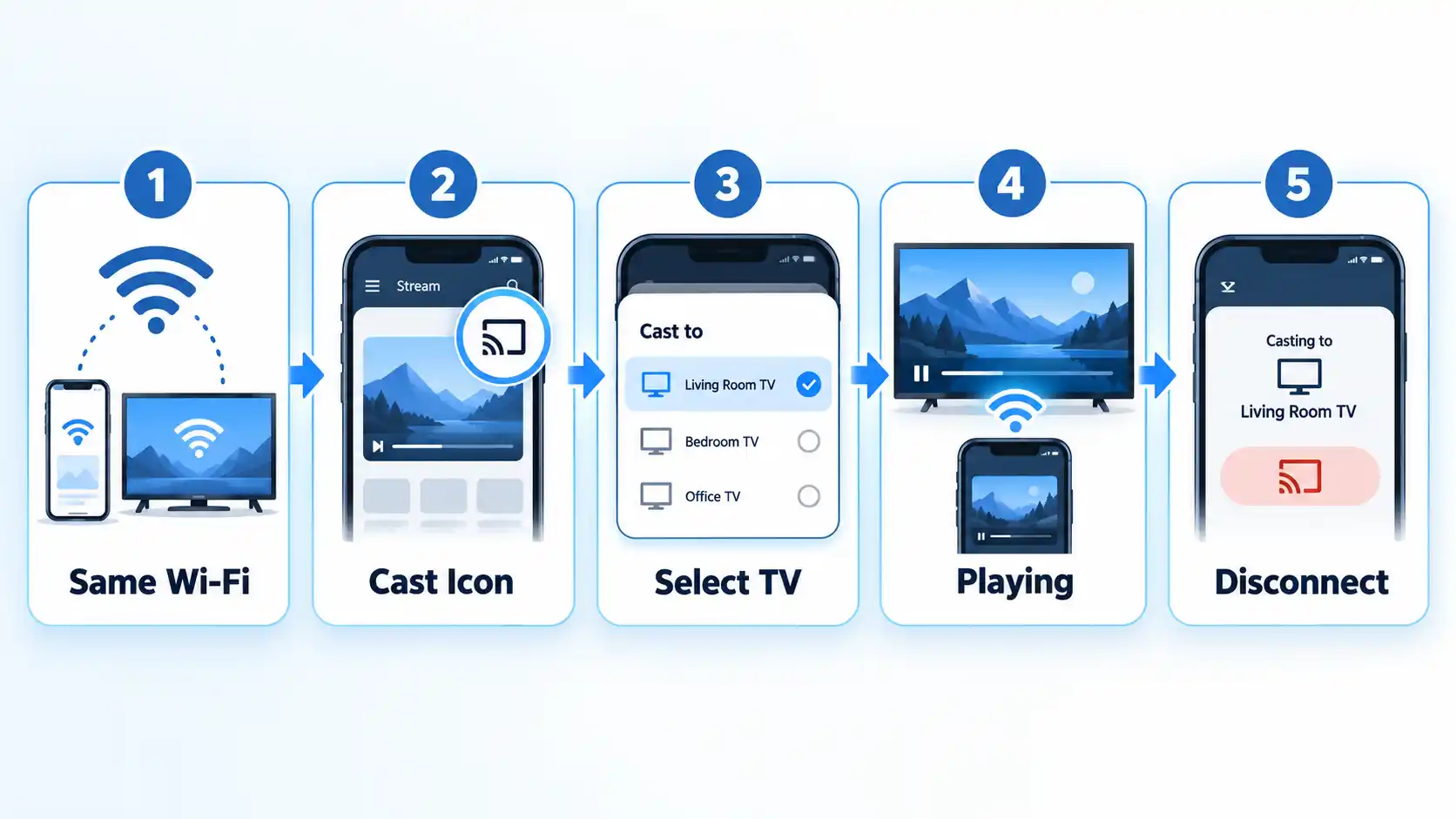
- Connect both devices to the same Wi-Fi network. The phone, tablet, or computer and the Cast receiver need to be able to discover each other on the local network.
- Open the Cast-enabled streaming app. Use the latest available app version where possible. Google notes that the Cast control can appear in different locations depending on the app.
- Choose the content you want to watch. Open the video, movie, show, music, or other supported media inside the app.
- Tap the Cast button. Look for the Cast symbol inside the app. If it is missing, do not assume the TV is faulty; the app may not support Google Cast or may need an update.
- Select your TV or receiver. Choose the Chromecast, Google TV Streamer, or TV with Google Cast from the available-device list.
- Confirm that the connection is active. Google says the Cast button turns solid after the sender connects successfully.
- Control playback from the source device. Use the streaming app to pause, resume, seek, or choose new content while playback continues on the television.
- Disconnect when finished. Tap the Cast control again and choose the disconnect or stop-casting option.
How to AirPlay a Streaming App From iPhone or iPad
Use AirPlay when your source device is an iPhone or iPad and the receiver is Apple TV 4K or an AirPlay 2-compatible Smart TV. AirPlay can stream supported media directly or mirror the entire Apple-device screen, but those are separate functions.
- Connect the iPhone or iPad and the AirPlay-compatible receiver to the same Wi-Fi network.
- Open the supported streaming app or media you want to play.
- Tap the AirPlay control. Apple notes that some apps place AirPlay behind another control such as Share.
- Select the Apple TV 4K or AirPlay 2-compatible Smart TV.
- Enter the AirPlay code shown on the television if prompted.
- Use the controls on the iPhone or iPad to manage playback.
- To stop streaming, open the AirPlay control again and return playback to the source device.
If you instead open Control Center and choose Screen Mirroring, the TV duplicates the device screen rather than using the same direct-media streaming workflow. Apple documents streaming and mirroring as separate operations.
LG’s current guidance also confirms that supported webOS televisions can receive AirPlay and that the iPhone and TV should be on the same Wi-Fi network. LG’s AirPlay instructions also show that AirPlay may need to be enabled in the television settings.
How to Cast From Chrome on a Computer
Chrome can send a browser tab or the computer screen to a compatible Google Cast receiver. This can help when a streaming service is available through a website rather than a mobile app.
- Connect the computer and Cast receiver to the same Wi-Fi network.
- Open an updated version of Google Chrome.
- Open the website or tab you want to display.
- Open Chrome’s menu and choose Cast, save, and share, then Cast.
- Select the receiver.
- If necessary, open Sources and choose whether to cast the current tab or the entire screen.
- Use Chrome’s Cast control to stop the session when finished.
Google notes that a website with native Google Cast support can behave differently from generic browser-tab casting. Some web content and plug-ins also do not work through Chrome’s generic casting path. Google’s current Chrome casting instructions document both tab and full-screen casting.
Casting vs Screen Mirroring: Which One Should You Use?
Use app-native casting when the streaming service supports it. In a normal Google Cast session, the phone or computer acts mainly as the controller while the Cast receiver handles playback.
Screen mirroring works differently. The television displays what is happening on the source device itself, so navigation and other on-screen activity can also appear on the TV.
Samsung’s current guidance distinguishes the two approaches: casting sends supported media while the phone acts as a controller, whereas Smart View mirrors the Galaxy-device screen. Samsung’s screen-sharing guidance also notes that Smart View availability and settings vary by device.
AirPlay can perform both roles. Apple provides a direct media-streaming route to supported receivers and a separate Screen Mirroring option for duplicating the device display.
Amazon’s Fire TV mirroring is model-dependent. Amazon says Miracast screen mirroring works only on compatible Fire TV devices, and if Enable Display Mirroring does not appear under Display & Sounds, the Fire TV does not support that method. Amazon’s Fire TV mirroring instructions document that limitation.
Do not assume screen mirroring is a universal fallback for every streaming app. Services can behave differently with mirroring, so the app’s own Cast or AirPlay control is usually the better-supported route when available.
How to Know the Cast Worked
Verify the result
- The correct television or receiver appears as the active destination.
- The Cast or AirPlay control shows an active connection where the app exposes a connection indicator.
- The selected content plays on the television rather than only on the phone, tablet, or computer.
- Playback controls on the source device affect the media playing on the television.
- Audio comes from the intended television or receiver output.
Why Your TV Does Not Appear When You Try to Cast
Discovery problems usually come from network, receiver, app, or permission issues rather than from the video itself.
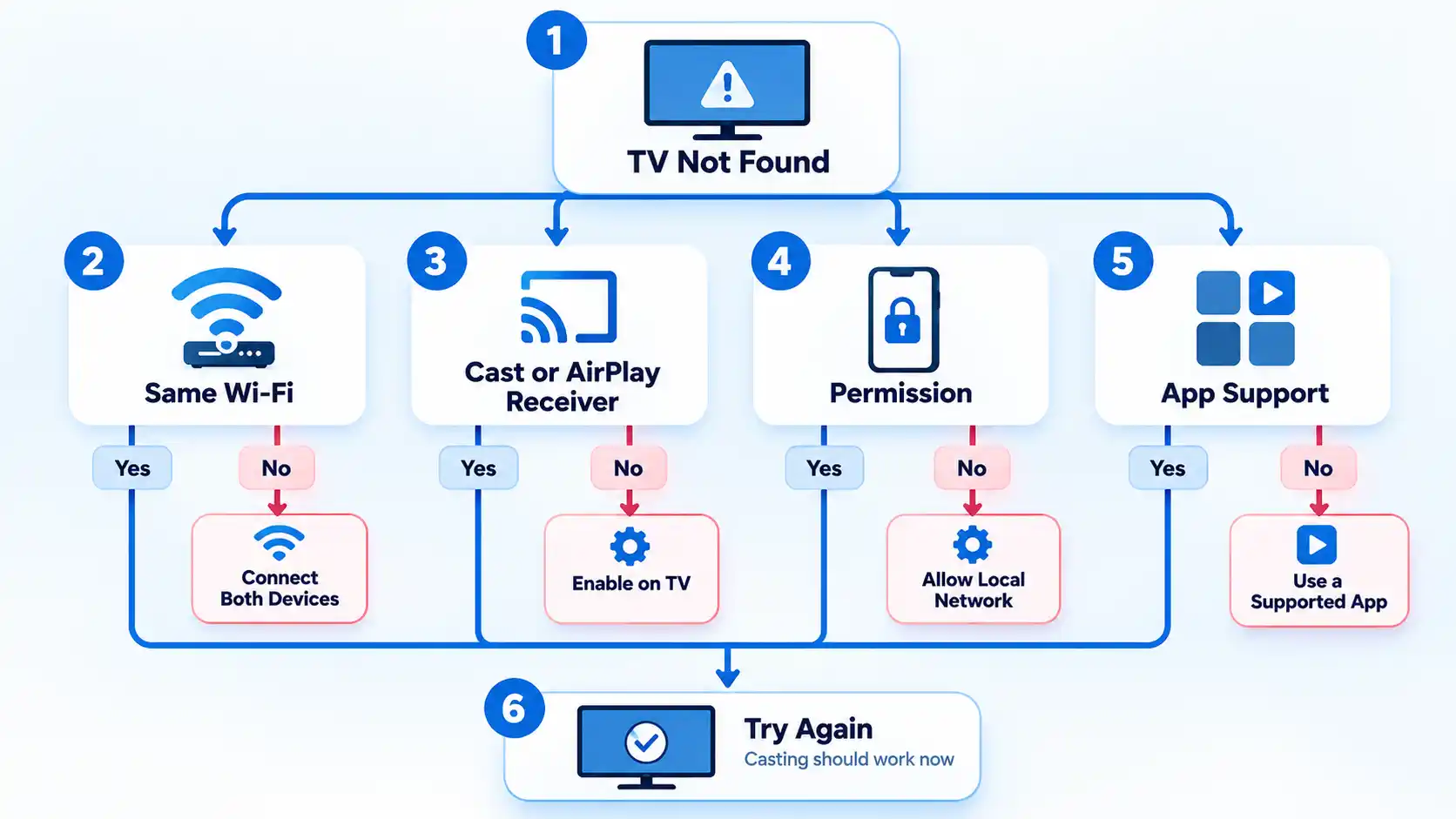
The TV does not appear at all
Confirm that the sender and receiver are on the same Wi-Fi network and that the television or external device actually supports the casting method you are trying to use. A Smart TV label alone does not guarantee Google Cast or AirPlay support.
The Cast button is missing from one app
Update the app and check whether that service supports Google Cast. Google notes that the Cast control is not located in the same place in every supported app, and an app that lacks Cast support will not gain it merely because the television supports Google Cast.
An iPhone or iPad cannot find the Cast receiver
Check the app’s Local Network permission. Google says iOS 14 or later requires Local Network access for Cast-enabled apps to discover compatible devices on the local network.
AirPlay does not show the television
Confirm that the television supports AirPlay, that AirPlay is enabled on the TV where required, and that both devices are on the same Wi-Fi network. Apple and LG document these requirements for normal AirPlay use.
The TV appears but the connection keeps dropping
Check Wi-Fi stability, update the app and receiver software where updates are available, and restart the sender and receiver if necessary. Casting depends on the devices maintaining reliable local-network communication.
Both devices have internet, but they still cannot see each other
The network may be isolating devices from one another. This can happen on some guest, hotel, or segmented networks. Use a network that permits local-device discovery or follow the venue’s supported casting process where one is provided.
Fire TV does not show a screen-mirroring option
That Fire TV may not support Miracast screen mirroring. Amazon says that if Enable Display Mirroring is absent under Display & Sounds, the device is not compatible with that mirroring method.
What If Your TV Does Not Support Google Cast or AirPlay?
If the TV lacks the receiver technology your app needs, you can use the television’s native streaming app, add a compatible external streaming device, connect a computer through HDMI, or use another wireless method that both the service and hardware officially support.
For Google Cast, Google TV Streamer is Google’s current dedicated streaming hardware. Google ended Chromecast production in 2024, although supported existing Chromecast devices remain usable. Google’s Chromecast history announcement documents that transition.
If your television lacks the receiver you need, compare a Smart TV app, Chromecast or Google Cast, and a streaming stick by compatibility, control method, and upgrade path before adding hardware.
A separate streaming device can be more practical than trying to force an unsupported wireless protocol onto the television. It also avoids treating screen mirroring as the only fallback when the streaming service provides a better-supported native app or external-device route.
Bottom Line
Start by identifying which receiver technology your television supports. Use the streaming app’s native Google Cast or AirPlay control where available, keep the sender and receiver on the same local network, and verify that playback moves to the TV.
If the television never appears, check receiver compatibility, app support, Local Network permissions, AirPlay settings, and network isolation before adding new hardware. Screen mirroring can be useful, but it is a different method and should not be treated as a universal substitute for app-native casting.

💬 Comments