Chrome and Firefox can both use proxies, but they expose control differently. Chrome normally starts from the operating system’s proxy configuration and can be changed by policy, extensions, PAC rules, or explicit overrides, while Firefox gives you a visible browser-level choice between system, manual, automatic, PAC, and no-proxy modes.
Quick Take
Chrome is not limited to a system proxy, and Firefox does not always ignore the system proxy. Chrome normally inherits platform settings but supports several override layers; Firefox makes those choices visible in its own connection settings. PAC rules, bypass lists, extensions, policy, and SOCKS behavior can make the two browsers take different routes on the same computer.
Chrome vs Firefox Proxy Settings at a Glance
The useful comparison is not simply “system proxy versus browser proxy.” Instead, compare where each browser gets its proxy configuration, how easily it can replace the operating-system setting, and which other layers can change the route for a particular request.
Chrome vs Firefox proxy behavior
| Feature | Chrome | Firefox |
|---|---|---|
| Normal configuration source | Normally starts from platform or system proxy configuration | Exposes an explicit browser connection mode that can inherit or replace system settings |
| Can use system proxy | Yes; this is the normal starting point when no higher-priority override applies | Yes, through Use system proxy settings |
| Browser-specific manual control | Available through supported configuration such as command-line options, policy, extensions, or PAC | Built directly into Firefox Connection Settings |
| PAC support | Yes | Yes, including an explicit Automatic proxy configuration URL mode |
| Bypass behavior | Supports explicit bypass rules and implicit local-address exceptions | Supports No Proxy For and PAC-based direct routing |
| SOCKS support | Supports SOCKSv4 and SOCKSv5 | Supports SOCKS configuration with browser-level controls |
| SOCKS DNS behavior | SOCKSv5 target-name resolution is proxy-side | Proxy-side DNS can be enabled for SOCKS v5 |
| Extensions can control proxy settings | Yes, through Chrome’s proxy extension API | Yes; Firefox can show extensions controlling its connection |
| Enterprise policy | Can enforce proxy mode and related settings | Can enforce proxy mode, endpoints, bypass rules, SOCKS behavior, and DNS handling |
| Useful diagnostic clue | Check system settings first, then policy, extensions, PAC, bypasses, and explicit overrides | Check the selected Firefox connection mode first, then extensions, PAC, bypasses, and policy |
Neither browser has a universally better proxy model. Chrome fits naturally into environments where the browser should inherit platform or centrally managed network settings, while Firefox makes browser-specific proxy control easier to see and change.
How Chrome Decides Which Proxy to Use
Chrome performs proxy resolution at the URL level. For each requested URL, the browser decides whether to connect through one or more proxy servers or directly to the destination.
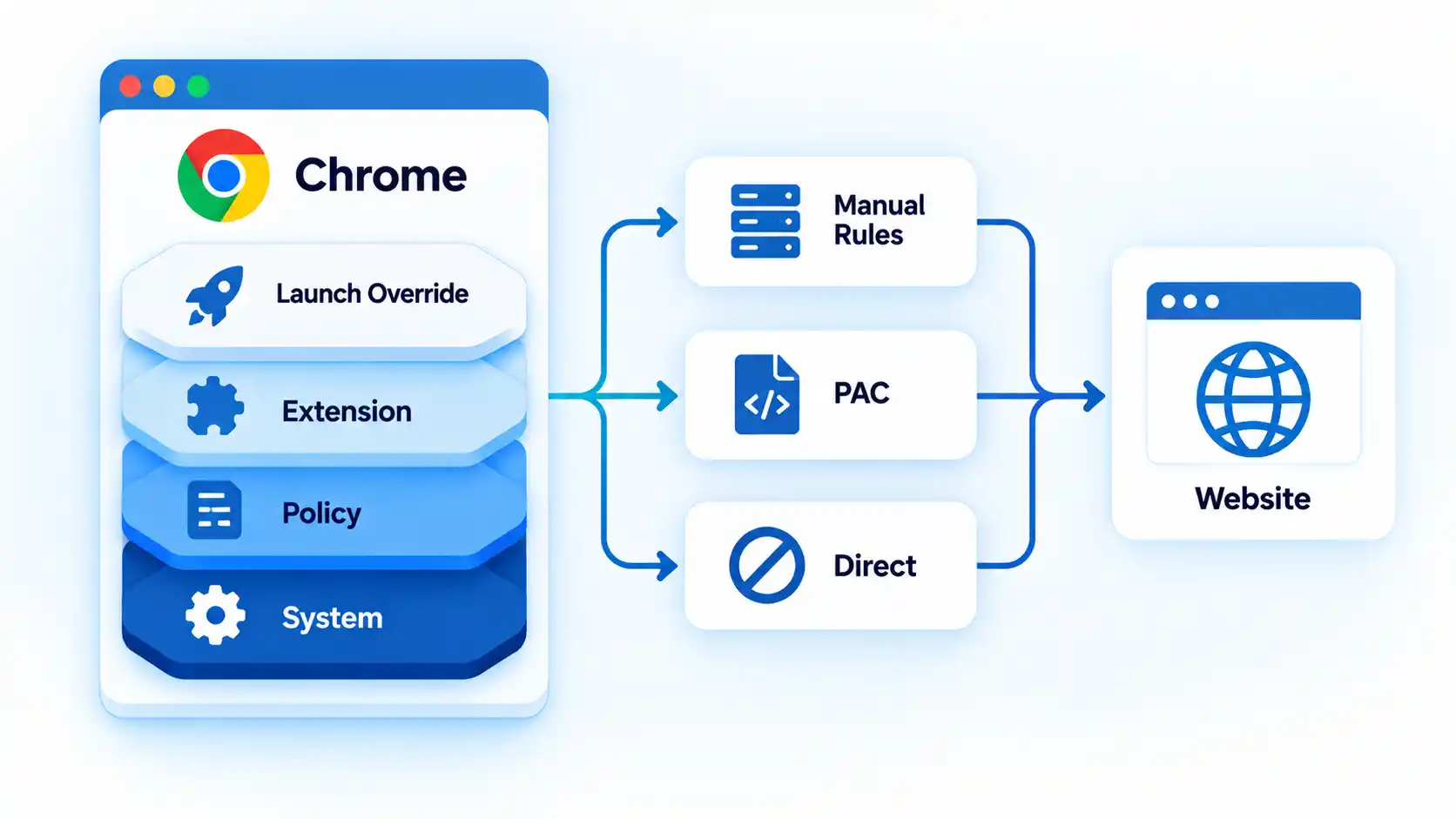
Chromium’s current Chrome proxy documentation describes three major proxy-resolution approaches: manual proxy rules, a proxy auto-configuration (PAC) script, and automatic discovery through Web Proxy Auto-Discovery (WPAD).
Manual rules map requests to proxy endpoints and can define destinations that should bypass those proxies. PAC evaluates routing logic for individual URLs. Automatic discovery attempts to locate PAC configuration from the network.
The operating system is therefore Chrome’s normal starting point, not its only possible source of proxy behavior. Chrome can also receive effective proxy settings from command-line options, managed policy, extensions, or PAC configuration.
Chrome can route individual requests directly
Chromium treats DIRECT as a valid proxy-resolution result. A request that receives this result is sent directly to the destination rather than to a proxy.
For example, a PAC script can send an internal application through a corporate proxy while returning DIRECT for another website. Seeing both routes during one Chrome session does not necessarily indicate a configuration failure.
How Firefox Decides Which Proxy to Use
Firefox exposes the configuration source more directly. Instead of relying only on the operating system’s network controls, Firefox provides its own selector for deciding how connections should be proxied.
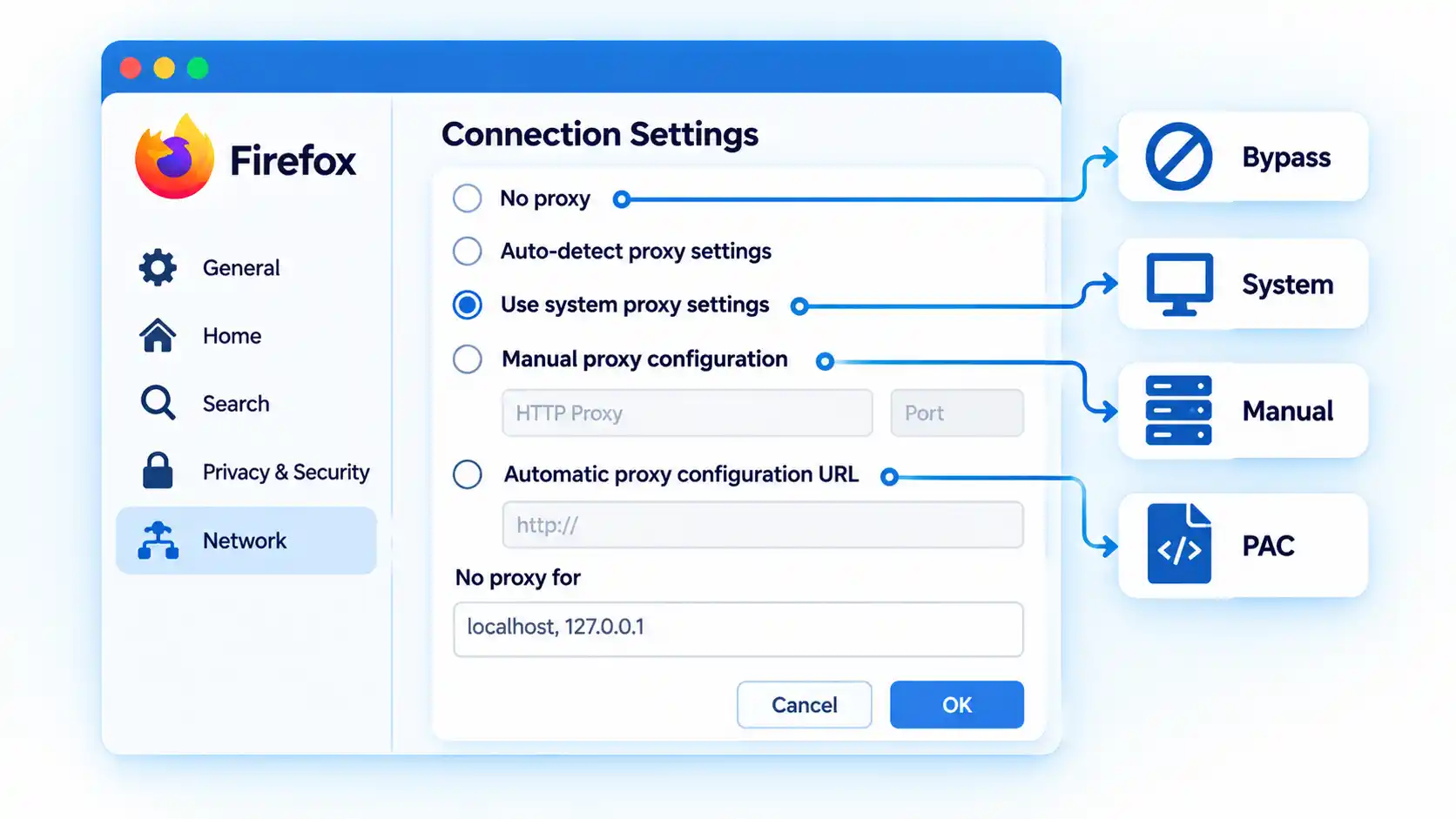
Mozilla’s current Firefox connection settings documentation provides these modes:
- No proxy, which tells Firefox not to use a proxy from this connection setting.
- Auto-detect proxy settings for this network, which attempts automatic discovery.
- Use system proxy settings, which tells Firefox to use the operating system’s proxy configuration.
- Manual proxy configuration, which lets Firefox use browser-specific proxy endpoints.
- Automatic proxy configuration URL, which loads routing rules from a PAC file.
These are informational configuration modes, not ranked choices. The correct mode depends on whether Firefox should inherit the computer’s network policy or use browser-specific behavior.
Firefox also exposes No Proxy For, which allows selected hostnames or IP addresses to bypass the configured proxy.
The Biggest Difference: Inheritance vs Explicit Browser Control
The practical difference is where that control is surfaced.
Chrome normally begins with platform network settings. Its proxy engine supports manual mappings, PAC, bypass rules, several proxy schemes, extension control, command-line configuration, and policy, but many of those controls live outside an ordinary Chrome settings screen.
Firefox makes the decision explicit inside the browser. It can inherit the same system proxy Chrome uses, or deliberately switch to no proxy, a separate manual endpoint, automatic discovery, or its own PAC configuration.
The broader difference between system proxy and browser-specific proxy behavior is therefore about inheritance and configuration scope, not a simple rule that one browser “has a proxy” and the other does not.
A more accurate shorthand is:
Chrome normally inherits platform proxy configuration unless another supported layer changes it; Firefox lets you explicitly choose whether to inherit or replace that configuration.
PAC Files Behave Differently From a Fixed Proxy
A proxy auto-configuration (PAC) file contains routing logic instead of one fixed proxy address. The browser evaluates that logic for requested destinations and can receive a proxy endpoint or a direct-connection result.
Chromium documents PAC as one of its standard proxy-resolution methods, while Firefox exposes an Automatic proxy configuration URL mode in its connection settings.
This means a browser using PAC cannot always be described accurately as simply “proxied” or “not proxied.” The route can change from one destination to another.
The mechanics of proxy auto-configuration explain why two requests from the same browser can follow different routes without any setting being changed between them.
Proxy Bypass Rules Can Make the Browsers Look Inconsistent
A bypass rule tells the browser or networking layer to connect directly to selected destinations even though a proxy is otherwise configured.
Warning
Do not use one successful IP check or one proxied website as proof that every request from Chrome or Firefox follows the same proxy. PAC decisions, bypass rules, local-address exceptions, extensions, and policy can route other destinations differently.
Firefox provides No Proxy For. Chromium supports explicit proxy bypass rules and also applies implicit bypass behavior for certain local destinations.
For example, Chromium documents implicit bypass behavior for loopback destinations such as local addresses. A development service running on the same machine can therefore connect directly while external websites use the configured proxy.
This behavior can look inconsistent only because the exception is not obvious until you inspect the effective routing rules.
SOCKS and DNS: A Technical Difference That Matters
SOCKS is a transport-level proxy protocol rather than an HTTP-specific proxy. Both Chrome and Firefox support SOCKS, but name resolution is an important difference.
Chromium’s current documentation states that with a SOCKSv5 proxy, Chrome performs target-host name resolution on the proxy side. Chrome does not provide an equivalent switch for moving SOCKSv5 target-name resolution back to the client.
Firefox exposes configurable behavior here. Mozilla’s current Firefox Proxy policy reference includes UseProxyForDNS for SOCKS v5, along with SOCKS version and proxy endpoint controls.
The distinction matters when local DNS and proxy-side DNS would resolve a hostname differently, such as an internal hostname that exists only from one side of the proxy connection.
The deeper interaction between SOCKS5 proxy DNS and local name resolution depends on the proxy protocol and configuration rather than browser branding alone.
Extensions and Enterprise Policies Can Override Expectations
Browser behavior can also come from management or extension layers rather than the settings visible at first glance.
Chrome extensions and policy
Chrome provides a dedicated proxy API for extensions. That API can use direct, system, automatic-detection, PAC, or fixed-server modes, and Chrome can report which layer currently controls the setting.
Managed Chrome environments can also impose proxy configuration through policy. As a result, an organization’s Chrome installation may behave differently from an unmanaged browser even on the same operating system.
Firefox extensions and policy
Mozilla notes that Firefox’s Connection Settings interface can show extensions that control how the browser connects to the internet.
Firefox’s enterprise Proxy policy can also define system, manual, auto-detect, or PAC modes and control HTTP, SSL, SOCKS, passthrough, SOCKS version, and proxy-DNS behavior.
If Chrome or Firefox behaves differently from the visible operating-system proxy setting, extensions and managed policy therefore belong in the diagnostic path rather than being treated as rare exceptions.
How to Check Which Proxy Chrome or Firefox Is Actually Using
Work from the broadest configuration source toward browser-specific overrides. Each step removes one possible source of the mismatch before you investigate the next layer.
- Check the operating-system proxy. Confirm whether Windows or macOS has a manual proxy, automatic discovery, PAC configuration, or bypass rules enabled. This establishes the configuration Chrome is likely to inherit and the system configuration Firefox can choose to use.
- Check Firefox’s selected connection mode. Determine whether Firefox uses system settings, No proxy, manual proxy configuration, automatic detection, or a PAC URL. If Firefox is not using system settings, a difference from Chrome may already be explained.
- Check Chrome for explicit or managed overrides. Look for a proxy-controlling extension, organization-managed policy, or deliberate launch configuration that replaces normal platform behavior. On a managed installation, do not assume the visible system proxy is the final authority.
- Inspect PAC and bypass behavior. Check whether either browser is using a PAC file, bypass list, local-address exception, or direct-routing rule for the destination you are testing. A direct connection can be the intended result rather than evidence that the proxy was ignored.
- Compare routes whose expected behavior you already know. If your configuration deliberately proxies one destination and bypasses another, compare those two cases. Their different behavior can show whether the configured rules are being applied as intended without assuming that one public-IP check represents every request.
- Change only one configuration layer at a time. If the cause is still unclear, modify one layer, retest, and then restore or keep that change before moving to the next. Changing the operating system, Firefox, extensions, and PAC rules simultaneously makes the effective configuration harder to identify.
If you need the actual platform-specific setup paths rather than the diagnostic model, you can configure a proxy on Windows, macOS and Firefox using the relevant system and browser controls.
Which Browser Gives You the Right Proxy Scope?
Firefox is useful when one browser needs proxy behavior that differs from the operating system. Its visible connection selector makes system inheritance, manual proxying, PAC, automatic detection, and no-proxy behavior easy to distinguish.
Chrome fits naturally when the browser should follow operating-system or centrally managed network policy. That does not mean Chrome lacks browser-specific proxy capability: Chromium supports detailed routing rules, PAC, extensions, command-line configuration, and managed policy, but many of those controls are supplied outside an ordinary Chrome settings screen.
Neither approach is universally superior. The appropriate model depends on whether you need explicit browser-specific control or consistent inheritance from device or organization network settings.
Bottom Line
Chrome and Firefox differ mainly in how proxy control is surfaced, not in whether they can use proxies. Chrome normally begins with platform settings and can be changed by several configuration layers, while Firefox lets you explicitly choose whether to inherit those settings or replace them with browser-specific behavior.
When the two browsers take different routes, check the effective configuration source, PAC decisions, bypass rules, SOCKS behavior, extensions, and managed policy before assuming that one browser is ignoring the proxy.

💬 Comments