To fix the “Google Play services keeps stopping” error on Android, restart your device, clear the cache for both Google Play Services and the Google Play Store, and ensure Android System WebView is fully updated. If background crashes continue, clearing Play Services storage and re-authenticating your primary Google account will rebuild corrupted system database tokens and restore background sync.
Quick Take: Fastest Working Solutions
If you need to stop repeated crash popups immediately, apply these proven fixes in order of speed and diagnostic impact:
- Restart your phone: Flushes temporary system memory leaks and restarts halted background daemons.
- Clear Play Services and Play Store cache: Removes corrupted temporary sync files without deleting your personal data or account configurations.
- Update Android System WebView and Google Chrome: Fixes broken embedded web rendering engines that crash background Google authentication dialogs.
- Clear Google Play Services data (Storage): Rebuilds local system databases. Note: This requires re-verifying cards in Google Wallet.
Initial Diagnostics and Prerequisites Before Troubleshooting
Before modifying application storage or altering system permissions, check these three core device prerequisites to prevent troubleshooting errors:
Verify Internal Storage Headroom
Android requires a minimum threshold of local storage to unpack temporary service APKs and write local database journals. If your device has less than 1 GB of free space, you will encounter continuous background service failures. Free up space before attempting updates, as outlined in the Google Play storage troubleshooting guidelines.
Check Network Time Synchronization
Google services rely on precise cryptographic timestamp verification. If your device clock drifts by even a few minutes, Transport Layer Security (TLS) handshakes will fail, causing background authentication loops. Navigate to Settings > System > Date & time and toggle Set time automatically and Set time zone automatically to active.
Identify Your Device Interface Branch
Android system navigation varies slightly across manufacturers. Stock Android (Google Pixel, Motorola) groups these options under Settings > Apps > See all apps. Samsung One UI places them under Settings > Apps with a specific “Show system apps” toggle. Xiaomi (MIUI/HyperOS) locates them under Settings > Apps > Manage apps.
Step-by-Step Fixes for Google Play Services Crashing
Work through the following sequence progressively. The steps start with non-destructive cache clearances and move to deeper system resets only if the error persists.
Step 1: Perform a Clean System Restart
A standard soft restart terminates zombie processes, clears volatile RAM, and forces the Android init system to reload fundamental background framework daemons. Hold your device’s Power and Volume Up buttons simultaneously, select Restart, and allow the operating system to complete its full boot cycle before opening any apps.
Step 2: Clear Cache for Google Play Services and Play Store
Corrupted temporary cache files in either the Play Services client library or the Google Play Store client can cause continuous crash loops. Clearing the cache removes temporary files without touching saved logins, payment methods, or app data.
- Open your device Settings and tap Apps (or Apps & notifications).
- Tap See all apps, then locate and select Google Play services.
- Tap Storage & cache, then select Clear Cache.
- Navigate back to the app list, select Google Play Store, tap Storage & cache, and tap Clear Cache.
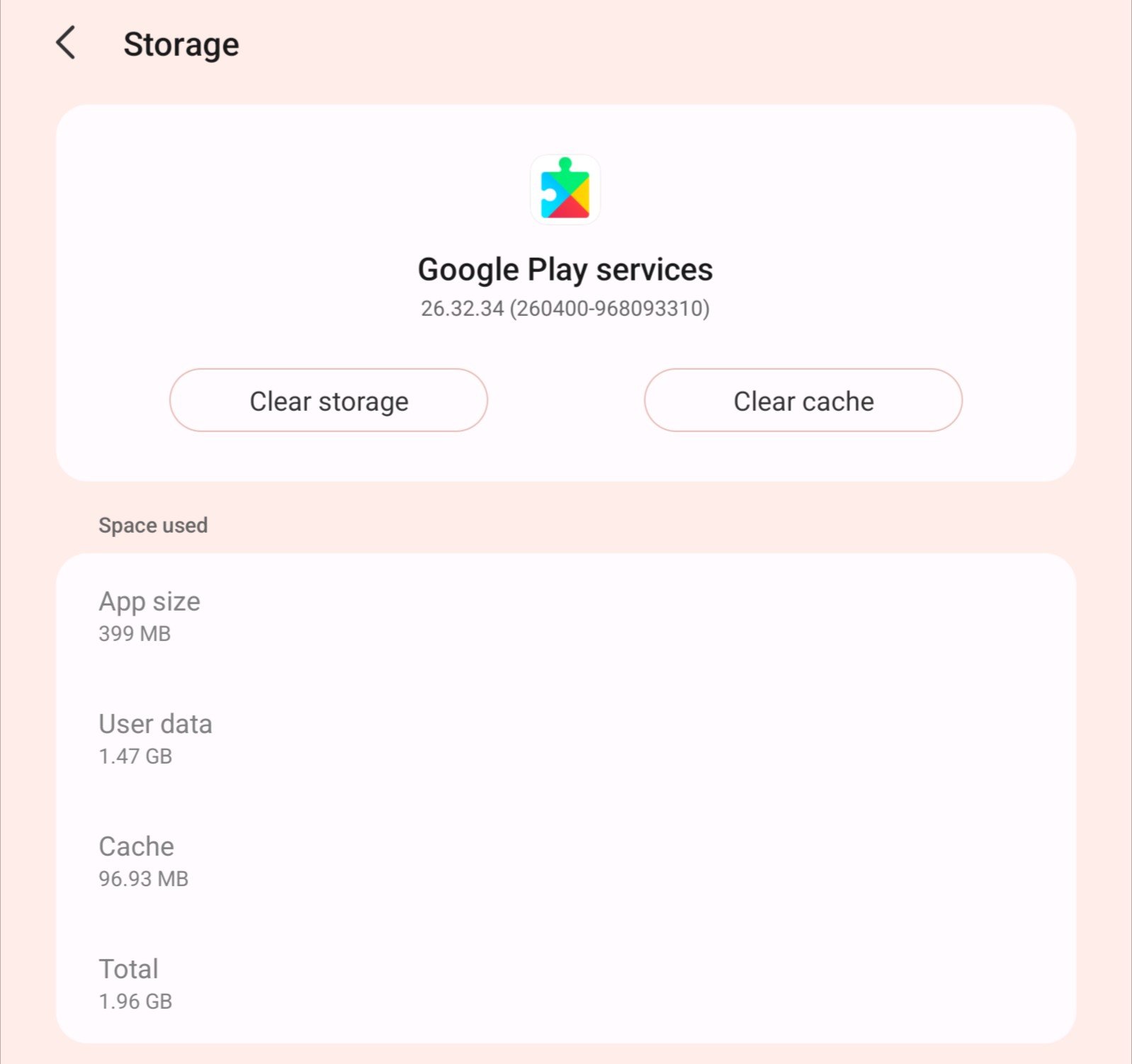
If app store downloads remain stalled after clearing the cache, you may also need to troubleshoot pending Play Store downloads to release hung download manager queues.
Step 3: Clear Storage for Google Play Services
If clearing the cache does not resolve the crash popups, the underlying local SQLite database used by Play Services may be corrupted. Clearing storage resets this database entirely.
Critical Data Warning: Clearing storage for Google Play Services will delete locally cached transit cards, COVID-19/health passes, and virtual payment card tokens stored in Google Wallet. You will need to re-verify your payment cards once the service restarts, as documented in the official Google Play Help guide.
- Open Settings > Apps > See all apps > Google Play services.
- Tap Storage & cache, then tap Clear Storage (or Manage Space on older Android builds).
- Tap Clear All Data at the bottom of the screen and confirm the prompt by tapping OK.
- Restart your device to allow the Play Services daemon to generate a clean local database.
Step 4: Force an Update for Google Play Services
Google Play Services runs as a background framework that distributes core APIs—including location tracking, OAuth authentication, and Play Integrity checks—independently of major OS upgrades, as detailed in the Google Play services developer documentation. If an automated background update stalls, you can trigger a manual check:
- Open Settings and navigate to Security & privacy (or Google > All services on newer Android versions).
- Scroll down and tap System services > Google Play services.
- Tap Update if a newer build is available.
- Alternatively, open your mobile browser and navigate directly to the hidden Google Play Store package link for Play Services to check for a pending update button.
Step 5: Update or Roll Back Android System WebView and Google Chrome
Many system-level Google crashes are not caused by Play Services itself, but by the rendering engine powering its embedded login dialogs: Android System WebView. When a WebView update contains a broken compilation flag, any background service attempting to render authentication prompts will terminate abruptly.
- Open the Google Play Store, tap your profile icon in the top-right corner, and select Manage apps & device.
- Under the Updates available section, check for Android System WebView and Google Chrome.
- If updates are available, tap Update for both packages.
- If the crashes began immediately after an update, go to Settings > Apps > Android System WebView, tap the three-dot menu in the upper right corner, and select Uninstall updates to roll back to the factory-installed version.
This rollback technique is confirmed in an Android Community Product Expert advisory as the primary recovery method during widespread rendering engine regressions.
Step 6: Reset Android App Preferences
If an app has restricted background data access, disabled critical notification channels, or revoked system-level runtime permissions from Play Services, the daemon may crash whenever it attempts an unauthorized hardware call. Resetting app preferences restores all default permissions without wiping your personal files or installed applications.
- Go to Settings > System > Reset options (on Samsung devices: Settings > Apps > Three dots > Reset app preferences).
- Tap Reset app preferences.
- Confirm by selecting Reset apps.
This action re-enables any inadvertently disabled system services and resets background battery restrictions to factory defaults, which is useful when attempting to troubleshoot app crashes on Android across multiple applications simultaneously.
Step 7: Remove and Re-Add Your Primary Google Account
When OAuth security tokens become invalid or synchronization handshakes lock up on Google’s remote authentication servers, the local Play Services process crashes in an infinite loop trying to refresh the session.
- Open Settings > Passwords & accounts (or Accounts & backup > Manage accounts on Samsung).
- Select your primary Google account.
- Tap Remove account and confirm your device PIN or biometric prompt.
- Restart your phone immediately.
- Return to Settings > Passwords & accounts, tap Add account > Google, and sign back in with your credentials.
Once re-authenticated, your phone will re-sync your contacts, calendar entries, and cloud preferences cleanly. You can fine-tune these connections through your device settings to manage Google account sync settings properly.
How to Verify That Google Play Services Is Stable
After completing the troubleshooting steps, verify that the background service has stabilized before returning to normal use:
- Check Play Protect Status: Open the Google Play Store, tap your profile avatar, select Play Protect, and tap Scan. A successful scan confirms that system security APIs are communicating normally.
- Trigger a Manual App Update: Download or update any lightweight app from the Play Store to ensure the package installer daemon and download queue execute without errors.
- Test Location Services: Open Google Maps and tap the crosshair icon. If your device locates your position immediately without throwing a service error, Play Services location APIs are functioning.
- Verify System Firmware Patch Level: Ensure your underlying OS framework is updated to match newer Play Services API requirements via the official Android update support page.
Advanced Troubleshooting: OEM Limits and System Integrity
If standard storage and account resets fail to stop the crashes, the issue typically stems from OEM-specific background process management, architecture mismatches, or modified firmware.
Aggressive OEM Battery Optimization (Samsung, Xiaomi, OnePlus)
Hardware manufacturers frequently implement custom battery-saving software that force-closes background services to extend battery life. When an OEM task-killer terminates Google Play Services while it is writing to a system database, the database becomes corrupt, resulting in persistent crash loops.
To prevent OEM interference, navigate to Settings > Apps > Google Play services > Battery and set the policy to Unrestricted. On Samsung One UI devices, open Settings > Battery > Background usage limits and verify that Play Services is not listed under Sleeping apps or Deep sleeping apps. Adjusting these parameters helps you correctly manage Android battery optimization settings without breaking critical push notification channels.
Corrupted APK Sideloads and CPU Architecture Mismatches
Manually sideloading Google Play Services APK files from third-party repository sites is a leading cause of fatal service stops. Google distributes Play Services in distinct variant packages compiled for specific CPU architectures, screen pixel densities (DPI), and Android API levels.
Installing an armeabi-v7a (32-bit) build on a modern arm64-v8a (64-bit) device—or installing a build targeting Android 15 on an Android 13 device—causes immediate crashes. If you previously sideloaded a package, go to Settings > Apps > Google Play services, tap the three dots in the upper right, and tap Uninstall updates to revert to the factory build compiled for your specific hardware.
Custom ROMs, Root Conflicts, and Play Integrity Failures
If you run a custom Android ROM (such as LineageOS or Pixel Experience) or have modified system partitions with root solutions like Magisk or KernelSU, Google’s Play Integrity API and hardware attestation routines will flag the environment. If the underlying GApps package (such as NikGApps or MindTheGapps) was flashed with incorrect partition permissions, system binaries will fail to mount.
To isolate software conflicts from third-party root modules, boot Android in safe mode to evaluate if Play Services runs stably without background overlay interference.
Where This Approach Has Limits
While software troubleshooting resolves the vast majority of Play Services errors, certain hardware and platform conditions cannot be fixed through system settings alone:
- End-of-Life Android Versions: Google periodically deprecates Google Play Services support for legacy Android releases. If your device runs Android 5.0 (Lollipop), Android 6.0 (Marshmallow), or earlier, newer Play Services APIs are no longer backported, and certain cloud-dependent services will stop working permanently.
- Non-GMS Certified Devices: Modern Huawei smartphones and uncertified grey-market Android devices lack official Google Mobile Services (GMS) licensing. Sideloaded GMS frameworks on these devices frequently crash due to server-side device certificate rejections by Google.
- Physical eMMC or UFS Flash Memory Degradation: If your smartphone suffers from hardware-level bad sectors in its internal flash memory, database tables written by Google Play Services will continually corrupt regardless of how many times you clear data or factory reset. If crashes return within hours of a full factory wipe across multiple apps, the flash storage hardware is failing.
Key Takeaways
- Always begin with non-destructive actions: restart the device and clear the cache for both Google Play Services and the Google Play Store before wiping data.
- Android System WebView and Google Chrome updates directly impact Google Play Services; keep both updated or roll back recent updates if crashes coincide with a new release.
- Clearing Google Play Services storage resets local Google Wallet cards and transit passes, requiring manual re-authentication.
- Ensure Google Play Services battery management is set to “Unrestricted” on Samsung, Xiaomi, and OnePlus hardware to avoid aggressive process termination.
- Never sideload unverified Play Services APK builds; mismatched CPU architecture variants cause immediate system-level instability.
Frequently Asked Questions
Will clearing Google Play Services data delete my personal files or photos?
No. Clearing Google Play Services storage does not delete your photos, videos, text messages, downloaded files, or Google Drive documents. These files are stored in separate application storage directories. However, clearing Play Services data will remove locally cached passes in Google Wallet and temporarily clear offline map caches, requiring a brief background re-sync.
Why does Google Play Services keep stopping immediately after a factory reset?
After a factory reset, your device restores the original, outdated Play Services version shipped in its base firmware image. When your phone connects to the internet, multiple Google applications immediately request newer API endpoints that the outdated base version cannot process. Connect your phone to stable Wi-Fi, open Google Play Store settings, and allow the system 15 to 30 minutes in the background to automatically download and stage current runtime packages.
Can I uninstall Google Play Services and reinstall it from scratch?
You cannot fully uninstall Google Play Services because it is integrated into the core system partition of GMS-certified Android devices. However, you can uninstall all updates by navigating to Settings > Apps > Google Play services, tapping the three vertical dots in the top-right corner, and selecting Uninstall updates. This restores the factory version, after which you can update cleanly through the Play Store.
How does Android System WebView cause Google Play Services to crash?
Android System WebView is the system component that allows Android apps to render web content and embedded browser frames without opening a standalone web browser. Google Play Services relies on WebView to generate OAuth account authentication screens and in-app account management dialogs. If a WebView update contains a broken library or memory leak, any Play Services background process calling that rendering engine terminates immediately.

💬 Comments