If your webcam turns on when you did not expect it, investigate the activity before assuming someone has hacked your computer. A Windows camera light or notification, or the green camera indicator on a Mac, can confirm that the camera is active, but you still need to identify what is using it and whether that use is legitimate.
Start with ordinary causes such as a video-call app, browser tab, or facial sign-in feature. If those do not explain the activity, check camera permissions and then move to malware checks only when the evidence justifies it.
What an Unexpected Webcam Indicator Can Tell You
A camera-use indicator answers one important question: is the camera active? It does not automatically tell you who started it or why.
On Windows 11, a hardware camera light turns on when the camera is active if the device has one. On computers without a camera light, Windows shows a notification when the camera turns on or off. That activity may come from software you intentionally opened, a website, a Windows feature, or something you do not recognize.
Windows Hello is one legitimate example that can cause confusion. If you use facial recognition to sign in, Windows Hello can use the camera even when ordinary app camera access is turned off. Camera activity during a normal facial sign-in therefore does not, by itself, point to unauthorized access.
On a Mac, a green privacy indicator means a camera is being used. Opening Control Center may also show which app is currently using the camera. For the built-in Mac camera specifically, Apple says the hardware is engineered so that the camera cannot activate without its green indicator light also turning on. Do not assume the same hardware behavior applies to every external USB webcam.
General symptoms such as a slow computer, crashes, redirects, or unfamiliar browser additions can occur with malware, but they are weak evidence of webcam misuse by themselves. The FTC lists these kinds of behaviors as possible signs of a broader malware infection, not proof of camera compromise. A camera-specific indicator or identifiable camera-using process is more useful when answering the narrower question of what used your webcam.
Understanding camera and microphone permissions also helps you interpret what your operating system can actually block, record, or show.
Check Your Webcam for Unauthorized Use Step by Step
Use the least disruptive checks first. The aim is to find a normal explanation where one exists, then narrow the investigation only if the camera activity remains unexplained.
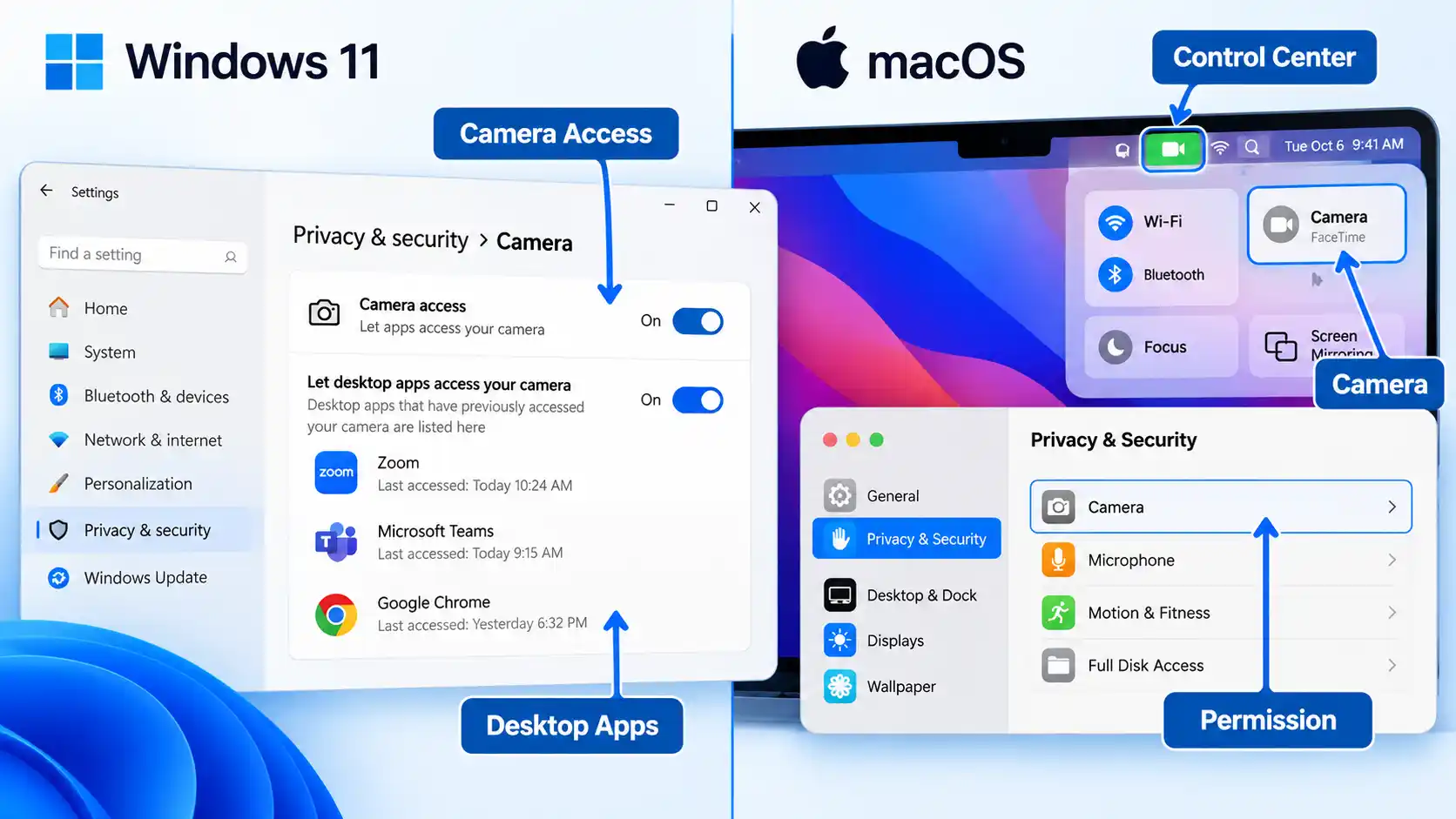
What Windows 11 Can and Cannot Show About Camera Access
Windows can provide useful clues, but its Camera privacy page is not a complete history of every program that could ever reach the camera.
Open Start > Settings > Privacy & security > Camera. Microsoft Store apps that use the Windows permission system can appear with individual camera controls. Desktop apps work differently: browsers, traditional Windows programs, and many video-call applications are controlled through the broader Let desktop apps access your camera setting.
Windows can also show desktop applications it has detected interacting with the camera. For a listed desktop app, Microsoft says you can select it to see details about the specific file that accessed the camera or microphone. That can help when the displayed app name is unfamiliar.
There is an important limit. Some desktop apps can interact with camera hardware in ways Windows privacy controls do not fully govern. An application may install a driver, for example, and communicate more directly with the hardware. Microsoft also warns that desktop apps may not always appear in the Camera settings list.
For that reason, an empty or familiar-looking app list is useful evidence, but it is not absolute proof that no desktop program touched the camera. If unexplained activity continues, combine the permission check with the timing of the camera indicator and the security checks later in this article.
Also account for Windows Hello before treating sign-in activity as suspicious. Facial sign-in can use the camera even when ordinary app camera access is disabled.
What macOS Can Show About Camera Access
A Mac gives you two different clues: a live privacy indicator and a list of installed third-party apps that have requested permission to use the camera.
A green privacy indicator beside Control Center means a camera is in use. If you open Control Center while the indicator is present, the top of the panel may identify which app is using the camera. Check this before closing everything if you are trying to find the source of unexpected activity.
You can then open Apple menu > System Settings > Privacy & Security > Camera. The list contains installed apps that have asked to use the camera. Turn access off for software that does not need it.
Built-in Apple apps are an important exception to how that list should be interpreted. FaceTime, Photo Booth, and other apps included with macOS automatically have camera access and do not need to appear as third-party permission requests. Their absence from the list therefore does not mean they cannot use the camera.
Safari website access is separate as well. Open Safari > Settings > Websites > Camera to review site-level camera permissions. This matters when the camera activity began while a browser tab was open.
For the Mac’s built-in camera, the green hardware indicator has unusually strong diagnostic value because Apple states that the built-in camera is engineered not to activate without the indicator. Keep that claim within its proper scope: it does not establish how every third-party external camera behaves.
When Unexplained Camera Activity Becomes a Security Problem
One unexplained camera light deserves investigation. It becomes more concerning when the camera keeps activating after ordinary causes have been ruled out or when other evidence points to unwanted software.
For example, repeated activation deserves more attention if you also find an unfamiliar program, a security alert, or software you did not intend to install. By contrast, slow performance, crashes, browser redirects, or other general symptoms can occur for many reasons and should not be presented as proof that someone is watching through the webcam.
Malware is harmful software that can run on a device without the user’s knowledge and may steal information or perform other unwanted actions. Once credible malware evidence appears, the investigation should shift from one camera permission to the security of the entire computer.
On Windows 11, open Windows Security and select Virus & threat protection. You can start with a Quick scan, choose a Full scan to check every file and program, or open Scan options for other choices. If you are particularly concerned about persistent malware, Microsoft Defender Offline restarts the PC and scans without loading normal Windows, making persistent malware more difficult to hide or defend itself. Save open work before choosing the offline scan because the computer restarts.
macOS takes a different approach. It includes built-in protections such as Gatekeeper, Notarization, and XProtect. XProtect automatically detects and blocks known malware and can remediate infections. Apple describes these protections as automatic; it does not provide a universal user-facing “run XProtect scan” control comparable to Windows Security’s on-demand scan choices.
If you clicked a suspicious link or opened an attachment and think malware may have been downloaded, the FTC advises you to stop sensitive account logins, update security software, run a security scan, then change passwords and enable two-factor authentication. Use a device you trust for sensitive account recovery if you believe the affected computer may still be compromised.
Broader habits that reduce malware risk while browsing can lower the chance of another infection, but they do not replace investigating the camera activity that brought you here.
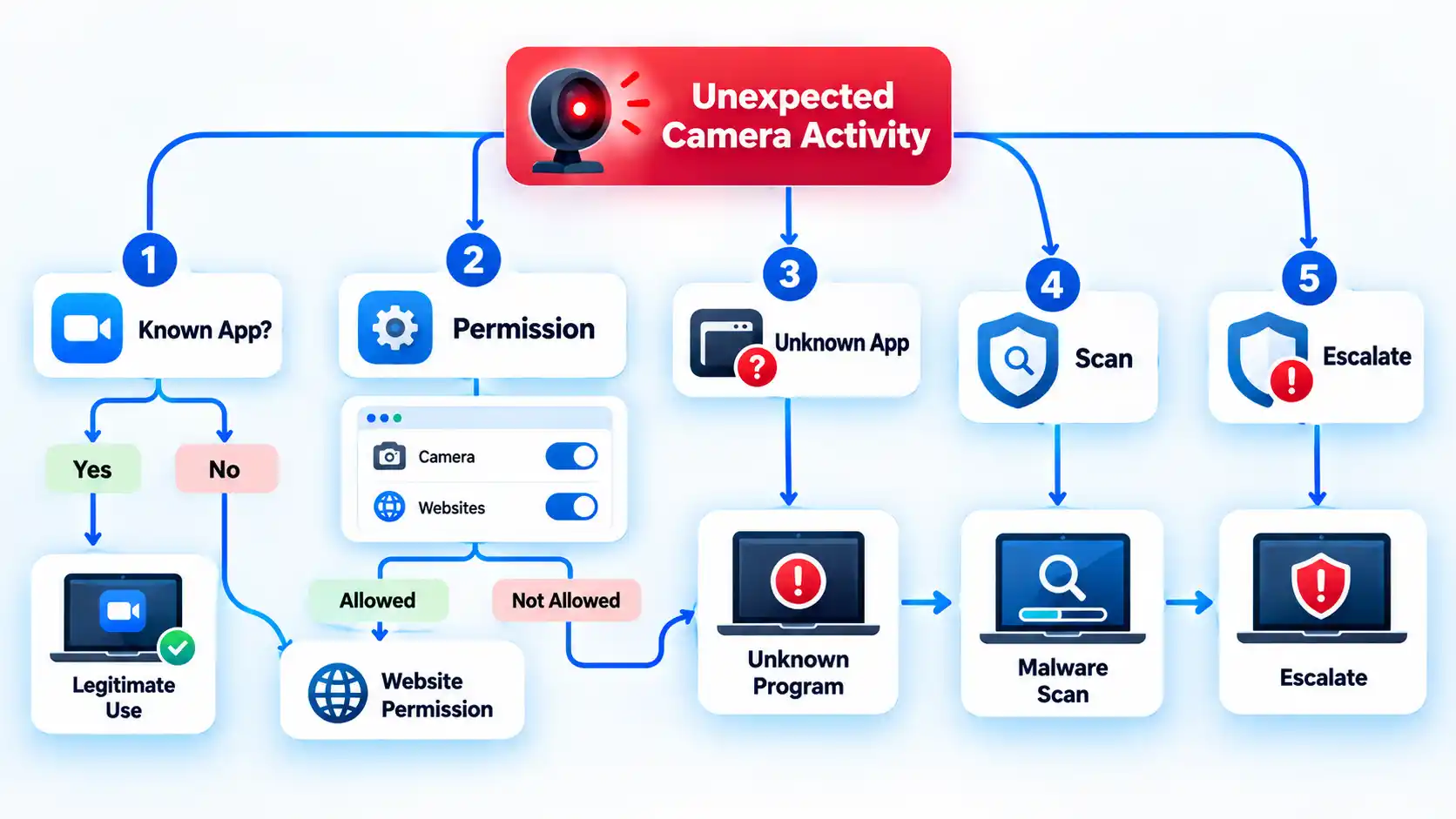
The camera stays active after I close my video-call app
Check whether the app is still running in the background and close browser tabs that may have camera permission. Then use the Windows Camera privacy page or macOS Control Center to look for another camera user. If the indicator remains active after every known legitimate user is closed, continue with the malware and unfamiliar-software checks instead of assuming the first app was responsible.
The camera activates when I sign in to Windows
If Windows Hello facial recognition is enabled, camera activity during sign-in can be normal. Microsoft allows Windows Hello to use the camera even when regular app camera access is disabled. Investigate further only when the camera activates at times that facial sign-in does not explain.
My Mac’s green camera indicator appears unexpectedly
Open Control Center before closing apps and check whether macOS identifies the program currently using the camera. Then review System Settings > Privacy & Security > Camera. If no legitimate app or feature explains the activity and it keeps returning, move to the broader device-security checks above.
I revoked camera access, but the webcam still activates
First confirm that another app, browser site, or operating-system feature is not using the camera. On Windows, remember that desktop-app controls have limitations and some programs may not appear individually. If the activity remains unexplained after those checks, treat the permission change as inconclusive and continue with the security investigation.
How to Secure the Webcam After the Check
Once you have identified the cause or completed the security investigation, remove access that no longer has a clear purpose. Do not uninstall or delete unfamiliar software solely because its name looks strange; identify what it is first and use credible security findings to guide removal.
- Turn off camera permission for apps that no longer need video access.
- Remove persistent browser-site permissions that you do not recognize or use.
- Uninstall software only after you have identified it as unwanted or a trusted security tool has detected it as harmful.
- Keep the operating system, browser, conferencing apps, and security tools updated.
- Use a built-in hardware shutter when your computer provides one, or unplug an external USB webcam when you want a clear physical barrier.
For the broader preventive setup, including physical camera controls and platform-specific permission hardening, you can secure your webcam on Mac and Windows PCs without turning every future camera event into a security investigation.
A webcam cover and camera permissions solve different problems: one physically blocks the lens, while the other controls software access. Neither should be treated as a complete substitute for the other.
Verify That the Camera Is Back Under Your Control
The investigation is complete when normal camera use still works, unnecessary access has been removed, and the unexplained activity that triggered the check no longer appears during ordinary use.
Verify the result
- Your normal video-call or camera app can still use the webcam when you intentionally open it.
- Apps that do not need camera access no longer have unnecessary permission where your operating system exposes that control.
- Browser sites do not retain camera permission unless you intentionally want them to.
- The Windows camera light or notification, or the Mac privacy indicator, appears during intentional camera use and stops after the legitimate camera-using app or site closes.
- The unexplained camera activity that started the investigation does not immediately recur during normal use.
- If malware was suspected, you have run the appropriate security scan or remediation steps and handled any detections before resuming sensitive account activity on the device.
If the webcam begins activating unexpectedly again and you still cannot connect the activity to a legitimate app, website, or operating-system feature, do not treat the earlier quiet period as proof that the problem is fixed. Return to the diagnostic steps and escalate the security investigation when the evidence calls for it.

💬 Comments