You can add a signature for messages sent from the Gmail app by opening Gmail, going to Settings, and turning on Mobile Signature. If you do not create a signature in the Gmail app, Gmail says new messages can instead use the signature you set up on your computer.
How to Add a Gmail Signature in the Gmail App on iPhone
A Gmail signature is text that Gmail can add automatically at the bottom of your messages. The current Gmail iPhone instructions use a setting called Mobile Signature for messages sent from the Gmail app.
- Open Gmail. Launch the Gmail app on your iPhone.
- Open the Gmail menu. Tap the Menu button in the top-left corner, then tap Settings.
- Open Signature settings. Under Compose and Reply, tap Signature settings.
- Enable Mobile Signature. Turn on Mobile Signature.
- Enter your signature. Add or edit the text you want Gmail to place at the end of messages sent from the app.
- Save the change. Tap Back. Google documents this as the step that saves the mobile signature.
If you use several accounts in the Gmail app, Google says the signature setting needs to be changed separately for each account. A signature configured for one account should therefore not be assumed to apply to the others.
Use Your Desktop Gmail Signature Instead
You do not necessarily need a separate Mobile Signature. If you leave the Gmail app without its own signature, new messages use the signature set up on your computer, according to Google’s current iPhone and iPad guidance.
This is useful when the signature you already use in Gmail on a computer is the one you want on your iPhone as well. By contrast, turning on Mobile Signature gives messages sent from the Gmail app their own app-specific signature.
You can create the computer-side signature directly in Gmail. If you prefer to start from a template, an email signature generator can help you build the design before you add it to Gmail.
For an organization that needs consistent signatures across a team, an email signature management tool can centralize their creation and management. That is a different need from typing a personal Mobile Signature in the Gmail app.
Gmail App vs Apple Mail: Which Signature Setting Applies?
The correct setting depends on the app you use to send the message. Changing a signature in Apple’s Mail settings does not configure the Mobile Signature inside the Gmail app, and changing Gmail’s Mobile Signature is not the same as changing Apple Mail’s signature.
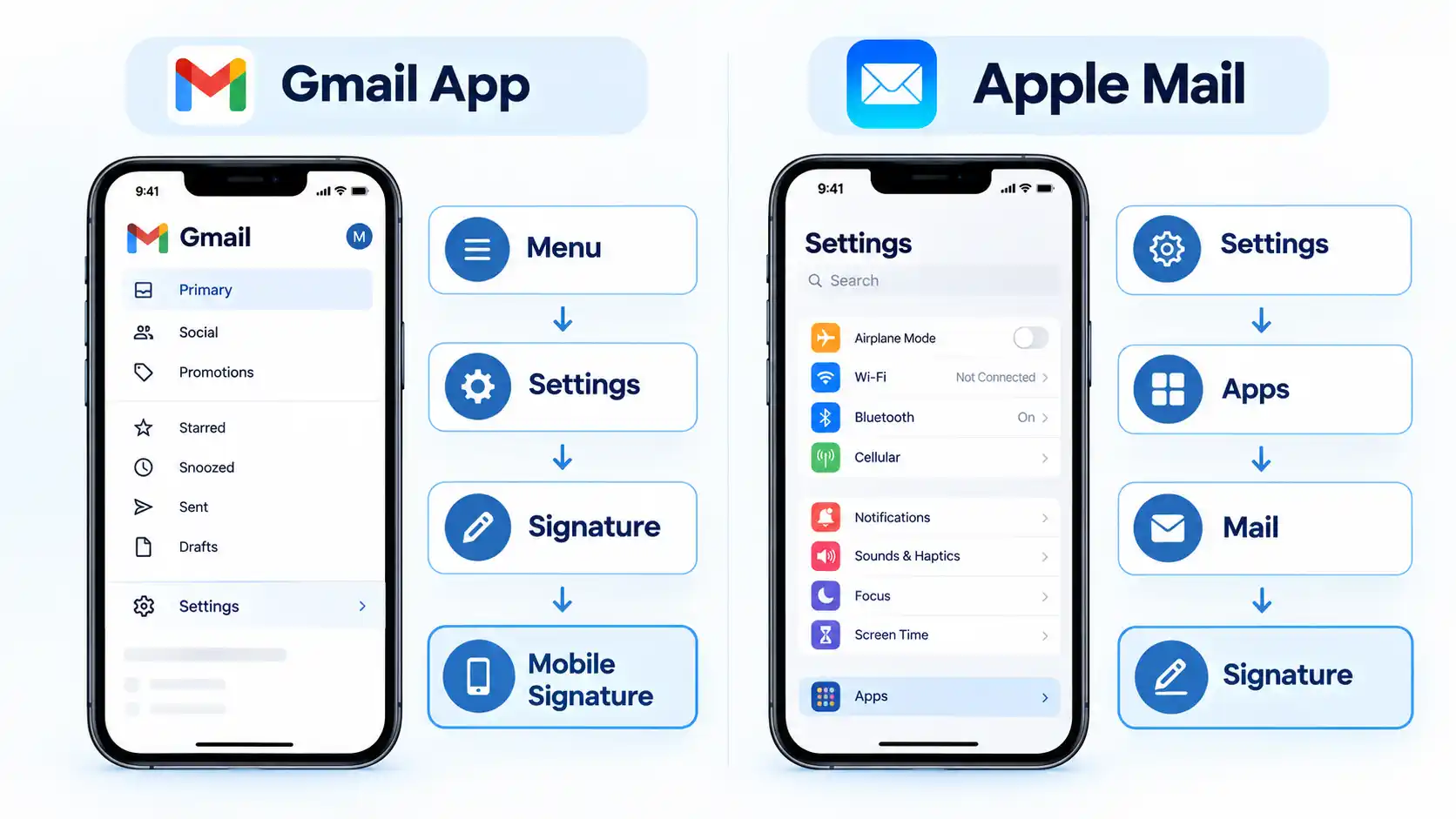
If you send messages from the Gmail app, use the Gmail procedure above: Menu → Settings → Signature settings → Mobile Signature.
If you send your Gmail account through Apple’s Mail app, the current iPhone route is Settings → Apps → Mail → Signature. Apple also lets people with more than one mail account choose Per Account for separate signatures. Apple notes that Mail signatures use text.
A simple way to choose the right setting is to check which app you normally open when writing an email. If you compose in Gmail, change Gmail’s signature. If you compose in Apple Mail, change the Mail signature in iPhone Settings.
Check That Your Gmail Signature Works
After saving the setting, create a new message rather than assuming the change worked. The goal is to confirm both the signature and the Gmail account from which you intend to send.
Verify the result
- Open the Gmail app and start a new message using the Gmail account you intended to configure.
- Check the bottom of the new message for the signature you expect.
- If Mobile Signature is enabled, confirm that the mobile-specific text appears.
- If you intentionally did not create a Gmail-app signature, check that the computer signature you expected is being used instead.
- If you use multiple Gmail accounts, repeat the check for each account whose signature matters.
If the result is correct in a new message, the setup is complete. If the wrong signature appears or no signature appears, use the checks below to identify which setting needs attention.
Why Your Gmail Signature Is Not Showing on iPhone
Most problems come from configuring a different account, expecting the computer signature while a Mobile Signature is active, or changing Apple Mail when you actually send through Gmail.
The Gmail app shows the wrong signature
Open Gmail’s Signature settings and check the Mobile Signature text. If you use more than one Gmail account, remember that Google requires the setting to be changed for each account. Verify the result again from the account you actually plan to use.
Your computer Gmail signature is not the one appearing
Check whether Mobile Signature is configured in the Gmail app. Google’s current guidance says the computer signature is used when you do not create a signature in the Gmail app. If you intentionally want the computer signature, make sure you are not expecting a separate mobile signature at the same time.
You changed the iPhone Mail signature but Gmail did not change
Apple Mail and the Gmail app have separate signature controls. If you send from Gmail, configure Signature settings inside Gmail. Use Settings → Apps → Mail → Signature only for messages you send through Apple’s Mail app.
One Gmail account works but another does not
Do not assume one Mobile Signature setting covers every Gmail account in the app. Google states that people with multiple accounts need to change the setting for each account, so check and verify them individually.
No signature appears in a new message
First confirm which app you are composing in. In Gmail, return to Settings → Signature settings and confirm whether you want Mobile Signature enabled or whether you intend to rely on the computer-signature fallback. In Apple Mail, check Settings → Apps → Mail → Signature instead. Then create another new message and inspect the result.

💬 Comments