To speed up Google Chrome, enable Memory Saver in Performance settings, close high-RAM background tasks using Chrome’s built-in Task Manager, remove unused browser extensions, and ensure the browser is updated to the latest version. Clearing accumulated browsing data and configuring standard page preloading will also restore rapid page load speeds without requiring third-party utility software.
Quick Take: Essential Chrome Optimization Steps
When Google Chrome becomes sluggish, high memory consumption from unoptimized background tabs and bloat from legacy extensions are usually the primary culprits. According to global desktop browser market share data from Statcounter, Chrome continues to dominate desktop web browsing globally, making system resource efficiency a primary concern for millions of users.
To get Chrome running smoothly again without losing your saved preferences or browsing history, focus on six core interventions:
- Turn on Memory Saver: Automatically frees RAM from inactive background tabs.
- Kill heavy processes: Use Chrome’s Task Manager (
Shift + Esc) to identify and close memory-hogging tabs. - Prune extensions: Audit
chrome://extensionsand disable tools you do not actively use. - Adjust preloading and graphics: Enable standard preloading and toggle hardware acceleration based on your GPU capability.
- Clear cache and reset settings: Remove corrupted temporary site data that slows down page rendering.
- Restart and update: Apply pending security patches and clear browser heap memory through a clean restart.
Prerequisites for Optimizing Chrome
Before modifying browser configurations, verify that your system meets the basic operational conditions listed below:
| Requirement | Recommended Specification | Why It Matters |
|---|---|---|
| Operating System | Windows 10/11, macOS 11+, or ChromeOS | Ensures compatibility with modern Chrome memory management APIs. |
| Browser Version | Chrome Version 110 or higher | Includes native Memory Saver, Energy Saver, and modern security protocols. |
| System Memory (RAM) | 8 GB minimum (16 GB recommended) | Prevents severe OS-level disk swapping when running multiple web applications. |
| Account Backup | Chrome Sync enabled or bookmarks exported | Protects browsing data if a full browser settings reset is required. |
Step-by-Step Chrome Speed Optimization Guide
Follow these steps sequentially to isolate performance bottlenecks and reconfigure Chrome for optimal speed.
Step 1: Enable Built-in Performance Modes (Memory Saver & Energy Saver)
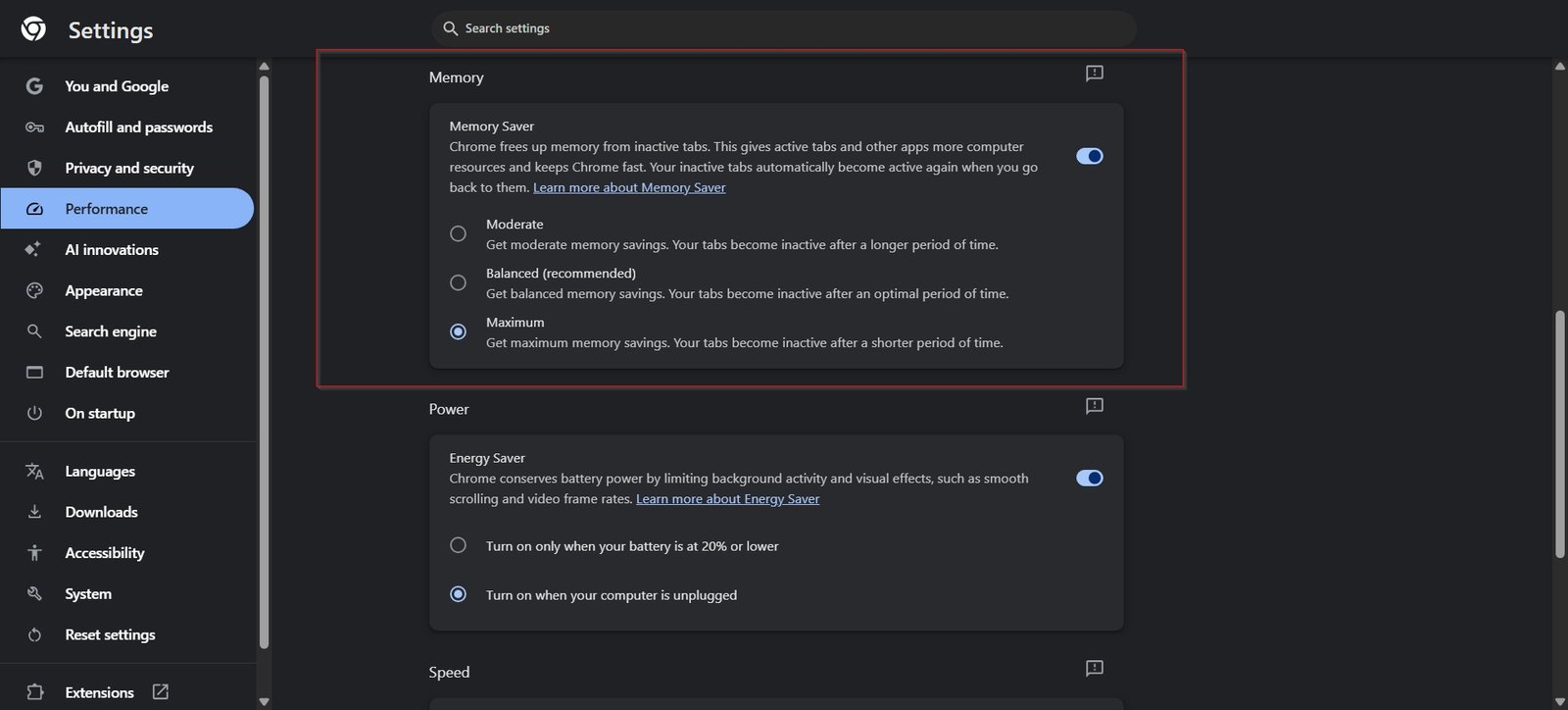
Chrome includes automated resource controls designed specifically to prevent inactive tabs from hoarding system RAM. You can manage these settings by enabling Chrome’s built-in Memory Saver and Energy Saver features to reduce RAM consumption on inactive tabs.
- Open Chrome and click the three vertical dots (Menu) in the top-right corner.
- Select Settings and click Performance from the left-hand navigation sidebar.
- Toggle Memory Saver to the On position.
- (Optional) If you frequently work with specific web applications that must remain active in the background (such as webmail or audio players), click Add next to “Always keep these sites active” and enter their domain names.
- On laptop devices, toggle Energy Saver on to limit background visual effects and high frame rates when running on battery power.
Expected Outcome: Inactive tabs discard their held memory while preserving their title and tab state. When you click back onto a sleeping tab, Chrome reloads the page seamlessly.
Step 2: Identify and Terminate Resource-Hungry Tabs with Chrome Task Manager
A single misbehaving web page or background script can cause system-wide slowdowns. For additional background task management, follow Google’s official Chrome performance documentation to identify processes hogging system memory.
Branching Shortcut by Operating System:
- Windows & ChromeOS: Press
Shift + Escwhile inside Chrome. - macOS: Click Window in the top system menu bar and select Task Manager (or click Menu > More Tools > Task Manager).
- Inside the Task Manager window, click the Memory footprint column header to sort all active processes from highest to lowest consumption.
- Locate individual tabs or background processes consuming excessive RAM or CPU cycles (e.g., over 500 MB for a single static tab).
- Click on the offending process and select End Process at the bottom right.
Expected Outcome: The high-resource process terminates immediately, releasing RAM back to the operating system and stopping CPU thermal throttling.
Step 3: Audit, Disable, and Uninstall Unnecessary Extensions
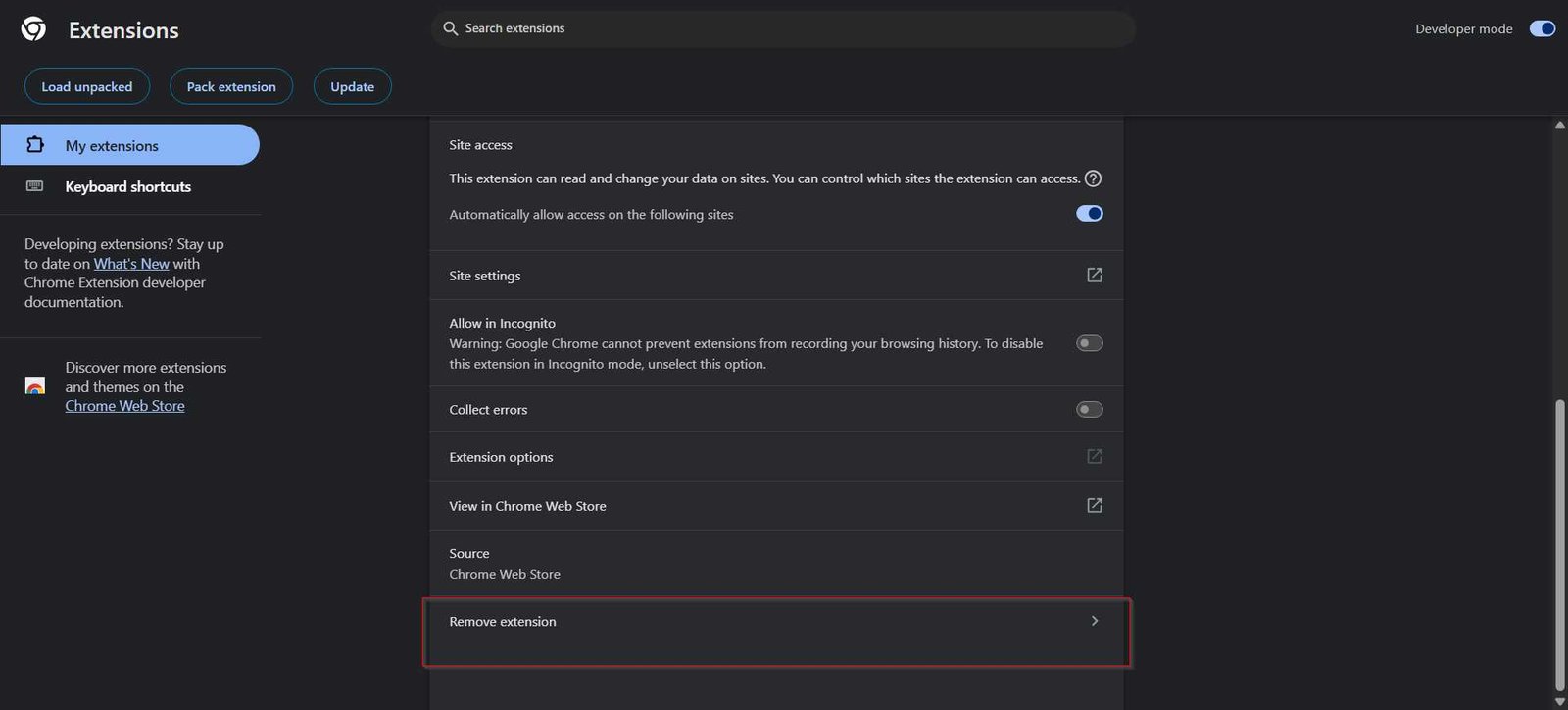
Browser extensions run persistent background scripts that inspect network traffic, modify page DOM trees, and consume memory. Only install extensions from the official Chrome Web Store extensions catalog and audit permissions regularly.
- Type
chrome://extensionsinto the address bar and press Enter. - Review every installed extension. Toggle off the switch for any extension you do not use daily.
- For extensions you no longer need, click the Remove button.
- If you suffer from frequent form submission crashes, avoid relying on outdated third-party form helpers; rely on Chrome’s built-in Autofill or maintained password managers instead to avoid script conflicts.
Expected Outcome: Lower baseline memory consumption upon browser launch and reduced latency when loading complex web pages. Learn more about essential Chrome extensions for productivity that maintain low system overhead.
Step 4: Configure Page Preloading and Hardware Acceleration
Chrome can predict which links you are likely to click and preload web assets in advance, speeding up navigation across frequently visited sites.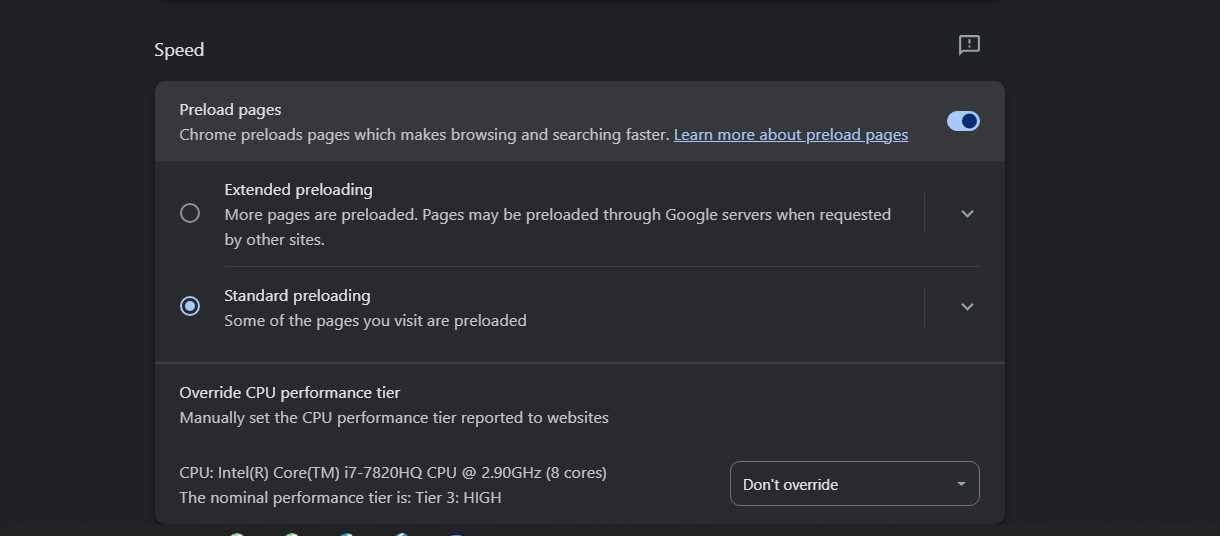
- Navigate to
chrome://settings/performance. - Scroll to Preload pages and select Standard preloading. (Avoid Extended preloading if you are on a metered connection or limited RAM).
- Next, navigate to
chrome://settings/systemin the left menu. - Verify that Use graphics acceleration when available is toggled On if you have a dedicated or modern integrated GPU. If you experience screen flickering or video playback lag, toggle this setting Off and restart Chrome.
Expected Outcome: Instantaneous page transitions for internal links and smoother rendering of video content. You can also configure advanced Chrome flags like chrome://flags/#smooth-scrolling if default page scrolling feels jumpy.
Step 5: Clear Cached Data and Reset Corrupted Browser Settings
Over months of use, corrupted web cache, stale cookies, and misconfigured permissions can degrade browser responsiveness.
- Press
Ctrl + Shift + Delete(Windows) orCmd + Shift + Delete(Mac) to open the Clear browsing data menu. - Select the Advanced tab and set the time range to All time.
- Check Cached images and files and Cookies and other site data. Click Clear data.
- If browser behavior remains erratic, navigate to
chrome://settings/resetand click Restore settings to their original defaults.
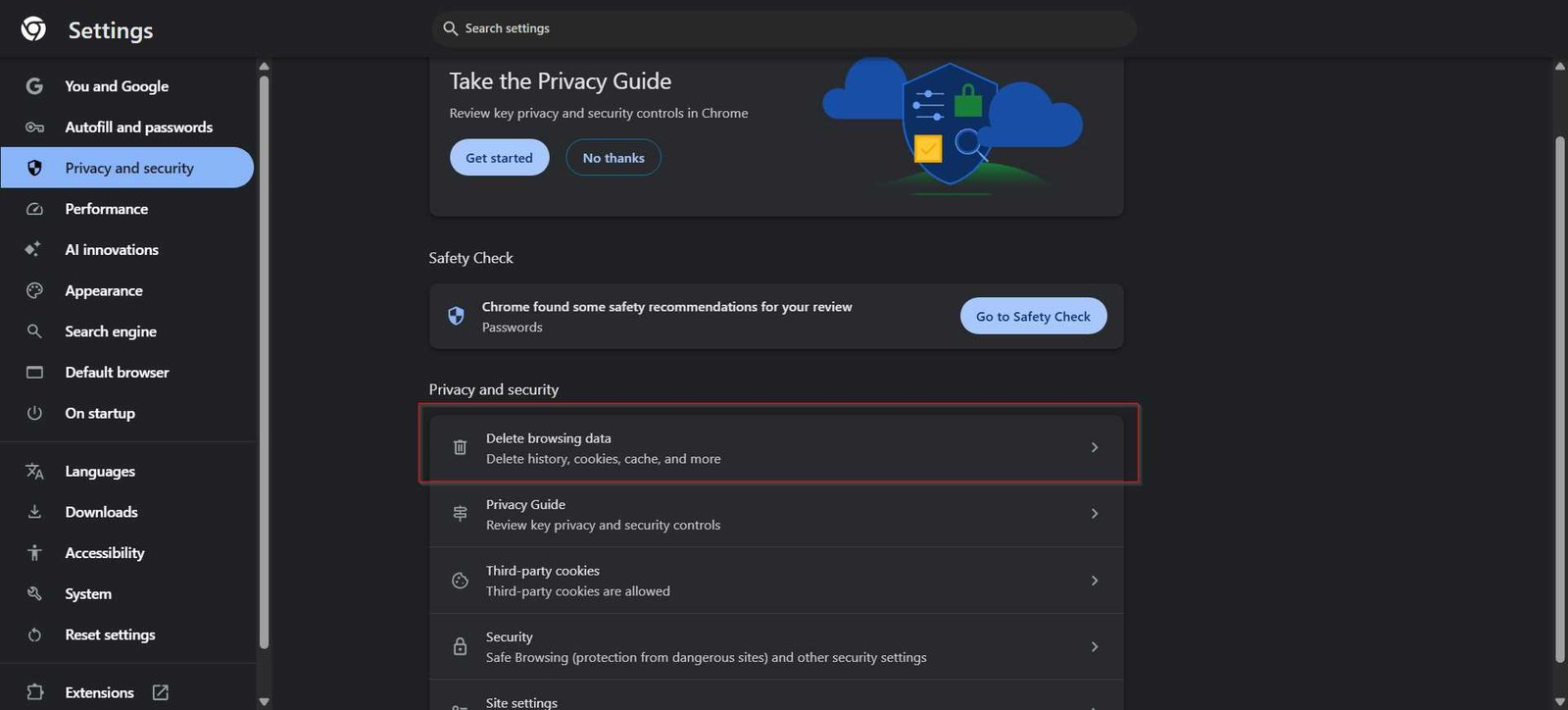
Expected Outcome: Elimination of stale browser cache states and misconfigured flag overrides. Review our full guide to clear your browser cache and cookies safely without losing critical saved passwords.
Step 6: Update Chrome and Perform Routine Restarts
Chrome continuously updates its V8 JavaScript engine and memory allocation routines. However, background updates only take effect when the browser restarts completely.
- Type
chrome://settings/helpinto your address bar and press Enter. - Chrome will automatically check for pending updates and download them.
- When prompted, click Relaunch to apply the update.
- Get into the habit of closing and re-opening Chrome at least once a week rather than leaving it running indefinitely during system sleep cycles.
Expected Outcome: Patched memory leaks, updated security definitions, and a fresh browser heap memory state.
How to Verify Chrome Performance Improvements
To confirm that your optimization efforts yielded tangible performance gains, perform the following verification checks:
- Check Baseline Memory Usage: Open Windows Task Manager (
Ctrl + Shift + Esc) or macOS Activity Monitor. Compare overall system RAM usage before and after enabling Memory Saver with 10–15 tabs open. You should observe a 30% to 40% reduction in total memory allocated to Chrome processes. - Inspect Individual Tab States: Hover your mouse cursor over an inactive tab. The hover preview card should indicate that the tab is “Inactive” or sleeping, confirming that Memory Saver is functioning.
- Test Script Execution Speed: Load heavy web applications (like Google Sheets or web design tools). Notice whether page interaction and input latency are crisp and responsive.
Troubleshooting Common Chrome Performance Issues
Chrome Still Uses High Memory After Enabling Memory Saver
If Chrome continues to consume excessive RAM despite enabling native performance features, background extensions or pinned tabs are usually bypassing tab sleep rules. Pinned tabs, pages playing background audio, or sites with active web socket connections (like live messaging apps) are automatically excluded from memory deactivation.
Fix: Open chrome://extensions, temporary disable all non-essential extensions, and check if memory drops. Unpin non-critical tabs and review your “Always keep these sites active” list under chrome://settings/performance to ensure unnecessary domains were not added accidentally. For deeper diagnostics, read our guide on how to troubleshoot high Chrome RAM usage.
Web Pages Render Slowly or Video Playback Stutters
Slow page rendering or choppy video playback (especially on high-resolution streams) often points to GPU hardware acceleration conflicts or outdated graphics drivers.
Fix: Go to chrome://settings/system, toggle Use graphics acceleration when available to the opposite setting, and click Relaunch. Additionally, type chrome://gpu into the address bar to verify whether hardware acceleration features are marked as “Hardware accelerated” or “Software only.” Update your system’s graphics drivers if hardware acceleration is failing.
Unwanted Pop-ups, Search Hijacking, or Malware Symptoms Persist
Starting in Chrome version 111, Google retired the standalone Chrome Cleanup Tool previously found under browser settings. Users can no longer run a native “Clean Up Computer” scan directly inside Chrome.
Fix: Ensure Google Safe Browsing is configured to Enhanced protection by visiting chrome://settings/security. If malicious search redirects or persistent pop-ups remain, review your modern browser security settings and run a thorough malware scan using dedicated OS-level malware scanners like Malwarebytes or Microsoft Defender. If needed, consult our guide on standalone malware removal tools.
Where This Approach Has Limits
Optimizing software settings can only reclaim available hardware capacity; it cannot overcome physical hardware bottlenecks. If your machine has 4 GB of RAM and is running modern web applications alongside an operating system that requires 3 GB on its own, Chrome will inevitably slow down regardless of setting tweaks.
Additionally, while preloading pages speeds up navigation, it increases background data usage, which can be undesirable on metered mobile hotspots. Finally, disabling hardware acceleration resolves rendering glitches on older GPUs but offloads graphics tasks to the CPU, which may elevate CPU temperatures and reduce battery life on laptops.
Key Takeaways
- Built-in features like Memory Saver automatically suspend inactive tabs, reducing RAM footprint by up to 40%.
- Use
Shift + Esc(Chrome Task Manager) to pinpoint and close specific high-resource tabs instead of restarting the whole browser. - Google’s legacy “Clean Up Computer” feature was permanently removed in Chrome 111; use Enhanced Safe Browsing and standalone antivirus tools for malware detection.
- Regularly prune unnecessary browser extensions, as they run continuous background scripts that degrade performance.
- Restarting Chrome weekly is mandatory to apply pending security updates and purge browser heap memory leaks.
Frequently Asked Questions
Why did Google remove the “Clean Up Computer” option from Chrome settings?
Google retired the built-in Chrome Cleanup Tool in March 2023 (Chrome version 111). Google cited a steady decline in local software hijacking complaints, significant improvements in Google Safe Browsing real-time URL detection, and enhanced anti-malware capabilities built directly into Windows Defender and modern operating systems. Chrome now relies on real-time cloud protection rather than local disk scanning.
Will turning on Memory Saver log me out of active web sessions?
No. When Memory Saver deactivates an inactive tab, it releases the system RAM allocated to rendering the page, but it preserves the tab’s session cookies, authentication tokens, and state. When you click back onto the tab, Chrome reloads the page with your active login intact. However, unsaved text entered into unsubmitted web forms on non-autosaving pages may be lost if a tab is discarded.
Does disabling hardware acceleration make Chrome faster or slower?
On modern systems with functioning graphics drivers, keeping hardware acceleration enabled makes Chrome significantly faster by offloading page rendering, CSS animations, and video decoding to the GPU. Disabling hardware acceleration should only be done as a troubleshooting measure if you experience visual artifacts, screen tearing, or video playback glitches caused by buggy graphics drivers.
Is it safe to change experimental flags in chrome://flags?
Flags located in chrome://flags are experimental features that Google developers use for testing. While popular flags like Smooth Scrolling (chrome://flags/#smooth-scrolling) are generally safe, changing unstable flags can cause browser crashes, tab freezing, or data loss. If Chrome becomes unstable after modifying flags, return to chrome://flags and click the Reset all button at the top right.

💬 Comments