Your fiber line drops at 9:40 on a Tuesday. What happens next depends on how many devices still need to work. Two work laptops, a desk phone, a doorbell camera and a thermostat are not a one-laptop problem.
So the choice splits cleanly. A cellular router is the better foundation when the whole home network has to survive the outage. It runs from mains power, its Ethernet ports can feed your existing router’s backup WAN connection, and some models accept external antennas.
Quick Take
Buy a cellular router if more than one device must stay online, if anything in the house is wired, or if you want the switch to happen without you touching anything. Confirm first that your main router supports the exact failover mode you intend to use. Keep a phone or battery hotspot if the outage is short, one laptop matters, and you already have hotspot data on your plan. In both cases, test the SIM in the intended room and read the plan’s activation and inactivity terms before you rely on any of it.
Battery hotspot vs. cellular router: what is actually different
Four things get muddled in this conversation, so keep them apart. A phone hotspot is software on the handset you already carry. A dedicated battery hotspot, often sold as a MiFi, is a separate pocket device with its own cell and SIM slot. A cellular router or gateway is a fixed, mains-powered box that turns a SIM into a normal home network. And the cable or fiber line is the connection you are insuring.
The first two are built to travel. The third is built to stay put. That difference shows up in the power supply, the port layout and the antenna connectors long before it shows up in a speed test.
| Criterion | Battery mobile hotspot (MiFi) | Cellular router or gateway |
|---|---|---|
| Power | Internal lithium battery, recharged over USB | Mains adapter, built to run continuously |
| Networking | Wi-Fi only on most models | Wi-Fi, plus Ethernet LAN and WAN ports on many models |
| Antennas | Fixed internal antennas | Internal on some models; SMA connectors for external antennas on others |
| Intended load | One or two devices nearby | Several devices, wired equipment and always-on services |
| Portability | Pocket-sized, works away from mains power | Fixed placement, needs a power outlet |
| Role in an outage | A separate Wi-Fi network you join by hand | Can feed the main router’s backup WAN so the home network stays up |
Why a battery hotspot makes a poor always-on appliance
A hotspot left on the charger for months runs its radio continuously and can add heat and battery wear, while the battery stays near full. That is a poor fit for permanent use, and the device may throttle its own radio to shed temperature during a long outage, which is precisely when you need it working. Follow the manufacturer’s guidance on charging and continuous use before you commit to that setup.
That is why a battery hotspot belongs in the portable-tool category. Use it for a few hours, then recharge it. If the cellular link has to run continuously, buy hardware built for that duty.
A cellular router that runs from a mains adapter avoids depending on an internal battery for everyday power. Check the exact model’s power design and manufacturer guidance before leaving it online continuously.
Whole-home failover: what has to line up
A hotspot broadcasts its own Wi-Fi network. During an outage, every device in the house has to be pointed at that network, and every device has to be pointed back when the line returns. That is tolerable for a laptop. It is miserable for a thermostat, a television and a printer you forgot existed.
A cellular router with an Ethernet port can do something better. Plug its LAN port into the secondary WAN port on your existing router, and the home network keeps its name, its Wi-Fi password and its device list. The main router decides when to switch.
That switching is a configuration feature, not a product category. A SIM slot alone proves nothing. The exact model, hardware revision, firmware version and operating mode all have to support Ethernet-WAN-to-cellular failover. Some routers only switch when you move a cable yourself, which leaves every device in the house reconnecting while you are on a call.
ASUS exposes this on models that support Dual WAN. ASUS documents the flow in its Dual WAN setup guide.
Set up ASUS Dual WAN failover
On an ASUS router that lists Dual WAN support, the failover workflow runs through the web interface. The exact menu labels vary by model and firmware.
- Open Dual WAN and enable it.Sign in to the router’s web interface, open WAN, then Dual WAN, and switch Enable Dual WAN on. It ships off by default.Confirm your model and firmware support the feature first, because the available options can differ.
The Dual WAN controls should now be editable rather than grayed out.
- Choose the primary and secondary WAN.Select a primary WAN and a secondary WAN from the available options, which can include WAN, USB and Ethernet LAN. Pick the port that matches the cellular router’s LAN connection.Do not select the same WAN type twice; the two paths must differ.
The secondary WAN field should show the interface you intend to use.
- Set Failover mode and apply.Set Dual WAN Mode to Failover, then apply the change.Failover mode keeps the secondary WAN as backup and switches automatically when the primary connection drops.
The settings should save without an error and the Network Map should refresh.
- Confirm standby status and failback.Open Network Map and check that the secondary WAN reads Hot-Standby or Cold-Standby while the primary line is healthy. Enable Allow Failback if you want traffic to return to the primary line automatically.ASUS uses those standby labels to show a successful backup setup.
Pulling the primary cable should move the household online, and plugging it back should restore the primary path.
Signal and antennas: measure before you buy
Cellular performance starts at the tower and ends at the antenna. A hotspot carries a small fixed antenna inside a plastic shell, so your only adjustment is where you put the device. Some cellular routers use SMA connectors for external antennas, which lets you move the antenna to a window, a wall or a roof without moving the router.
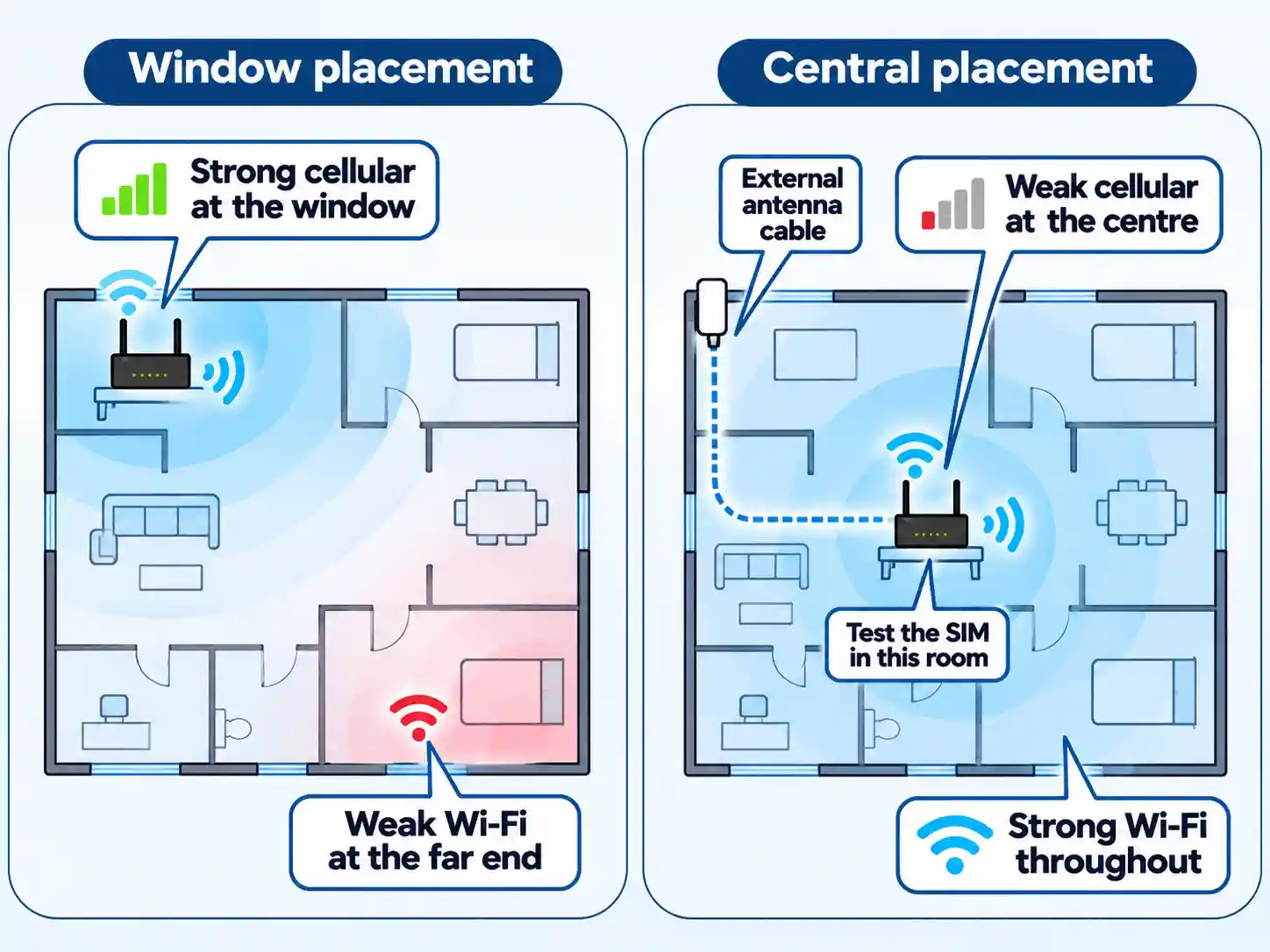
Test the SIM where the device will actually sit before you spend anything on antennas. Run a speed test in the proposed spot, check the signal indicator, then repeat at a window. Coverage maps predict outdoor likelihood for a postcode, not reception in a basement office.
Placement involves a real trade-off. A corner near a window may pull a stronger cellular signal and a weaker Wi-Fi signal for the far end of the house. A central hallway does the reverse. On a router with external antenna ports you can split the difference: leave the box central and run coax to the window.
How much has to stay online
Count what must stay online, not what you own. A single laptop running email and one video call sits comfortably on a hotspot. A household with two work laptops, a tablet, three phones, a video doorbell, four cameras, a thermostat and a streaming stick does not.
Cameras matter more than their numbers suggest. Many cameras upload continuously, and a cloud-recording camera can eat a data allowance on its own. Video calls are hard on latency stability, so a connection that benchmarks well but jitters will still ruin a meeting.
Device capacity is model-specific. Some portable routers advertise support for around thirty devices, and that figure varies widely between units and depends on what those devices are doing. Treat any headline device count as a ceiling for light traffic; a house full of cameras will find the real limit first.
The standby SIM decides whether the backup works
The SIM is the part that fails quietly. A prepaid plan bought in a hurry and left in a drawer for months may hit an activation deadline, lose an add-on, or fall foul of an inactivity rule. Read those terms at purchase, then set a reminder to check the account periodically.
Watch the hotspot allowance specifically. Many phone plans advertise unlimited data, then cap high-speed hotspot sharing at a few gigabytes before dropping to a crawl. Heavy HD streaming can burn through a small hotspot allowance in a month. Size the plan to the traffic the backup will actually carry, and keep a cheap top-up option available.
Which setup fits which household
One laptop, a short outage
Remote work across several devices
Smart home and security cameras
Weak signal indoors
Power cuts as well as outages
Tight budget, rare outages
If you are still unsure whether a portable hotspot is the right tool at all, work through the guide to deciding whether a portable Wi-Fi hotspot is worth owning before you spend on either option.
Before you rely on it
Verify the result
- Your exact router model and firmware expose the failover mode you intend to use, confirmed in the manual rather than the product category.
- The secondary WAN shows Hot-Standby or Cold-Standby while the primary line is healthy.
- Pulling the primary cable moves the household online without you reconnecting phones and laptops by hand.
- Plugging the cable back restores the primary line with failback enabled, without a manual reboot.
- The standby SIM activates on schedule, keeps its data valid, and survives the plan’s inactivity rules.
- A speed test in the room where the device sits returns enough throughput for a video call at the busiest hour you can test.
- The cellular device has power during an outage, from mains plus a UPS or from a battery you keep charged.
Where to start this week
Open your router’s admin page and search the manual for dual WAN or failover. If the feature is there, a cellular router becomes a realistic purchase and the remaining work is testing. If it is not, automatic whole-home failover means replacing the main router or using the cellular router as a separate network you switch to by hand, and that changes the budget.
Then buy one prepaid SIM, put it in the room where the equipment will live, and measure. That result tells you more than any specification table, including this one.

💬 Comments