The WhatsApp Business app is free to download, and it covers more of a small shop’s daily customer conversation than most owners expect. The setup errors that actually cost money get locked in during the first session, long before anyone builds a catalog: the number you register, the profile you publish, who you message, and how much you trust a chat export.
Fix those early decisions and the rest of the app behaves predictably. Skip them and no amount of catalog polish will rescue you. Customers message the wrong number, order details scroll past in a personal inbox, or a phone change takes a year of order history with it.
Quick Take
- Give the business account its own phone number so WhatsApp Messenger and WhatsApp Business can run side by side on one phone.
- Publish a complete profile with a support contact plus at least one of an email address, website, or phone number, and keep every field current.
- Message only people who gave you their number and opted in, then honor every opt-out the moment it arrives.
- Write greetings, away messages, and quick replies that name a way to reach a real person.
- Review linked devices on a schedule, keep a real backup, and remember that an exported chat is a text file you cannot restore.
What you need before you install
Installing is the easy part. Assembling these six items first saves a second pass through setup, which on this app is more painful than it sounds.
Prerequisites
- A phone number that can receive a verification message, reserved for the business account.
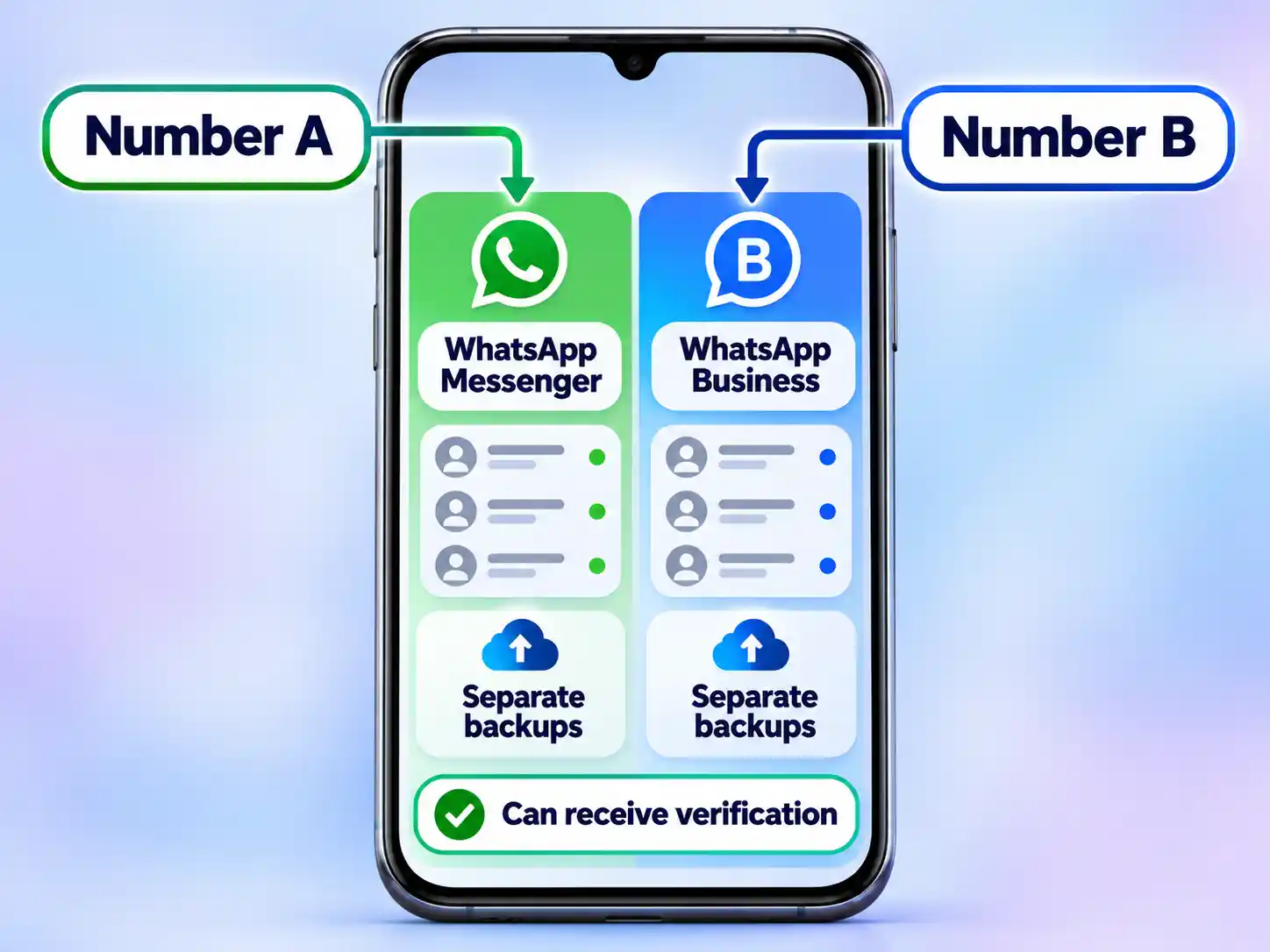
- A second, different number if you want WhatsApp Messenger and WhatsApp Business on the same handset. The two apps can share a device only when the numbers differ.
- The phone that will act as your primary device, charged and in your hand, because registration and linking new devices both happen there.
- Business details typed and ready: a support contact, at least one of email, website, or phone number, your trading hours, your location, and a plain description of what you sell.
- A decision about restoring an existing chat backup during setup, made before you start tapping.
- Two-step verification switched on and your own devices marked as trusted, done before you hand the number to a single customer.
Choose the account structure before anything else
A costly setup mistake is registering the business app on the number your family, friends, and existing suppliers already message. That number now runs one account, and every order lands in it. Splitting the two requires a second number that can receive a verification message; how you source it is your call and depends on your carrier and handset.
| Consideration | One number for everything | A separate business number |
|---|---|---|
| Which app gets the number | One number runs one account, so you pick which app holds it. | WhatsApp Messenger keeps the personal number; WhatsApp Business takes the new one. |
| Customer-facing identity | Customers message the same number your contacts already use. | Customers see a number used only for trading, which you can publish on packaging and signage. |
| Where chats live | Business and personal conversations share one inbox. | Each app holds its own conversations, and each notifies separately. |
| Backups and restore | The single account carries one history and one backup stream. | You can restore an existing WhatsApp backup into the business account at setup, and each account keeps its own history afterwards. |
| Verification requirement | One number that can receive the verification message. | Two different numbers, each able to receive verification. |
Install and register WhatsApp Business in the supported order
Work through these four steps on the primary phone, in this sequence. Changing the order usually means repeating the whole thing with a fresh number.
- Install the app from the official store.Install WhatsApp Business from the Apple App Store or Google Play Store. Use the official download page and skip third-party download sites and APK mirrors. You are about to register a business number through this app, and a repackaged installer is the wrong way to start.When the install finishes, the app icon sits on your home screen and opens to its welcome screen.
- Register and verify the number you reserved.Enter the business number and complete verification with the code you receive. Do this on the primary phone, because registration is tied to that device.Type the number carefully. This is the number customers will see on every message. While WhatsApp includes a Change Number feature to migrate account info and groups to a new phone number, keeping your dedicated line consistent from day one avoids confusing customers and fragmenting your communication history.
Verification completes when the app shows your account setup progressing to the name screen.
- Decide on the backup before you tap through.If a chat backup is available, restore it during setup. The restore brings messages, media, and contacts into the business app. This is a one-time decision at setup; if you skip it, the old history stays with the old account rather than following you later.When a restore completes, your existing conversations appear inside the business app.
- Enter the business name and finish the profile.Type the business name exactly as customers know it and add an optional profile photo. Both appear on every conversation, so the logo or shopfront image is worth adding.You can edit these fields later, which makes a rushed placeholder tempting. However, a half-finished name is the first thing a new customer sees, making it difficult to establish credibility right away.
The setup is complete when the app opens to chat and your profile shows the correct trading name.
Build a profile customers can trust
A complete profile does two jobs at once: it answers the questions customers would otherwise ask in a message, and it satisfies an obligation in the WhatsApp Business Messaging Policy. The policy requires a business profile carrying customer support contact information plus at least one of an email address, a website, or a telephone number. It also requires that every detail stays accurate and that you never impersonate another business.
Fill the fields you have and leave nothing speculative in them. Hours, location, and service description help customers decide whether to message you at all, so keep them current through holiday closures and seasonal changes, because a published schedule is a promise, not a placeholder. Meta Verified, the paid subscription the app offers, is about customer confidence; your hours still need to be current either way.
A practical check before you invite anyone: read your own profile as a stranger would. If a first-time customer cannot tell what you sell, where you are, and how to reach a human, the profile needs another pass.
Get opt-in first and honor every opt-out
The Business Messaging Policy is blunt about who you may contact. You can message someone only if they gave you their mobile number or username and separately opted in to receive messages or calls from you. That combination is the whole basis for a legitimate business contact list.
Opt-out carries the same weight. Under the Business Messaging Policy, you must promptly honor any request to opt out, block, or discontinue communication—whether the customer asks directly in chat or through other channels. While the policy itself focuses on immediately stopping outgoing business communications rather than mandating phone address book deletion, good operating practice is to remove or label opted-out numbers in your records so nobody on your team messages them again by mistake.
This is a platform rule that WhatsApp enforces against your account, and the policy says access may be limited or removed for violations. It is not a statute. Local consumer and privacy law may add obligations of its own, and the same policy puts responsibility for meeting those on you, which is a reason to keep your consent records simple and findable.
Store how each contact arrived. A one-line note beside every number, saying where the opt-in came from and when, is enough to settle most disputes and to rebuild a list if you ever have to.
Use the catalog for order inquiries, within market limits
Catalog setup is where small sellers expect the most and get the least certainty. The app lets you showcase products, set prices, and share individual items with a customer in a few taps, which covers a lot of ground for a shop that closes orders in conversation. In-app orders and payments are a different matter: they are not available in all markets.
So build the catalog as a sales aid, then confirm what checkout looks like in your own account before you promise it to anyone. A customer who is told to “order in the app” and finds no way to pay will not come back.
- Every item carries a real price, because a missing price turns into a message.
- Descriptions state size, material, and availability in plain words rather than marketing language.
- Photos are shot in the same light so a customer comparing two items sees a fair comparison.
- Out-of-stock items come down the day they sell out.
- In-app ordering is described to customers only after you have confirmed it works in your market.
The verification is simple: share one item into a chat with a second phone you control and read the message as a customer would. If the price or the description reads wrong there, it reads wrong everywhere.
Set automation that always leaves a way out
Greetings, away messages, and quick replies save real time on repetitive questions about opening hours, delivery, and stock. They also set expectations the moment a customer’s first message lands, which makes the wording matter more than the scheduling.
- A greeting names the business and says roughly when a person will reply.
- An away message states when you are back and what the customer can do meanwhile.
- Quick replies cover the five questions you answer most, written as full sentences.
- Every automated message includes a route to a human, whether that is a phone number, an email address, or a shop visit.
Resist the urge to describe automation as round-the-clock service. If nobody is monitoring the inbox at 2 a.m., the away message should say so. While formal human-escalation mandates and message template restrictions specifically govern the enterprise WhatsApp Business Platform under Meta’s Business Messaging Policy, maintaining an obvious human escape route remains the soundest operating choice in the free WhatsApp Business app as well.
Test each message by sending it to yourself from another phone. If the greeting arrives with the wrong business name or a dead phone number, you have found the problem before a customer did.
Use labels to organize chats, not to run a pipeline
Labels sort conversations so you can filter and find them later, which is a genuine relief once you are handling a screen full of open orders. What labels do not do is move a deal through stages on their own, assign owners, trigger follow-ups, or report on conversion. They are a filing system with a friendly face.
A workable pattern is a short set of labels tied to stages you actually track: new enquiry, quote sent, awaiting payment, packed, and closed. Apply one per conversation and clear it when the stage changes. The discipline is the value, and it survives even when the app does not.
Businesses that outgrow this pattern usually need reporting, reminders, and multiple people working the same list. If that sounds like your next quarter, it is worth reading about what a CRM is for before you add a second chat tool to compensate.
Make click-to-chat links that actually open a chat
A click-to-chat link opens a conversation with your business and can carry a pre-filled opening message, which removes the awkward blank-screen moment for a customer arriving from a website or social bio. According to WhatsApp’s click-to-chat guidelines, the Chat on WhatsApp button has clear usage requirements: use the official button design as provided, avoid modifying colors or icons, ensure the latest graphic assets are displayed, and keep the button easily visible.
Publish the link in your website header, your social bios, and your email signature. Then test it on a phone that is not yours, ideally one signed into a different account, because a link that works for the owner and fails for a stranger is the only version that matters.
A couple of checks catch common breakage. Confirm the pre-filled message reads sensibly when it arrives, and confirm the link still points at the right number after any change to your business line. A dead chat link on a product page quietly costs you the customer who was ready to buy.
Link a second device, then confirm it in Linked devices
Linking gives you a keyboard, a bigger screen, and a way to answer without holding the shop phone. Keep the primary handset nearby while you do it.
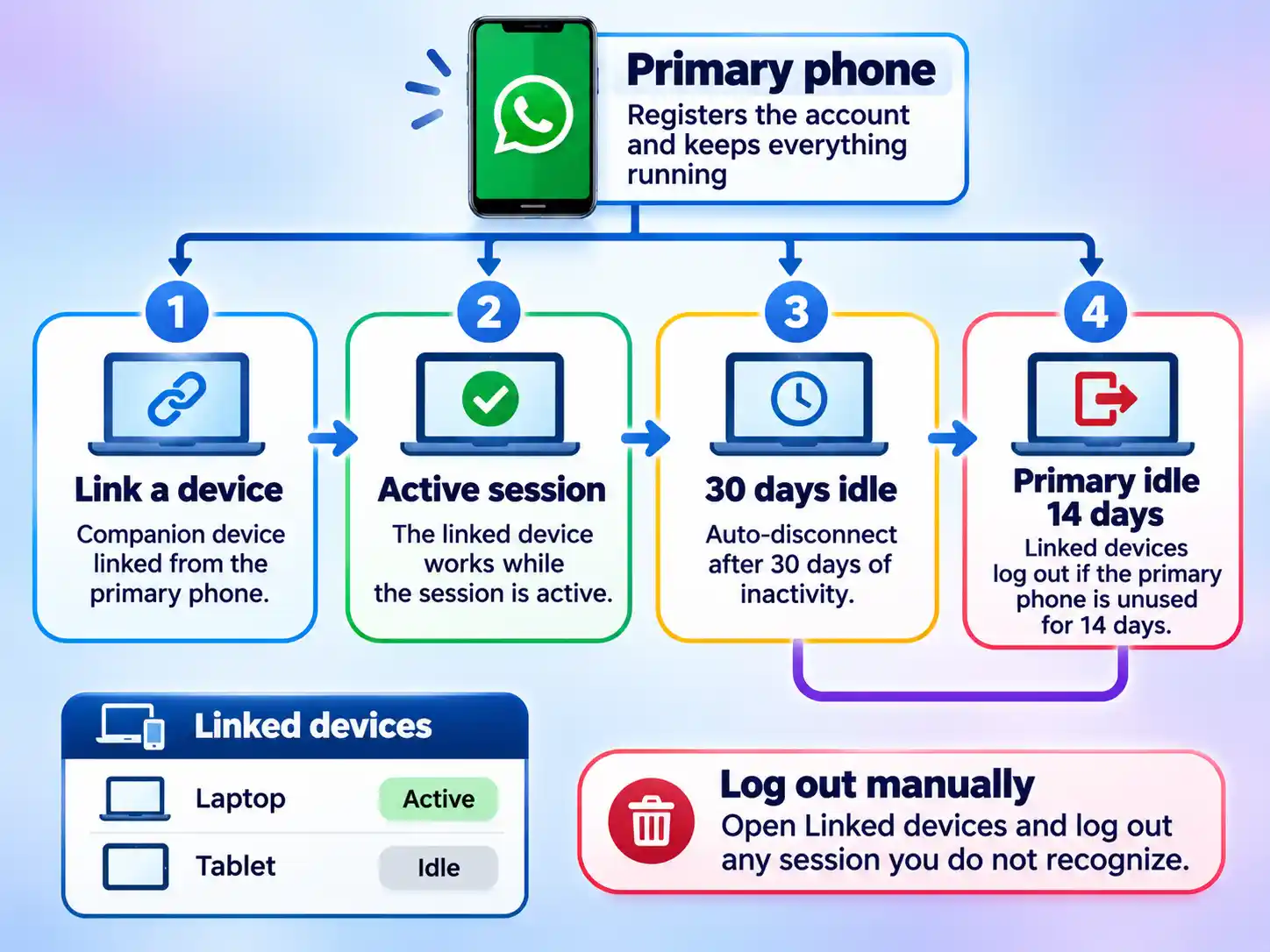
- Start from the primary phone.Registration and the linking of any new device both happen on the primary phone, so the handset that holds the account needs to be in your hand and connected.This is also the reason a lost or wiped primary phone is an account emergency. Linked devices keep working for a while, but the account itself cannot add anything new without that phone.
The primary device is ready when WhatsApp opens normally on it and your chats load.
- Link the companion on a supported surface.Link by scanning a QR code or by using your phone number. Restrict yourself to supported surfaces: WhatsApp Web, the Windows and Mac apps, Android tablets, companion phones, and AI glasses.Computers, watches, AI glasses, and cars cannot serve as the primary device on an account, which matters if you were planning to run the business from a laptop alone.
The link is live when the companion device loads your chat list.
- Confirm the session in Linked devices.Open Linked devices on the primary phone and check that the new session appears with a name and platform you recognize.You can link up to four devices at a time to your primary phone. Treat any published number as indicative and read the count your own account reports, because supported surfaces and limits change. Linked sessions also drop off on their own after a stretch of inactivity.
The session is confirmed when the companion device loads your chat list and the entry in Linked devices matches the device sitting in front of you.
- Audit the list and remove what you do not recognize.Open Linked devices, tap any session you cannot account for, and log it out. Do this on a fixed schedule, and again after any staff change or repair visit.Protect your primary account by enabling WhatsApp two-step verification and keeping your list of authorized devices as short as possible. An unfamiliar linked session is an immediate warning sign that an unauthorized device may have access to your conversations.
The audit is finished when the list contains only devices sitting in front of you or belonging to people you trust.
Linked sessions have gaps worth knowing before you plan around them. The linked-devices guidance lists unsupported features, including viewing a live location, creating and viewing broadcast lists, and interacting with businesses through WhatsApp Flows, so keep those workflows on the phone.
Exported chats cannot be restored
Exporting a conversation feels like backing it up, and it is not. As outlined in the WhatsApp chat export guide, you can open any chat, choose More, select Export chat, decide whether to include media attachments, and share the exported text archive.
What arrives is a text file. It cannot be re-imported as a backup because it is a text file, not a backup file. Use export for records, disputes, and handing a thread to an accountant. Keep a real backup running separately, because that is the only copy that comes back after a phone change.
Run a setup audit before you publish the number
WhatsApp Business setup audit
- Personal and business accounts use two different numbers and sit in separate apps on the phone.
- The profile shows a support contact plus at least one of email, website, or phone number, and every field is current.
- You can point to how each contact on your list opted in, and any opt-out has already been actioned.
- Every automated message names a way to reach a person.
- Your labels map to stages you actually track, and stale labels get cleared.
- The click-to-chat link opens a chat with the pre-filled message on a phone you do not own.
- The Linked devices list contains only sessions you recognize.
- Two-step verification is on and the trusted-device list is short.
- A recent backup exists, and you know it is separate from any exported chat file.
Fix what already went wrong
There is a device in Linked devices you do not recognize
Open Linked devices on the primary phone, tap that session, and log it out immediately. Then turn on two-step verification, register your own devices as trusted, and remove any trusted device you cannot identify. After that, work out who physically handled the primary phone, since linking needs it. Review the list again in a week to confirm nothing came back.
Your desktop or web session logged itself out
Linked devices disconnect after 30 days of inactivity, so a session you open once a month will keep dropping. Sessions also log out when the primary phone goes unused for 14 days, which catches owners who leave the shop phone in a drawer over a slow season. Relink from the primary phone and use the desktop often enough that the session never goes quiet.
Chats vanished after a phone change
Check whether a backup existed before the switch. A restore happens during setup, so an account registered without one starts empty. Exported chat files will not help here, since they cannot be re-imported. Restore from a proper backup if you still have the original device, and start a scheduled backup on the new phone the same day.
Customers say your profile looks incomplete or they cannot find you
Compare your published profile against the policy requirement: a support contact plus one or more of an email address, a website, or a phone number, all accurate. Fill the description, hours, and location rather than leaving them blank, and correct any field that has drifted since you set it up. Share the click-to-chat link with one customer and ask what they see; that is faster than guessing.
The setup that keeps working
The free app earns its place when one or two people handle customer chats from a phone or a linked desktop, and when the catalog is a conversation aid rather than a full checkout. Keep the business number separate, keep the profile and consent trail accurate, and review linked devices and backups on a schedule.
If you need multiple agents routing messages through one number, pipeline reporting, or a storefront with checkout, you have outgrown this tier. That is a different product conversation, not a reason to pile more labels onto the chat list.
Open your own app and confirm the menu labels and current limits before you rely on any of this. Versions, locales, and account types differ, and the app on your phone is the only authority on what your account can do today. If you outgrow labels as a filing system, read up on what a CRM is for and buy deliberately.

💬 Comments