Hand a colleague a spreadsheet to review and cloud sync is the obvious tool. Hand a scheduler a multi-gigabyte database dump overnight and the answer changes. The deciding factor is who or what starts the transfer, and whether a person is watching when it lands.
Reach for SFTP when a machine moves files on a timetable and you need directory-scoped access plus a result you can check. Reach for cloud sync when people open, comment on, and share documents. Many businesses run both, wired to different jobs. The rest of this guide gives you the decision rule, the automation mechanics, the integrity check, and the access controls that keep a vendor inside one folder.
Quick Take
- Choose SFTP when cron, Task Scheduler, or an application moves files with nobody at the keyboard.
- Choose cloud sync when the work is human collaboration, document editing, or link sharing.
- Verify every completed transfer with a checksum; a resumed transfer proves nothing about integrity.
- Scope access with one SSH key per party and a chroot jail whose parent path is root-owned and not group-writable.
- Model total cost from hosting, storage, egress, seats, patching, backup, monitoring, and staff time before you commit.
What SFTP is and why it keeps appearing in automation plans
SFTP stands for Secure File Transfer Protocol, also called SSH File Transfer Protocol because it runs inside an SSH session. Every command and every byte of file content is encrypted in transit and authenticated at both ends. The AWS explainer on SFTP notes that the protocol uses public and private SSH keys to authenticate sessions and that it uses port 22 by default.
The client-server model shapes your planning. The client opens the session; the server owns connections, resource limits, and security policy. That split is useful when a partner or a script connects inward, because everything the visitor can touch is defined on your side.
Plain FTP sends usernames, passwords, and file contents with no encryption at all, which is why it survives only in legacy systems. FTPS wraps FTP in TLS or SSL and authenticates with certificates. SFTP and FTPS are both encrypted, and they are different protocols with different ports, tooling, and firewall rules. AWS Transfer Family supports SFTP version 3 alongside FTPS, FTP, AS2, and browser-based transfers.
| Tool | Transport and security | Best-fit job | Main limitation |
|---|---|---|---|
| SFTP | Encrypted inside SSH; public/private key or password authentication; port 22 by default | Unattended and interactive transfers to a server you run or rent | You operate a server or pay a managed service; no document co-editing |
| FTPS | FTP wrapped in TLS/SSL; certificate-based authentication | Partners with existing FTPS endpoints and tooling | Older ecosystem; AWS describes FTPS as mainly deprecated |
| FTP | No encryption anywhere in the exchange | Migrating off a legacy system | Credentials and files travel in the clear |
| Cloud sync / shared drive | Provider-managed sync and sharing over web APIs | Human collaboration, document editing, link sharing | Quotas, upload ceilings, and share-mode conflicts constrain scripted bulk work |
| Sources: AWS SFTP explainer, Google Drive API limits, and Azure Files file locking. | |||
Where cloud sync fits and where it strains
Cloud drives are excellent at the thing they were built for. A shared drive grants Viewer, Commenter, or Editor roles, and folder permissions inherit downward. You cannot grant someone less access to a single file than they hold on its parent folder. Google’s sharing documentation states that a single file can be shared with up to 600 individual email addresses and that a file can be actively edited on up to 100 open tabs or devices at once.
The strain shows up when a program, not a person, drives the transfer. The Drive API enforces per-minute quotas per project and per user per project. Exceeding them produces rate-limit errors, and backend checks can throttle as well; both need exponential backoff. Hard ceilings also exist: a daily upload allowance, a maximum upload size, and a lower maximum copy size. If the daily allowance is exceeded, further uploads and copies can be blocked.
File locking is the other collision path. Azure Files documents that SMB clients declare file access and share modes when they open a file, and that FileREST operations must respect those modes. A conflict returns a file-sharing violation. A mounted share plus a script writing the same file is a documented failure mode, not a mystery.
| Constraint | Documented behaviour | What it means for an automated job |
|---|---|---|
| Drive API quotas | Per-minute quotas apply per project and per user per project; 403 on overage, with 429 possible from backend rate checks | Bulk loops need a request budget and exponential backoff |
| Drive upload ceiling | 750 GB per day across My Drive and all shared drives; the ceiling also applies to copies | A nightly media drop can exhaust the allowance and block further uploads or copies |
| Drive file and copy sizes | 5 TB maximum upload; 750 GB maximum copy | Large assets need a different path for the copy step |
| Drive egress threshold | A per-day, per-project byte threshold before egress charges apply | Repeated full downloads change the cost picture |
| Azure Files locking | FileREST writes must respect SMB share modes; conflicts return 409 SharingViolation | A mounted share and a script writing the same file can collide |
None of that makes cloud storage a bad choice. It means a cloud drive is a collaboration surface with API limits bolted on. When your workload is scheduled, bulk, and unattended, those limits become the design constraint.
Headless automation without a person in the loop
Scheduling is the easy half. On Linux, a user crontab holds five fixed time fields and a command, with shorthands such as @daily. Commands run through /bin/sh unless the crontab sets a different shell, and command output can be mailed to you. On Windows, Task Scheduler watches triggers and runs a task when one fires. Triggers cover a specific time, a daily, weekly, or monthly schedule, boot, logon, idle, a system event, and task registration.
Authentication is where unattended jobs usually go wrong. ssh-keygen produces a private key and a matching public key stored with a .pub suffix. The private half stays on the machine that runs the job; the public half goes into the target account’s authorized keys. OpenSSH writes RSA keys at 3072 bits by default and treats that size as sufficient, and it also supports Ed25519 and ECDSA. A passphrase may be empty or any string you choose, so protect the private key file with filesystem permissions and keep it out of version control.
For scripted transfers, batch mode is the workhorse. sftp -b batchfile reads a command list instead of waiting for typed input, and it should always be paired with non-interactive key authentication. The batch aborts if a get, put, reget, reput, rename, rm, mkdir, chdir, or several other commands fail. Prefix a command with - to let the batch continue past a specific failure.
Python teams often use Paramiko instead. An SFTPClient opens an SFTP session across an authenticated SSH transport, and put() or putfo() copies a file or a file-like object. Passing confirm=True makes Paramiko run a stat() after the transfer to confirm the remote file size. Treat that as a size check; it is not a checksum.
A retailer catalogue feed shows how the pieces fit. One scheduled job dumps the product table to a dated CSV in a staging directory and exits. A second job builds a batch file and pushes the CSV to the retailer’s drop folder over SFTP, writing an exit status line to a job log. A retry wrapper re-runs the push with a growing delay before it pages anyone. On the receiving side, a file-arrival check waits for the expected filename before the loader starts. Each stage logs enough detail that a failed night can be reconstructed from the log alone.
Reliability, resume, and verification
Interrupted transfers are normal on long runs. The -a flag tells OpenSSH’s sftp client to continue an interrupted transfer instead of overwriting the partial copy, and reget and reput do the same thing file by file. The OpenSSH sftp manual is direct about the assumption underneath: if the partial contents differ from those being transferred, the resulting file is likely to be corrupt.
Resume saves bandwidth. It does not prove the file arrived intact. An unbroken transfer can still land wrong through a disk write error or a truncated final chunk. A checksum answers the question that resume cannot. The -f flag asks for an fsync after transfer where the server supports the extension, which matters when the next process reads the file immediately.
Verify an SFTP transfer with SHA-256
Run this on every scheduled job where a wrong file causes downstream damage. The check takes a few minutes on a large file and catches the failures that a green exit status hides.
- Hash the source file before anything moves.Run
sha256sumon Linux orGet-FileHashin PowerShell. PowerShell’s cmdlet defaults to SHA256, which is the algorithm you want for tamper protection.Hash first because a post-transfer hash cannot distinguish a damaged transfer from a damaged source file. Write the value, the filename, and a timestamp into the job log.
The log line should show a 64-character hexadecimal value next to the filename you are about to send.
- Keep the expected hash outside the payload.Record the digest in your job log, a ticket, or a release note rather than inside the file bundle.
A checksum that travels with the file still catches truncation and disk errors on the receiving end. Keeping it separate adds a reference that a bad payload cannot rewrite.
You should be able to open the log on a different machine and read the expected digest for last night’s file.
- Transfer with a job that fails loudly.Use
sftp -bwith key authentication so a failingputaborts the batch and returns a non-zero exit status to the scheduler.Silent success is the enemy here. A batch that swallows errors will report a clean night while the partner receives nothing.
The scheduler log should record a non-zero exit code the moment a transfer fails, and nothing at all when it succeeds.
- Resume only if the source is unchanged.After an interruption, confirm the source file has the same size and timestamp as before, then re-run with
-aorreget.If a nightly export regenerated the file, discard the partial copy and restart from zero. The resume logic assumes the far-end partial matches the bytes you are sending now.
The safe signal is an unchanged source file and a partial destination whose size is smaller than the source.
- Hash the destination and compare.Run the same hash command on the receiving side and compare the two values character by character, or diff them in the script.
Identical hash values mean identical file contents. Change one character in the file and the hash changes.
When the values match, mark the job complete and let the downstream loader proceed. When they differ, delete the destination file and re-send from a clean copy.
When a transfer fails, read the error first
Repeated rate-limit responses from a cloud API
The job is hitting a per-minute quota or a backend rate check. Add exponential backoff, cut the request rate, and re-read the quota model for your account tier. Retrying immediately makes it worse because failed calls still count against the limit.
A file-sharing conflict on Azure Files
An SMB client holds the file open with a share mode that denies your write. Find the mounted client, close or release the handle, and schedule scripted writes into a window when no desktop session has the file open.
Permission denied on an SFTP upload
Check ownership and mode on the target directory, not just the file. The account needs write access to the leaf directory it uploads into, and the path above the chroot point must be owned by root and not writable by group or others.
Host key verification failed
The server presented a key your client does not recognise. This happens on a rebuilt server and on a genuine interception. Confirm the fingerprint with the server owner over a separate channel before you accept it.
Connection drops partway through a long run
The session died, and the partial file may or may not be usable. Confirm the source has not changed since the run started, then resume with -a. Follow with the checksum comparison either way.
Hash mismatch after a transfer that reported success
The bytes on disk differ from the bytes you sent. Delete the destination file, re-send from a clean copy, and check free space and quota on the target before trying again. A second mismatch points at the transport path or the source file.
Access control and vendor isolation
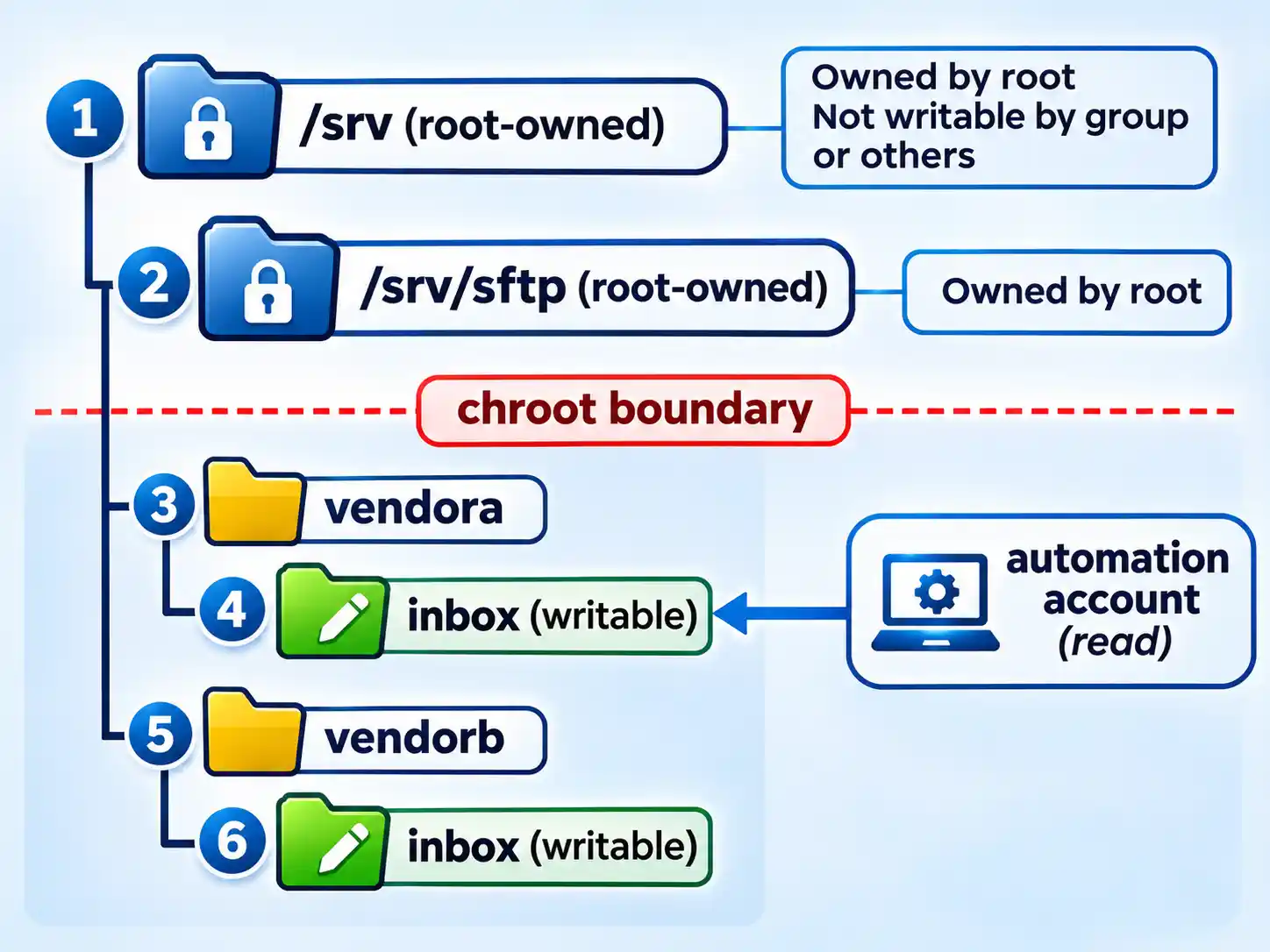
Directory isolation is often the deciding operational feature. ChrootDirectory confines a session to a subtree of the filesystem. The sshd_config manual requires that chroot path to be owned by root and not writable by group or others, and notes that the working directory changes once the session is chrooted.
The practical pattern is one system user per counterparty, one key per counterparty, and a jail tree whose upper levels belong to root while only the leaf inbox is writable by the vendor account. The vendor sees its own drop folder and nothing above it. Automation that pulls the file runs as a separate account with read access to that leaf.
Warning
A misconfigured chroot can produce an unsafe environment, and the OpenSSH manual notes that sshd cannot detect every such mistake. Test each jail with the vendor’s own key from outside your network before you hand over credentials, and re-test whenever you rebuild the directory tree.
Isolation is a start, not a security programme. Keep keys rotated, keep the server patched, log successful and failed access attempts, and never give two counterparties the same login. A shared account destroys the audit trail you built the jail to protect.
Graphical clients for office staff
Scripts do not need a GUI, but the people who occasionally drop a file into the same server usually do. Judge a desktop client on five things: a clear two-pane layout, a visible transfer queue with retry controls, first-class SSH key support, resumable transfers, and error messages that name the failing step. Cross-platform availability matters if your finance team is on Windows and your studio is on macOS.
AWS documents OpenSSH, WinSCP, Cyberduck, and FileZilla as standard clients for its managed transfer service, which gives you one command-line option and three graphical ones to start from. If your staff need a desktop client, DNSstuff’s guide to macOS and Windows FTP clients is further reading while you compare Mac and Windows options.
Whatever you standardise on, write a one-page sheet covering the server address, the folder staff may write to, where their key file lives, and who to call when a transfer stalls. That sheet prevents more incidents than any client feature.
Cost and hosting economics
Cost comparisons go wrong when they compare a server bill against a seat price. Build the model from the inputs that actually change:
- Compute or managed-service usage, priced per hour or per gigabyte transferred.
- Storage for the files at rest, including the retention window your partners expect.
- Egress for every byte that leaves the provider’s network.
- Seats or API tiers on the cloud side, and server licences on the SFTP side.
- Backup, patching, monitoring, alerting, and the on-call time to answer a failed night.
- Support contracts and the staff hours spent maintaining keys, jails, and scripts.
A managed service removes patching and infrastructure from your list. AWS Transfer Family states that you pay only for what you use; that describes a billing model, so get a quote against your actual volume before you budget. A self-hosted OpenSSH server trades a service fee for your own maintenance window. A cloud drive folds collaboration into a per-seat price that your staff already pay. Any of the three can be the cheapest option at the right size.
Shortlist the architecture
- Cloud sync or shared drive. Best when people open, comment on, and share files. Often simplest to adopt when seats already exist and the workflow is human-paced.
- Cloud storage API automation. Viable for scheduled jobs when your volume, file sizes, and request rate sit comfortably inside the documented quotas and your authentication model fits.
- Managed SFTP service. Removes server patching and infrastructure. Suits teams that want protocol-level transfers without owning a machine.
- Self-hosted SFTP server. Maximum control over jails, keys, and logging. Requires an owner for patching, backup, and monitoring.
- Scripted client layer. Sits on top of options three and four. OpenSSH batch mode for shell jobs, Paramiko for Python pipelines, Task Scheduler or cron for timing.
Limits and mistakes that outlast the setup
- Running plain FTP behind a firewall and calling it internal. The traffic is still unencrypted.
- Treating a resumed transfer as a verified one. Resume assumes the partial copy matches the source.
- Assuming a chroot jail is finished once it works for you. Test it with the vendor’s key from outside your network.
- Issuing one shared login to several contractors. You lose attribution the moment two people use it.
- Assuming cloud storage cannot be automated. It can, within documented quotas and rate limits.
- Assuming SFTP is cheaper. Server maintenance, monitoring, and staff time are real costs.
- Skipping the file-arrival check on the receiving side, so a missing file looks like an idle night.
The decision rule
Ask three questions in order. Does a person press the button, or does a scheduler? Does a documented quota or a file-lock mode constrain the job? Can you prove the file that arrived is the file you sent?
A human starting a transfer for another human points to cloud sync. A scheduler or application moving files unattended, especially into a directory that a partner or contractor must not escape, points to SFTP as the candidate to evaluate. A cloud API stays on the shortlist whenever your volume, file sizes, and authentication fit inside its published limits.
Then prove it before you migrate a production feed. Move one real file through the chosen architecture, hash it on both ends, compare the values, and log the result. If that run is clean and the total-cost model holds up, choose managed or self-hosted SFTP and build from there.

💬 Comments