Gmail fax plugins can be reasonable to use, but they are not automatically safe just because they send documents as faxes. The real risk depends on what Google Account access you grant, how the fax provider stores and processes documents, and whether its security controls fit the sensitivity of what you are sending.
A Marketplace listing or an encryption claim is useful information, but neither one by itself proves that a service is appropriate for confidential, business, medical, or other sensitive documents.
Quick Take
Before using a Gmail fax add-on, check who made it, what Google permissions it requests, whether it stores copies of your faxes, how those copies are protected and deleted, and whether any regulatory requirements that apply to your documents are actually supported.
Are Gmail Fax Plugins Safe?
A Gmail fax plugin, usually called a Google Workspace add-on, is software from a company other than Google that connects fax features to Gmail or another Google app. Installing one can give that company permission to interact with part of your Google Account, so the safety question is really about how much access the add-on gets and what happens to your document after it leaves Google.
Google advises users to review the information and permissions requested by third-party apps before granting access. An app can only use the Google data covered by the permissions you authorize, but those permissions can range from basic account information to the ability to view or manage specific Google data.
That means there is no useful yes-or-no verdict for every Gmail fax add-on. A provider that requests only the access needed for its fax function, explains its data handling clearly, protects stored documents, and gives you suitable account controls presents a different risk from an app asking for broad access without a clear reason.
How Gmail Fax Plugins Work
Gmail does not turn an email into a fax by itself. A third-party fax service sits between your Google account and the receiving fax system. Depending on the service, you may work through a Gmail add-on, attach a document to an email addressed in a provider-specific format, or send a file from another Google app.
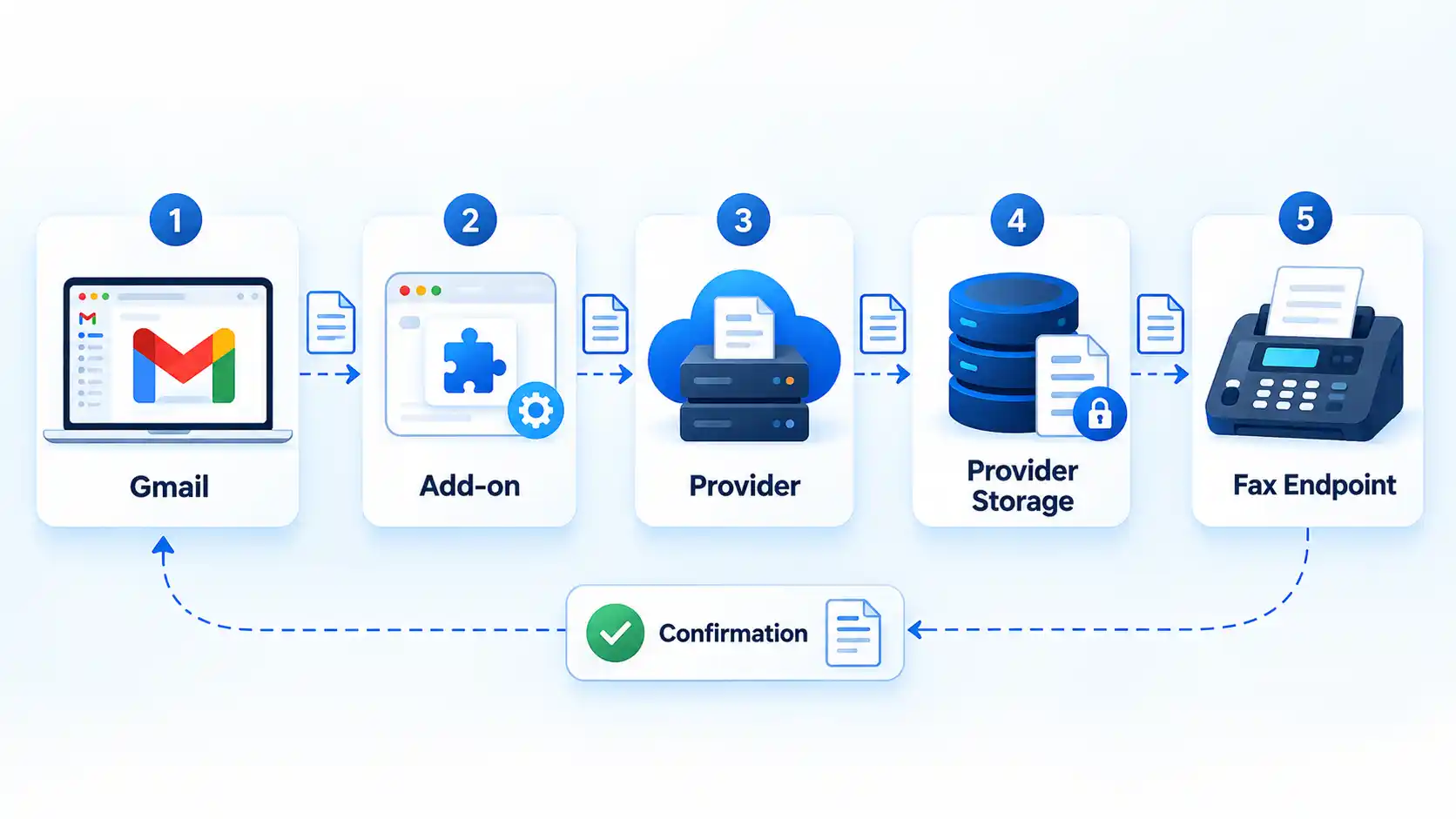
In a typical add-on workflow, you choose a document or compose a message, the third-party service receives the information needed to prepare the fax, and its own systems handle the transmission. The provider may also generate status records or retain document copies. For example, the current WiseFax Marketplace listing says successfully sent faxes are stored in its cloud for 30 days.
This extra service layer matters because an online fax service may process or store a document outside Google’s systems. The security of the complete workflow therefore depends on both your Google Account controls and the fax provider’s own systems.
The authorization model also differs between email-to-fax and Google Workspace fax add-ons. A Workspace add-on can request Google Account permissions, while an email-to-fax workflow may rely more heavily on ordinary email plus the provider’s own account and gateway.
What Access Can a Fax Add-On Get?
When Google asks you to approve an add-on, the permission list tells you which parts of your account the app wants to use. Google calls each type of requested access an OAuth scope. In simple terms, a scope sets a boundary around what the app is allowed to do with Google data.
Google recommends that developers request the minimum level of access their app needs. Broader scopes can expose more Google Account data or allow more actions, so the important question for the reader is whether each requested permission has a reasonable connection to the fax feature being used.
Current Marketplace listings show why you should read the permission screen rather than assume every fax add-on works the same way. Fax.Plus currently asks for permission to manage drafts and send email while you interact with the add-on, run as a Gmail add-on, and see basic account information. Its Marketplace permission list does not show full access to all Google Drive files.
WiseFax currently requests permission to view email messages and message metadata while its Gmail add-on is being used, along with permission to manage drafts and send email during interaction. CocoFax’s Marketplace listing, last updated August 22, 2021, requests substantially broader Google Drive access, including permission to see, edit, create, delete, and download Drive files. Because that listing is older, it is useful here as an example of how permission scope can differ, not as evidence of CocoFax’s present-day security quality.
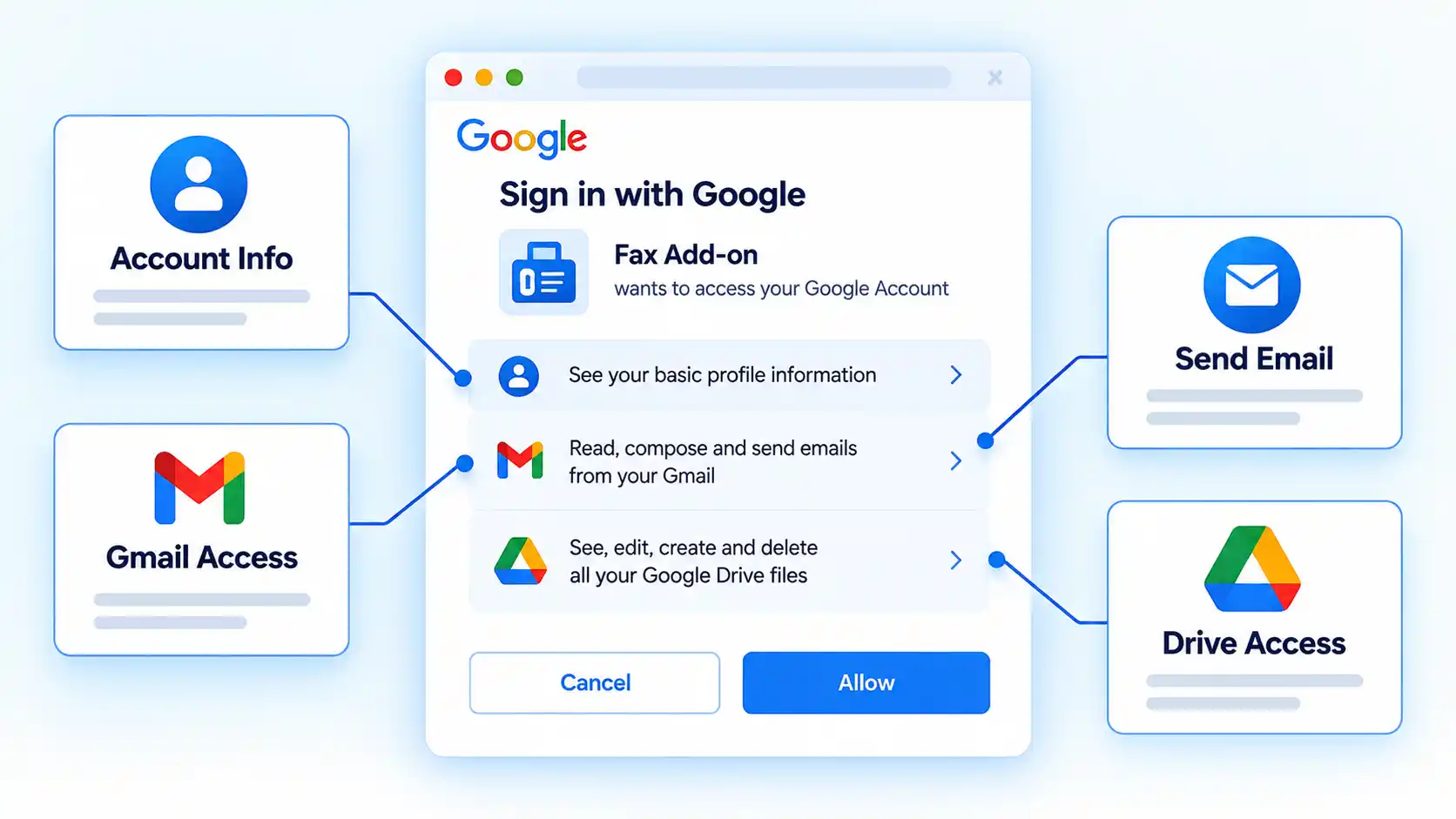
A Google Workspace Marketplace listing does not mean every listed app has identical access or that Google has certified the service as suitable for every type of sensitive document. Read the actual permissions and the provider’s current privacy and security terms before granting access.
For public apps that use sensitive or restricted Google scopes, OAuth verification is part of Google’s publication process. Apps using restricted scopes may also need a security assessment. Google describes OAuth verification and Marketplace app review as separate processes, so neither should be treated as a blanket guarantee that a fax service fits every security or compliance requirement.
What Makes a Gmail Fax Plugin Safe or Risky?
The most useful way to judge a fax add-on is to follow the document from your account to the recipient. A weakness at any point can matter even when another part of the workflow uses strong encryption.
Google Account permissions
Start with the permission request. Access should make sense for the feature you are installing. A Gmail fax tool may reasonably need permission to compose or send a message during the fax process. A request for broad access to every Drive file deserves more scrutiny because the potential impact is larger if the account or service is later compromised.
Provider storage and retention
Find out whether the service stores the fax itself, a converted copy, incoming faxes, delivery records, or account activity. Also check how long those records remain available and whether you can delete them.
Retention is not automatically bad. Keeping a transmitted document briefly may support status checking or recordkeeping. The security issue is whether the storage is necessary, protected, disclosed clearly, and kept no longer than your use case permits.
Encryption and other safeguards
Encryption protects data against some forms of unauthorized access, but it is only one control. For example, encrypting a stored fax does not prevent a person who has legitimately obtained access to the provider account from opening it.
For that reason, also look for account protections such as two-factor authentication or equivalent sign-in controls, access logs where relevant, documented deletion options, and clear procedures for security incidents.
Your Google Account security
The fax service cannot compensate for a poorly protected Google Account. Google recommends stronger sign-in protection, including 2-Step Verification, because an attacker who gets into your account may also be able to reach connected services.
The recipient still matters
A secure provider cannot fix a wrong destination. A fax sent to the wrong number can expose a document even if every server involved used encryption. For sensitive information, verify unfamiliar fax numbers before sending and check the delivery result afterward.
How to Check a Gmail Fax Plugin Before Installing It
Do these checks before granting a fax add-on access to your Google Account or sending confidential material through it. The goal is not to prove that a service is risk-free, but to catch permissions or data-handling practices that do not fit your needs.
- Confirm who developed the add-on. Open the Marketplace listing and identify the developer behind the service. Check that its privacy policy, terms, support information, and provider identity are available and consistent. Do not authorize an unknown app merely because its name contains Gmail, Google, or fax.
- Read every Google permission before approving it. On the Google authorization screen, compare each requested permission with the feature you expect to use. Google advises users to review the data and permissions an app requests before granting access. If a permission appears much broader than the function requires and the provider does not explain why it needs that access, stop before installing.
- Check what happens to fax documents after transmission. Read the provider’s privacy, retention, and deletion terms. Look for whether it stores sent or received documents, how long copies remain, and whether closing the provider account actually deletes stored data. Do not assume uninstalling the Google add-on deletes information already held by the provider.
- Review the provider’s security controls. Look for specific information about encryption in transit and storage, account authentication, administrative access where relevant, and incident handling. Treat a general statement such as “secure faxing” as a starting point rather than a complete security assessment.
- Protect the accounts involved. Enable strong sign-in protection on your Google Account and, when available, on the fax-provider account. Do not give a third-party fax service your Google password. Google supports permission-based access that lets an app receive only the Google Account access you authorize.
- Check any compliance requirement before sending regulated information. If the document contains protected health information or other regulated data, verify the exact service, plan, contractual terms, and controls required for your organization. Do not treat an encryption claim as proof of regulatory compliance.
- Send a non-sensitive test first when practical. If the service permits a low-risk test and you accept any associated charge, send a document containing no confidential information to a fax destination you control or have permission to use. Confirm both the provider’s transmission result and the receiving side. For an important fax, a provider status message shows the transmission result, not that the intended person has personally read the document.
Verify the result
- You can identify the company responsible for processing the fax and find its current privacy and security information.
- Every Google permission has a clear connection to a feature you intend to use, or the provider gives a satisfactory explanation for broader access.
- You know whether fax documents or records are stored, how long they are retained, and how deletion works.
- Required account protection is enabled before confidential documents are transmitted.
- Any regulatory or contractual requirement that applies to the documents has been verified for the exact service you will use.
- When you perform a non-sensitive test, the receiving side confirms the fax reached the intended test destination.
Is Gmail Fax Safer Than Regular Email?
There is no reliable rule that says a Gmail fax is always safer than sending a document by email. Gmail uses Transport Layer Security automatically for Gmail messages. Transport Layer Security, or TLS, protects a message while it is moving between mail systems that support that protection.
Online fax can add useful controls, such as fax-specific delivery records or provider-managed document handling. It can also add another company and another storage system to the path. Whether online fax is safer than email therefore depends on the exact services, account settings, retention practices, recipients, and sensitivity of the document.
The comparison below focuses on the Gmail-connected workflows discussed here rather than every possible email or fax system.
Gmail Email vs Gmail-Connected Online Fax
| Feature | Gmail email | Gmail-connected online fax |
|---|---|---|
| Document path | Moves through email systems to the recipient’s mail service. | Passes through a third-party fax provider before reaching the fax destination. |
| Google Account authorization | No separate fax add-on permission is required for normal Gmail use. | An installed add-on may request permission to interact with Gmail, Drive, or other Google data depending on the app. |
| Transport protection | Gmail uses TLS automatically. Standard TLS protection depends on the receiving mail service supporting it as well. | Protection depends on both Google’s side of the workflow and the fax provider’s systems and transmission design. |
| Additional stored copies | The message and attachment normally remain in email mailboxes unless deleted or subject to other retention rules. | The provider may retain sent faxes, received faxes, status records, or other copies according to its own policy. |
| Delivery evidence | Email systems can provide sending status, but successful delivery does not prove that the intended person read the message. | Fax providers commonly provide transmission status, but a successful transmission still does not guarantee that the intended person personally received or reviewed the document. |
| Common human error | Wrong email address, unintended attachment, compromised mailbox, or unsafe forwarding. | Wrong fax number, unattended receiving equipment, overbroad add-on permissions, or exposed provider account. |
The safest choice is the workflow whose controls match the risk. For an ordinary document, standard Gmail may be adequate. An organization that must communicate with a fax-only recipient may instead choose a reputable online fax service with suitable retention, access, authentication, and contractual controls.
When Compliance Requirements Change the Answer
Security and regulatory compliance are related, but they are not the same thing. A service can use encryption and still fail to meet the legal or contractual requirements that apply to a particular organization.
For health information in the United States, the Health Insurance Portability and Accountability Act (HIPAA) provides a good example. HHS says covered health care providers may communicate protected health information for treatment purposes by fax, email, phone, or other methods when reasonable safeguards are used. Fax therefore does not become compliant simply because it is fax, and email is not automatically prohibited simply because it is email.
The obligations become more specific when an outside service handles electronic protected health information, often shortened to ePHI. HHS states that when a cloud service provider creates, receives, maintains, or transmits ePHI on behalf of a HIPAA covered entity or business associate, the relationship generally requires an appropriate Business Associate Agreement and compliance with applicable HIPAA rules.
A Business Associate Agreement, or BAA, is a contract that sets responsibilities for handling protected health information. Encryption alone does not replace those responsibilities. HHS also notes that covered entities and business associates must assess risks to the confidentiality, integrity, and availability of ePHI.
If you are working in health care, legal services, finance, government, education, or another regulated environment, check the rules that apply to your organization and the exact fax-service plan you intend to use. Do not rely on a general marketing statement such as “HIPAA ready,” “secure,” or “encrypted” without verifying the relevant contractual and technical details.
What to Do If You No Longer Trust an Add-On
If you have already connected a fax add-on and later decide that you do not trust it, remove its Google Account access first, uninstall the Marketplace add-on where applicable, and then deal separately with information that may remain in the provider’s systems.
- Open the app’s Google Account access details. Go to your Google Account’s Linked apps page. Choose Access to your Google Account, select the fax app, and then select See details. Google uses this area to show what account access a linked third-party app currently has.
- Remove its Google Account access. From the app’s access details, select Remove access and then confirm. Google states that removing access stops the linked app from continuing to access your Google Account through that authorization. Features that depend on the connection may stop working.
- Uninstall the Marketplace app if it is still installed. Open your installed Marketplace apps, choose Options for the fax app, select Uninstall, and then confirm Uninstall App. You can also uninstall from the app’s Marketplace listing. If a work or school administrator installed the app for your organization, only an administrator may be able to remove it.
- Check the fax provider account separately. Revoking Google access does not necessarily erase documents or other information already copied to the provider. Google warns that a third-party app may still hold data it previously received, so use the provider’s account or privacy process to request deletion when needed. Gmail add-on access removal should distinguish Google authorization from provider-side data deletion.
- Secure the account if you suspect misuse. If the concern is more serious than simply changing providers, review recent Google Account security activity, change exposed credentials where necessary, and strengthen sign-in protection. Google recommends securing a compromised account and enabling stronger authentication when unauthorized access is suspected.
A Gmail fax add-on is safest when you treat it as a separate service that happens to connect to Google, not as a built-in Gmail security feature. Review the access it requests, understand where documents are stored, protect both accounts, and verify any compliance requirement before sending information that would cause harm if it reached the wrong person.

💬 Comments