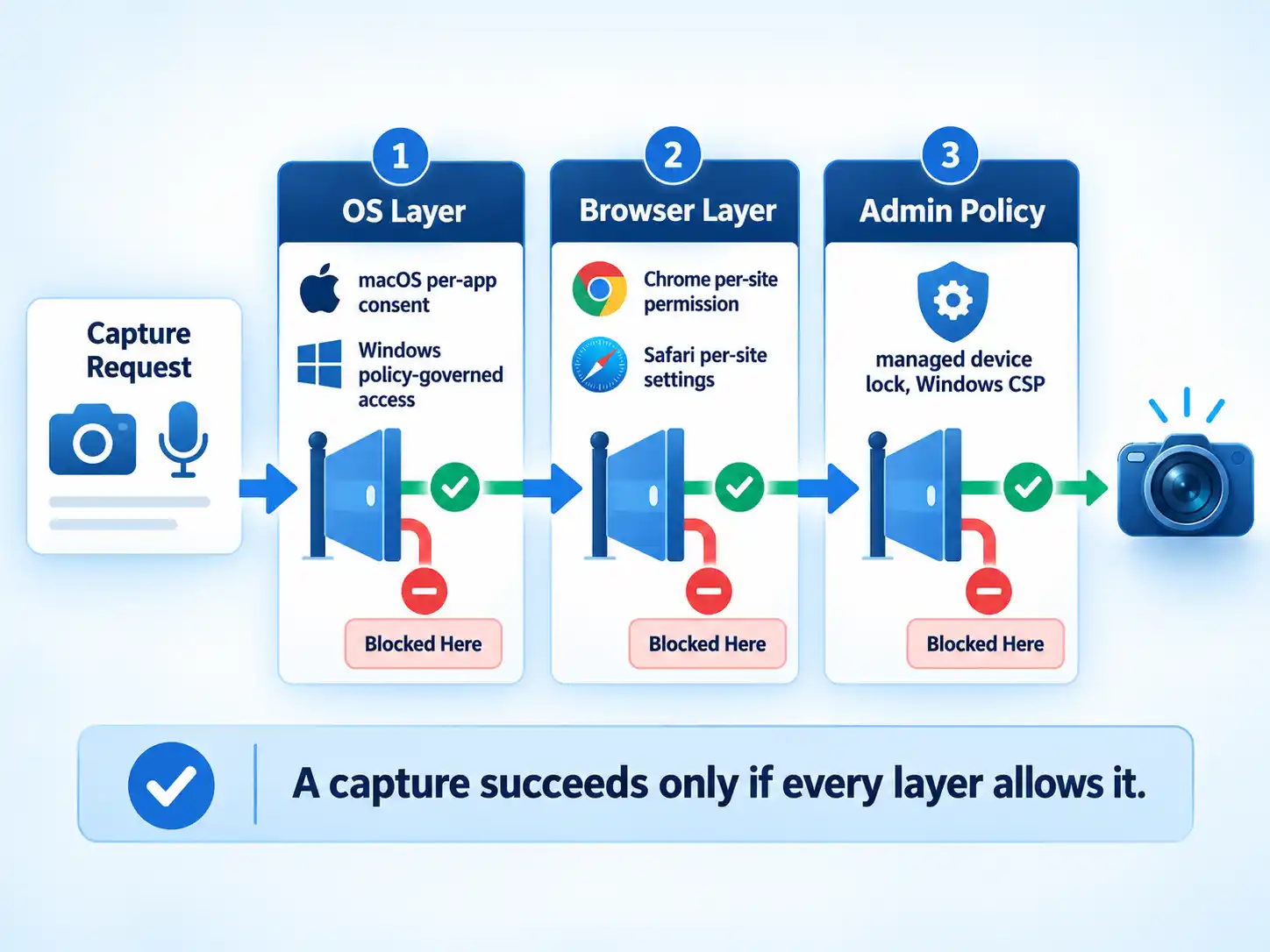
Your video call fails and the camera light never comes on. You check the browser, the site is allowed. You check again, still allowed. The problem is almost always one layer up or one layer down from where you’re looking. Camera and microphone access on Windows and macOS is a stack of independent authorization gates, and a capture only succeeds when every gate in the stack is open at the same moment.
Quick Take
Treat camera and microphone access as three stacked gates: the operating system, the browser, and, on work or school machines, an administrator’s policy. Fixing the wrong gate is the most common reason a video call stays broken. Check the browser layer first for site-specific failures, the OS layer for app-wide failures, and contact IT if the device is managed.
What a Camera or Microphone Permission Actually Is
A camera or microphone permission is an authorization gate that must be granted before an app or a website can reach the physical device. The gate is enforced by software sitting between the request and the hardware (the operating system, the browser, or both), and it exists so that no program can quietly start recording without a human decision on record.
Info
A permission is not the same thing as a feature toggle. Turning a feature “on” in an app does nothing if the underlying authorization gate is closed. The gate is the thing that decides whether the hardware is reachable at all.
That distinction matters because it explains why the same symptom, “the camera doesn’t work,” can have completely different fixes depending on which gate is shut. A site blocked in the browser and a site blocked by the OS look identical from the user’s chair.
The Permission Stack: OS, Browser, and Admin Policy
Think of a capture request as a traveler that has to pass through checkpoints in order. Each checkpoint can wave it through or stop it, and a stop at any checkpoint ends the journey. The layers, from the hardware outward:
- The operating system. macOS and Windows both decide which applications may reach the camera and microphone at all. This is the foundation gate.
- The browser. Chrome and Safari each keep their own per-site permission layer on top of the OS. A site allowed in the browser can still be blocked by the OS, and a site allowed by the OS can still be blocked in the browser.
- Administrative policy. On managed devices such as work laptops and school machines, an administrator can lock settings at either layer, and on Windows these are exposed as configurable policy settings.
The macOS Model: Per-App Consent You Control
Apple frames privacy as a first principle rather than a feature. The Mac User Guide states plainly that “your privacy and security come first” and that the Mac “includes built-in tools to protect your important information.” Camera and microphone access sit inside that framing: they are treated as private data that the system is designed to guard, and access is a user-controlled setting rather than an app’s default privilege.
What that means in practice is that on macOS, the operating system is the gatekeeper for hardware access, and the user is the one who decides which applications get through. The practical consequence is the one that matters for troubleshooting: if an app can’t see your camera, the OS-level decision about that app is the first thing to interrogate, before you touch anything inside the app itself.
Apple’s public documentation establishes the model and the priority it places on privacy. It does not, in the pages this article relies on, spell out a step-by-step menu path for changing camera or microphone access. If you need the exact click sequence for your macOS version, go to Apple’s own support pages for that version rather than trusting a generic walkthrough, because menu locations shift between releases.
The Windows Model: Policy-Governed App Access
Windows approaches the same problem from the management side. Camera and microphone access is governed by privacy policy settings that administrators can configure, and Microsoft’s Policy CSP documentation names the camera policy directly: LetAppsAccessCamera. These are the same settings that let an organization decide, centrally, whether apps on a device may reach the camera at all.
The detail worth internalizing is Microsoft’s “most restricted value” convention. For these policies, the most restricted value is 0. That inverts the intuition most people bring: 0 does not mean “feature off” or “disabled” in the sense of a broken switch. It means the setting is pinned to its most locked-down state. When you see a policy described that way, read it as “the tightest possible restriction,” not “the option is turned off.”
| Concept | What it means |
|---|---|
| Policy CSP – Privacy | The Microsoft documentation set that describes privacy-related policy settings administrators can configure on Windows devices. |
LetAppsAccessCamera | The named policy governing whether apps may access the camera. |
| Most restricted value is 0 | The convention Microsoft uses to mark the tightest setting. 0 means maximally locked down, not “feature disabled.” |
| Preview status | Some settings in this CSP are under development, apply only to Windows Insider Preview builds, and are subject to change. |
That preview caveat is not trivia. Microsoft explicitly warns that some settings in this policy set are still in development and may depend on other features or services. If you’re reading policy documentation to make a decision about a production fleet, confirm the setting’s status before you build a process around it.
The Browser Layer: A Second, Independent Gate
Even when the OS says yes, the browser asks its own question. Chrome and Safari each maintain a per-site permission layer, and that layer is separate from the operating system’s decision. This is the layer most people interact with daily and understand least.
Chrome: three options and a scope limit
When a site in Chrome asks for your camera or microphone, you get three choices, and they are not interchangeable:
- Allow while visiting the site: a standing permission for that site.
- Allow this time: a one-off grant that doesn’t persist.
- Never allow: a block that sticks.
The scope limit is the part people miss. According to Google’s Chrome Help documentation, allowed sites can start recording when you’re on the site, but if you’re using a different Chrome tab or a different app, a site can’t start recording. The permission is tied to your presence on that site, not to a background process that follows you around the browser.
The flip side is just as concrete: sites you haven’t allowed may simply stop working. Google’s own example is a video call you can’t join. You can review which sites are allowed or not allowed, delete an existing exception, or promote a blocked site to allowed from Chrome’s site settings.
Safari: per-site settings on Mac
Safari takes a similar architectural approach through a different surface. The Safari User Guide describes a Websites settings panel, reached through Safari > Settings > Websites, where you customize how you browse individual sites. Settings are listed on the left, and you apply one to a site by selecting the setting and choosing an option from the pop-up menu next to that site. The panel exists to give you per-site control; the specific categories it exposes vary, so check the panel itself for what’s available on your version.
Why the Two-Layer Model Matters
Here is the payoff for all of this structure. A site or app cannot capture your camera or microphone unless both the browser/site permission and the OS-level permission allow it. Denial at either layer breaks the feature, and the failure looks the same from the outside.
Picture the classic Monday-morning video call. The meeting link opens, the page loads, you click “Join,” and nothing happens. The camera light stays dark. You’ve used this exact site for months. What changed? Possibly nothing you did. An OS update, a browser update, or a policy push from IT can close a gate that was open last week. The productive move is to ask which layer is blocking, not to start flipping switches at random.
If you’re worried the problem is the opposite, that something is using your camera when it shouldn’t be, the diagnostic instinct is the same, just pointed the other way. Knowing which layers exist is what lets you tell if your webcam is being used without permission rather than guessing.
Common Misconceptions and Limitations
Most camera and microphone frustration traces back to a handful of wrong assumptions. Correcting them is faster than any troubleshooting flowchart.
- Misconception: one toggle is enough. The browser asked once, so you’re covered, except the OS gate is separate, and either one can shut you down. Fix the layer that’s actually blocking.
- Misconception: managed devices behave like personal ones. If you’re using Chrome at work or school, Google warns that your network administrator can set camera and microphone settings, and you may not be able to modify them. On Windows, these are literally policy settings. If the toggle is missing or greyed out, the answer is your IT department, not a deeper settings hunt.
- Misconception: policy settings are permanent and universal. Microsoft notes that some settings in the privacy policy set are Insider Preview features subject to change. Documentation you read today may describe behavior that shifts.
- Misconception: “most restricted value 0” means the feature is off. It means the setting is pinned to its tightest state. Read it as maximum lockdown.
Warning
On a work or school device, don’t try to work around administrator-locked camera or microphone settings. Contact your IT administrator. The restriction is deliberate, and circumventing it can violate your organization’s policy.
There’s also a hardware fallback worth knowing about. If your built-in camera is blocked, unavailable, or simply not good enough, you can use your phone as a webcam, though that introduces its own permission layer on the phone, so the stack model still applies.
Concrete Examples
Two worked examples make the stack tangible.
Example 1: the Chrome prompt. You open a video-conferencing site in Chrome and it requests your camera and microphone. You choose “Allow this time.” The call works. You close the tab and reopen it an hour later; the site asks again, because “this time” didn’t persist. Choose “Allow while visiting the site” instead and the grant sticks, but only while you’re on that site. Switch to another tab or another app and the site can’t start recording. If the call still fails after you’ve allowed the site, the block is upstream: check the OS-level permission for Chrome itself.
Example 2: the Windows camera policy. An administrator configures LetAppsAccessCamera on a fleet of laptops. The policy’s most restricted value is 0, and the organization chooses the restrictive end. Users on those machines find that apps can’t reach the camera regardless of what the app or the browser says. The user-facing toggle may still appear to exist; the policy decides the outcome. This is why “the setting looks enabled but nothing works” is a coherent state on Windows, because the visible control and the effective control are not always the same thing.
Which Layer to Check First
When a camera or microphone fails, work outward from the most specific layer to the most general. This order resolves the majority of cases without touching settings you don’t need to touch.
- Confirm the device is managed. If it’s a work or school machine, check with IT before changing anything, because the setting may be locked by policy.
- Check the browser’s per-site permission. Is this specific site allowed? Is the grant “this time” only? Is a different tab or app involved?
- Check the OS-level permission for the browser or app. The browser can only pass along access the OS has granted it.
- Re-test in the same context. Same site, same tab, same app, so you know which change actually fixed it.
Verify the result
- The site or app can start capture while you are actively on it, and the camera indicator behaves as expected.
- The permission you granted is the persistent kind, not a one-time grant, if you want it to survive a tab close.
- No other tab or app is expected to capture in the background, because the browser layer won’t allow it.
- On a managed device, the change was made with administrator awareness, not around it.
The site is allowed in the browser, but the camera still doesn’t work
The block is almost certainly at the OS layer. The browser can only relay access the operating system has already granted to it. Check the OS-level permission for the browser itself, not just the site.
The permission toggle is missing or greyed out
This is the signature of a managed device. Chrome warns that administrators can set camera and microphone settings that users may not be able to modify, and Windows exposes the same controls as policy. Contact your IT administrator rather than hunting for a hidden switch.
The camera worked last week and stopped without any change on my end
An update or a policy push can close a gate that was previously open. Re-check the browser permission first, then the OS permission. On managed devices, ask whether a policy changed.
Scope and Sources
Info
This article relies on official documentation from Apple, Microsoft, and Google. It describes the permission models those pages establish and does not cover the internal behavior of third-party applications beyond what those pages document. Apple’s pages establish the macOS privacy framing; they do not, in the pages relied on here, provide step-by-step menu instructions, so this article does not assert specific macOS menu paths.
The Bottom Line
Camera and microphone permissions are a stack, not a switch. The OS decides whether an app may reach the hardware, the browser decides whether a site may reach the browser’s access, and on managed devices an administrator can close either gate from above. When something breaks, the fastest path to a fix is identifying which layer is blocking, and the fastest way to waste an afternoon is flipping toggles at the wrong layer. Start with the browser for site-specific failures, move to the OS for app-wide ones, and when the toggle isn’t there, talk to IT.

💬 Comments