If you have deleted an important file on a Windows PC, reduce unnecessary activity on the affected drive before doing anything else. Start with places that restore an existing copy, such as search, Recycle Bin, OneDrive, or File History, before moving to undelete scans.
Before You Start: Protect the Original Drive
When Windows deletes a local file, the storage space it occupied can become available for new data. Microsoft therefore advises you to minimize or avoid using the computer while trying to recover a deleted file. New files, application updates, downloads, browser activity, or software installations can overwrite space that still contains recoverable data.
Warning
If files were suddenly encrypted, renamed, or replaced by ransom notes, disconnect the affected PC from Ethernet and Wi-Fi before ordinary file-recovery work. This limits its network access while you determine whether malware is involved.
CISA’s ransomware response checklist is written for organizations, but its first response actions include immediately isolating affected systems from the network. A suspected ransomware incident therefore needs containment before routine deleted-file recovery.
Prerequisites
- Know which drive or device originally contained the missing file, such as the Windows C: drive, an external hard drive, or a USB flash drive.
- If you may need an undelete scan, have another drive or suitable external storage ready for recovered files.
- Avoid formatting, repartitioning, defragmenting, or deliberately writing new data to the affected storage before recovery.
The affected storage is the source drive. The separate place where recovered files are saved is the destination drive. Windows File Recovery requires the source and destination to be different. If you have only one internal drive, Microsoft recommends using a USB or external hard drive as the destination and warns against creating a new partition after data loss because doing so reduces the chance of successful recovery.
Solid-state drives add another complication. On NTFS volumes, Windows enables delete notifications, also called TRIM or unmap, by default unless an administrator disables them. Microsoft also warns that free space may already have been overwritten, especially on a solid-state drive (SSD), so recovery is never guaranteed simply because little time has passed. A deeper explanation of recovering deleted files from an SSD after TRIM belongs to the storage-specific case rather than the basic Windows procedure.
How to Recover Deleted Files on a Windows PC
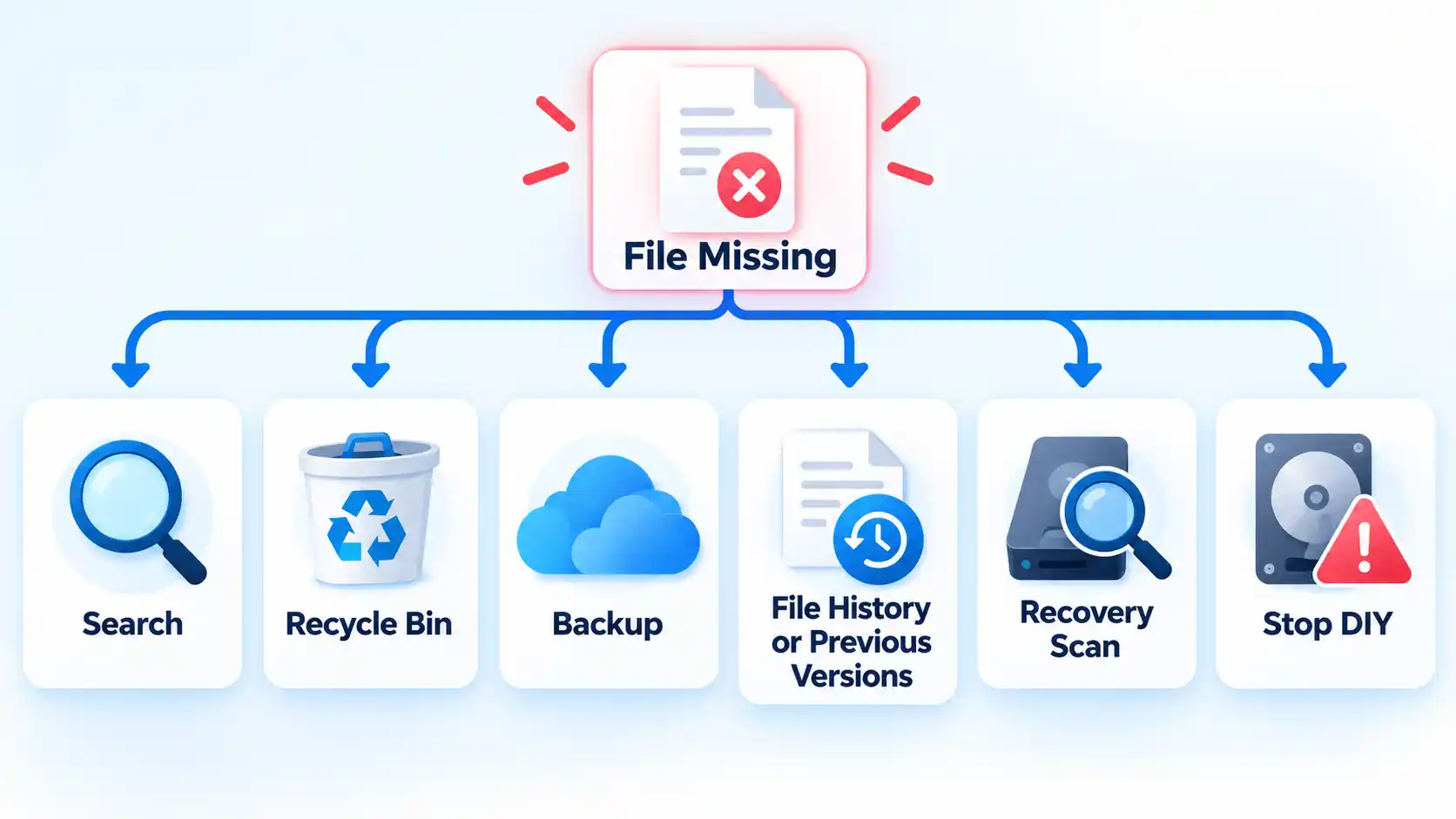
Work from the least invasive recovery method to the more intensive ones. A file that was moved, synced, or backed up does not need an undelete scan.
- Check whether the file is actually gone. Search for the filename or part of it in File Explorer and check the folders where you normally save that type of file. If your Desktop, Documents, or Pictures folders are synced with OneDrive, also check OneDrive on the web and confirm that you are signed into the expected Microsoft account. Microsoft recommends searching OneDrive, checking its recycle bin, and looking on local device storage when a file appears to be missing. If the specific problem is that files disappeared from the Windows 11 Desktop, diagnose that before treating the files as permanently deleted.
- Restore the file from Recycle Bin when possible. Open Recycle Bin, find the deleted item, right-click it, and select Restore. Windows returns it to its previous location. If the file was stored in OneDrive, check the OneDrive recycle bin as well. For OneDrive, personal accounts can restore eligible deleted items for 30 days, while work or school accounts normally have 93 days unless an administrator changes the retention setting. Permanently deleted OneDrive recycle-bin items cannot be restored through that feature.
- Restore a backup or an earlier version. If File History was enabled before the deletion, open File Explorer, go to the folder that used to contain the file, right-click the folder, and choose Restore previous versions. Select a version that predates the deletion and preview it before restoring when possible. Microsoft documents restoring deleted content and earlier file or folder versions from File History. Files stored in OneDrive may also have version history, while Microsoft 365 subscribers can roll back eligible OneDrive file and folder actions from the previous 30 days. Do not confuse these tools with System Restore: System Restore reverts Windows system files, registry settings, and installed programs without affecting personal files, so it is not a deleted-personal-file recovery method.
- Use Windows File Recovery if no backup copy exists. Windows File Recovery is Microsoft’s command-line utility for files deleted from local storage that cannot be recovered from Recycle Bin. Microsoft currently recommends Regular mode for recently deleted files on a healthy NTFS drive and Extensive mode for older deletions, formatted or corrupted NTFS storage, and FAT or exFAT devices. The source and destination must be different drives or partition paths; if you have only one internal drive, use a USB or external hard drive as the destination. Follow the current Windows File Recovery syntax and mode guidance rather than guessing at command switches.
- Consider a third-party scan only when the storage is healthy. If Windows recovery options do not find the file and the device is still detected and operating normally, graphical recovery software is another option. For example, PC data recovery software can provide a scan-and-selection workflow for local computer storage, while USB flash drive recovery addresses removable USB media. Save anything recovered to another storage location, not back onto the affected source. If you are deciding between Microsoft’s command-line utility and a graphical scanner, compare Windows File Recovery and third-party recovery software by source-drive support, interface, recovery method, and where recovered data can be saved.
Verify the result
- Open several recovered files and confirm that their contents display correctly rather than only checking that filenames exist.
- Check that important documents, photos, archives, or media have plausible sizes and are not obviously truncated or corrupt.
- Keep the verified recovered copy on healthy storage before making repairs or major changes to the original drive.
If Recovery Fails or the Drive Is Unstable
A recovery scan assumes the storage device can still be read reliably. A healthy drive that contains a deleted file is different from a hard drive that disconnects, disappears from Windows, or makes abnormal mechanical noises.
The file does not appear in a Regular Windows File Recovery scan
Retry with Extensive mode when the source and deletion scenario fit Microsoft’s mode guidance. If that still finds nothing, the space that held the file may already have been overwritten, especially on an SSD.
The drive is not detected consistently
Check basic non-destructive causes first, such as the cable, USB port, power connection, and whether Windows can see the device. Do not format the drive merely because Windows offers to initialize or format unreadable storage when your priority is recovering existing files. If important data is on a device that remains unavailable or unstable, stop escalating through ordinary software scans and consider professional recovery.
A mechanical hard drive makes abnormal noises
Stop treating the problem as an ordinary deleted-file case if a mechanical drive starts making unusual sounds. Western Digital identifies beeps, clanks, clicks, clunks, grinding, humming, and unusual vibration as abnormal. Those symptoms do not identify the exact fault, but valuable data may justify specialist assessment instead of repeated software scans.
Recovered files exist but will not open
The filename or other file-system information may survive even when some of the file’s contents have been overwritten. Keep any usable recovered copies, try an earlier backup or version if one exists, and avoid writing new material to the original source while deciding whether another recovery attempt is worthwhile.
How to Prevent the Next Data Loss
Recovery is much simpler when the file already exists somewhere else. Windows offers more than one way to create that second copy, depending on whether you want cloud synchronization, versioned local backups, or both.
For consumer Windows PCs using a personal Microsoft account, Windows Backup can sync Desktop, Documents, Pictures, Videos, and Music folders to OneDrive. Once those folders are synced, their files can be accessed again by signing into the same Microsoft account on another PC.
File History serves a different purpose. When configured with an external drive or network location, it stores versions of personal files so an earlier copy can be restored later. Microsoft documents using an external drive or network location for File History backups.
For files you cannot replace, keep more than one copy, check that backups are actually updating, and occasionally test a restore. That turns a future loss into a restore from a known-good copy instead of another attempt to recover data from free space on the original drive.

💬 Comments