StreamRecorder.io is worth a paid trial for teams that need Twitch broadcasts captured while nobody is at a desk. It is worth very little to a solo creator pulling their own VOD down inside Twitch’s retention window, because Twitch already does that job for free.
The service runs the recording on its servers, so your laptop can be shut and the archive still fills. That single shift in where the work happens decides most of the trade-offs here: hardware independence on one side, a bandwidth and disk bill on the other.
Three things decide whether it fits your workflow. A four-hour trial answers all three faster than any product page.
Quick Take
- Best fit: affiliate teams and talent managers tracking several Twitch creators across time zones, where a missed stream cannot be re-recorded.
- The real benefit: capture runs on vendor hardware, so your machine’s uptime and CPU load stop being part of the equation.
- The real cost: the cloud records the file; it does not store it on your editor’s drive. Downloads still eat local bandwidth and disk.
- Unproven: no independent benchmark is available for capture speed or 1080p60 fidelity. Treat both as things your trial measures.
- The trial that flips the verdict: one long, authorised capture that exports at your target frame rate with clean audio sync, at a price you can confirm before the card comes out.
What StreamRecorder.io actually does
StreamRecorder’s own terms describe a service that performs, on its servers, work that would normally run on your computer: recording, archiving and downloading live streams and VODs. Your machine is not in the capture path, and the recordings sit in vendor storage for playback or download.
The vendor’s guide to recording live streams claims coverage across 11 platforms, with Twitch, Kick, YouTube and TikTok Live among them. It also states that cloud recording can run without the user’s computer being switched on. Those are vendor claims about a vendor product, and they are the reason the tool exists.
The practical consequence is the one that matters for a Twitch archive. If you capture a broadcast while it is live, Twitch’s deletion clock never applies to your copy. You are holding a file from the moment of broadcast, not racing a retention timer afterwards.
No independent capture-speed benchmark is available for StreamRecorder, and its documentation covers recording, archiving and download rather than native vertical clipping. Plan on a separate editing step for vertical clips.
How the four archive routes compare
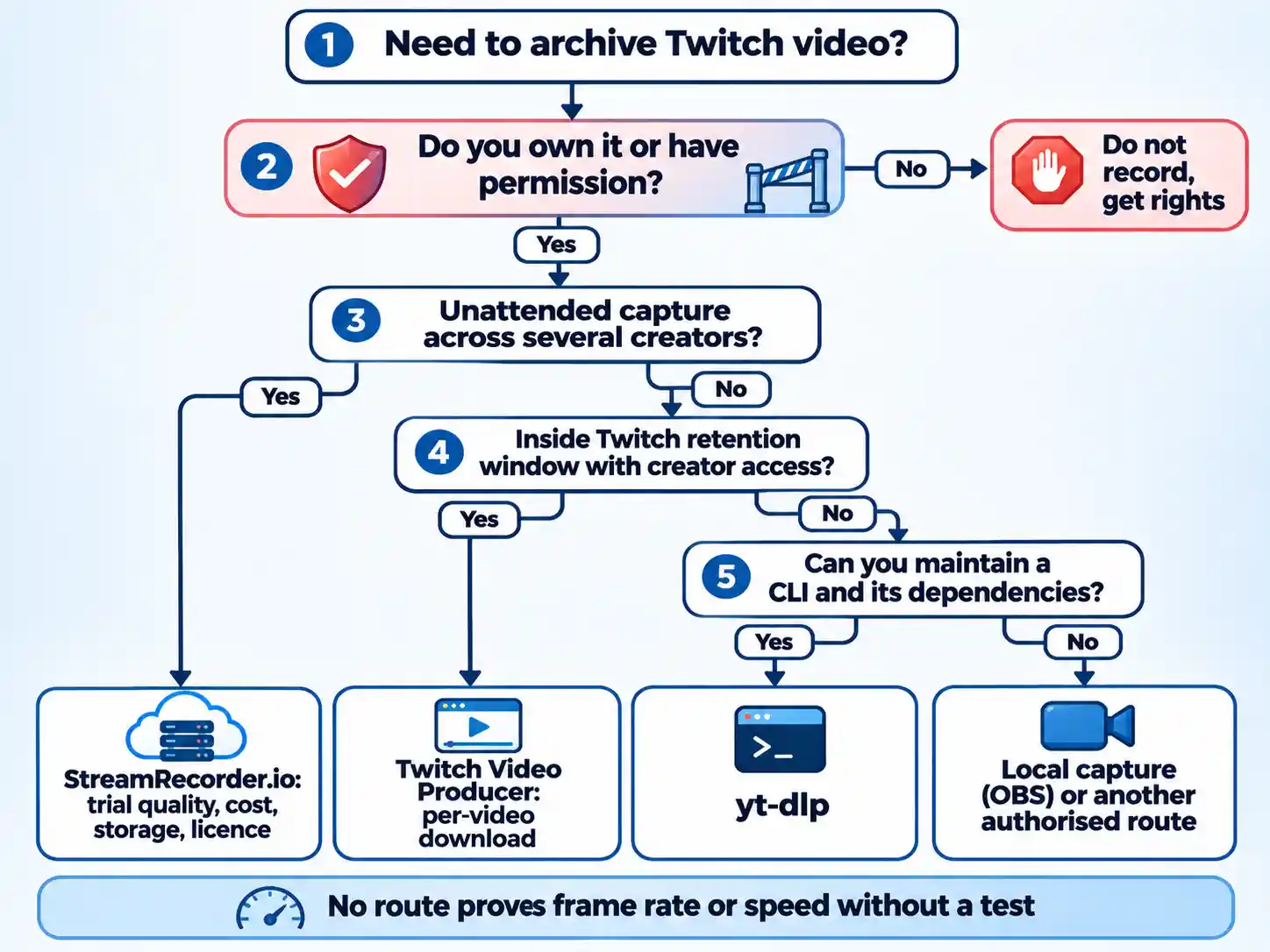
These are four different jobs wearing similar clothes. Judge them on where the work runs and who carries the risk, then match that to how your team actually operates.
| What matters | StreamRecorder.io | Twitch Video Producer | yt-dlp | OBS / local capture |
|---|---|---|---|---|
| Where recording runs | Vendor servers | Twitch’s own servers | Your machine | Your machine |
| Your computer during capture | Can stay off | Not involved | Must be on for the download | Must run for the whole broadcast |
| Copy that outlives Twitch retention | Yes, if captured live or before expiry | Only inside the retention window | Yes, as a local file | Yes, as a local file |
| Bulk export | Download from the cloud library | Per video only, no bulk option | Scriptable across a list | Files are already local |
| Setup skill required | Account and plan | Creator account only | Command line, dependencies, config files | Encoder settings and storage discipline |
| Published speed or fidelity proof | No independent benchmark | Platform-native output | Depends on your setup | Depends on hardware and encoder |
| Commercial reuse | Rights position must be confirmed before commercial use | Creator’s own content; platform terms apply | Your responsibility | Your responsibility |
Speed and 1080p60 are yours to verify
No independent capture-speed benchmark or 1080p60 frame-rate result is available for StreamRecorder, so any claim about speed leadership is guesswork. What you can do is control the variables that decide whether the output is usable.
Resolution labels tell you very little on their own. A 1080p stream delivered at 3,000 kbps and one at 6,000 kbps both call themselves 1080p, and they look nothing alike once an editor starts grading and cropping. Frame rate is the sharper test. A capture that drops frames looks fine in a browser preview and stutters the moment it hits a 60 fps timeline.
Download size is the half of the cloud story that rarely gets mentioned. Cloud capture removes your hardware from the recording path. It does not remove the file from your network, and it does not remove it from your editor’s SSD.
What goes wrong, according to the vendor’s own terms
StreamRecorder’s terms and conditions disclaim guaranteed uninterrupted or error-free operation, and they warn that changes on third-party platforms can affect availability. There is no uptime guarantee to hold the vendor to if a Twitch change lands on a Friday.
Cancellation ends at the billing cycle, with no refund for unused time except at the vendor’s exceptional discretion. Read the pricing page and the terms together before you commit a roster to the platform.
What a cloud archive adds to a clipping workflow
The commercial case is straightforward. An agency running reels for four streamers needs footage that is dated, findable and still available when the brand asks for proof of a sponsorship mention later. A cloud library answers that better than a folder of half-finished local recordings.
Clipping is a separate job. StreamRecorder is built for stream capture and archiving, not native vertical clipping. Budget for an editor, Twitch’s own Clips tool, or a local ffmpeg pass. The recorder captures the source; the clipping step turns it into posts.
Rights come before any of that. StreamRecorder’s terms put responsibility for compliance with laws and third-party platform terms on you rather than on the service, so the permission you need is the creator’s and the platform rules are yours to check. An agency invoicing clients for edited stream footage should get the licence position confirmed in writing before the first recording is queued.
Test StreamRecorder.io on your own footage before you pay
One long, authorised capture answers the questions a product page cannot. Run these four checks in order and you will know whether to subscribe, negotiate written permission for client work, or walk away.
- Pick footage you have the right to record.Use your own channel or a client’s, and choose an extended broadcast so the test surfaces drift and dropouts. Note the source resolution and frame rate before you start so you have something to compare against.Authorised test material keeps the trial inside both Twitch’s terms and the recorder’s terms, and it avoids building a workflow on footage you cannot legally use.The source details should be written down before capture begins; if you cannot state what went in, you cannot judge what comes out.
- Queue the capture and leave the machine off.Add the channel, schedule or trigger the recording, then close the laptop and walk away for the full duration. The entire value proposition rests on capture that does not need your hardware awake.Watch for a workflow that quietly depends on a browser tab staying open, because that is local screen recording with extra steps and a subscription attached.A finished recording should appear in the library with your computer untouched throughout. That is the confirmation this step exists to produce.
- Download the file and inspect it at native playback.Play the export in your editor and check resolution, frame rate, bitrate and audio sync at the start, middle and end. Compare each against the source notes you took in step one.Record the file size and how long the download took. Those two numbers are your real storage and bandwidth cost, and they belong in the decision alongside the subscription fee.A capture that plays smoothly in a browser but stutters on a 60 fps timeline has failed the test, regardless of what the library thumbnail shows.
- Confirm the price, the licence and the exit.Find the current paid tier, the storage allowance attached to it, and what happens to your library if you stop paying. Cancellation takes effect at the end of the billing cycle, and unused time is not refunded outside exceptional approval.If the account will serve client work, get the licence position confirmed in writing now, while the trial is still running. An agency workflow needs that answer before it needs a bigger plan.The trial is complete when you can state the monthly cost, the storage ceiling and the cancellation consequence in one sentence each.
The trial passes when a long capture lands in the library at your target frame rate, exports without friction, and the confirmed price survives comparison with the alternatives below. It fails the moment you cannot answer the frame-rate question with a file in hand.
When Twitch’s own tools are enough
For a creator downloading their own recent broadcast, Twitch is the cheapest authorised route and it is already in the dashboard. The catch is the clock. Partners, Prime and Turbo users keep past broadcasts for 60 days, Affiliates for 14, and everyone else for 7, according to Twitch’s on-demand content documentation.
Two details catch people out. The Store Past Broadcasts toggle must be switched on before you go live, and it is only reachable through the web Creator Dashboard, not the mobile app. Twitch support cannot recover a broadcast that was never saved.
Downloads are per video, with no bulk option, and audio muted by the platform’s recognition system stays muted in the file you download. Highlights and Uploads share a combined 100-hour storage cap, which makes Twitch a poor long-term archive and a fine short-term holding pen.
If your need is a handful of VODs inside the retention window, stop reading and go download them. Nothing here beats free and already authorised.
When yt-dlp is the better tool
yt-dlp is a command-line downloader with support for thousands of sites, and it gives a technical operator something no managed service does: files on your own disk, produced by a script you control.
That control has a price. Installation runs through standalone release files, Python packaging or a package manager, and some features need extra dependencies. Configuration lives in files rather than menus, and the repository spells out the dependency and compilation steps for anyone maintaining that setup.
For a team with an operator who enjoys this, yt-dlp is a strong fit and costs nothing but time. For a talent manager who wants last night’s stream waiting in a browser tab, it is a maintenance project dressed as a downloader.
Local capture sits in the same technical bracket. OBS records at whatever your hardware can sustain, needs the machine awake for the entire broadcast, and rewards bitrate matching and MKV container settings when a session ends badly. It is the right answer for a creator who wants a local master of their own stream, and the wrong one for a team asleep in a different time zone.
Who should use StreamRecorder.io, and who should skip it
Use it when the capture has to happen without you. A talent manager covering six creators across three time zones, an affiliate team that needs a dated archive of every sponsored stream, and an editor who needs source footage the morning after a broadcast all fit the same shape. The recording cannot wait for someone to be awake, and a missed stream is unrecoverable.
Use it when you can own the download step. Someone on the team needs to pull files down, check frame rates, and keep a local backup. The cloud library is a working surface, and the drive is the archive.
Skip it for your own recent VODs. If the content is yours and it is still inside the retention window, Twitch’s per-video download is free, authorised and already there.
Skip it if you need a clipper or a guarantee. There is no established native clipping, and no independent benchmark backs a 1080p60 claim. Teams that cannot test before committing, or that need contractual source fidelity, should stay with a local workflow they control.
Skip it for client work until the rights position is documented. Recording your own channel is one thing; invoicing a client for edited footage is another. Get the licence position confirmed in writing before the roster goes in.
The result that would change this verdict
One successful trial flips the recommendation from conditional to firm. If a four-hour capture exports at your target frame rate with clean audio sync, and the confirmed monthly cost fits the roster, StreamRecorder becomes a reasonable default for unattended Twitch archiving.
The verdict moves the other way on any of three results. Exports that arrive below the source frame rate rule it out for edit-heavy work. A price that scales badly across six creators makes a scripted yt-dlp setup look cheap by comparison. Unresolved licensing for client work stops an agency cold, whatever the capture quality.
The strategic conclusion
StreamRecorder.io solves a specific problem well on paper: it records Twitch broadcasts when nobody is available to press a button. That is a real gap for teams managing multiple creators, and it is the reason the service deserves a trial rather than a dismissal.
Stick with Twitch’s own tools when the footage is yours and recent, because the platform hands it to you inside the retention window at no cost. Reach for yt-dlp when you have an operator who wants local files and can absorb the maintenance. Choose local capture when you need a master of your own stream and can keep a machine running.
Everything else should be decided by one test capture, one frame-rate check and one honest look at the download bill. If that test clears, the practical next step is to put the service in front of the roster and download Twitch videos through StreamRecorder.io, with the terms page open in the next tab while you confirm the licence you need.

💬 Comments