Proactively maintaining server hardware means checking, cleaning, and testing your physical servers on a set schedule, before small problems turn into an outage. Skip this work, and a cheap fix today becomes an expensive failure later.
Quick Take
Server hardware maintenance covers four areas: the physical machine, the operating system and software, the system logs, and who has access to log in. Most failures start small — a fan spins slower, a drive throws early warning errors, a filter clogs with dust — and show up in logs or temperature readings weeks before anything actually breaks. A basic weekly check plus a monthly deeper check catches almost all of it. The parts that get skipped most often are backup restore tests and old user accounts that should have been removed months ago.
The Four Areas of Server Maintenance
A server is more than a metal box. When people say “maintenance,” they usually mean one of four different things, and mixing them up is how tasks get missed.
Hardware is the physical equipment: the case, fans, power supplies, drives, and cables. This needs a hands-on check, not just a glance at a dashboard.
Software and the operating system need regular patching. Firmware updates from the hardware maker fix bugs and close security gaps, so install them on a set schedule rather than waiting for something to break. Beyond the server itself, the same discipline applies to keeping your broader software stack patched against known exploits, since an unpatched server is really just one unpatched system among many.
Logs are the text records your server writes about what it’s doing. Reading them regularly is how you catch a failing part before it fails completely — most hardware errors show up as a warning in the logs days or weeks before the actual failure.
User access means checking who can log in to the server. If someone left the company six months ago and their account is still active, that’s a real security gap, not a minor oversight.
Cleaning and Cooling the Physical Hardware
Dust and Airflow
Servers pull in dust even in a clean office. Dust clogs fans and heat sinks, which makes the server run hotter and work harder to stay cool. Over time, that extra heat wears out components faster. Servers can get dusty surprisingly quickly if the intake filters aren’t checked on a set schedule, so build a filter check into your monthly routine rather than waiting until airflow visibly drops.

A basic physical check should also cover the power supply connection, the fans, and the cables. Confirm the power cable is fully seated, listen for fans that sound different from the others, and look for cables that are cracked, pinched, or coming loose. These are quick checks, and catching a loose cable early is far cheaper than a surprise reboot.
Temperature and Humidity Control
Server rooms need tighter temperature and humidity control than a normal office. The industry group ASHRAE, which sets these standards, recommends keeping data center air between about 18°C and 27°C (64°F to 81°F). If your server room regularly runs hotter than that, or swings widely between hot and cold, components age faster and the risk of a heat-related shutdown goes up. Humidity matters too: air that’s too dry raises the risk of static discharge, and air that’s too humid can lead to condensation inside the equipment.
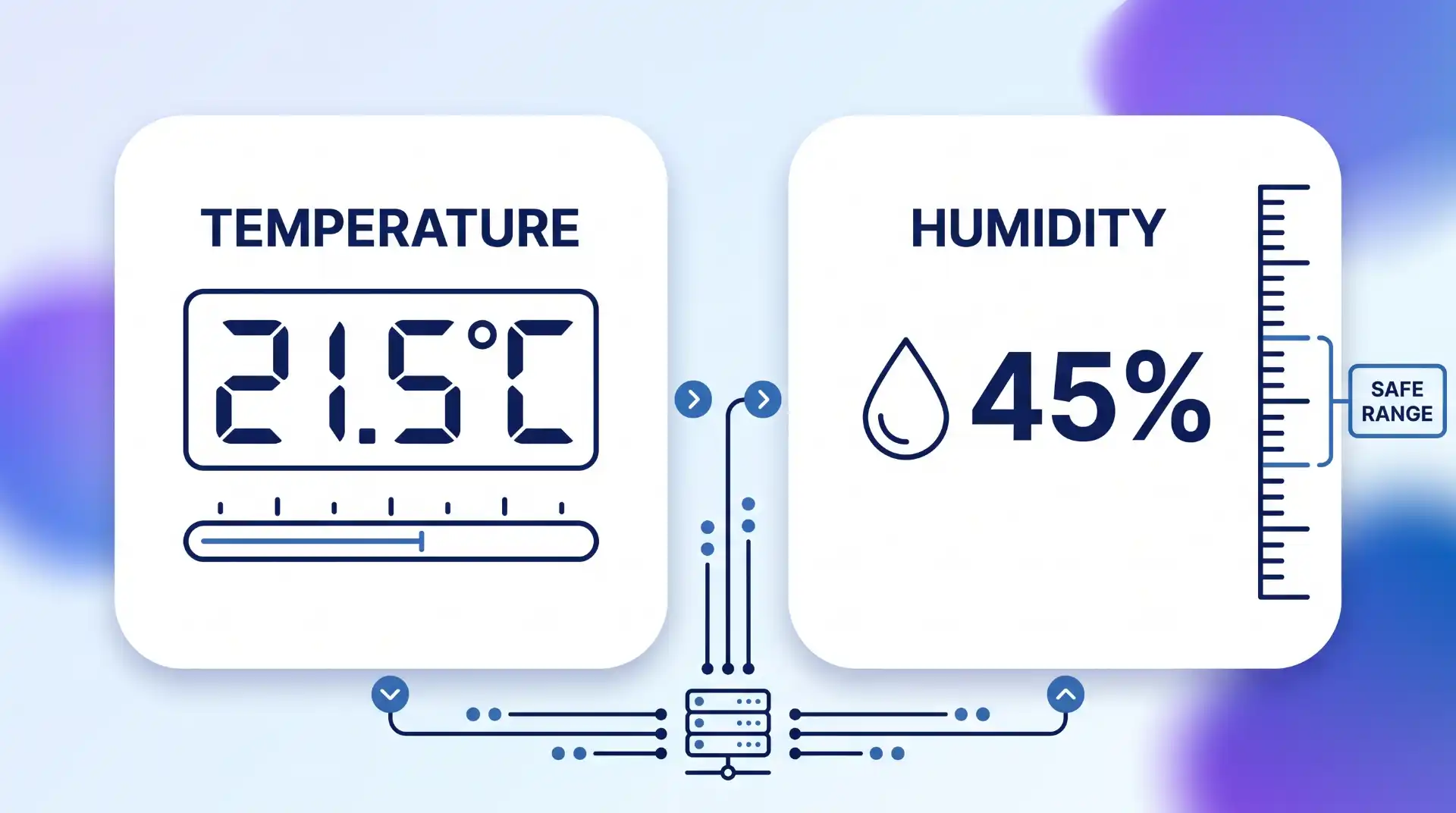
You don’t need an expensive building-wide system to get this right. A small server closet can use a standalone temperature and humidity sensor that sends an alert if conditions drift outside the safe range, which is often enough for a business running a handful of servers rather than a full data center.
Storage, Backups, and RAID Health
Storage problems rarely announce themselves loudly. A drive can be failing for weeks while everything still appears to work normally. Many business servers use RAID, which is a setup that spreads data across multiple drives so the system can keep running even if one drive fails. RAID protects you from a single drive failure, but only if you actually notice the failure and replace the drive — a RAID array running for months on a dead drive with no backup is not protected at all, it’s one more failure away from data loss.
Check your RAID array’s health status on the same schedule as everything else, not just when something seems wrong. It’s also worth understanding how RAID data recovery actually works before you need it, since the recovery process differs depending on which RAID setup you’re running.
Automate your backups so you’re not relying on someone remembering to run them manually. But automating a backup is not the same as confirming it works — schedule a real restore test at least once a quarter, where you actually pull a file or a full system back from the backup and confirm it opens correctly. A backup you’ve never restored from is a guess, not a safety net. If your storage relies on solid-state drives, it’s also worth reading up on whether SSDs change your offsite backup needs, since SSDs fail differently than traditional hard drives.
Remote management tools are worth checking too. A remote console lets you log in to the server without being in the same room, and a rescue or safe mode lets you make repairs even when the main system won’t boot normally. Testing these tools regularly, not just when you’re already in a crisis, means they’ll actually work when you need them.
Physical Security for the Server Room
Servers are physical objects, and physical objects can be stolen, damaged, or tampered with. A server room needs the same kind of security thinking as any other room that holds valuable, sensitive equipment. That means locked doors, a record of who has a key or access card, and ideally a camera covering the entrance.
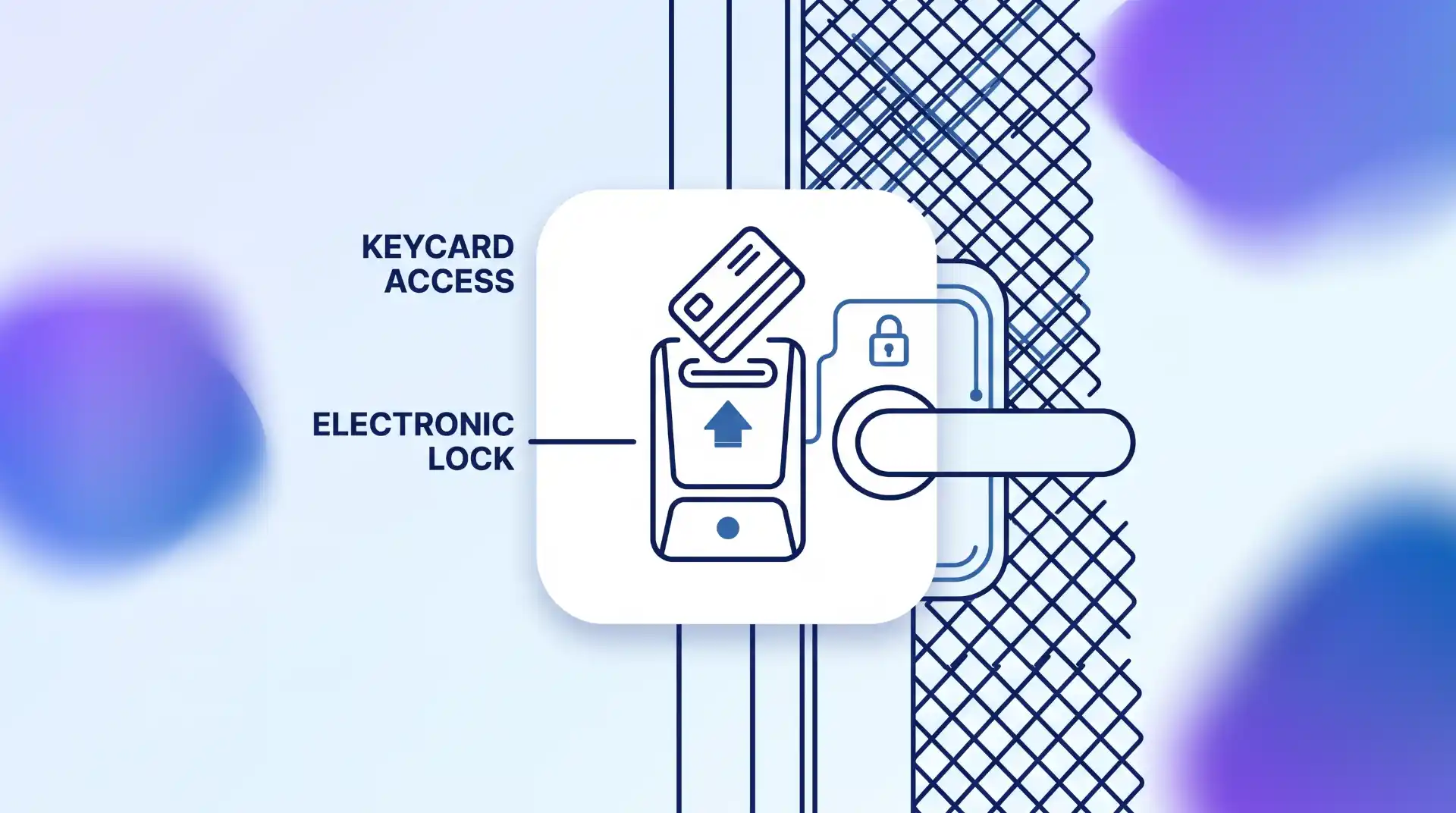
If your business has visitors coming through the building regularly, a proper system for tracking who enters and when makes it much easier to answer “who was near the server room last Tuesday” if something ever goes wrong. Earthquakes, fires, and simple accidents can all damage server hardware, so it’s worth asking whether your server room has a fire suppression plan that won’t also destroy the equipment it’s meant to protect — some fire suppression systems, like water sprinklers, can do as much damage as the fire itself.
Should You Handle This In-House or Hire Third-Party Maintenance?
Some businesses maintain their own server hardware with an internal IT team. Others pay for outside help, sometimes called third-party maintenance, or TPM. While a server is still under its original warranty, TPM can work alongside the manufacturer’s support, filling gaps in coverage. Once that warranty ends, TPM providers often step in to replace manufacturer support entirely, usually at a lower cost than a renewed manufacturer contract.
Whichever route you choose, someone needs to own the schedule. If you’d rather not build that expertise in-house, you can look into services to maintain your server hardware instead. Either option works — what matters is that the checks actually happen on a calendar, not “whenever someone has time.”
Keeping hardware in good condition also protects the money you already spent on it. Well-maintained servers last longer before you need to replace them, which is really just another way of protecting your return on that original investment.
Common Mistakes That Undo Good Maintenance
The most common mistake isn’t skipping maintenance entirely — it’s doing it inconsistently. A cleaning schedule that runs for two months and then quietly stops is barely better than no schedule at all, because dust and neglected patches build up the same way either way.
Reviewing who has access to the server regularly, and removing accounts for people who no longer need them, is another step that gets skipped once the initial setup is done. It feels like a one-time task, but it isn’t. The same applies to security patches: a known software flaw that isn’t patched is an open door, and a slow patching process is one of the most common ways attackers get in, even on servers that are otherwise well cared for.
Environmental monitoring is the other piece that often gets left out entirely, especially for a small business running one or two servers in a closet rather than a real data center. Facilities of every size are increasingly adding basic sensor monitoring, and a server closet with no temperature alert is genuinely at more risk than one with a simple $100 sensor watching it.
This approach won’t work well if your servers are already showing frequent unexplained crashes or your logs are full of unread errors going back months — at that point, you’re past routine maintenance and into recovery mode, and it’s worth getting a hardware technician to do a full diagnostic before you resume a normal schedule.
Key Takeaways
- Server hardware maintenance covers four areas: physical hardware, software and OS, logs, and user access — treat them as separate checklists.
- Check dust, fans, cables, and power connections on a monthly schedule, not just when something sounds wrong.
- Keep server room air between roughly 18°C and 27°C (64°F to 81°F), following ASHRAE’s recommended range.
- RAID protects against one drive failing, but only if you notice the failure — pair it with backups you actually test by restoring from them.
- Treat the server room like any room holding valuable equipment: locked access, a visitor log, and a fire plan that won’t damage the hardware it’s meant to save.
- Inconsistent maintenance and forgotten user accounts undo more good work than any single missed cleaning session.
FAQ
How often should small businesses check their server hardware?
A quick visual and log check weekly, with a deeper physical check — dust, cables, backup restore test — monthly, covers most small business setups. Larger or higher-traffic environments may need daily log reviews.
Can I maintain server hardware myself, or do I need to hire someone?
A small business with one or two servers can often manage basic maintenance in-house with a documented schedule. Once you’re relying on 24/7 uptime, or once your original hardware warranty has expired, outside help becomes worth the cost for most businesses.
What’s the real difference between OEM support and third-party maintenance?
OEM (original equipment manufacturer) support comes from the company that built your server and is usually tied to a warranty period. Third-party maintenance (TPM) is an outside provider that can supplement OEM support during the warranty period and often replaces it entirely once the warranty ends, frequently at a lower ongoing cost.
How long does server hardware typically last with good maintenance?
This varies by hardware quality, workload, and environment, so treat any specific number with caution. What’s consistent across sources is the direction: dust control, stable temperature and humidity, and prompt part replacement all measurably extend how long hardware stays reliable before it needs replacing.

💬 Comments