If Outlook cannot open a Personal Storage Table (PST) file or reports errors in an Outlook data file, confirm that the problem actually involves a PST, back up the file, and try Microsoft’s Inbox Repair Tool before moving to third-party software. Stellar Repair for Outlook becomes relevant as an optional escalation path when the PST remains inaccessible or the built-in repair does not recover the data you need.
First Confirm That the Problem Involves a PST File
A PST is an Outlook Data File that can contain messages and other Outlook items such as contacts, appointments, tasks, notes, and journal entries. Before repairing anything, determine which type of data file is involved because a PST and an Offline Outlook Data File (OST) do not have the same recovery path.
For example, POP accounts can store their information in PST files, while Microsoft 365, Exchange, Outlook.com, and IMAP accounts normally use synchronized OST files. Microsoft explains these storage differences in its Outlook data-file documentation. An OST is generally a synchronized local copy of information stored on the mail server, so Outlook can usually recreate it after the account is set up again. A PST may instead contain locally stored, archived, or exported information that cannot simply be regenerated from a server.
Because PST and OST files serve different storage roles , the correct recovery path depends on which file Outlook is actually using.
New Outlook for Windows adds another consideration. Microsoft currently lists PST support in new Outlook as partially available. Opening a PST requires classic Outlook to be installed, both Outlook applications to use the same 32-bit or 64-bit architecture, and the account used in new Outlook to have a Microsoft 365 subscription. PST files are also not currently supported in the ARM version of new Outlook. Check Microsoft’s current PST support documentation before applying instructions written for classic Outlook to new Outlook.
The table below separates the main situations so you can avoid applying a PST-repair procedure to the wrong type of Outlook problem.
| Situation | What it usually means | First direction | Important limitation |
|---|---|---|---|
| Classic Outlook with a local or archive PST | The file may contain locally stored, archived, or exported Outlook items. | Back up the PST and investigate the file if Outlook reports data-file errors. | Repair may not recover items that are permanently deleted or corrupted beyond repair. |
| New Outlook with an opened PST | The file is being accessed through new Outlook’s partial PST support. | Confirm Microsoft’s current PST requirements and supported operations first. | New Outlook does not yet provide full PST feature parity with classic Outlook. |
| Microsoft 365 or Exchange account using an OST | The OST is normally a synchronized local cache of server-held mailbox data. | Troubleshoot the account or OST rather than automatically treating it as a PST-repair problem. | The local OST can generally be recreated from server data. |
| Outlook freezes or crashes without a data-file-specific error | The cause could involve an add-in, profile, Office installation, account, or data file. | Diagnose the wider Outlook problem before assuming that the PST is corrupt. | Freezing or crashing alone does not establish PST corruption. |
Signs That Justify Checking the PST
A PST deserves closer inspection when Outlook specifically reports that it cannot open the data file, cannot open the associated set of folders, or indicates that the Outlook data file may be damaged. Microsoft lists these situations among the reasons to run the Inbox Repair Tool.
Broader symptoms need more caution. Outlook can freeze, fail to start, or stop responding because of add-ins, an Office installation problem, a damaged Outlook profile, or a data-file problem. Those symptoms can justify further diagnosis, but they do not by themselves prove that the PST is corrupt.
If you are investigating how a PST may have become damaged, this overview of common causes of PST corruption provides additional background. Possible causes should still be treated as diagnostic leads rather than proof that a specific PST is damaged.
Back Up the PST Before Repairing It
Keep an untouched copy of the affected PST before running a repair utility. If the working file is named archive.pst, for example, copy it to another safe location before modifying the working file.
Warning
Do not treat a repair operation as a substitute for a backup. Microsoft documents that SCANPST can remove messages, folders, or other structures that fail validation, so retain the original file until you have verified the repaired result.
Microsoft also explicitly recommends backing up the existing Outlook data file before starting the Inbox Repair Tool. A backup gives you a known source to preserve if the first repair attempt produces an incomplete result.
Prerequisites
- Confirm that the affected file is a PST and identify the Outlook profile or version that uses it.
- Make an untouched backup copy of the PST before repair.
- Close Outlook before running Microsoft’s Inbox Repair Tool.
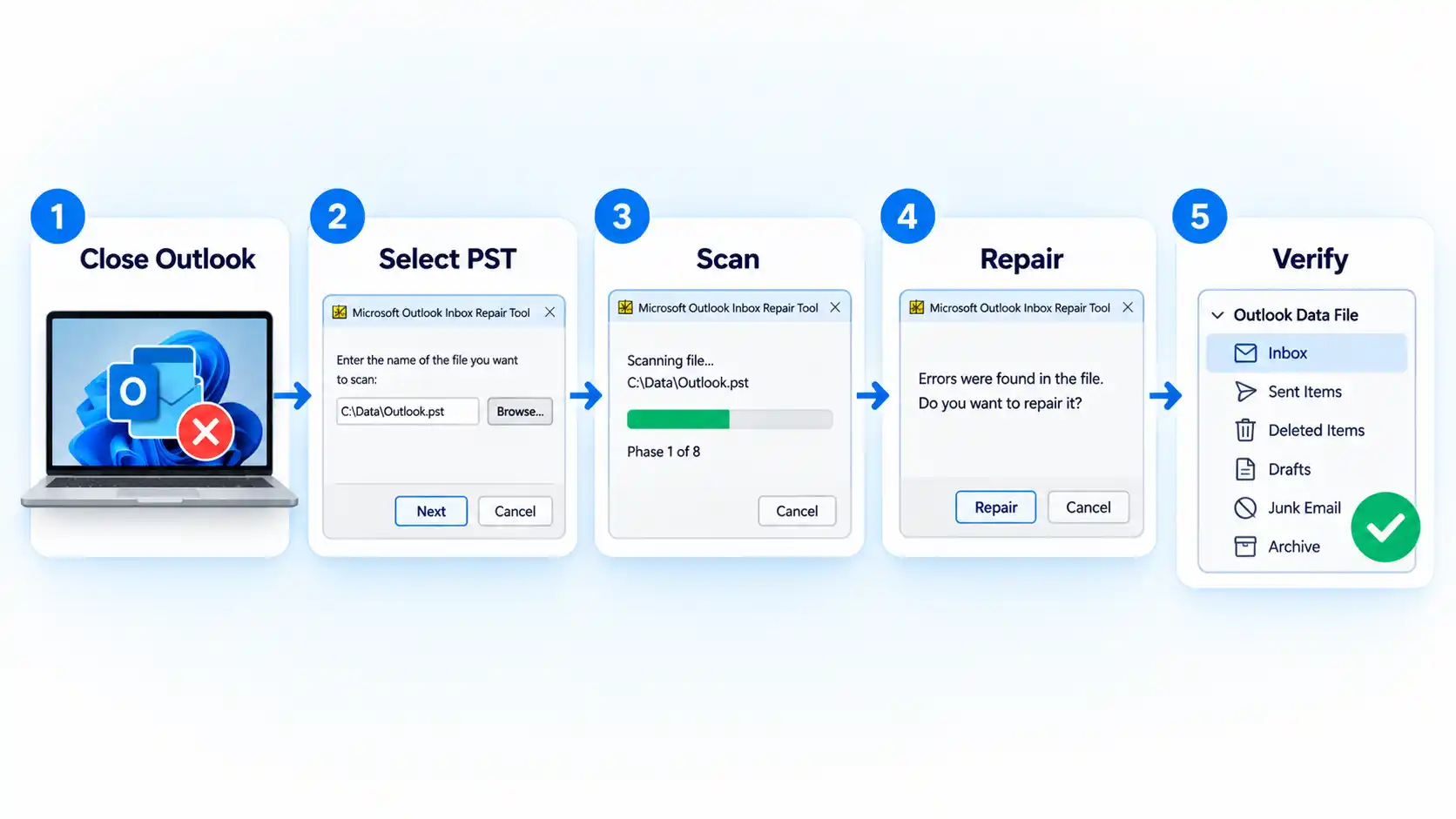
Repair the PST with Microsoft’s Inbox Repair Tool First
Microsoft’s Inbox Repair Tool, SCANPST.EXE, diagnoses and repairs errors in Outlook data files. Microsoft recommends it when Outlook cannot open a data file or folder set, or when you have reason to suspect that the file is damaged.
- Close Outlook. Exit Outlook completely before running the Inbox Repair Tool.
- Locate and open SCANPST.EXE. Its location depends on the Outlook and Office installation. Use Microsoft’s current Inbox Repair Tool instructions if you need the applicable location.
- Select the affected PST. Choose Browse, locate the PST you intend to repair, and select it for scanning.
- Start the scan. Choose Start. If SCANPST finds errors, review the result before proceeding.
- Run the repair. Choose Repair when errors are found. Microsoft notes that the tool may need to be run more than once in some cases, but repeated repair cannot guarantee recovery of every damaged item.
- Reopen the Outlook profile. When the repair finishes, start Outlook with the profile associated with the repaired PST and inspect the resulting folders and items.
What SCANPST Can and Cannot Do
SCANPST is primarily a structural repair utility. Microsoft explains that it checks the internal tables and references used by the PST and validates whether associated messages, folders, attachments, recipients, and other structures are present and internally consistent.
When a message or folder fails that validation, SCANPST can remove its database entry rather than reconstruct information it cannot validate. Microsoft’s technical description of SCANPST validation therefore makes an important distinction: a structurally repaired PST is not necessarily an exact restoration of everything that was present before corruption.
Microsoft also states that items may remain unrecovered when they were permanently deleted or corrupted beyond repair. After a repair, Outlook may show Recovered Personal Folders or a Lost and Found folder containing material the repair utility recovered but could not return to its original folder structure.
If SCANPST does not fully recover the file
The repaired PST opens, but some folders or messages are missing
Check Recovered Personal Folders and Lost and Found first. Microsoft also documents an optional recovery path using the .bak file created by SCANPST. Make a copy of the backup, rename the copy with a .pst extension as Microsoft instructs, and use Outlook’s import process to check for additional recoverable items. The backup came from the same damaged source, so additional recovery is not guaranteed.
SCANPST cannot repair the PST successfully
Keep the original PST and available backups intact. If the file is still inaccessible, you can evaluate a separate recovery utility or professional recovery path rather than repeatedly modifying the only remaining source copy.
SCANPST will not start
Microsoft recommends trying to repair the Outlook or Office application when the Inbox Repair Tool itself cannot start. Failure of SCANPST to launch is an application problem and does not demonstrate that the PST requires a different repair algorithm.
When a Third-Party PST Repair Tool Becomes Relevant
A third-party repair tool is most defensible as an escalation option after you have confirmed that the file is a PST, preserved the source file, and tried the appropriate Microsoft repair path. Examples include a PST that remains inaccessible after SCANPST, an incomplete repair, or a case where you want to see whether another recovery engine can identify additional recoverable items.
The difference between SCANPST and third-party PST repair tools is not simply that one is “basic” and the other is “better.” They use different implementations and workflows, while the physical and logical condition of the source data ultimately limits what any repair utility can recover.
No repair utility should be treated as a guarantee that every original item can be restored. If part of the source data is absent or irrecoverably damaged, software cannot reliably recreate the original content from nothing.
What Stellar Repair for Outlook Currently Offers
Stellar Repair for Outlook is third-party Windows software designed to scan Outlook PST files, preview mailbox items identified during the scan, and save selected recovered content. Stellar’s current product information lists version 14.0.0.1 with a June 2026 release date and Professional, Technician, and Toolkit editions. Those specifications are vendor-provided rather than independent performance findings.
The current vendor pages list Outlook 2024, 2021, 2019, 2016, and earlier versions among supported Outlook releases. Stellar also states that recovered data can be saved in PST, EML, MSG, RTF, HTML, and PDF formats, with some additional export and mailbox-management functions depending on the edition.
The vendor’s June 17, 2026 release announcement describes improvements to automatic PST detection and adds or expands Microsoft 365 and Exchange Server export functions. Those are product capabilities, not evidence that every damaged PST can be fully recovered.
The commercial Stellar Repair for Outlook page provides current product, edition, and purchase information. The commercial destination is not being used here as independent proof of recovery effectiveness.
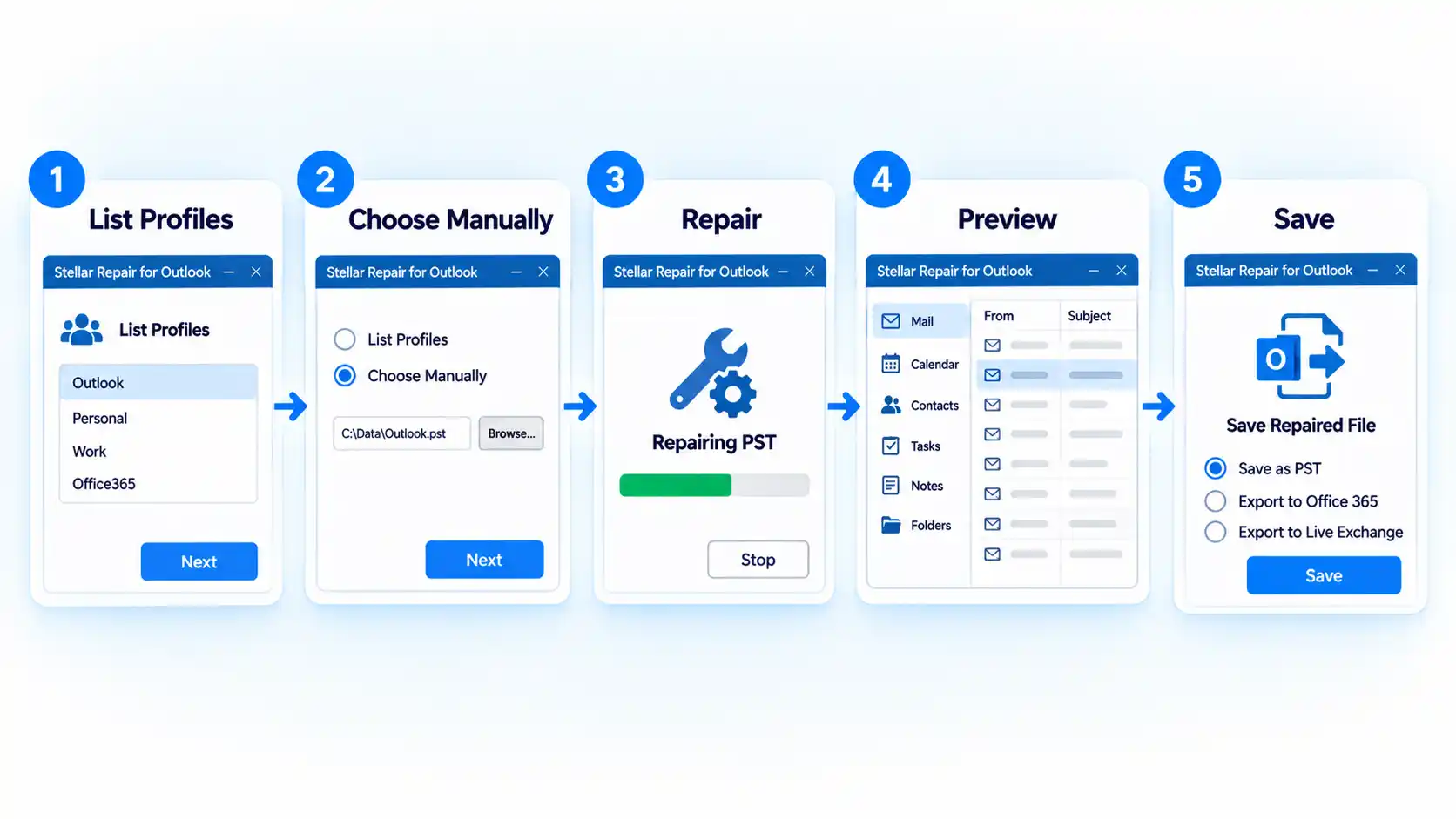
How to Repair a PST with Stellar Repair for Outlook
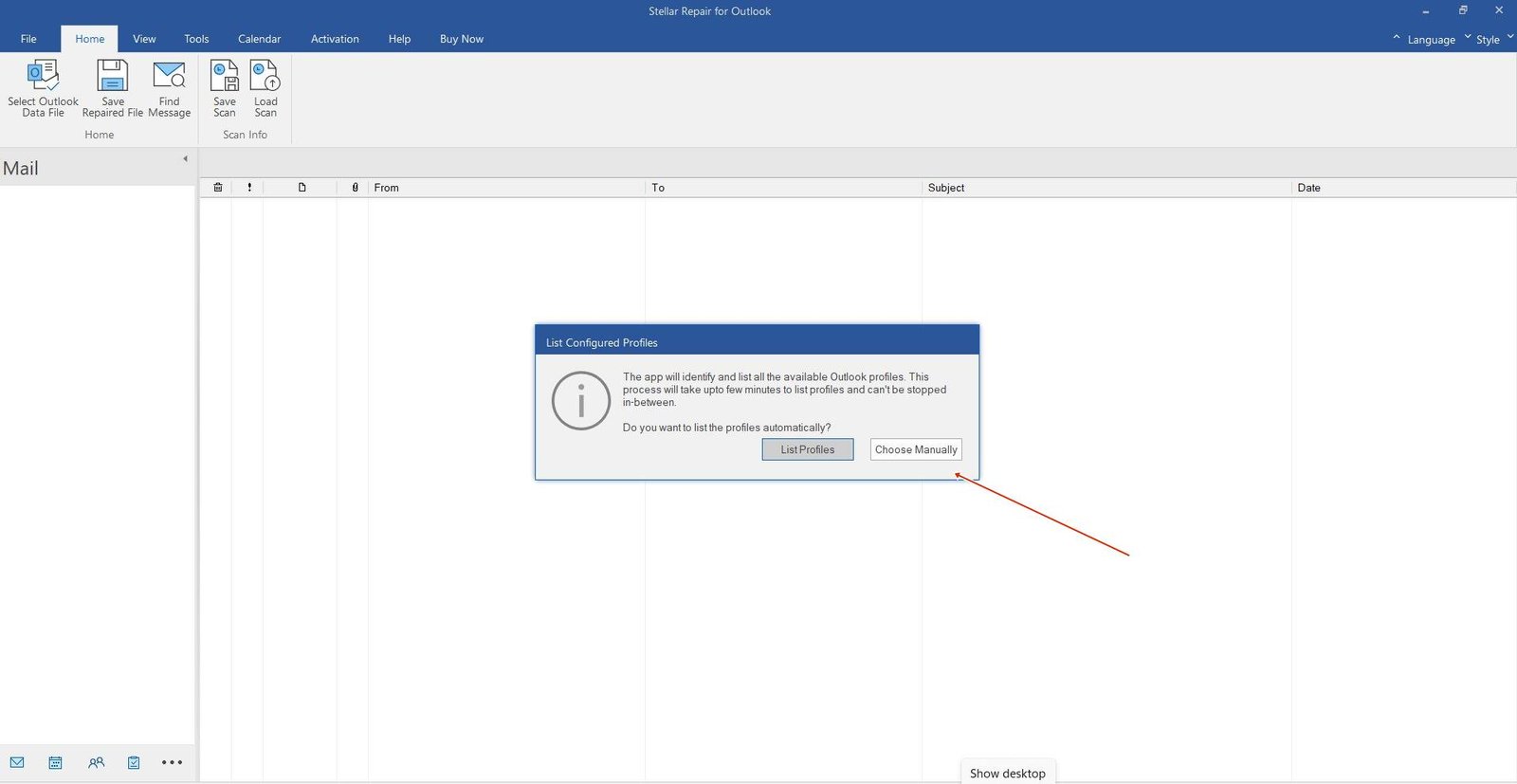
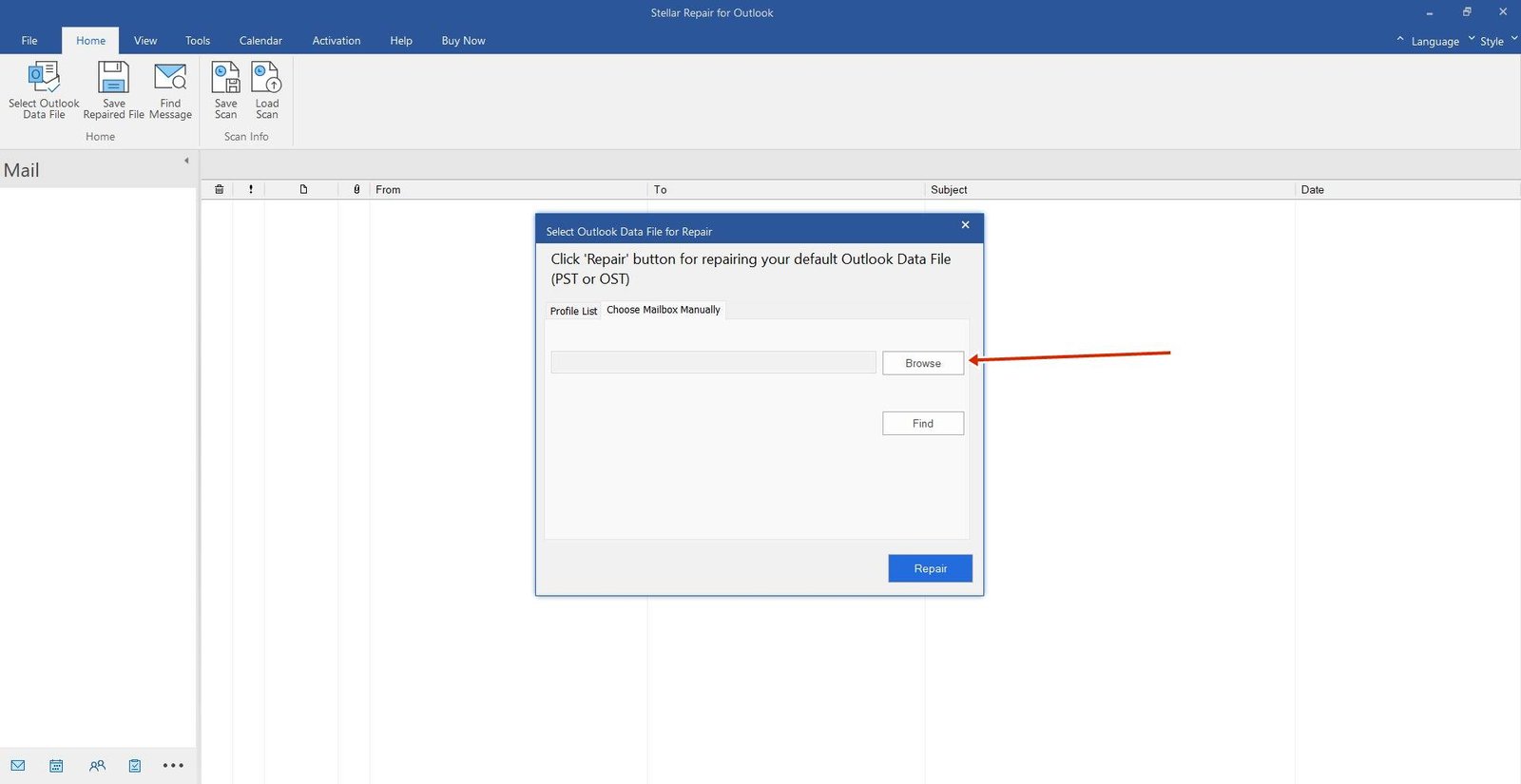
The sequence below follows Stellar’s currently published workflow. The three retained screenshots come from the original 2023 article, so their exact visual layout may differ from the 2026 release even where the underlying action remains the same.
- Open Stellar Repair for Outlook and identify the mailbox. Stellar’s current published workflow screenshots show List Profiles for finding Outlook data files associated with configured profiles.

- Choose the PST manually if necessary. If the file is not found through the configured profiles, Stellar’s current workflow provides Choose Manually or Choose Mailbox Manually, with Browse and Find options for locating the Outlook data file.

- Start the scan and repair process. Select the intended Outlook data file and choose Repair. Stellar’s published workflow shows a Repair Complete message after processing finishes. Treat that message as completion of the software’s scan and repair operation, not as proof that every original item was recovered.
- Review the preview. Inspect the mailbox tree and representative messages, attachments, contacts, calendar entries, and other relevant items shown in the preview. A preview demonstrates what the application identified during its scan; it does not by itself establish that the recovered set is complete.
- Save the recovered data. Choose Save Repaired File, select a supported destination format, and choose where the recovered data should be written. Stellar’s current vendor documentation lists PST as well as EML, MSG, RTF, HTML, and PDF among available formats.

- Keep the original until verification is complete. Open or import the recovered PST as appropriate and compare important content before replacing, deleting, or archiving the source file. If you need the vendor’s commercial download or licensing destination, the Stellar PST repair software page is the supplied product destination.

Verify the Repaired File Before You Rely on It
A repaired PST opening successfully is useful evidence that the file is usable again, but it does not prove that every important item survived. Verification should test representative content instead of stopping as soon as Outlook opens without the original error.
Verify the result
- Open the repaired PST without receiving the original data-file error.
- Check that the expected top-level folders and important subfolders are present.
- Search for several known messages from different dates rather than checking only recent mail.
- Open representative attachments and inspect contacts, calendar entries, tasks, or notes when those data types matter to the mailbox.
- Compare critical folders or known items with the source, a backup, or another trusted reference when one is available.
- Keep the original PST and repair backup until you are satisfied that the recovered copy contains the information you need.
Limits and Cases Where PST Repair Is the Wrong Fix
PST repair should stop being the default hypothesis when the evidence points elsewhere. Microsoft documents Outlook failures that can originate from the profile, add-ins, Office installation, account configuration, or synchronized OST data rather than corruption in a local PST.
The affected account uses an OST rather than a PST
Follow the account and OST troubleshooting path appropriate to that mailbox. Microsoft explains that an OST is a synchronized copy of information stored on the mail server and normally does not need to be backed up like a PST because Outlook can download the server-held information again.
Outlook works normally with a new profile
That result points toward a problem in the original Outlook profile rather than proving PST corruption. Profile corruption and PST corruption can produce overlapping symptoms , so preserve the data files and troubleshoot the profile separately.
Outlook freezes because of an add-in or damaged Office installation
Microsoft’s classic Outlook freeze troubleshooting treats add-in isolation, Office repair, data-file repair, and profile testing as separate diagnostic steps. Fix the component that testing identifies instead of repeatedly repairing the PST.
The real goal is reducing or reorganizing a large PST
That is primarily a file-management task rather than corruption recovery. If the PST is usable but has become difficult to manage, splitting a large PST into smaller archive files addresses a different problem from repairing structural corruption.
Conclusion
The safest troubleshooting path is to identify the data-file type first, preserve the source PST, and use Microsoft’s supported SCANPST process before escalating. If SCANPST leaves the PST inaccessible or important recoverable content is still missing, Stellar Repair for Outlook is one third-party option for running a separate scan, preview, and save workflow. Whichever repair method you use, keep the original file until the recovered copy has been checked against the folders and items that actually matter.

💬 Comments