Four notable affordable Android phones in the 2023 market were the Samsung Galaxy A14 5G, Motorola Moto G Power 5G (2023), OnePlus Nord N20 5G, and Google Pixel 6a. If you are moving from an older Android phone to another Android device, Android’s built-in setup process can copy many apps, photos, videos, messages, contacts, and settings by cable or wirelessly.
This is a historical look at phones that mattered to value-conscious Android buyers in 2023, not a list of the best phones to buy in 2026. Some models below launched in 2022 but were still relevant to the 2023 budget market, while others debuted during 2023.
What “Budget Android Phone From 2023” Means Here
A phone that was affordable and widely relevant in 2023 was not necessarily released that year. The Google Pixel 6a and OnePlus Nord N20 5G, for example, both arrived in 2022, while the Galaxy A14 5G and Moto G Power 5G covered here are 2023 models.
Price also needs context. Manufacturer’s suggested retail price, usually shortened to MSRP, is the list price set by the manufacturer for a product. Actual street prices can fall later because of promotions, carrier offers, clearance sales, and a phone’s age. For that reason, this article uses historically documented launch or MSRP information instead of presenting old prices as current deals.
Specifications need similar context. A 90 Hz or 120 Hz refresh rate means a screen can redraw its image up to 90 or 120 times per second, which can make scrolling and animations appear smoother than on a conventional 60 Hz display. Expandable storage means a phone can accept a memory card to supplement its built-in capacity. Neither feature alone determines whether a phone is suitable for a particular user.
Four Notable Budget Android Phones in the 2023 Market
These four phones represent different parts of the value market rather than a ranking. The Galaxy A14 5G and Moto G Power 5G sat closer to conventional budget pricing, while the Pixel 6a occupied a more expensive affordable-Pixel position. The Nord N20 5G was already a year old but remained relevant because it combined 5G, an AMOLED display, and 128 GB of storage at a sub-$300 launch price.
| Phone | Launch timing | Documented U.S. launch/MSRP | Display and storage context | Important context |
|---|---|---|---|---|
| Samsung Galaxy A14 5G | 2023 | $199.99 for the unlocked 64 GB U.S. model | 6.6-inch FHD+ display with a 90 Hz refresh rate; storage configurations varied by market and supported microSD expansion | A genuine entry-level 2023 5G model; regional specifications differed |
| Motorola Moto G Power 5G (2023) | 2023 | $299.99 U.S. MSRP | 6.5-inch FHD+ 120 Hz display; 128 GB or 256 GB storage depending on sales channel, plus microSD support | A sub-$300 5G model launched during 2023 itself |
| OnePlus Nord N20 5G | 2022 | About $282 at U.S. launch | 6.43-inch AMOLED display and 128 GB storage | Not a 2023 model, but still relevant to the affordable 5G market during that period |
| Google Pixel 6a | 2022 | $449 at launch | A-series Pixel with Google Tensor and 128 GB storage | More expensive than the other three, placing it at the upper edge of this historical value grouping |
Samsung Galaxy A14 5G
The Galaxy A14 5G is the clearest traditional budget phone in this group. Samsung’s January 2023 U.S. MSRP sheet lists the unlocked 64 GB version at $199.99, putting it well below the launch prices of many midrange Android devices.
The phone used a 6.6-inch FHD+ display with a 90 Hz refresh rate, a 50 MP main rear camera, and a 5,000 mAh typical battery. Samsung also offered microSD expansion. Samsung’s 2023 regional specifications show that memory, storage, and other configuration details varied by market.
That variation matters when checking an older phone today. A specification copied from one country’s product page should not automatically be assumed to describe every Galaxy A14 5G sold worldwide.
Motorola Moto G Power 5G (2023)
The Moto G Power 5G is a stronger fit for this historical list than a premium phone that happened to receive discounts later. Motorola introduced the 2023 model in the United States at an MSRP of $299.99, with unlocked availability beginning in April.
Motorola documented a MediaTek Dimensity 930 processor, 6.5-inch FHD+ display with a 120 Hz refresh rate, 5,000 mAh battery, and either 128 GB or 256 GB of built-in storage depending on the sales channel. The company also specified support for up to 1 TB of additional microSD storage.
For a newcomer, the practical point is that the phone combined a relatively high-refresh screen, 5G connectivity, and expandable storage without moving into flagship launch pricing. Storage and memory variants still need to be checked against the exact model being considered.
OnePlus Nord N20 5G
The Nord N20 5G arrived before 2023, but it remained relevant to the affordable 5G category. OnePlus announced North American availability in April 2022 and positioned the model as a lower-cost route to 5G.
The OnePlus launch announcement documents a 6.43-inch AMOLED display, Qualcomm Snapdragon 695 5G platform, 6 GB of memory, 128 GB of storage, and a 4,500 mAh battery. Its U.S. launch price was about $282.
The important limitation is age. Calling it a “2023 phone” would be inaccurate. It belongs here because it was an affordable model still relevant to buyers during the 2023 market period, not because it debuted that year.
Google Pixel 6a
The Pixel 6a occupied a different part of the value spectrum. Google launched it at $449 in 2022, so it was significantly more expensive than the Galaxy A14 5G or Moto G Power 5G at their documented U.S. launch prices.
Its relevance came from bringing Google’s Tensor processor and several elements of the Pixel 6 generation into the less expensive A-series. Google described the Pixel 6a as using the same Tensor processor as the Pixel 6 and Pixel 6 Pro while launching at $449.
That makes “affordable Pixel” a more precise description than “entry-level Android phone.” Readers comparing old listings should also distinguish the original launch position from later sale or used-market prices.
Why the Zenfone 9 Is No Longer in This Budget List
The original version of this article grouped the ASUS Zenfone 9 with inexpensive Android phones, but primary-source pricing does not support that classification. ASUS launched the Zenfone 9 in the United States with an MSRP starting at $699.99.
ASUS also described its Snapdragon 8+ Gen 1 as a flagship mobile platform and equipped the phone with a 5.9-inch 120 Hz AMOLED display, IP68 protection, and configurations with up to 16 GB of RAM. The Zenfone 9 may have been compact and technically capable, but it did not occupy the same launch-price category as the sub-$300 phones above. It is therefore excluded rather than retained solely because it appeared in the legacy list.
Before You Transfer Data to a New Android Phone
Do not begin by erasing or trading in the old phone. Keep it available until you have copied your data and confirmed that the important content actually opens on the replacement device.
Do not factory-reset, trade in, recycle, or give away the old phone until you have checked the transferred contacts, messages, photos, important apps, and account access on the new device.
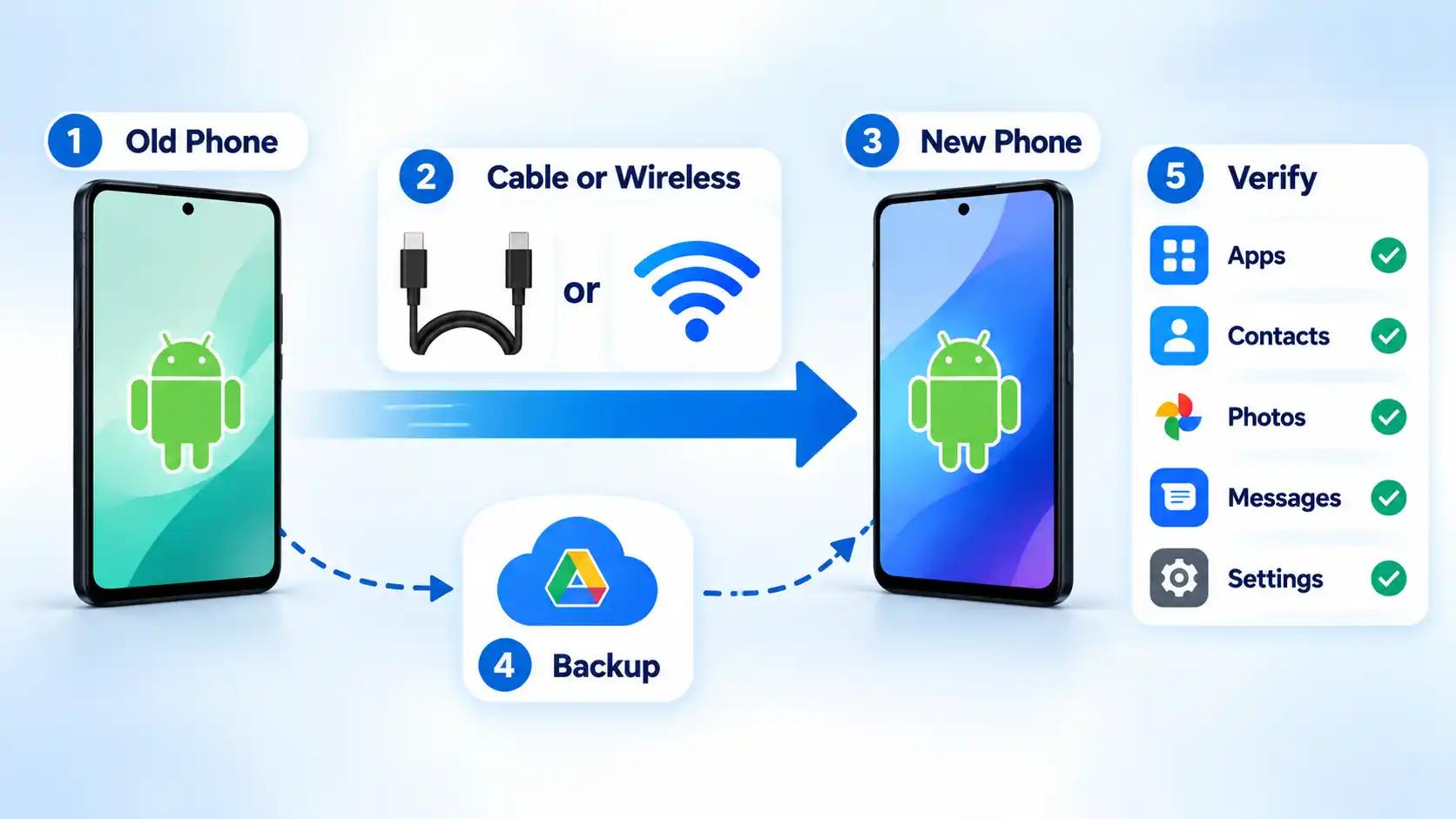
A recent backup gives you another recovery path if the direct transfer is interrupted or something important is missed. Before migration, compare Android backup and restore methods by the data they preserve, where the backup is stored, and what can actually be restored.
Prerequisites
- Charge both phones before starting. Google advises having both devices charged because a transfer can take from a few minutes to more than an hour.
- Make sure you can unlock the old phone with its PIN, pattern, or password and have access to the relevant Google Account.
- Connect the devices to an active network. Google recommends connecting both phones to Wi-Fi during setup.
- Check that the new phone has enough free storage for the data you intend to move.
- Create or confirm a recent backup of anything you cannot afford to lose before beginning the migration.
How to Transfer Data From Android to Android
Android’s built-in setup process should normally be the first transfer method to try. Google supports both cable and wireless Android-to-Android migration and recommends doing the main transfer during setup. Post-setup transfer options can differ by Android version and device, so do not assume you can skip migration now and reproduce the same process later.
- Start the new Android phone. Turn it on, choose the language and accessibility options you need, and begin the normal setup process.
- Connect to the internet. Follow the setup prompts to connect the new phone to Wi-Fi or mobile data. Google recommends connecting both phones to an active internet network during setup.
- Choose to copy apps and data. When Android offers the option to copy information from another device, select it rather than skipping the migration stage.
- Use a compatible cable or choose wireless transfer. Google recommends a cable when one is compatible with both devices. If the cable does not fit or you do not have the appropriate adapter, choose the wireless option and follow the pairing prompts.
- Authenticate and choose what to copy. Unlock the old device when requested, sign in to your Google Account when appropriate, review the available content categories, and select the data you want to move.
- Keep the devices connected until copying finishes. Avoid unplugging the cable, turning off either phone, or intentionally breaking the wireless connection while the transfer is active. Google says the process can take from a few minutes to more than an hour depending on the amount of data.
- Finish setup and let remaining content restore. Apps and synchronized content can continue appearing after the direct copy finishes. Open important services afterward because some require a separate sign-in, restore, or migration process.
Verify the result
- Open the Contacts app and confirm several important contacts are present.
- Check recent photos and videos rather than assuming every media folder transferred.
- Open recent text-message threads and check call history if those records matter to you.
- Launch important apps and confirm their accounts, local data, and authentication still work.
- Check separately managed content such as WhatsApp, downloaded documents, authenticator apps, banking apps, and files in hidden or protected folders before wiping the source phone.
If the New Phone Is a Samsung Galaxy: Use Smart Switch
Samsung provides Smart Switch as another migration path when the destination is a Galaxy device. For Android-to-Galaxy transfers, Samsung says Smart Switch should be installed or updated on both devices, and the available content can vary by source device, operating-system version, and connection method.
- Open Smart Switch on the new Galaxy. Launch Smart Switch, tap “Receive data,” and choose “Galaxy/Android” for an Android source device.
- Connect the devices. Select a wireless connection or use a compatible USB cable. Samsung recommends a wired connection when you have a large amount of data to transfer.
- Select the content. Review the data categories Smart Switch can access and choose what you want to move to the Galaxy.
- Start the transfer and wait for completion. Tap “Transfer,” keep the devices available while the process runs, and finish when Smart Switch reports that the transfer is complete.
Samsung’s current Smart Switch Android-to-Galaxy instructions document this receive, connect, select, and transfer sequence. Menu wording and transferable content can differ with the devices and software involved.
What May Not Transfer Automatically
A successful device-copy screen does not mean every file and every app state from the old phone has been reproduced on the new one. Google identifies several categories that may not copy during the standard setup process.
- Downloaded files such as PDFs may need to be moved separately.
- Photos, videos, and music stored in hidden folders may not be included.
- Apps installed from outside Google Play may not be copied automatically.
- Some app data will be absent when the app does not participate in Android backup or migration.
- Accounts other than Google Accounts, and the data attached to them, may require separate sign-in or restoration.
- Contacts and calendars synchronized through non-Google services may need to resync from their original providers.
- Ringtones and some device-specific settings may not carry across.
Messaging apps can also have their own rules. Google documents WhatsApp-specific transfer and restoration steps, and the exact path can depend on the transfer flow and software version. Treat WhatsApp, authenticator apps, banking apps, password managers, enterprise apps, and games as separate verification tasks instead of assuming the general Android copy process has preserved every local state or credential.
Optional Third-Party Transfer Software
Android’s built-in migration process is the sensible starting point for a normal Android-to-Android move because it is integrated into device setup and documented by Google. A commercial tool can still be relevant when you specifically want to compare a computer-assisted workflow or an approach outside the native setup process.
If you specifically want to investigate a desktop-assisted commercial option, the MobileTrans phone-to-phone transfer page describes Wondershare’s phone-migration product and its computer-based workflow.
Readers comparing additional commercial and third-party approaches can also consult the Wondershare’s Android-to-Android transfer apps guide. Compatibility, supported content, privacy requirements, and limitations should be checked against the actual source phone, destination phone, Android versions, and individual apps.
These are commercial resources, not evidence that a third-party product is faster, safer, more complete, or generally preferable to Android’s native transfer process.
If the Transfer Fails
Transfer problems usually call for checking the connection, battery, available storage, or transfer method before starting over blindly. Google’s current troubleshooting documentation covers cable failures, unsupported connections, insufficient destination storage, wireless connection problems, and stalled transfers.
The phones do not recognize the cable connection
Disconnect and reconnect both ends, then try another compatible data cable or adapter if one is available. Also inspect the old phone’s charging port for debris. A connector fitting into a socket does not guarantee every cable or port exposes the same USB functions; USB-C compatibility and interconnection differences can explain why physically similar connections behave differently. If the wired connection still fails, try Android’s wireless-transfer method.
The transfer stops or a phone loses power
Recharge both devices and retry. Google says a transfer interrupted by disconnection or loss of battery can usually be restarted, although the exact recovery path depends on the device and software. If one transfer method repeatedly fails, try the other supported method.
The new phone does not have enough storage
Compare the destination’s free capacity with the data selected for migration. Deselect large or nonessential categories and move or resync those items separately afterward. Google specifically suggests transferring fewer data types when the new device lacks enough space.
Wireless transfer cannot establish or maintain a connection
Keep the devices near each other, follow the pairing prompts again, and make sure the old phone does not keep reconnecting to another Wi-Fi network. If wireless transfer remains unavailable or too slow and both phones support an appropriate physical connection, try a compatible cable.
The transfer completes but some data is missing
First determine whether the missing content belongs to a category Android does not normally copy, such as downloads, hidden-folder media, non-Play apps, or unsupported app data. Restore or resync that content from its original app, account, cloud service, backup, or a separate file copy rather than repeatedly resetting the new phone without identifying the missing category.
Google’s Android transfer troubleshooting documentation is the appropriate current reference when setup migration fails because recovery options can differ by Android version and device manufacturer.
Final Takeaway
The Samsung Galaxy A14 5G, Motorola Moto G Power 5G (2023), OnePlus Nord N20 5G, and Google Pixel 6a illustrate different parts of the Android value market around 2023. They are historical examples, not current 2026 purchase recommendations.
For moving to another Android phone today, start with Android’s built-in setup migration, use Smart Switch when the destination is a Galaxy and that workflow suits the devices involved, and verify important content before erasing the source phone. Third-party software is an optional alternative, not a substitute for checking what actually transferred.

💬 Comments